Setting up voicemail on your iPhone gives you a convenient way to stay connected even when you can't answer calls. Whether you're using this service for the first time or want to tweak its settings, you'll find the process simple and easy. In this quick guide, we'll show you how to set up your voicemail on your iPhone in easy steps to ensure you never miss an important message.
Key takeaways
- Setting up voicemail on your iPhone is easy using the Voicemail tab in the Phone app, where you can use a default or custom greeting.
- You can access your voicemail messages through the Phone app to listen to, copy, delete, and save your messages.
- Remember that not all regions and carriers support visual voicemail, in which case you may see a simple “Call” option instead.
Setting up voicemail on your iPhone is essential. You want to make sure that if you miss a call, the caller can leave a message. Here's how to set up voicemail and check your messages on your iPhone.
Setting up voicemail on iPhone
Setting up voicemail on iPhone is a simple process done in the app. "Phone". Open “Phone” to get started.
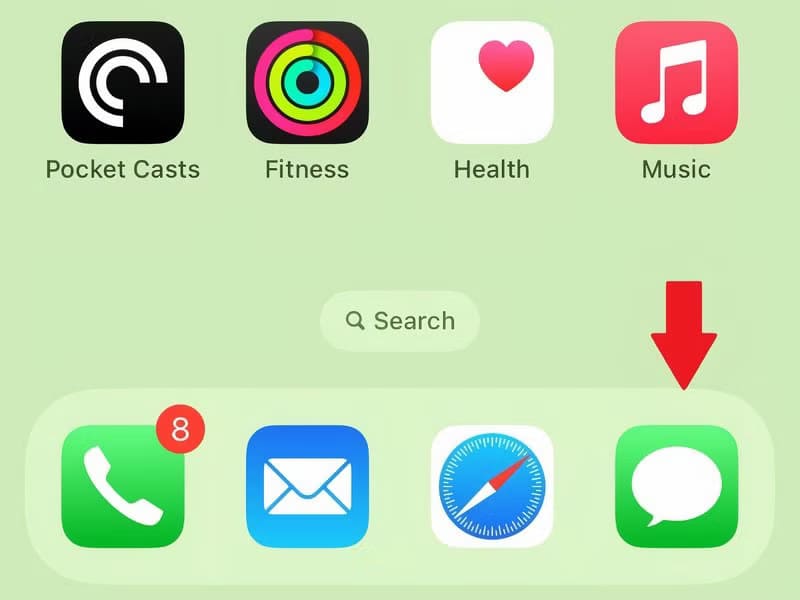
Next, tap the Voicemail tab at the bottom of your phone screen.
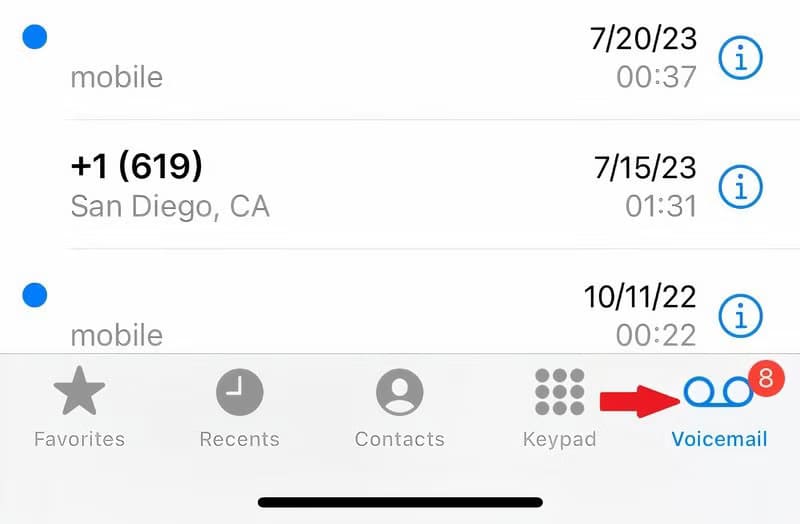
Locate Setting up nowTo create a voicemail password, choose whether you want to Default or custom greetingIf you choose Custom, you can record your own greeting simply by following the instructions.
Some carriers use the old-fashioned method of calling a number to set up voicemail. In this case, you'll see a sign. “Service Provider Voicemail” With the buttonPhone Call” (or similar). You will need to set this up by calling the number and creating your message.
And that's all there is to it!


Listen to voicemail messages
To access your voicemail and listen to your messages, go to the Voicemail tab in the Phone app. You'll see a list of messages you've received, as long as your carrier supports visual voicemail.
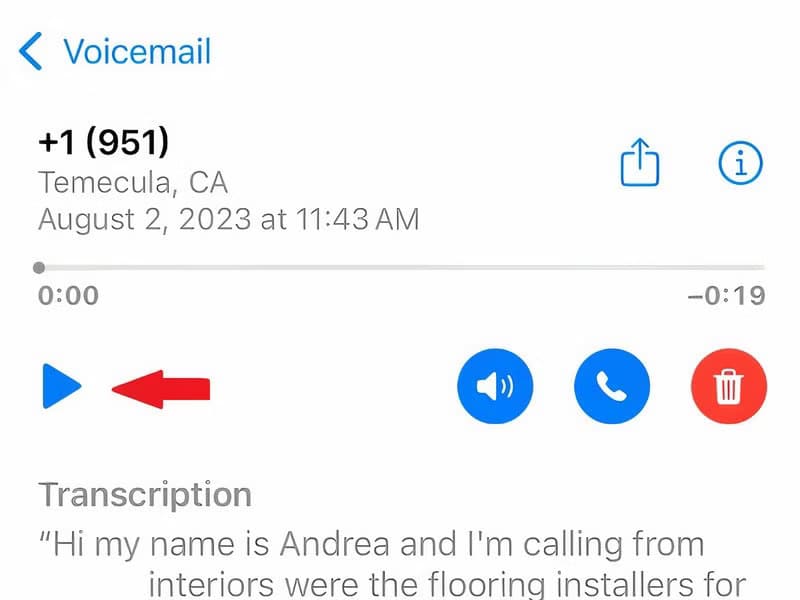
Select a message and click the play button to listen to it. If your wireless carrier also supports voicemail transcription, you'll also see the messages transcribed to text. This is useful for quickly viewing the message.
Note
Visit the Apple Support page to see which voicemail features are supported in your region and carrier.
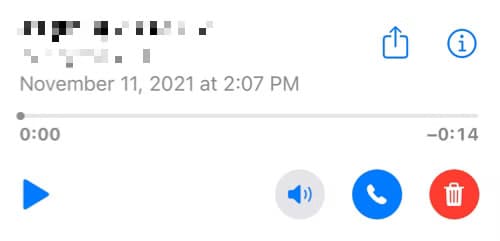
You'll find some other buttons for your voicemail message on the right side. Click the speaker icon to hear the message on speakerphone, the phone icon to redial the number, or the trash icon to delete the message. You can always retrieve deleted voicemail messages if you accidentally move them to the trash.
You'll also notice a Share button at the top right that you can use to send or share the message using the iPhone's Share Sheet options. Finally, there's an Information icon (a lowercase "i") for details about the call or caller.
Set up voicemail notifications
When you receive a new voicemail, you'll see a badge app icon in the Phone app by default. You can change this by going to Settings > Phone > Notifications. This icon displays all notifications from the Phone app, including missed calls and voicemails.
When you open the Phone app, you'll see a number in the Voicemail tab showing how many unheard messages you have. You can also set up an alert when you receive a new voicemail. Open Settings and select Sounds and touch.
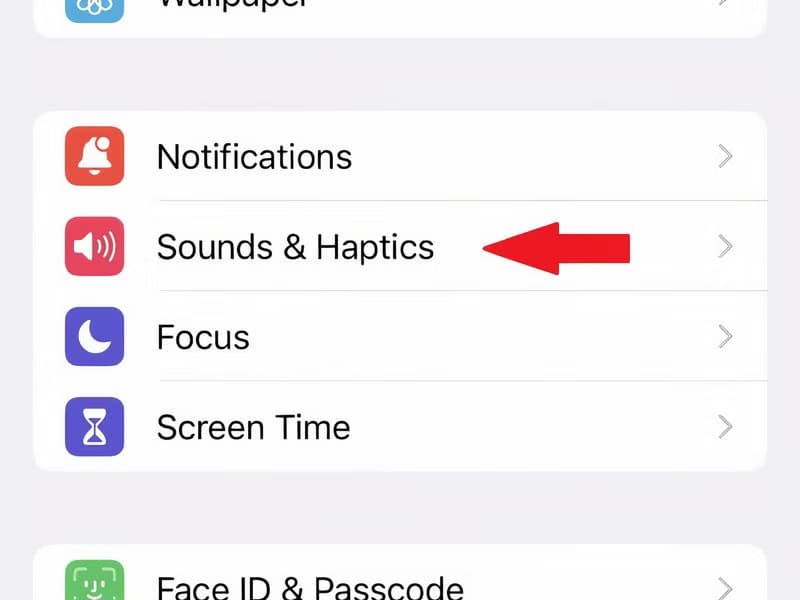
Choose "New voicemail Within sounds and vibration patterns.
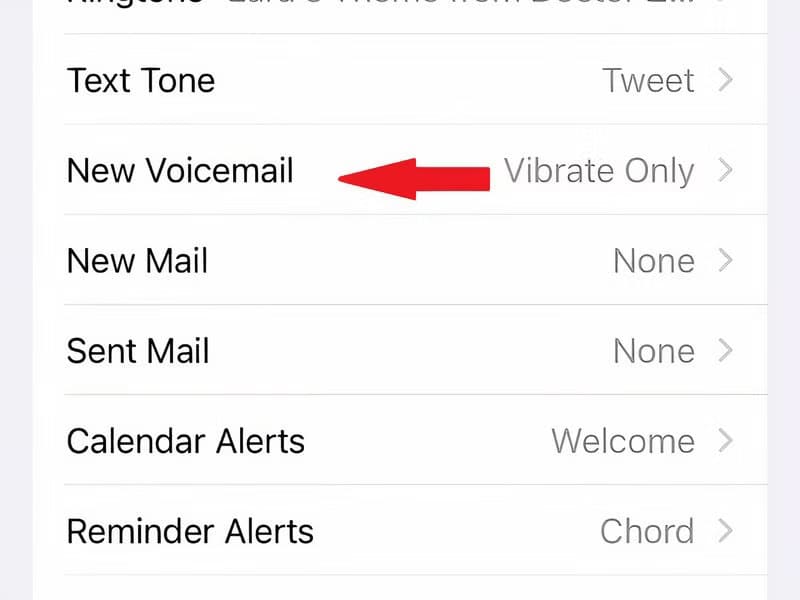
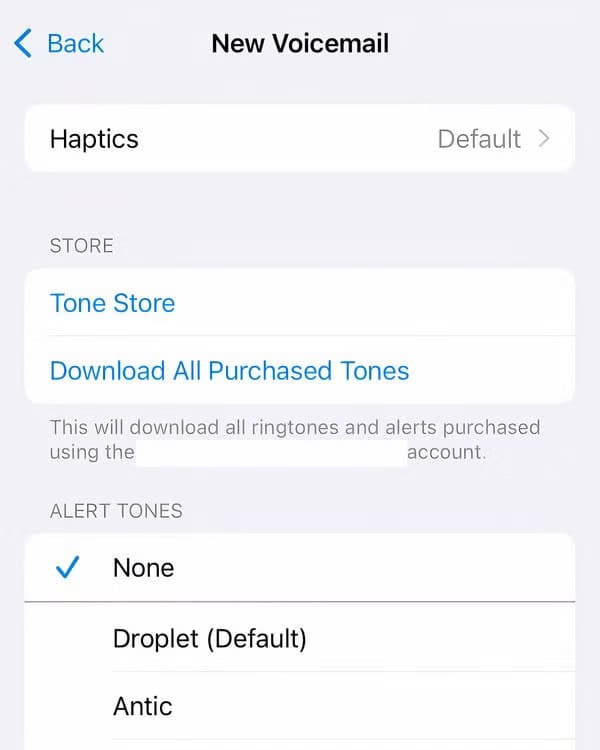
Click on "vibrationTap at the top to select a style and choose one of the alarm or ringtone tones at the bottom for the sound. Tap Back at the top left to save and exit.
Change your voicemail password
If you want to change the password you initially set for your voicemail, you can do so in the app. "Settings" Also. Select Applications at the bottom of the list.
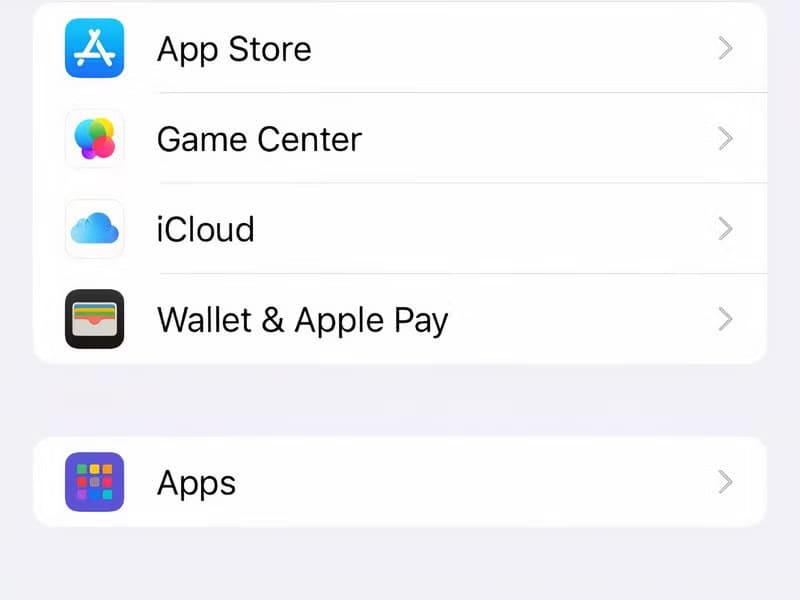
Next, select "Phone" And choose “Change your voicemail password.”
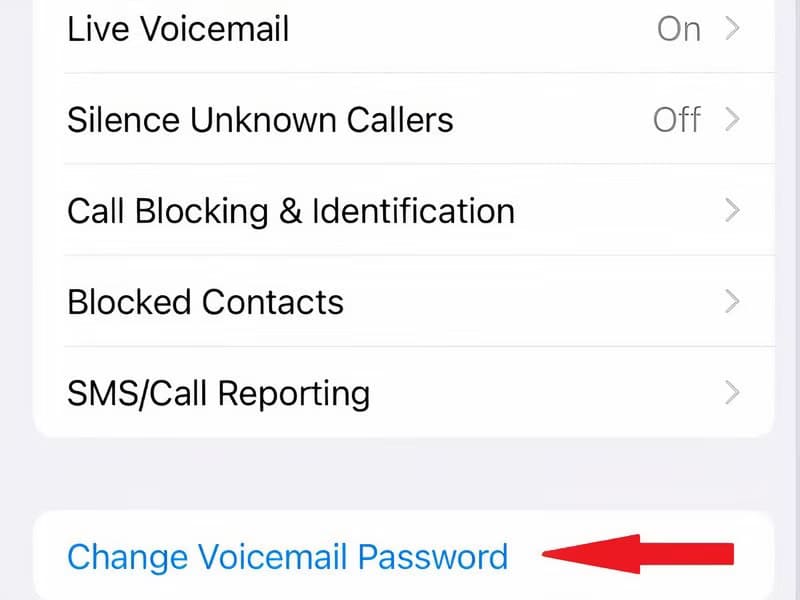
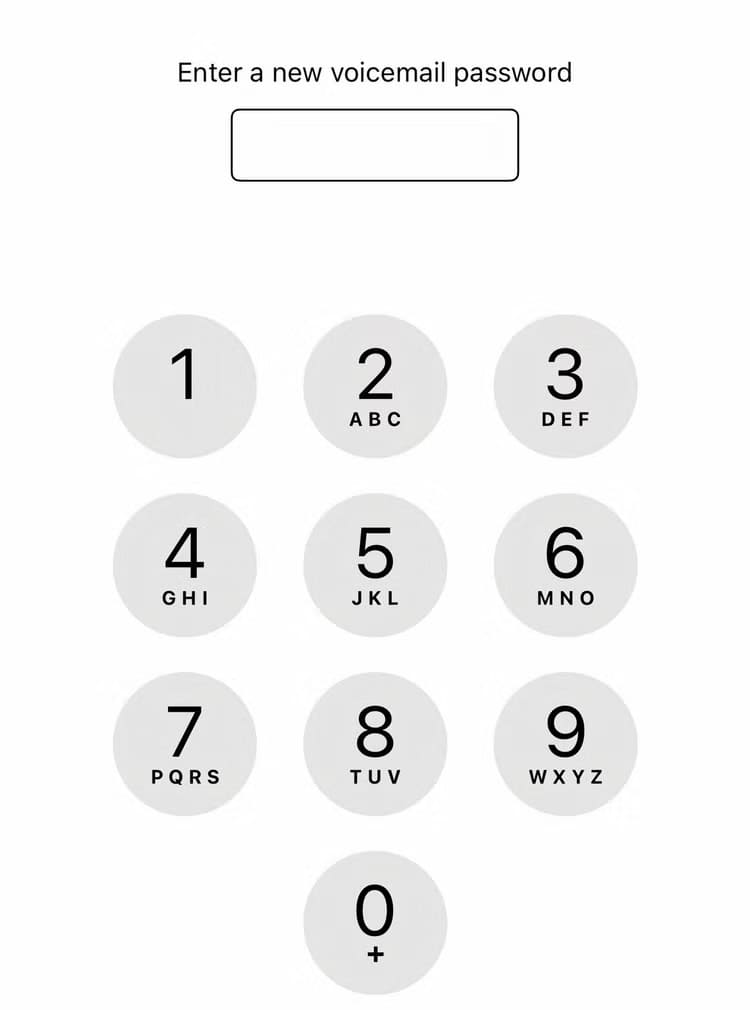
Enter your new password, then click “Done".
Note
If you have forgotten your current voicemail password, contact your wireless carrier.
Record a new voicemail greeting
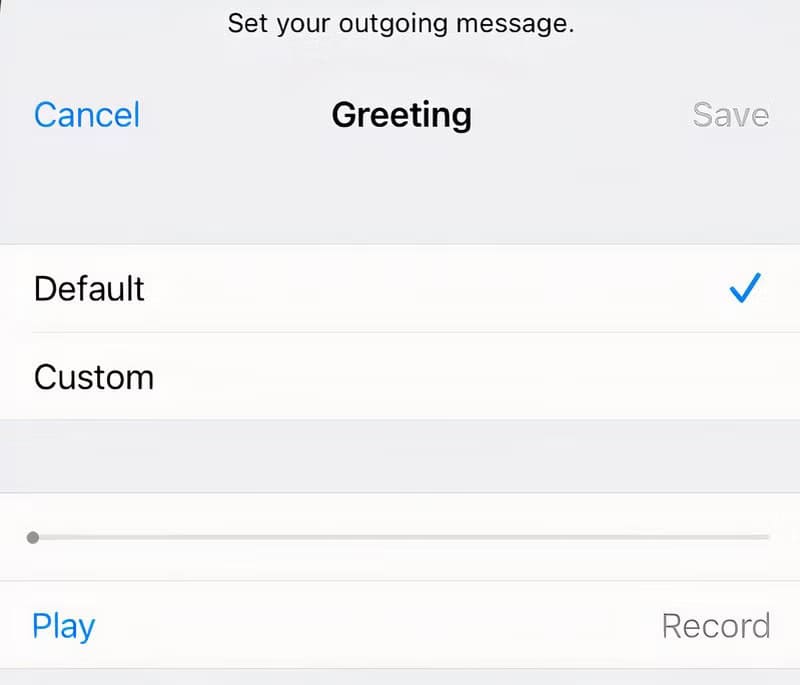
You may also want to change the greeting you recorded for your voicemail. Open the Phone app, select the Voicemail tab, and tap Greetings in the top right.
Click the play button to hear the current greeting. To record your own greeting, select "dedicated", And press "registration" To start, and "stop" To finish, then "save" To use greeting.
As you can see, setting up voicemail on your iPhone is easy and worth a few minutes of your time so callers can leave you a message when you're unavailable. When you receive messages, you'll want to save your voicemails on your iPhone. Learn how to save voicemails on your iPhone.
For additional help with calls on your iPhone, learn more about Silence Unknown Callers to reduce unwanted calls.