When you have corrupted system files or configuration files on your computer, you may encounter the 0x80004002 error. This error can cause difficulties in opening, copying, moving, or even deleting files/folders in Windows File Explorer. A few users have reported the same error on Windows 7, 8/8.1, XP, Vista, and 10 when they modify any of the desktop properties, files in File Manager, taskbar settings, and other system properties. There is not just one reason causing the issue; it can occur due to multiple reasons such as malware, adware, corrupted files, and much more. The cause varies from case to case, and fortunately, there are many troubleshooting methods that will help you fix the error code 0x80004002: No interface supported on Windows 10. Continue reading the article to learn simple and effective steps to resolve the issue.

How to Fix 0x80004002: No Supported Interface on Windows 10
So, if you are facing 0x80004002: No interface supports error Windows 10 Under various circumstances, here are some amazing troubleshooting methods to deal with the issue. Let's check them out and implement them on your computer to fix the issue. Follow the methods in the same order for best results.
Method 1: Restart Windows Explorer
You'll most likely encounter the above-mentioned issue when accessing any data in Windows Explorer. Therefore, it's worth giving the issue a chance to be fixed by restarting Windows Explorer as described below.
1. Turn on Task management By clicking on Ctrl + Shift + Esc keys At the same time.
2. In a window Task Management , Click Operations tab.
3. Now, right-click on Windows Explorer And click "Finish the job".
Note: You can also select the Restart option to execute the function directly.

4. Now, click on a file and select an option Run a new task.


5. Now, type Exploere.exe In the next box click on OK button.

Now, it will be Restart Windows Explorer , after deleting all corrupt files associated with it.
Method 2: Run the Windows Update Troubleshooter
If you're still unable to fix error 0x80004002: No supported interface on Windows 10, you can try running the Windows Update troubleshooter. The Windows Update troubleshooter will fix any hidden errors on your computer that may be causing the error. Follow the instructions and check if the issue is resolved.
1. Press Windows key + I At the same time to run Settings.
2. Click on the box Update and security , as shown.

3. Go to the menu Troubleshooting in the right pane.
4. Select Windows Update Troubleshooter And click Run the troubleshooter button described below.

5. Wait for the troubleshooter to detect and fix the issue. Once the process is complete, Restart your computer.
Method 3: Restart Windows Settings
This method will clear all stored settings on your Windows PC, and when you open it again, it will restart. This way, you can solve the problem as described below.
1. Press Windows key And type Command Prompt And click Run as administrator.

2. Now, type the following commands one by one and press Enter key.
reg delete "HKCUSoftwareClassesLocal SettingsSoftwareMicrosoftWindowsShell" /f
reg delete "HKCUSoftwareMicrosoftWindowsCurrentVersionExplorerStreams" /f
reg delete "HKCUSoftwareMicrosoftWindowsCurrentVersionExplorerStuckRects2" /f
reg delete "HKCUSoftwareMicrosoftWindowsCurrentVersionExplorerMenuOrder" /f
attrib -r -s -h "%userprofile%AppDataLocal*.db"
del "%userprofile%AppDataLocal*.db"

3. Then finish. Command Prompt وRestart your computer.
Method 4: Re-register the dynamic link library
Dynamic Link Library (DLL) It is a set of symbols that can be used by two or more programs simultaneously. A corrupted DLL file can lead to error code 0x80004002, so you can try re-registering the component using a command line. Here are some instructions for doing so.
Note: Be sure to Create a restore point If something goes wrong in the process.
1. Open Command Prompt as administrator.

2. Now, type Next command In the command window, click on Enter key.
regsvr32 c:\windows\system32\actxprxy.dll
3. Wait for the command to be executed andRestart your computer Once finished.
Check if you have fixed the problem.
Method 5: Create a new user profile
To fix error code 0x80004002, try creating a new local account with administrative privileges and moving all your files to it. Here's how to do it.
Deleting your user profile will remove all corrupted programs and files associated with your account. Here are some steps to delete and recreate your user profile on your computer.
1. Turn on Command Prompt as Administrator.
2. Then type the command Control userpasswords2 and press Enter key.

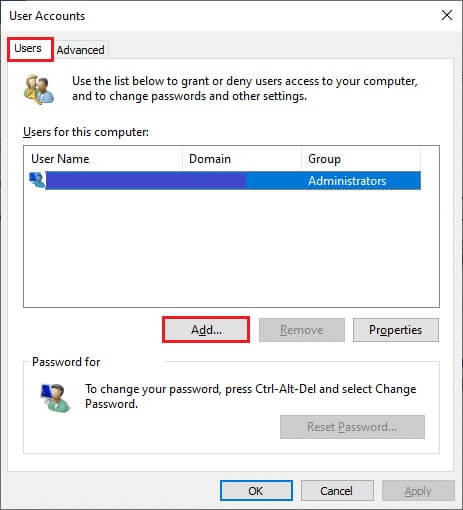
3. The User Accounts window will appear. Under the tab: "Users" , click the . button "addition…" To add an account.
4. Select an option Sign in without a Microsoft account (Not recommended) and click next one.

5. Then click on Local account button.

6. Enter your login credentials, which are your username and password. Retype Password In the Confirm password field, enter a password hint as well. Then click next one.

7. Follow On-screen instructions. Click "ending" To create a local account.
8. Now, set Administrator rights To calculate by selecting an option Properties.

9. Within Group Membership Tab , select an option responsible.
10. Click Apply > OK To save the changes made.

11. Now, go to your old user profile. C: > Users > OldAccount.
Note: Here, C: is the drive letter where Windows is installed, and OldAccount is your old user account.
12. Copy all files in the folder except the following:
- Ntuser.dat.log
- Ntuser.ini
- ntuser.dat
13. Now, go to your new user profile. C: > Users > NewAccount.
Note: Here, C: is the drive letter where Windows is installed, and NewAccount is your old user account.
14. Paste all Files in the new user account Your.
15. Next, run Control Panel From the search menu, as shown.

16. Set View by:> Large icons And click users accounts.

17. Next, tap Manage another account , as shown.

18. Select the old user account and click the option delete account , As shown below.

Now, log in with your new account and you will no longer encounter 0x80004002: This interface is not supported.
Method 6: Repair System Files
System File Checker (SFC) is a built-in command tool that can repair corrupted and missing files. It will replace all corrupted configuration files with good ones, making it easy to fix the Windows 10 not supporting this interface issue. Here are some simple steps to run the SFC and DISM commands.
1. Press Windows key , And type Command Prompt And click Run as administrator.
2. Click "Yeah" in the prompt User Account Control.
3. Type the command chkdsk C: /f /r /x And press Enter key.

4. If you are asked for a message, Chkdsk cannot be run... The volume... is in use. , then type Y And press Enter key.
5. Again, type the command: sfc / scannow And press Enter key to turn on System File Checker.

Note: The system scan will begin and take two minutes to complete. In the meantime, you can continue performing other activities, but be careful not to accidentally close the window.
After the scan is complete, any of these messages will appear:
- Windows Resource Protection did not find any integrity violations.
- Windows Resource Protection could not perform the requested operation.
- Windows Resource Protection found and successfully repaired corrupted files.
- Windows Resource Protection found corrupted files but was unable to repair some of them.
6. Once the scan is complete, restart your computer.
7. Again, run Command Prompt as Administrator Execute the specified commands one by one:
dism.exe /Online /cleanup-image /scanhealth
dism.exe /Online /cleanup-image /restorehealth
dism.exe /Online /cleanup-image /startcomponentcleanup
Note: You must have a working Internet connection to execute DISM commands correctly.

Method 7: Run a malware scan
Well, the primary way to fix the issue is to deal with the malware present on your computer. Some malicious data might be hidden in system files, causing the issue. In this case, scanning your computer with a robust security tool would be a great solution. You can either use a third-party tool to scan your device, but instead of relying on any unknown software, you can scan your computer with a built-in security suite as follows.
1. Press Windows key + I At the same time to run Settings.
2. Here, click Update and security settings As shown.

3. Go to Windows Security in the right pane.

4. Click Option Virus and threat protection in the right pane.

5. Click the button Quick Scan To scan for malware.

6A. Once the inspection is completed, you will be View all threats. Click Start the process Among the current threats.

6b. If there is no threat to your device, the device will display an alert. No current threats.

Method 8: Use CCleaner
If you're still encountering error 0x80004002 even on a new user profile, you can try CCleaner to remove the clutter causing the problem. While there are a variety of PC cleaners available on the market, many users have confirmed that using CCleaner resolves the issue. CCleaner is a powerful tool that will help you remove any malicious, incompatible files from your computer that are causing the issue. To use CCleaner, follow the steps below.
1. Download CCleaner of Official Website.
Note: If you already have CCleaner on your device, skip to step 4.

2. Then go to My Downloads Double click on Setup fileIn the next window, click on Install button.

3. Then click Run CCleaner The application will now run.

4. Now, in the left pane, click Health Check In the main window, click Start As shown below.

5. Now, click on the Privacy and Space links, and choose what you want to delete from the suggested list. Next, click on Make it better In the main window as shown.

6. Wait for it to complete. CCleaner His mission.
7. Now, on the right pane, click on Registration as shown.

8. Then click Scan for Issues As shown.

9. Then wait until the scanning process is complete.

10. Now, click on Review identified issues… As shown below.

11. In the next prompt, click "Yeah" To back up the registry.

12. Follow the on-screen instructions and click “Fix all identified issues” To clear all corrupt registry files.

Now, restart your computer and you will not encounter error 0x80004002 again.
Method 9: Update Windows
If error 0x80004002 is caused by any bugs on your computer, you can fix it by updating your operating system. Microsoft often releases updates to fix any complications and glitches that occur within the patches. Update your operating system as described below and see if you encounter the issue again.
1. Press Windows key + I At the same time to run Settings.
2. Click Update and Security Box , as shown.
3. in Windows Update tab , Click Check for updates button.

4 a. If available new update , Click INSTALL NOW And follow Instructions To update.

4b. Otherwise, if Windows up to date , you will see an updated message.

Method 10: Reset your computer
If you don't get any fix for Error 0x80004002: No interface supported on Windows 10 from any of the above methods, it's better to proceed with clean booting your computer.
Note: Proceeding with this method will delete your files. It is recommended that you create a backup before proceeding with this method.
1. Press Windows key , And type Reset this PC , and click Open.

2. Click START YOUR in window Settings.

3. You will be asked to choose between two options: Keep my files and remove everythingChoose. remove everything.

4. On the next screen, choose how you will reinstall Windows from two options: Cloud Download and Local Reinstall.
- Cloud Download: Windows will download the latest version to install after the reset. This requires an active internet connection.
- Local reinstall: Uses already downloaded Windows installation files.

5. Review your settings and click "the following" to start the process.
6. During this process, your computer may restart several times. Let Windows reset and reconfigure it once it's ready.
However, if you do not get any fix for the issue, then perform system recoveryIf your device isn't experiencing any issues, restoring your computer will fix the problem. Make sure you create a system restore point, and if your computer crashes or any errors occur, perform a system restore.
We hope this guide was helpful and you were able to fix error 0x80004002: No interface supported on Windows 10. Drop your suggestions and comments regarding this article in the comments section below and let us know which method worked best for you.