من المحتمل أن يحتوي جدول بيانات Google Sheets على مجموعة متنوعة من الصيغ، بدءًا من الرياضيات الأساسية وحتى الوظائف المعقدة مثل SUMIF وCOUNTIF. يمكن أن تساعدك هذه الصيغ في إجراء العمليات الحسابية وتحليل البيانات والحصول على معلومات قيمة حول معلوماتك. ومع ذلك، فإن صيغ Google Sheets هذه تكون عديمة الفائدة إذا توقفت عن العمل أو تحديث جدول البيانات الخاص بك. فيما يلي أفضل 7 إصلاحات لعدم عمل الصيغ في Google Sheets.
يمكن أن تحدث مثل هذه المشكلات لأسباب مختلفة، بما في ذلك الأخطاء المطبعية البسيطة وإعدادات الحساب التي تم تكوينها بشكل خاطئ وجداول البيانات التالفة. أدناه، سنوجهك عبر جميع الحلول الممكنة لحل المشكلة الأساسية.
1. تحقق مرة أخرى من الصيغة الخاصة بك
ربما تكون قد قمت بذلك بالفعل، ولكن من الجيد التحقق مرة أخرى من الصيغ الخاصة بك. يعد ذلك ضروريًا إذا لم تكن Google Sheets تحسب الصيغ في عدد قليل من الخلايا فقط. تحقق من وجود أخطاء إملائية في الصيغة، أو أسماء نطاقات خلايا غير صحيحة، أو قيم غير صالحة، وقم بتصحيحها إذا لزم الأمر.
إذا لاحظت خطأ في تحليل الصيغة في Google Sheets، مثل #N/A، و#REF!، و#VALUE!، وغيرها، فاتخذ الخطوات اللازمة لإصلاحها.
2. تحديث جدول البيانات الخاص بك
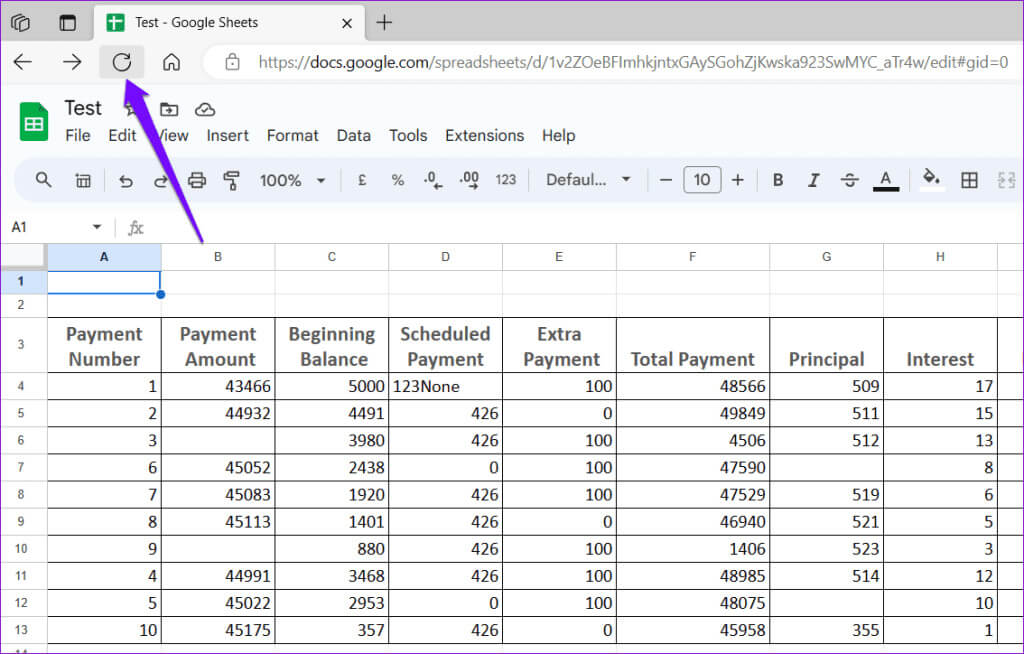
في بعض الأحيان، قد يفشل تحميل Google Sheets بشكل صحيح في متصفحك، مما يمنعه من عرض نتائج الصيغة أو تحديثها. يمكنك حل مثل هذه المشكلات عن طريق تحديث صفحة Google Sheets.
انقر فوق أيقونة التحديث في الجزء العلوي لتحديث جدول البيانات الخاص بك ومعرفة ما إذا كان ذلك يجعل الصيغ تعمل كما هو متوقع.
3. تعديل إعدادات حساب جداول البيانات
سبب آخر لعدم عمل صيغ Google Sheets أو تحديثها هو إعدادات الحساب غير الصحيحة. وإليك كيف يمكنك إصلاحها.
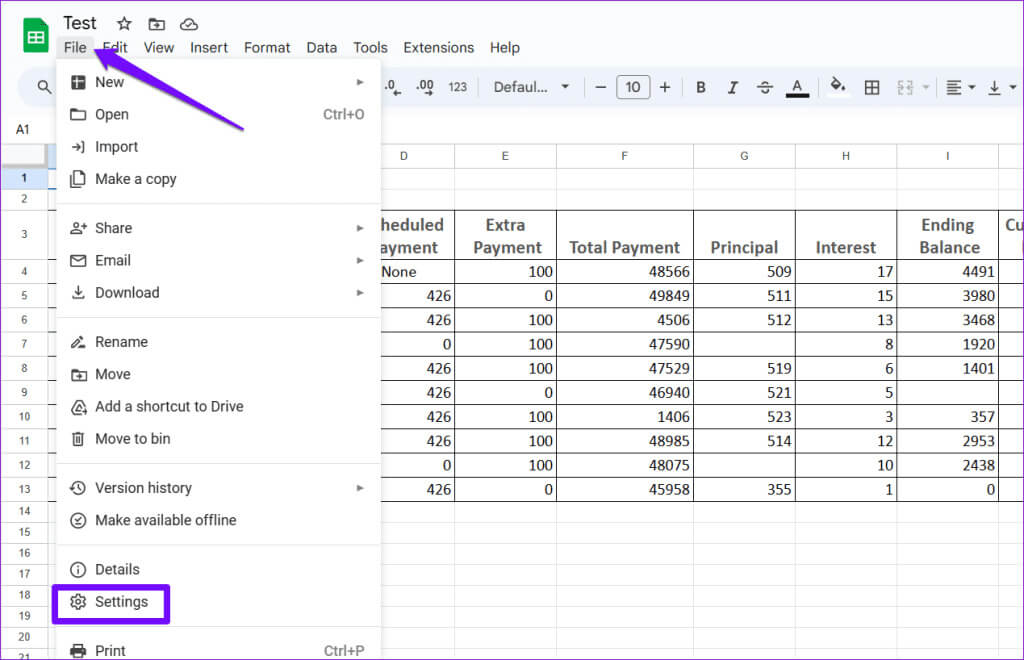
الخطوة 1: افتح جدول بيانات Google Sheets. انقر فوق القائمة “ملف” في الجزء العلوي وحدد “الإعدادات” من القائمة.


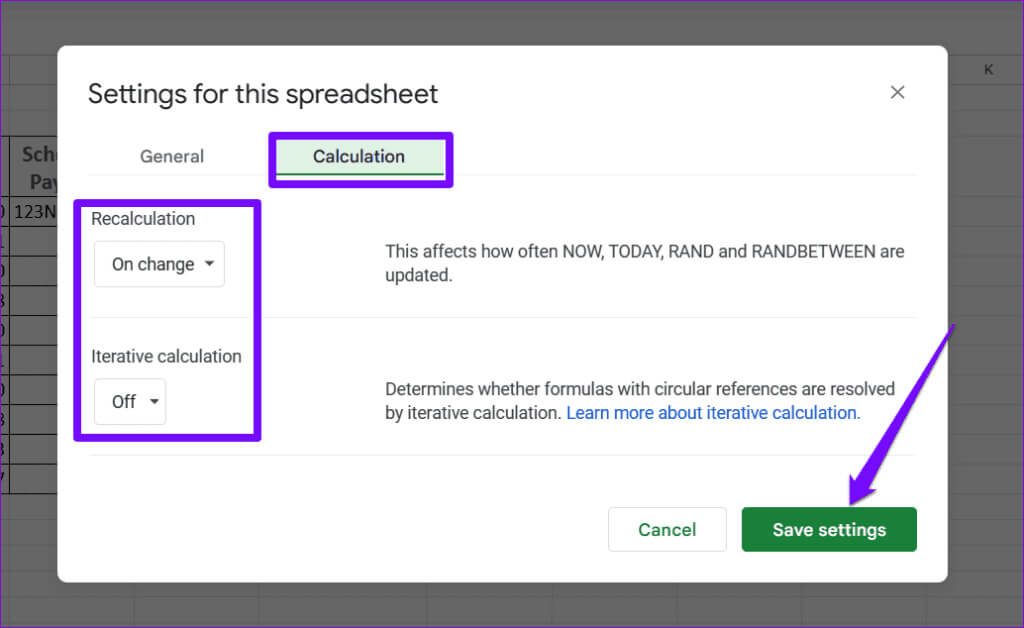
الخطوة 2: قم بالتبديل إلى علامة التبويب “الحساب” واستخدم القائمة المنسدلة ضمن “إعادة الحساب” لتحديد “عند التغيير”. ثم استخدم القائمة المنسدلة ضمن حساب التكرار لتحديد إيقاف وانقر فوق زر حفظ الإعدادات.
قم بتحديث جدول البيانات الخاص بك بعد تحديث إعدادات الحساب وتحقق من استمرار المشكلة.
4. تحقق من الخلايا التي تشير إليها الصيغة
قد تتوقف صيغ Google Sheets عن العمل إذا كانت هناك مشكلات تتعلق بمراجع الخلايا في صيغتك. يمكن أن يحدث هذا إذا كانت الخلايا التي تشير إليها الصيغة غير صالحة أو منقولة أو محذوفة.
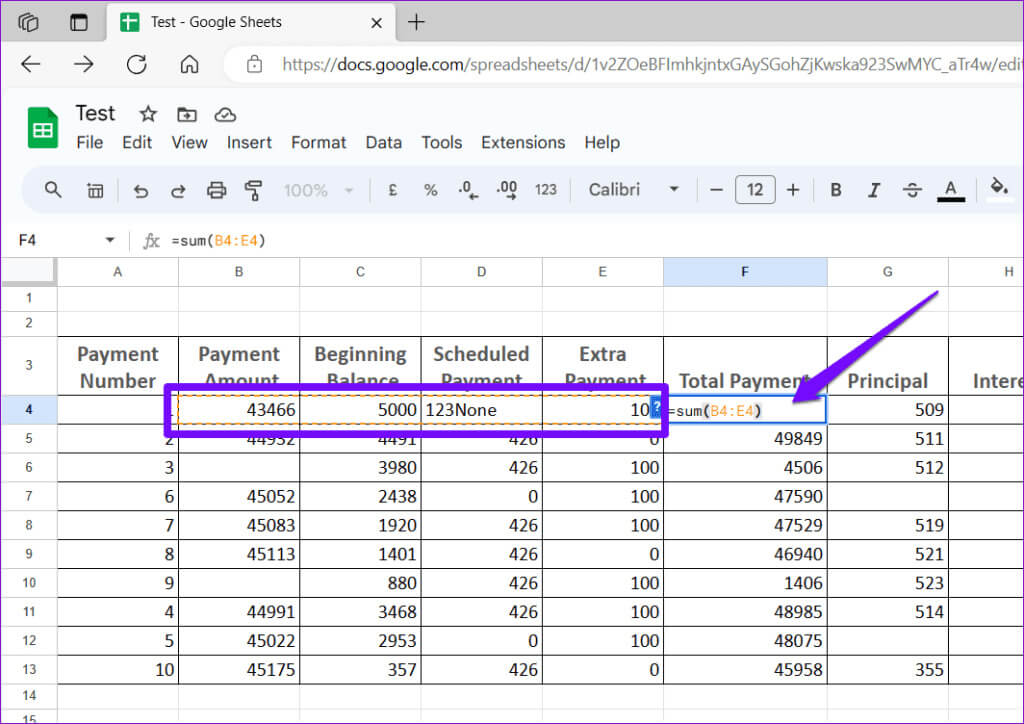
افتح جدول بيانات Google Sheets وحدد صيغة الخلية التي لا تعمل أو لا يتم تحديثها. ستسلط Google Sheets الضوء على جميع سوابق الصيغة. فحص تلك الخلايا وتصحيحها إذا لزم الأمر. كرر هذا لجميع الصيغ التي لا تعمل.
5. تعطيل خيار إظهار الصيغ
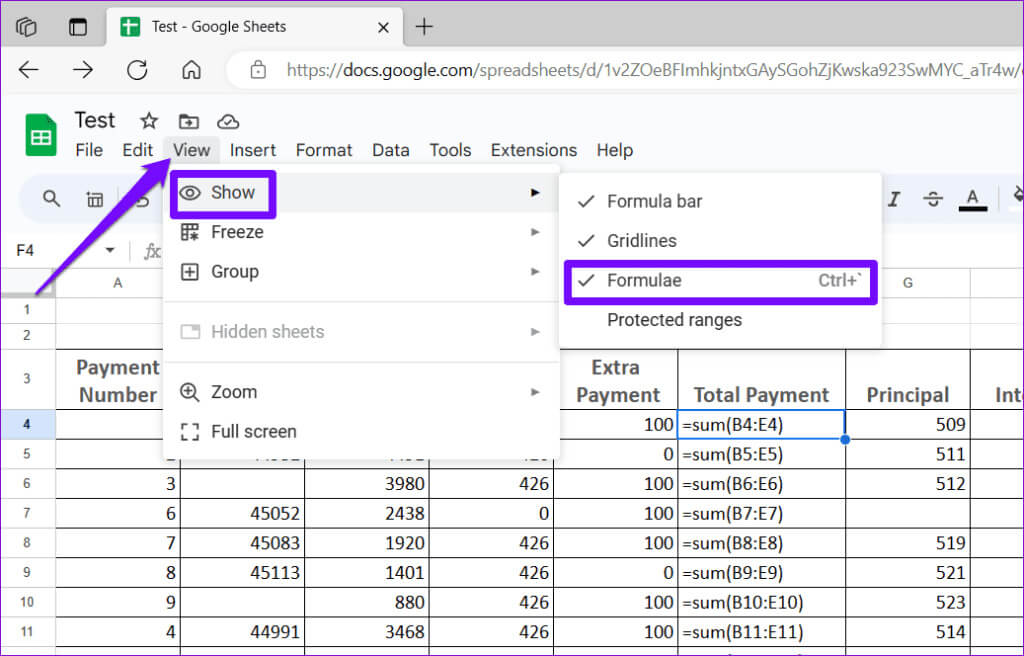
هل تظهر صيغ Google Sheets كنص؟ إذا كان الأمر كذلك، فمن المحتمل أنك قمت عن طريق الخطأ بتمكين خيار إظهار الصيغ في Google Sheets، إما من خلال قائمة العرض أو اختصار لوحة المفاتيح. إليك كيفية إيقاف تشغيله حتى تتمكن من عرض نتائج الصيغة.
الخطوة 1: افتح جدول بيانات Google Sheets.
الخطوة 2: انقر فوق القائمة “عرض” في الجزء العلوي، وانتقل إلى “إظهار”، وحدد “الصيغ” من القائمة الفرعية. وبدلاً من ذلك، يمكنك أيضًا الضغط على اختصار لوحة المفاتيح Ctrl + ` لإظهار الصيغ أو إخفائها بسرعة.
6. استعادة إصدار سابق أو نسخ بيانات جدول البيانات إلى ملف جديد
إذا كانت صيغ Google Sheets لا تزال لا تعمل أو لا يتم تحديثها، فقد يكون جدول البيانات تالفًا. في هذه الحالة، أفضل خيار لديك هو استعادة نسخة سابقة من جدول البيانات. وإليك كيفية القيام بذلك.
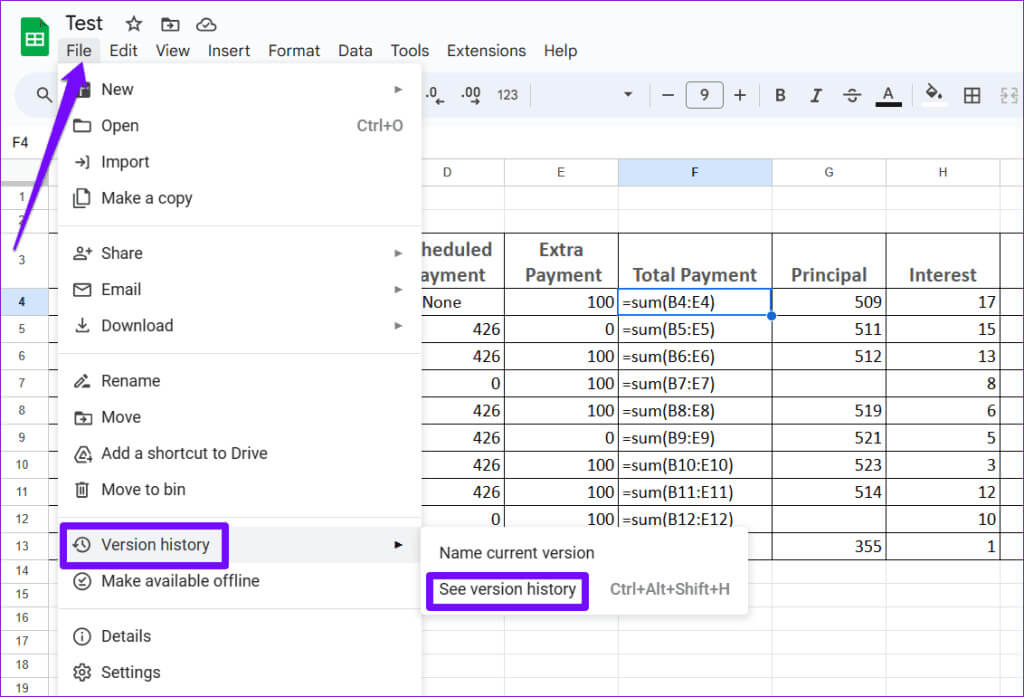
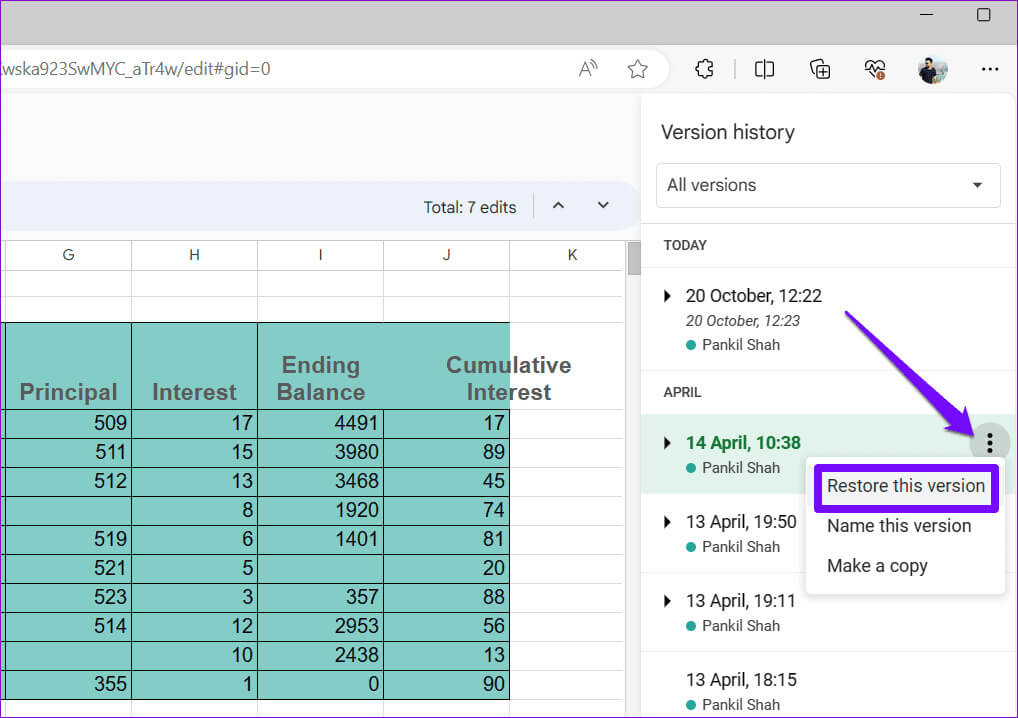
الخطوة 1: افتح جدول بيانات Google Sheets. انقر فوق القائمة “ملف” في الجزء العلوي، وانتقل إلى “سجل الإصدارات”، وحدد “عرض سجل الإصدارات” من القائمة الفرعية.
الخطوة 2: في لوحة سجل الإصدارات الموجودة على يمينك، قم بتمرير مؤشر الماوس فوق الإصدار الذي تريد استعادته. انقر على أيقونة القائمة ثلاثية النقاط وحدد استعادة هذا الإصدار.
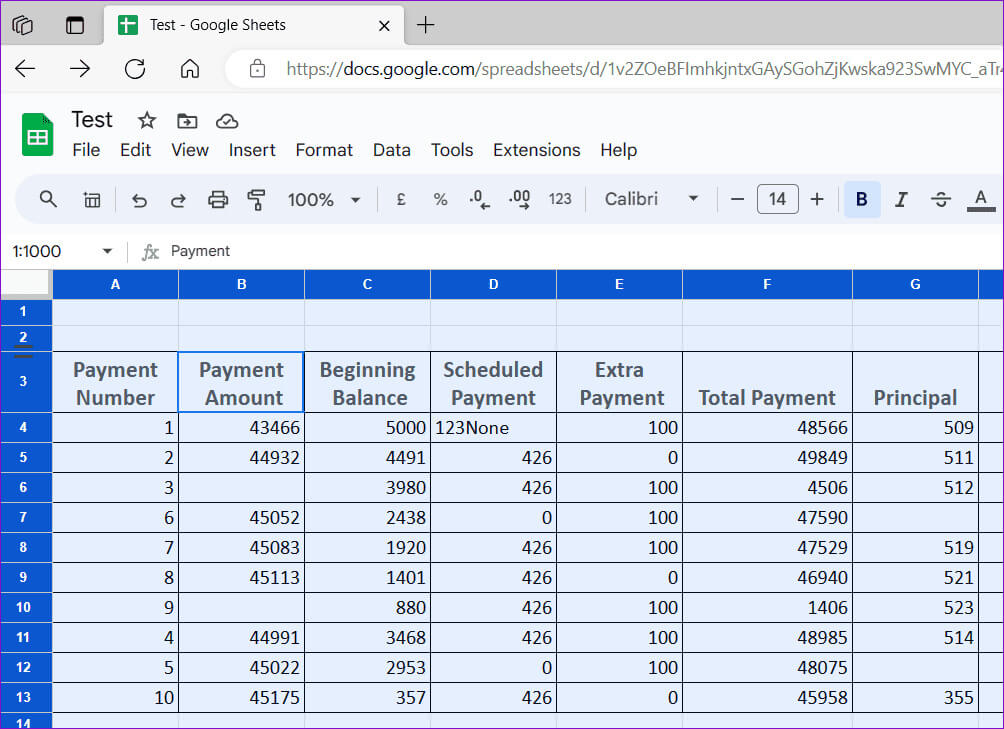
إذا لم تكن هناك أي إصدارات قديمة متاحة لجداول البيانات، فيمكنك محاولة نسخ بيانات جدول البيانات إلى ملف جديد لمعرفة ما إذا كان ذلك سيؤدي إلى حل المشكلة. فيما يلي الخطوات لنفسه.
الخطوة 1: افتح جدول البيانات الخاص بك. اضغط على اختصار لوحة المفاتيح Ctrl + A متبوعًا باختصار لوحة المفاتيح Ctrl + C لنسخ كل شيء.
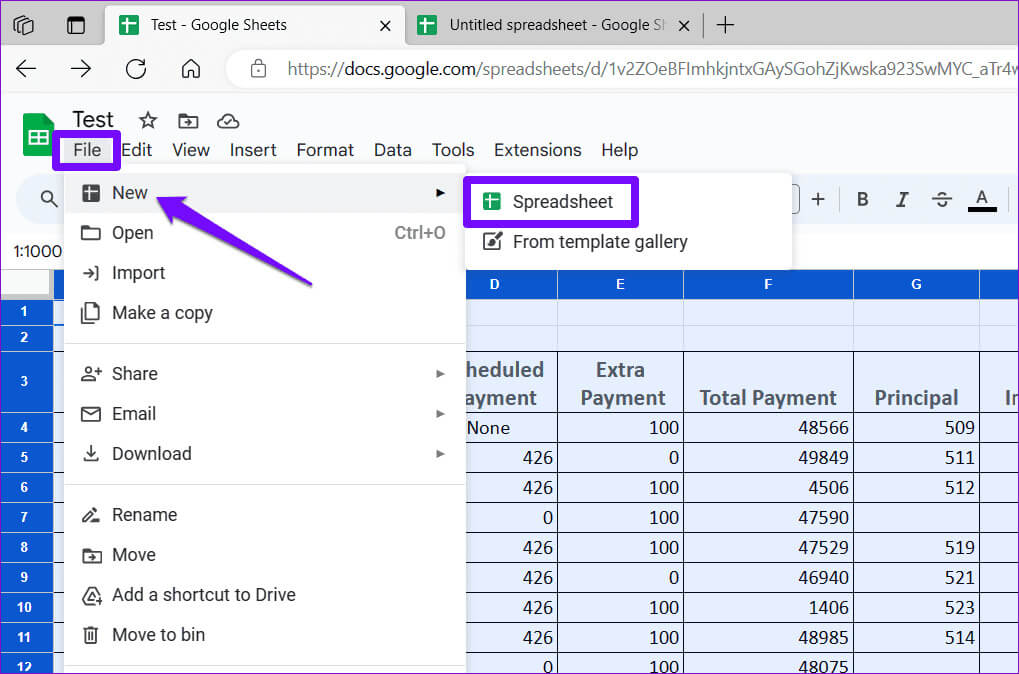
الخطوة 2: انقر فوق القائمة “ملف” في الجزء العلوي، وانتقل إلى “جديد”، وحدد “جدول البيانات”.
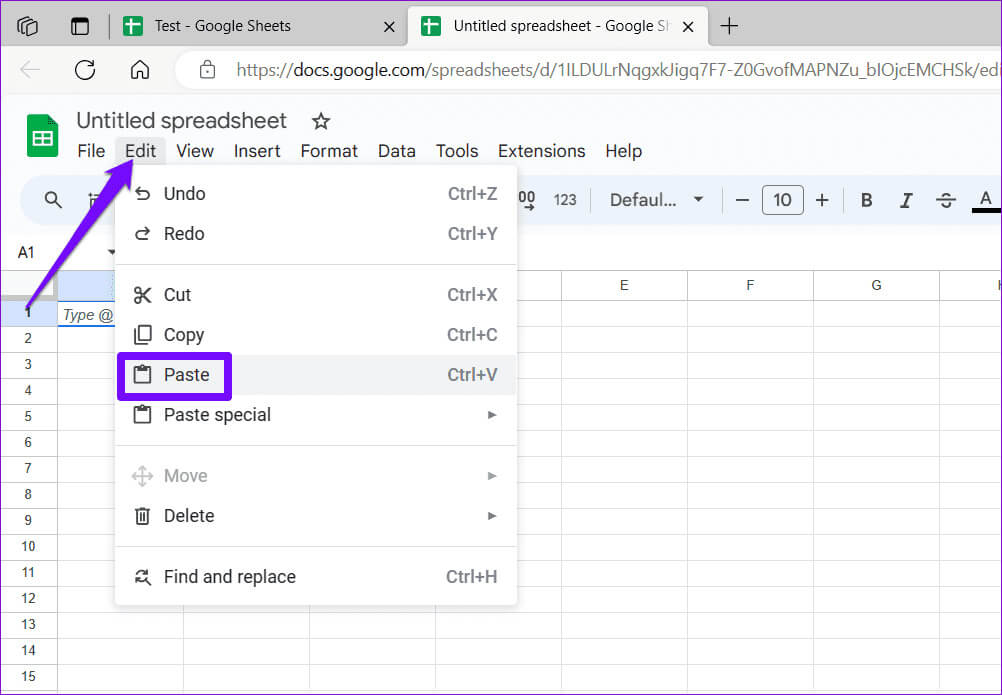
خطوة 3: في جدول البيانات الجديد، انقر فوق قائمة “تحرير” وحدد “لصق”.
بعد نقل بياناتك إلى جدول بيانات جديد، تحقق مما إذا كانت الصيغ الخاصة بك تعمل كما هو متوقع.
إصلاح الصيغ ببراعة
عندما تتوقف الصيغ عن العمل أو التحديث، يمكن أن يؤدي ذلك إلى تقليل فائدة جداول البيانات بشكل كبير. قبل أن تفكر في التبديل إلى Microsoft Excel، جرب الحلول المذكورة أعلاه لإصلاح عدم عمل الصيغ في Google Sheets، وأخبرنا بما يناسبك في التعليقات أدناه.