Janna Theme License is not validated, go to the theme options page to validate the license, you need a single license for each domain name.
7 Ways to Fix Windows Update Stuck
Microsoft has made several improvements to the way Windows updates are handled by users. They are now much faster than before and are widely optimized for running on devices with weaker RAM and CPUs. Whether you're using Windows 11 or 10, upgrading to a new version won't take much time or effort. But sometimes updates get stuck on the screen. Let's discuss the causes and what you can do to fix Windows Update stuck.
The most common cause of Windows update crashes is conflicting non-Microsoft applications on your device. They may have hidden issues that remain undetected until the next Windows update or computer reboot. Such programs are most likely flagged by SmartScreen or Windows Defender. When you ignore the warning and install them anyway, their unresolved issues can resurface, causing your screen to freeze or freeze.
There are many other reasons why Windows Update may be stuck:
Malware issues: A virus, Trojan, spyware, or keylogger can embed itself deeply into the operating system, preventing security updates.
Internet outages: Many Windows applications, system files, and features have internet dependencies. If you have an unreliable Wi-Fi network, it's best to postpone any updates until you have adequate speeds.
Memory problems: Some apps and games can have a very high memory footprint. If not Measure your device's RAM It's time for an upgrade.
How to fix Windows Update stuck
Many users give up when an update takes too long. While a hard shutdown using the power button may seem like the best option, there are other, better ways to fix a stuck Windows update.
1. Wait for the update to fix, even if it seems like it will take forever.
Stuck on a screen that looks like this? It may be tempting to shut down your computer and start over, but you shouldn't. When an update is running too soon, there's a risk that critical system files and drivers could be corrupted. However, the problem is easy to fix.
No one can see what's happening behind the update screen after it turns black or blue. If the Windows update percentage isn't moving, simply keep your laptop powered on and connected to the internet. Wait for these background update issues to resolve.
Take a break and check your device after a few hours. This may be the only solution you need.
Restarting your Windows computer in Advanced Startup mode by pressing the Boot keys during boot/restart is a proven method for dealing with update issues. Different Windows computers have different boot keys, based on the manufacturer's specifications. You can search for them online. Use this method if the update is stuck at 0%. Return to the desktop and identify the source of the problem.
Read this Useful list of boot keys For many popular laptops, including Acer, Asus, Dell, HP, Lenovo, Samsung, Sony, and Toshiba.
If you are able to log in to the Windows desktop screen, it is easier to use the Advanced Startup menu in System -> Recovery -> Recovery Options. Click "Restart now" To display the same screen you get using the power keys.
Once your Windows computer boots into Advanced Startup mode, it no longer relies on many drivers and services. This creates a better troubleshooting environment for resolving any system issues, such as update problems. Click the button "Continue" To exit advanced startup mode and continue logging in regularly.
Note that some laptop brands such as Dell have separate diagnostic environments that can be accessed from the boot keys.
3. Use troubleshooting options in Advanced Startup mode
Advanced Windows Startup Mode contains several troubleshooting options that can fix any problems with your computer. Follow any of the methods below to resolve a stuck update issue.
Click Troubleshooting Instead of exiting to restart your device.
Click "Advanced Options".
Show all Advanced Options Which can be applied to troubleshooting Windows update errors. Let's look at them one by one.
Once you press the Startup Repair button, your computer will run a diagnostic process to identify any startup issues. It will attempt to fix them on the same screen and then restart your computer.
If no startup problems are found, the Windows Troubleshooter will display the message: “Startup Repair couldn’t repair your computer.” Select “Advanced options” again to try other solutions.
Uninstall feature updates
As discussed earlier, most update issues are due to incompatible applications and Windows features. Therefore, if you recently installed a Windows feature and your system starts behaving erratically, it's time to uninstall any recent updates from the Advanced Startup screen.
When you choose this solution, you'll have two options: uninstall the latest quality update or the latest feature update. Choose the second option to uninstall the feature update, as it contains the full details.
Uninstalling the latest feature update will remove any recent Windows updates that caused problems for you. You can reinstall them once you sign in again.
system recovery
Following the uninstallation of feature updates, you can also undergo To restore order In Advanced Startup Mode, you'll need to select a restore point. Windows will revert your device to a previous version where the problematic app or feature wasn't available.
DISM at the command prompt
If you select the Command Prompt option in the troubleshooting, a few simple commands, such as DISM, will help you clean up files and restore your system to proper updates. Let CMD do its work, and once it's done, you can restart the Windows update process with this command:
Dism.exe / Online / Cleanup Image / RestoreHealth
Cloud Reset Your Windows PC in Safe Mode
If all these methods fail, and you are still having update issues, reset your Windows device by clicking on “Reset this computer” In the troubleshooting options on the home screen.
Locate "Keep my files" To keep all your data stored on the system drives. However, performing a reset will remove all installed applications, so it's a good idea to store a backup copy on your hard drive.
Among the reset options, Cloud download One of the best ways to ensure a clean installation of Windows on your device. It will also download and install the latest version of Windows.
4. Use the Windows Memory Diagnostic Tool
Many update problems are due to memory issues on your computer. Fortunately, Windows provides a solution. A useful application for memory diagnosis To quickly find any memory issues on your Windows machine, always run it in administrator mode.
Memory Diagnostic performs a detailed scan of your computer and detects any hidden memory issues. A report will be available after you log in again, so you can take corrective action.
5. Run the Windows Update Troubleshooter
The Windows Update Troubleshooter is one of the best system diagnostic tools for fixing any update-related issues. Before running a major update, you should always run the troubleshooter once so that any problems can be identified and fixed early. The utility is available from Settings -> System -> Troubleshooting -> Other troubleshooters. Click "employment" To start the application.
The Windows Update Troubleshooter will take a few seconds to detect problems on your device.
Once the issues are identified, the troubleshooter will list them under “Problems found.” Click “View detailed information” For further action.
The Troubleshooting Report provides a useful summary of Windows update problems and how they were successfully resolved.
6. Stop and restart Windows Update services.
Stopping and restarting Windows services is an effective way to deal with any update conflicts in Windows. There are two ways to do this: In the first method, start PowerShell in administrator mode and enter the following commands to stop and restart the service.
net stop wuauerv
net start wuauserv
Aside from PowerShell, you can also stop and restart the Windows Update service in the Services app. This stops existing update services, removes outdated files, and restarts the update service.
Tip: Don't you know? Windows version Which one do you use and need to find out? We can show you how.
7. Optimize Windows Update settings
Windows has a settings menu called "Windows Update Settings." You can customize its various settings to ensure that any pending update issues are resolved immediately. It can be launched from the search menu.
Pause/Stop Windows Update Services
For a few weeks at a time, you can pause all new updates from the Windows Update options menu. In fact, it's a good idea to avoid installing the latest Windows update until Microsoft resolves all bugs. Continue pausing any potentially problematic updates until a cumulative update is widely released.
Disable receiving updates for other Microsoft products
Go to "Advanced Options" From the Windows Update settings page, disable all settings. The most important of these options is the Receive updates for other Microsoft productsMany Microsoft products—such as Word, OneDrive, Teams, and Skype—have their own parallel updates. You don't want to interfere with regular Windows updates, as this will take a long time and can cause errors, leading to screen freezes.
Keep absolute bandwidth setting in Delivery Optimization
Go to Additional options At the bottom, choose “Improving delivery.” This list will help you set the correct bandwidth so that there are no problems when downloading and installing updates.
Just choose absolute bandwidth So that Windows update can be installed even with slow internet speeds.
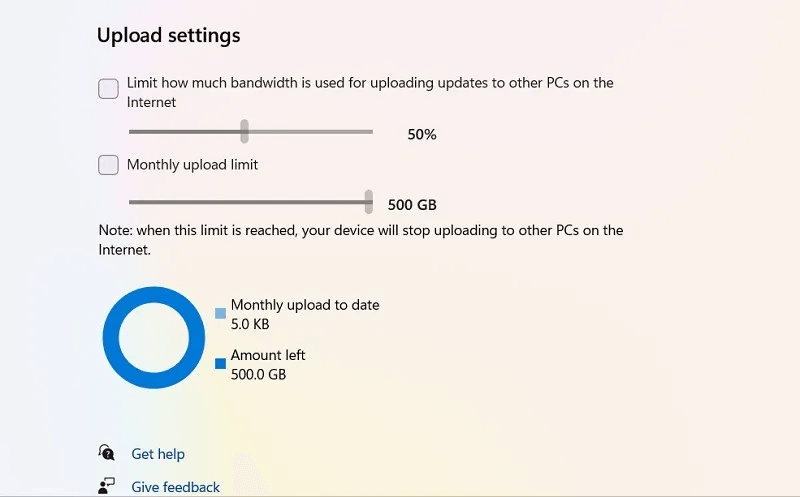
Keep all upload settings unchecked so there are no bandwidth limits.
Frequently Asked Questions
Q1: How do I prevent Windows Update from stopping? The answer: There are several things you can do to prevent Windows Update from stopping:
Upgrade to SSD: If you use an SSD instead of a regular hard drive, the update process will be at least six times faster.
Uninstall problematic apps: If an app is consuming a lot of RAM and causing your system to bloat, it's best to uninstall the app, as it may cause update issues in the long run.
Use Disk Cleanup: Regularly clean your disk and system files using the Disk Cleanup utility.
Run Windows Defender: Windows Defender can prevent malware, rootkits, and spyware from installing on your operating system.
Q2: Why is my Windows Update stuck at 100%?
The answer: If your Windows device is stuck at 100%, the installation is complete, but something is interfering and preventing the process from completing. Restart your device, and once you're at the sign-in screen, check your Windows Update history to verify that the update has finished.