enjoy One UI Android interface Samsung's apps are extremely popular among users due to the customization options they offer. One of these is the ability to hide irrelevant apps from the home screen and app drawer. You can hide apps using Secure Folder and Android launchers. Here are the top three ways to hide apps on Samsung Galaxy phones.

This practice can be useful when you want to hide work apps at home. You don't want to be disturbed by irrelevant notifications when playing with your young children. Similarly, you can hide entertainment apps during your office hours.
1. Use single UI settings
Unlike the Pixel launcher, One UI has a default option to hide apps. Here's how to use it to hide apps on your Samsung Galaxy phone.
Step 1: Open the Settings app on your Samsung phone.
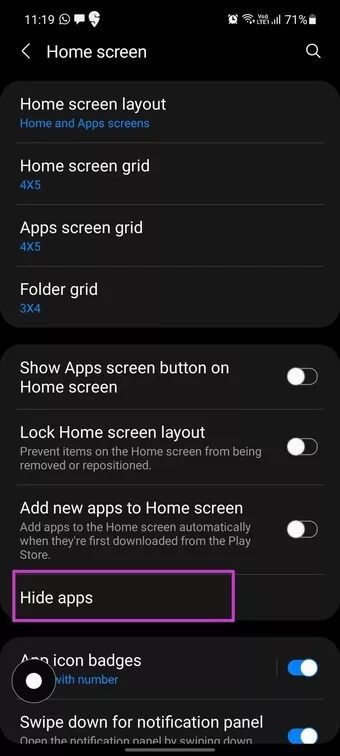
Step 2: Scroll down to the Home screen.
Step 3: Tap on it and open Hide Apps from the following menu.


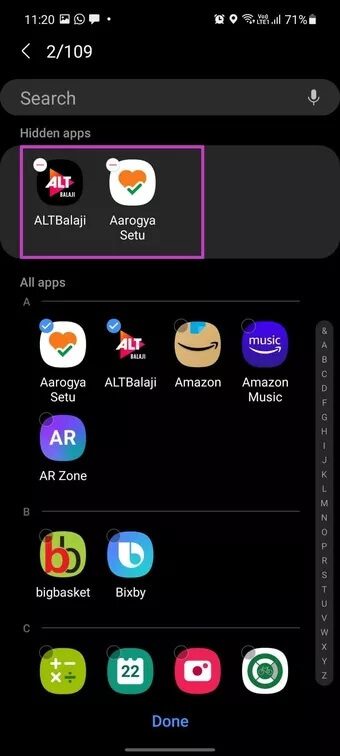
Step 4: You can search for the app using the search menu at the top or use alphabetical order to navigate to the app.
Step 5: When you select apps, you'll see them at the top.
Step 6: Click Done.


If these steps are too much for you, you can long press on the home screen and go to Settings to go directly to the home screen settings.
Show apps from One UI
This time, we'll use the long-press trick to access the home screen settings.
Step 1: Long press on the home screen and go to Settings.

Step 2: From the Hide Apps menu, tap the – icon and remove the apps from the hidden apps list.
Click “Done,” and you will see the apps appear on your home screen/app drawer.


2. Use SAMSUNG Secure Folder
As the name suggests, the Secure Folder on Samsung Galaxy phones provides a secure environment for storing sensitive information. You can read about Secure Folder in detail From our dedicated post.
You can move apps from your Galaxy phone to the Secure Folder, protected by Samsung Knox security. Here's how to enable and use the Secure Folder to hide apps on Galaxy phones.
By default, Samsung hides Secure Folder from the app drawer. Let's first enable it from the notification menu.
Step 1: Use the swipe down gesture from the Home screen and open the Notification Center.
Step 2: Find Secure Folder from the list and enable it.

Step 3: You will find the shortcut to the secure folder.
Step 4: Open Secure Folder and tap the + icon at the top.

Step 5: You can download apps from the Google Play Store, Galaxy App Store, or select apps from your phone.
Step 6: Select the apps you want to hide and tap Add at the bottom.

You'll see the added apps on the Secure Folder home screen. You can go back to the notification area and disable Secure Folder from the home screen.
The next time you want to access the app, enable Secure Folder from the notification area, access it with authentication, and use hidden apps.
3. Use third-party launchers
If you're not a fan of the default One UI on your Samsung Galaxy phone, you can always opt for third-party launchers to change the look and feel of your phone.
One such launcher is Nova Launcher, which recently received a massive overhaul. You can install it on your Galaxy phone, hide apps, and perform dozens of other tweaks.
Step 1: Download and install Nova launcher from the link below.
Download Nova Launcher for Android
Step 2: Open the app and set it as the default launcher on your Galaxy phone.

Step 3: Go to Nova Launcher settings by long pressing on the home screen.
Step 4: Go to App Drawer > Hide apps and select the apps you want to hide from the app drawer.


From now on, you won't be able to see the selected apps from the app drawer list. You need to follow the same path to show apps on your Samsung Galaxy phone.
Hide annoying apps on Samsung GALAXY phones
With millions of apps available from the Google Play Store, it's easy to fill your app drawer with unnecessary apps. You can easily use the methods above to hide apps on your Samsung Galaxy phone that you only need to use once a month.