I know you're frustrated because the apps on your phone Android Your app has stopped working. You noticed the error that says, "The app won't work unless you update Google Play Services." Isn't that true?

Let's at least be thankful that Google lets you know why apps aren't working. Now, everything would be fine if someone could update the services. Google Play Easily. But that's not the point. If you're looking for services Google Play In the Play Store, you won't find it. Well, then, how does one update it?
Don't worry, it's not rocket science. Here are four ways to update your service. Google Play Manually on your Android phone. But before that, let's learn about the services. Google Play a little.
What does Google Play Services do?
Google Play Services are system services packaged within a single app that help your device run smoothly. These services are responsible for the operation of the Google Play Store and other apps. If Google Play Services aren't working properly, you'll experience issues with other apps as well. That is, they may crash, malfunction, or, in some cases, fail to launch.
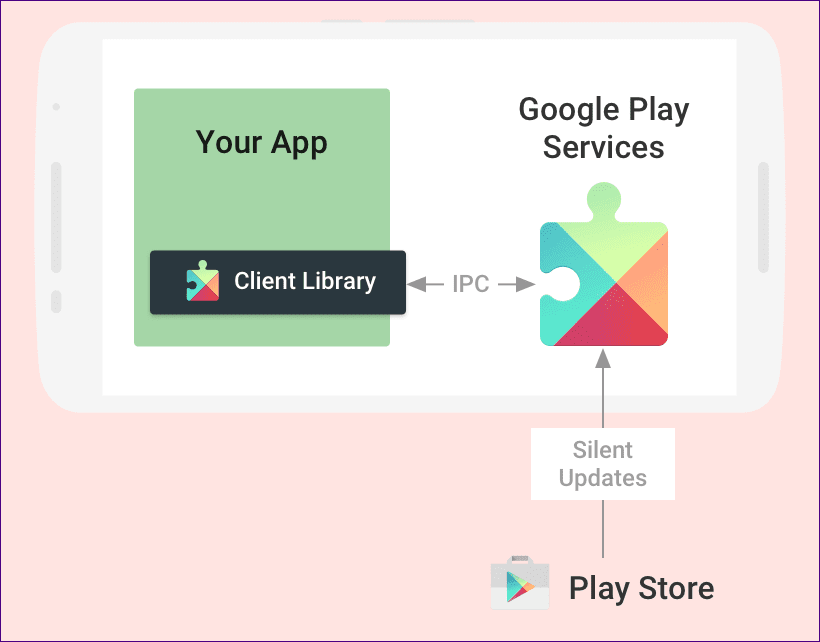
It's a platform program that runs in the background. You won't even notice it's installed on your phone (because it doesn't appear on the home screen or in the app drawer) unless it starts running. You might want to uninstall it at this point, but that's not possible. It can only be updated.
Let's check out the different ways to update it.
1. Update from Google Play Store
Yes, it's not directly visible in the Play Store. However, use this Link To view the Google Play Services app page. Once there, tap the Update option (if available). This will update it on your phone.
2. Cancel updates
While you can't completely uninstall Google Play Services, you can remove its updates. Doing so will restore the app to its factory or initial version. Doing so will force your phone to update automatically.
Here are the steps:


Step 1: Open your phone's Settings and go to Apps/Application Manager/Installed Applications.
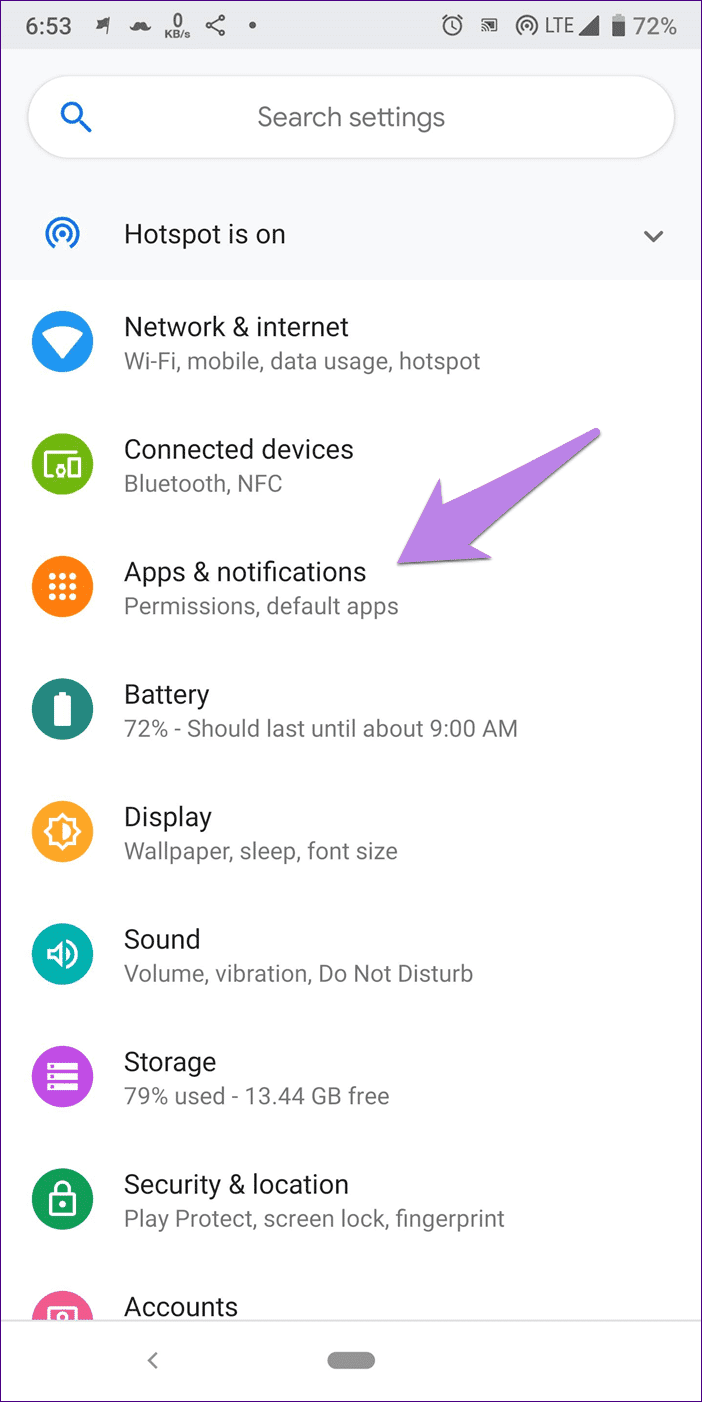
Step 2: Under All apps, tap Google Play Services.
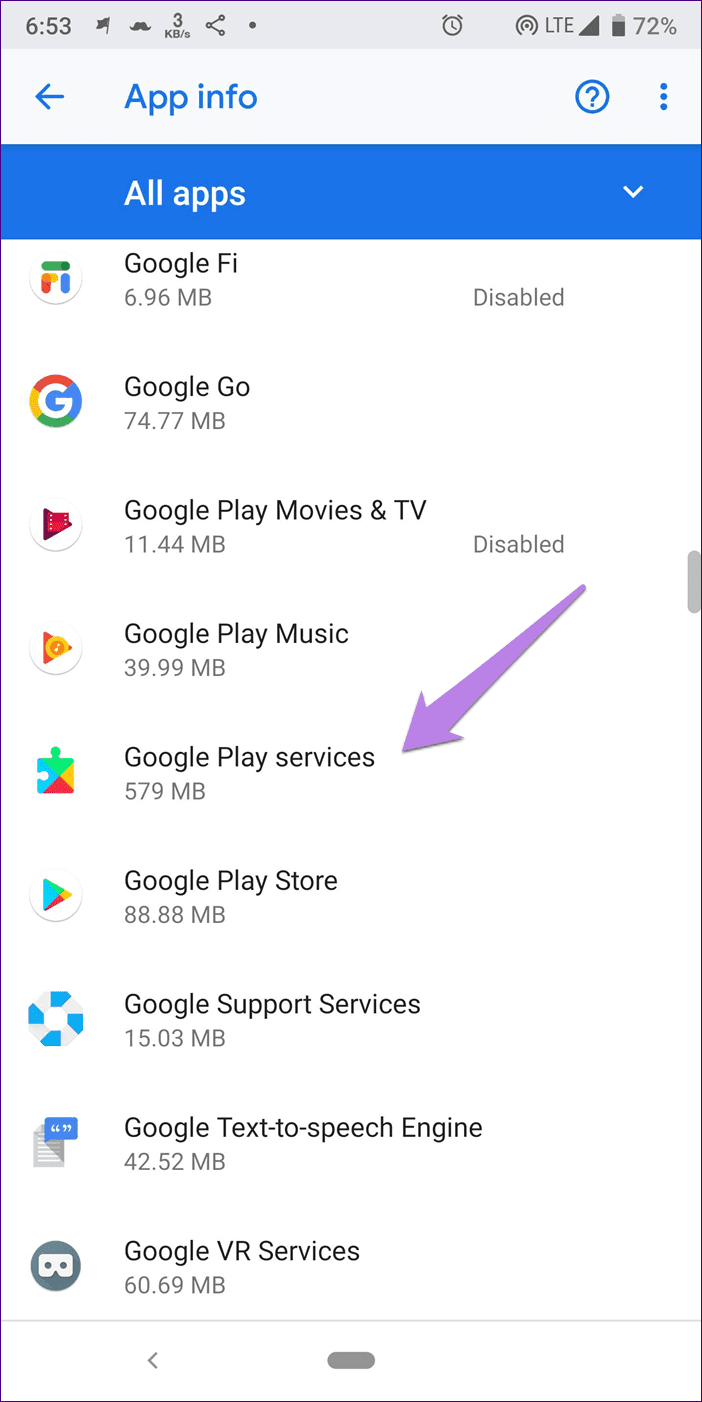
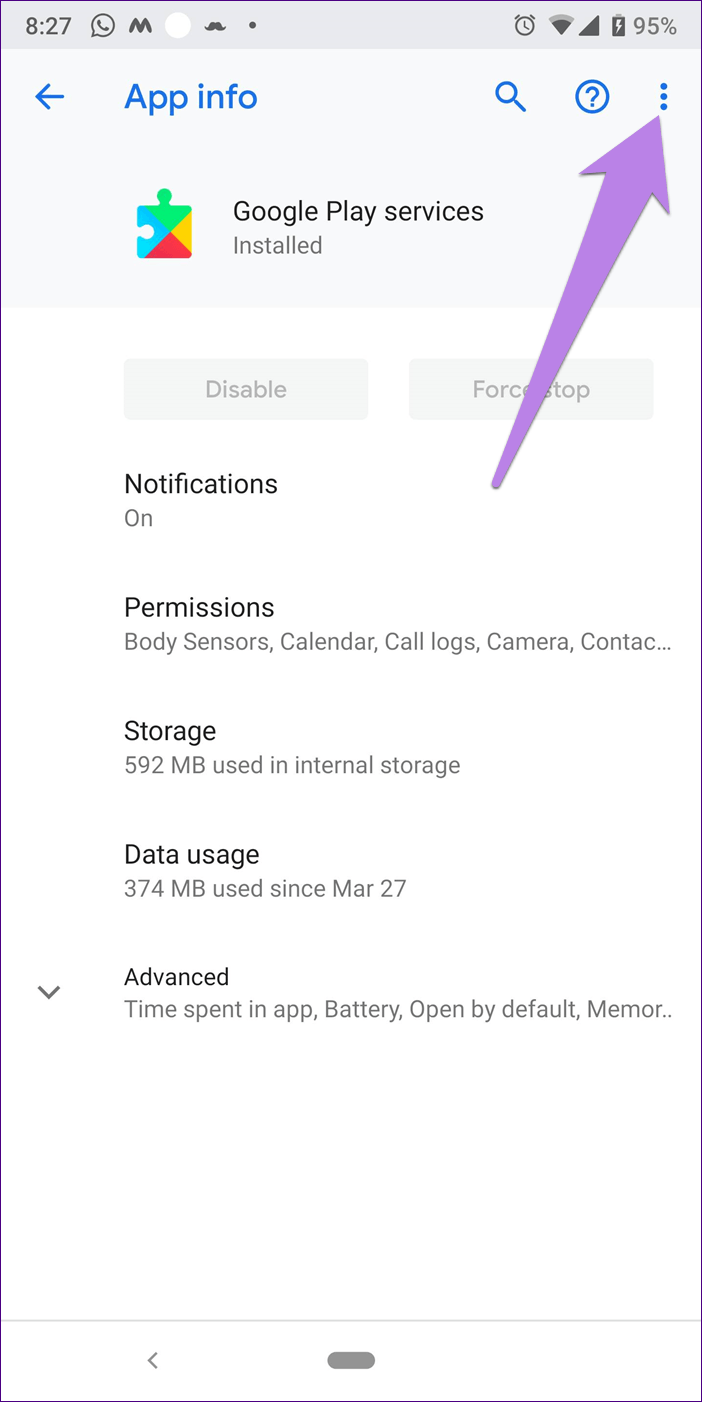
Step 3: Click the three-dot icon in the upper-right corner. Select Uninstall updates from the menu.
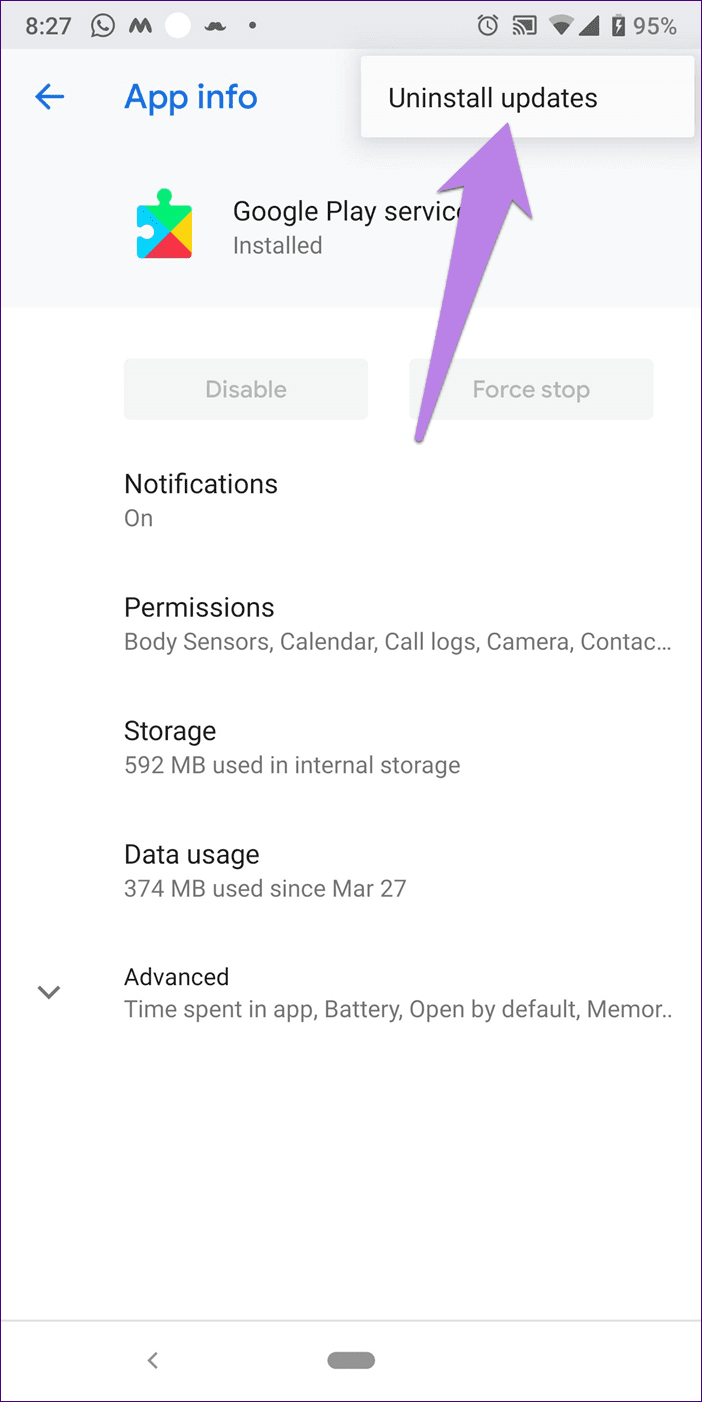
Step 4: Restart your phone. Wait 5 minutes or more. Then open the Google Play Store and other apps. Hopefully, Google Play Services will update automatically in the background (provided your phone has a working internet connection).
3. Disable Google Play services
Another way to force your phone to update Google Play Services is to disable it. Follow steps 1 and 2 of the method above (the uninstall method). Then, on the Google Play Services screen, tap Disable (if present). It will likely be grayed out.
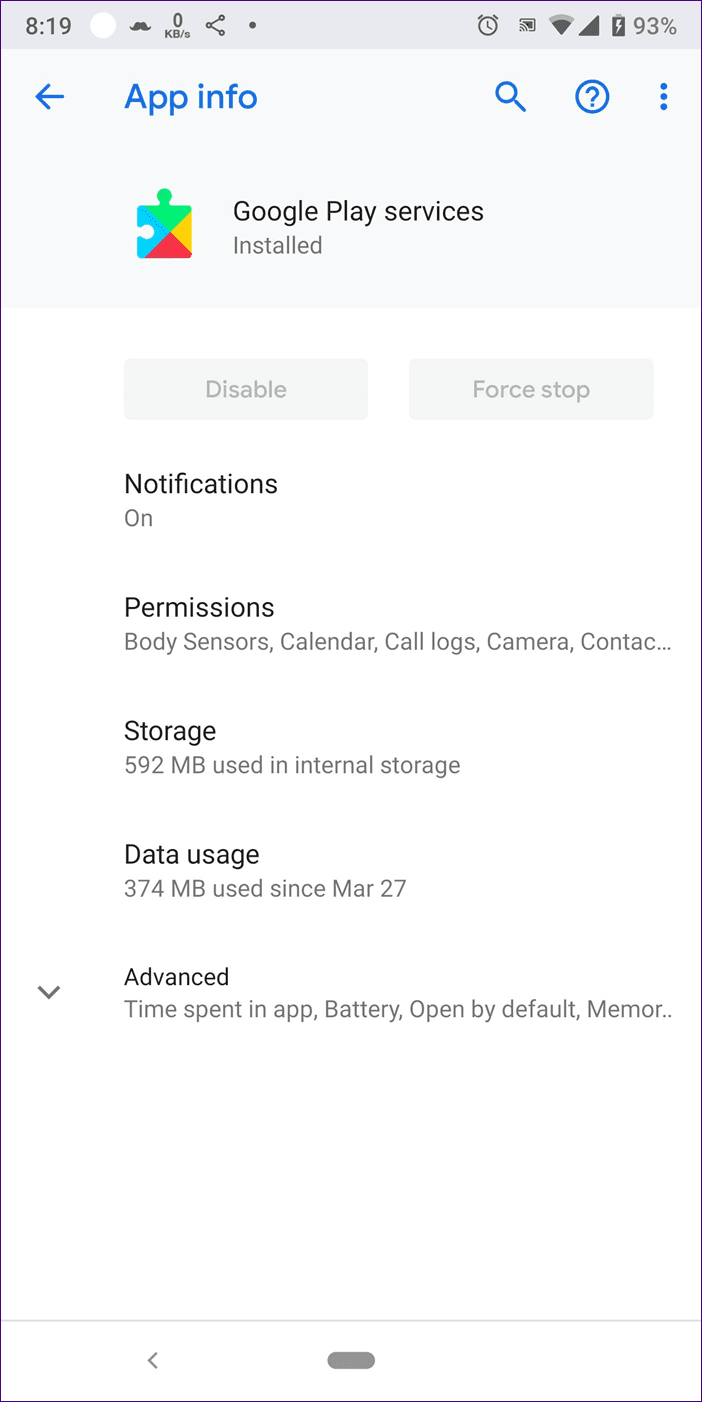
If so, you'll need to revoke device administrator permissions. To do this, follow these steps:
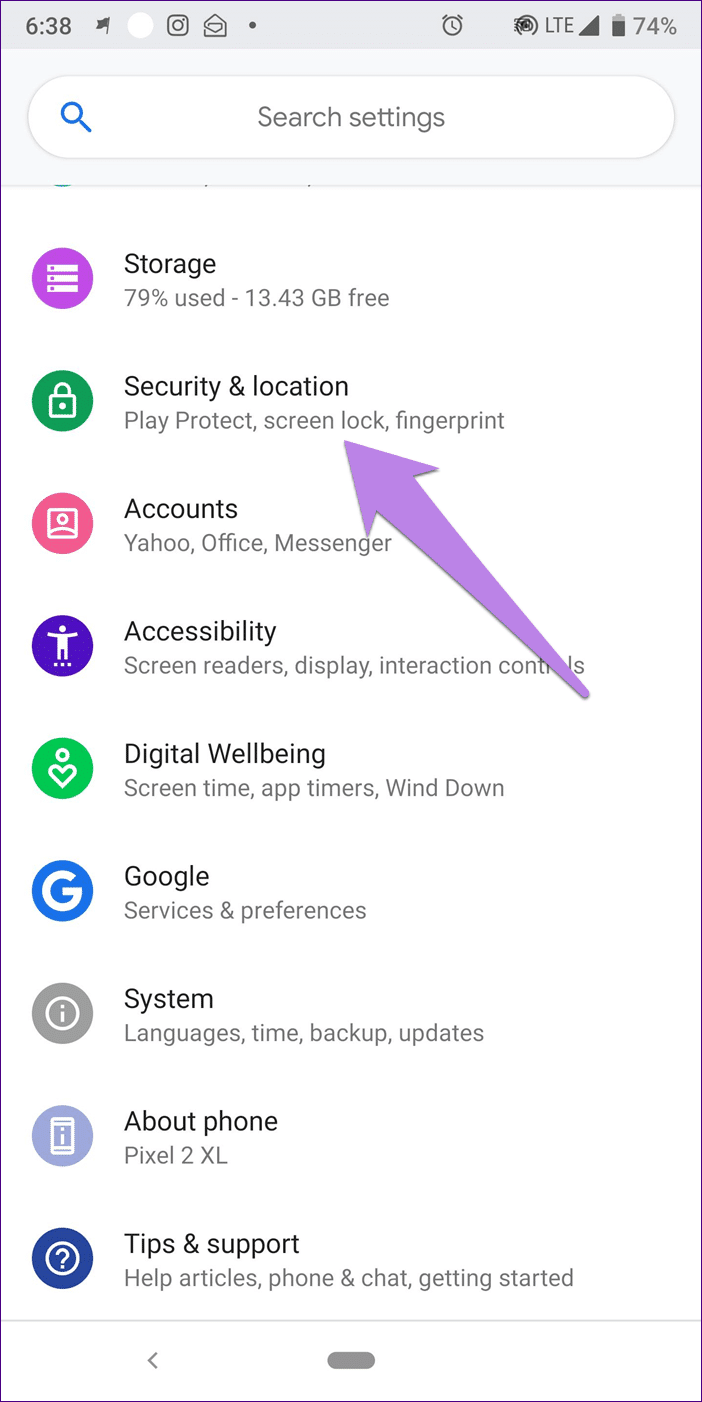
Step 1: Open your phone's Settings and go to Security. You'll find it under different names on different devices, such as Security & Location or Screen Lock & Security. If you can't find it, use the search option in Settings to locate Security.
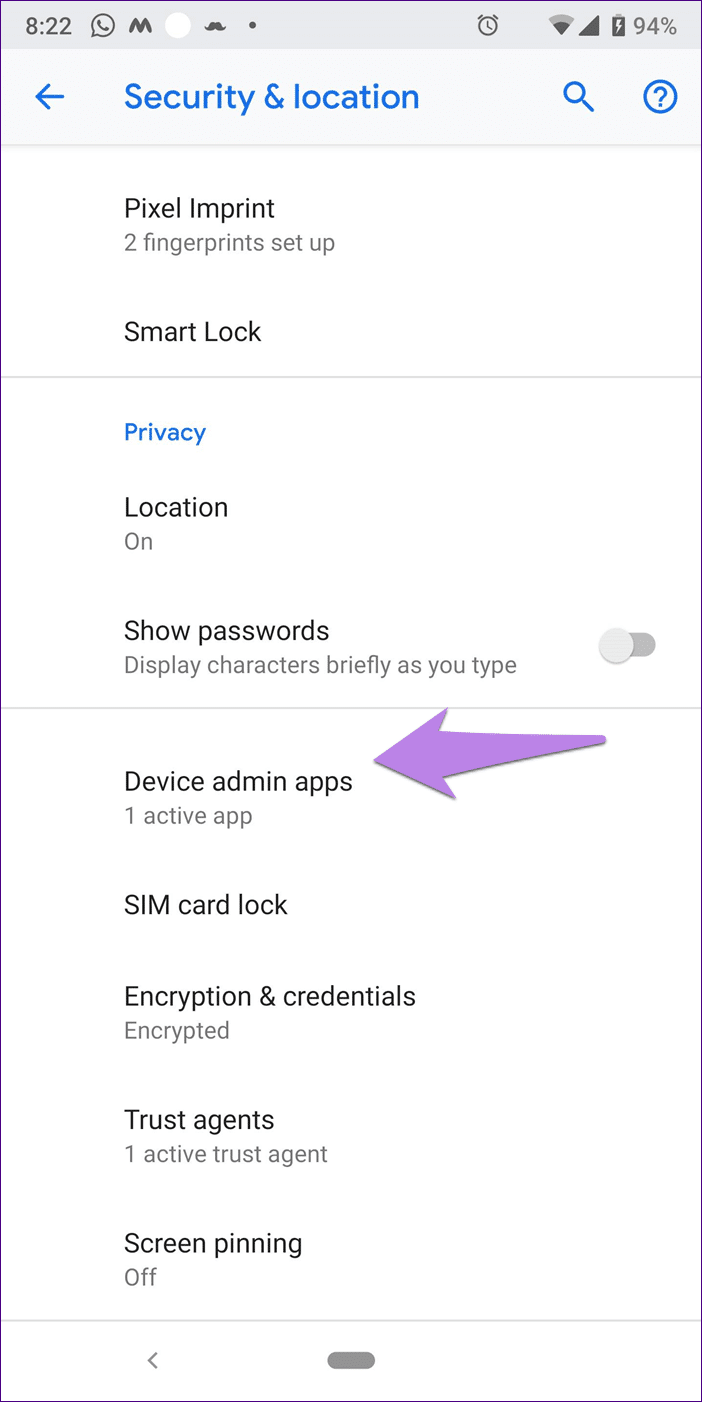
Step 2: Tap on Device Administrator or Device Administrator Apps option depending on the option available on your phone.
- Tip: See under Advanced option.
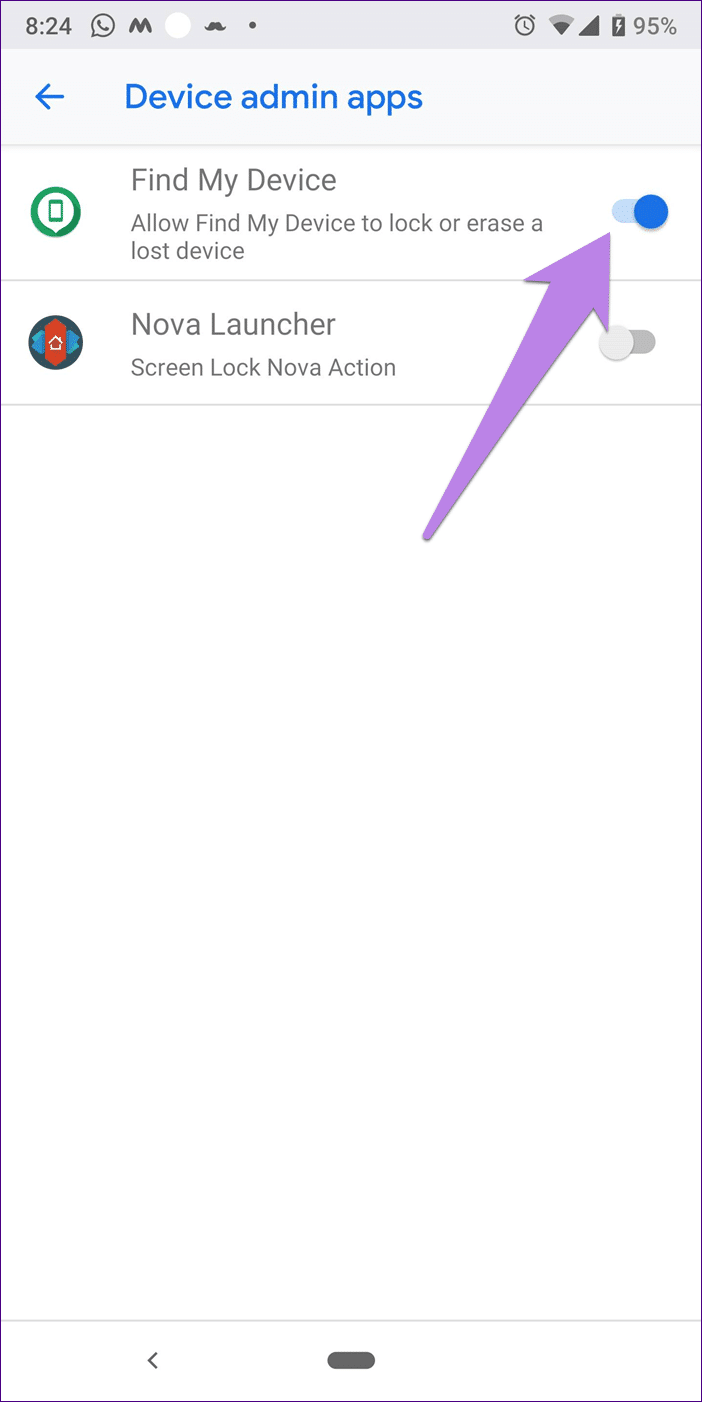
Step 3: Turn off the toggle next to Find My Device.
Step 4: Now try disabling Google Play Services under Apps in Settings. Once disabled, wait for a minute and then enable it again. After enabling it, restart your phone. Wait another 5 minutes to allow the phone to complete its background update.
4. Download and install the APK
If none of the above methods update Google Play Services on your phone, try updating it manually. To do this, you'll need to download its APK file.
Here are the steps in detail:
Step 1: open a page Google Play Services on APK Mirror , one of the trusted places to download APK files.
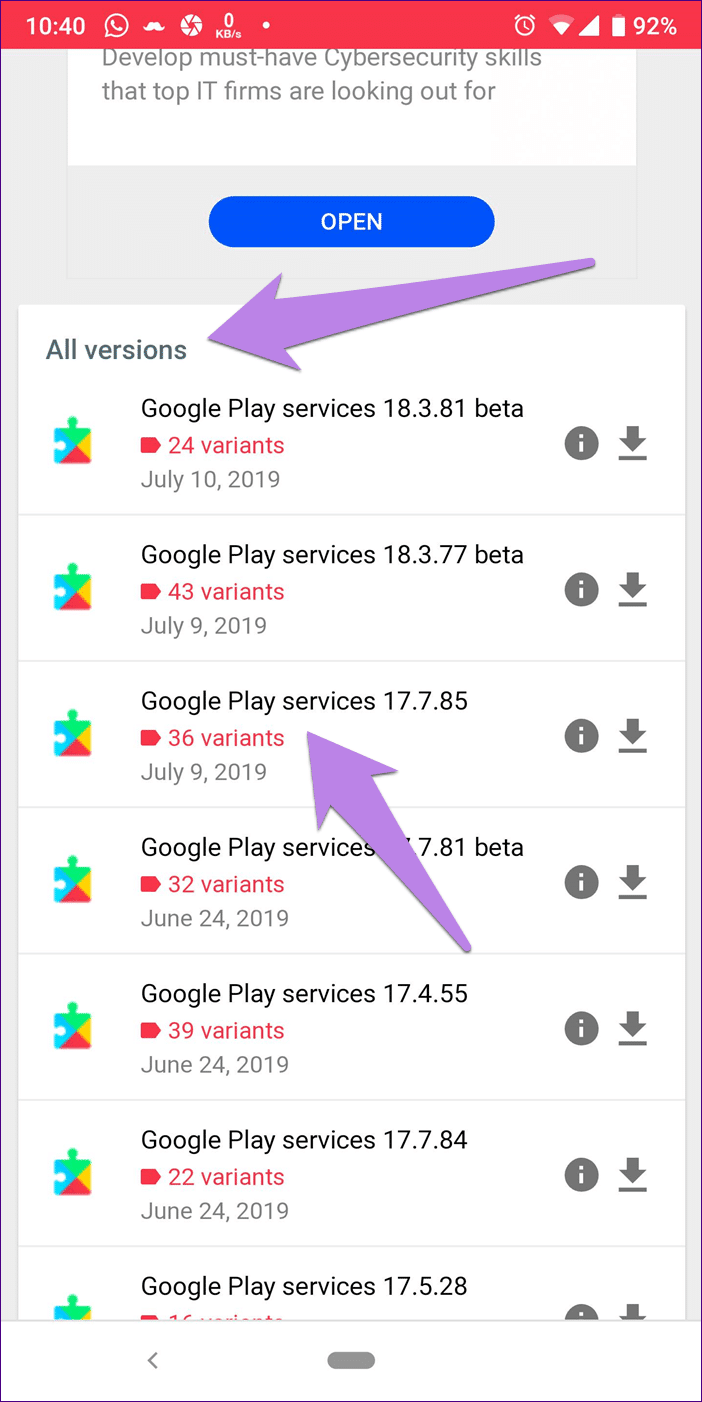
Step 2: Scroll down and under All Versions, tap the latest version. Play Services also has beta versions.
Step 3: On the next page, scroll down and you'll find the different APK variants under Download. If you know your phone's processor (see below the bracket), tap its variant number.
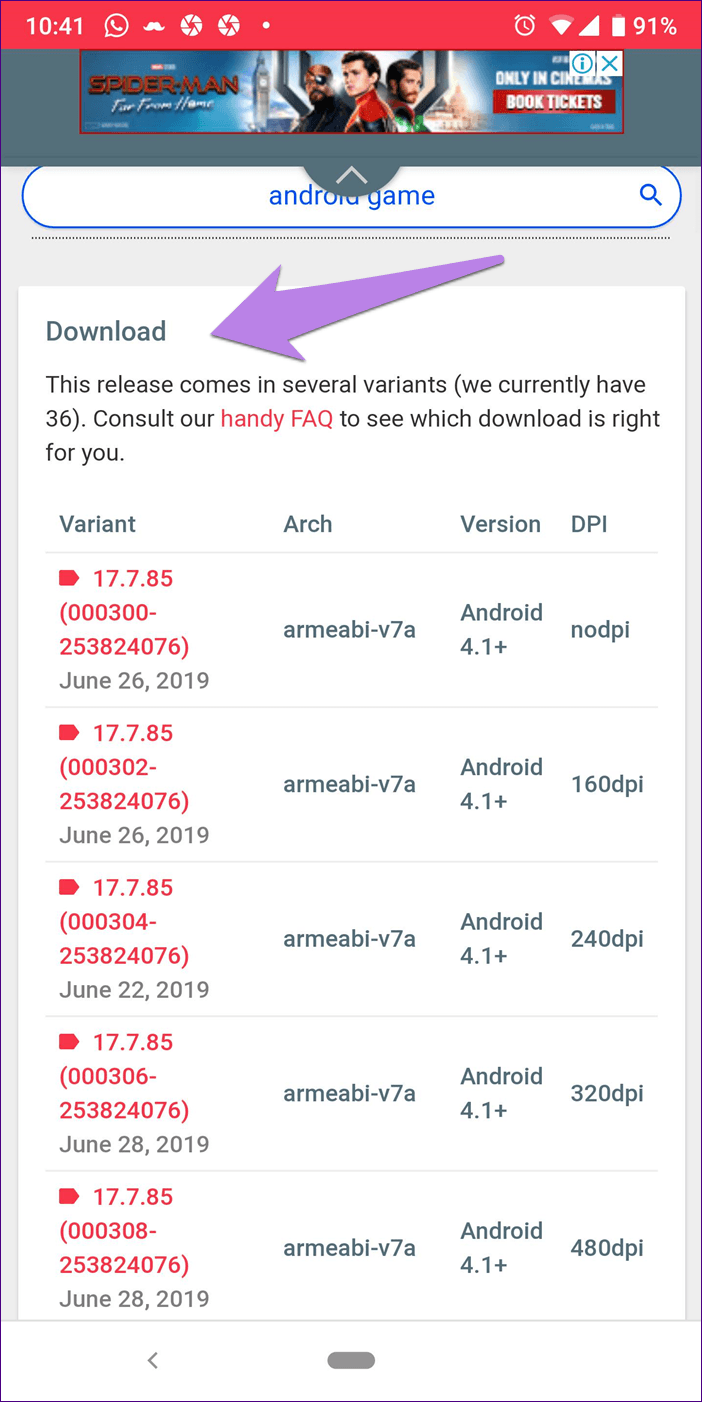
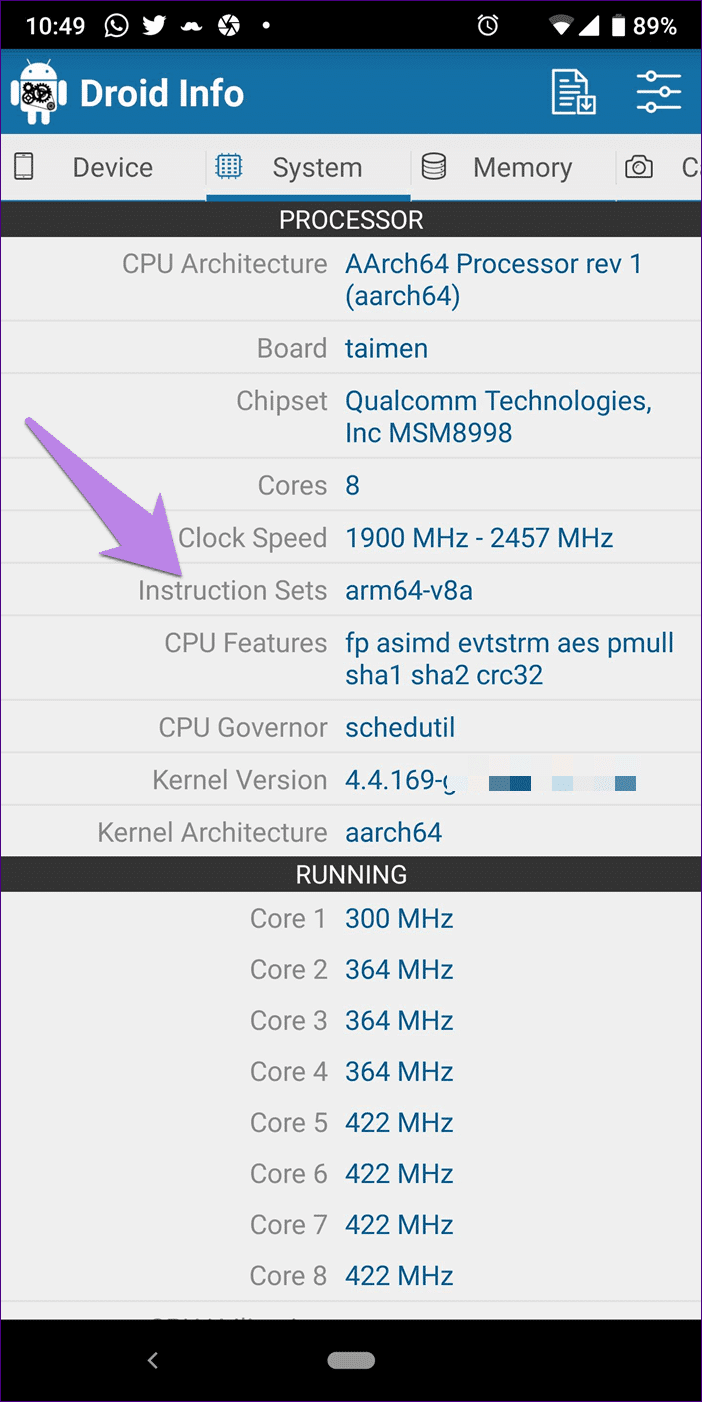
However, if you're not familiar with it, download the Droid Hardware Info app. Once installed, go to the System tab and look under the Instruction Sets. This is the code you need to search for on APK Mirror under Arch. Tap the alternate number on the site.
Alternatively, you can download any APK and check if it works. Otherwise, you'll get an error stating that the file is incompatible. In that case, try another one.
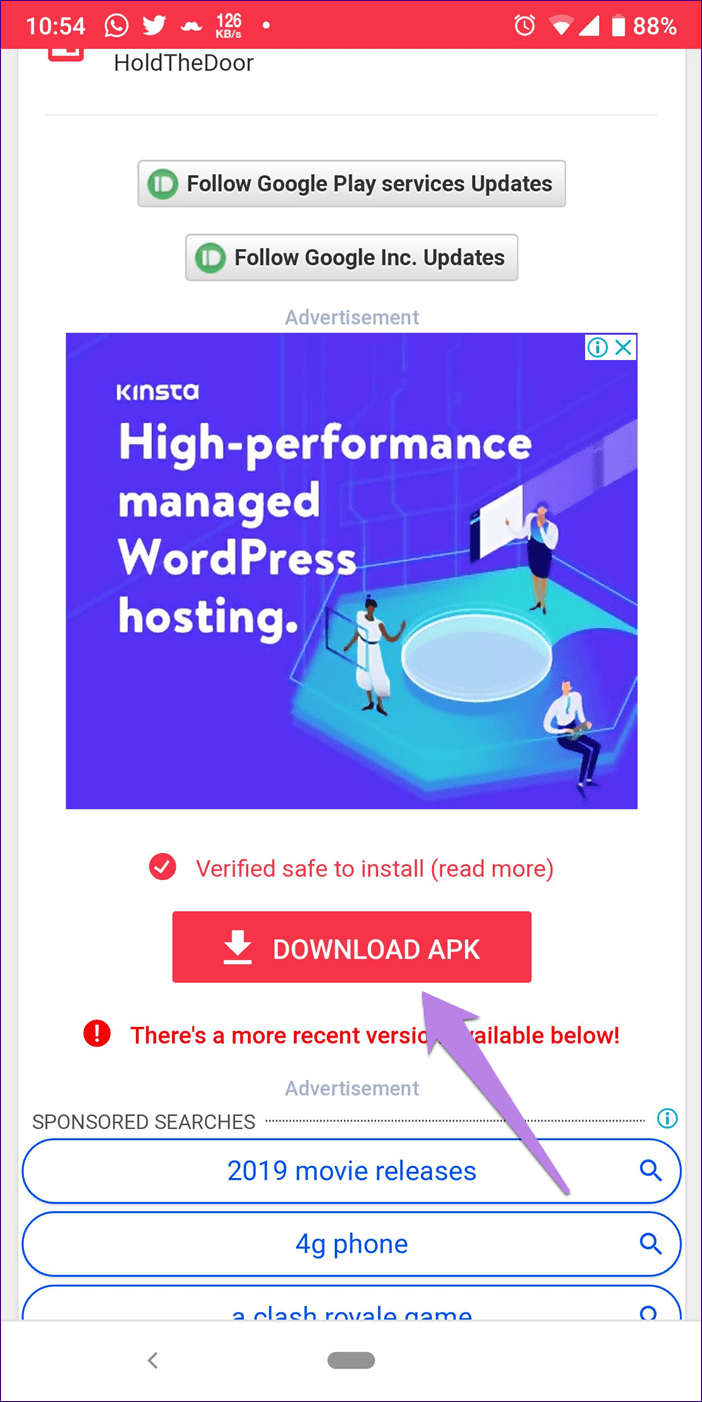
Step 4: You'll see more details about the specific version. Scroll down and tap Download APK. A confirmation pop-up will appear. Tap OK to start the download.
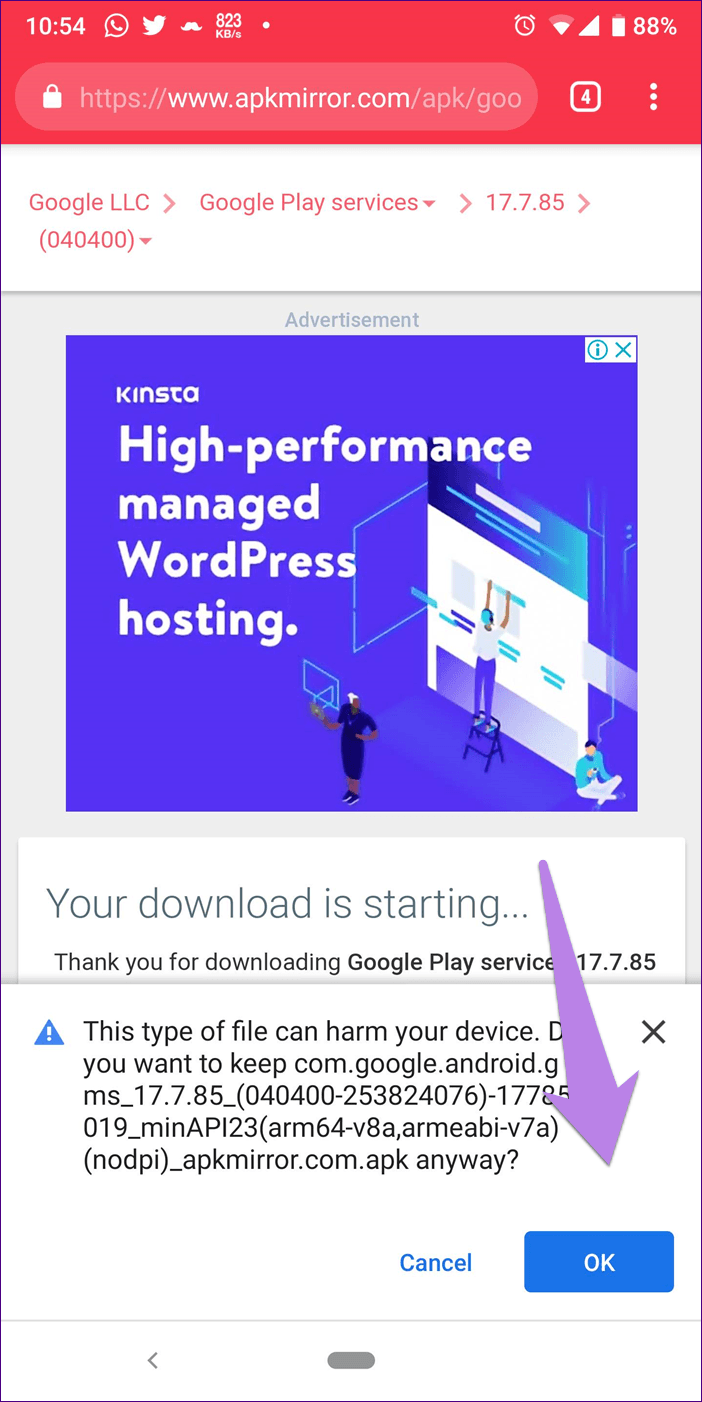
Step 5: Once downloaded, tap the APK file to install it. You'll be prompted to allow your browser to install third-party apps. Allow it.
We hope Play Services has been successfully installed on your phone. Restart your phone, and it should work normally again.
All the work you do that doesn't work
Google Play Services are the soul of Android phones. If something happens to them, you'll want to throw your phone against a wall. That's how annoying it can get. Hopefully, you'll be able to update Play Services using the methods above. Note that you should only update Play Services manually when necessary.