Preferring one search engine over another depends largely on your needs and experience. If you're a Microsoft Edge user and want to use Google instead of Bing as your default search engine, you can easily change the settings to achieve this. This change will provide you with search results that better meet your preferences. In this article, we'll walk you through simple steps to modify your settings and enjoy a more personalized search experience.

By default, Microsoft Edge uses Bing as your default search engine, but if you prefer another search engine, like Google or DuckDuckGo, you can easily change it in the Settings menu.
How to change the default search engine in Edge
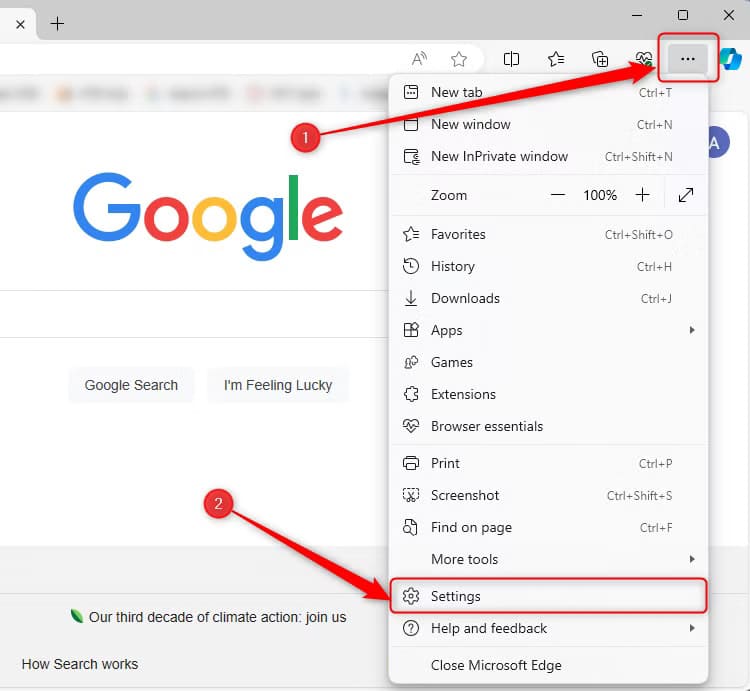
First, open an Edge browser window. Click the menu button (three dots) in the upper right corner and select "Settings".
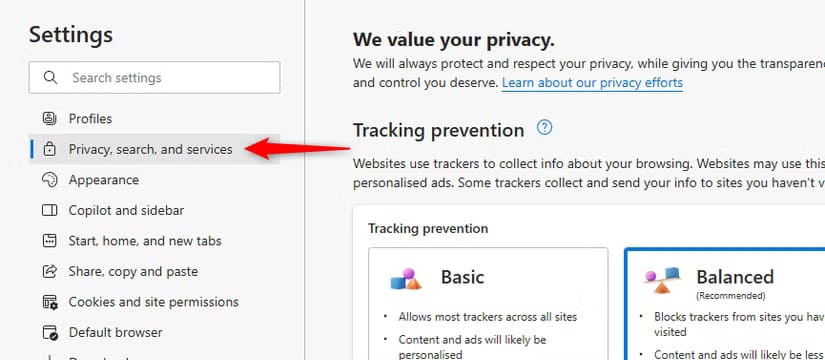
In the left sidebar, click Privacy, Search, and Services.
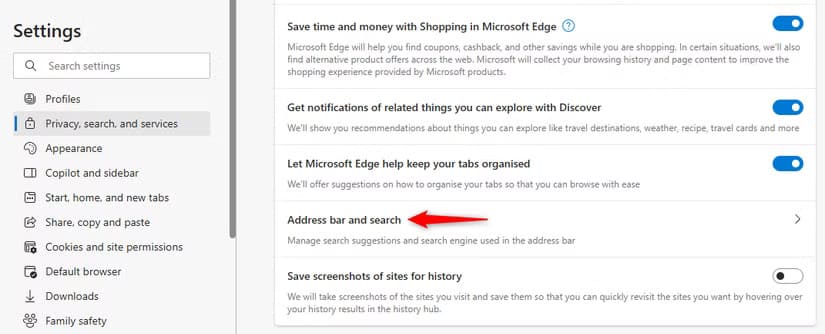
Scroll down to the bottom of the right pane and find the Services section. Click on Address bar and search.
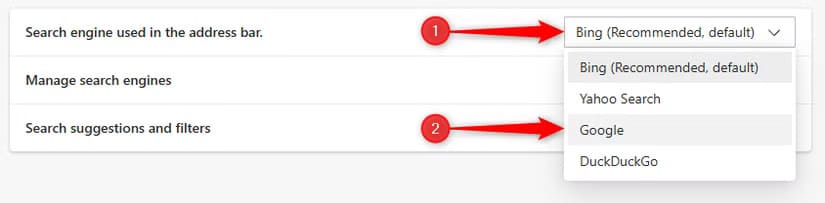
From there, use the drop-down menu. The search engine used in the address bar"And choose your preferred search engine. By default, you can choose between Bing, Yahoo, Google, and DuckDuckGo.


The next time you search from the address bar, or right-click on text or images on a web page and select an option "search the web", Edge will use your chosen search engine.
How to add other search engines
If you want to use a different search engine than one of the four, click Search Engine Management.
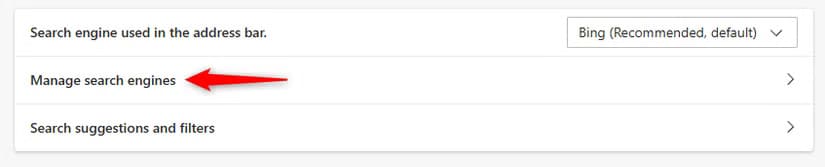
A list of search engines will appear.
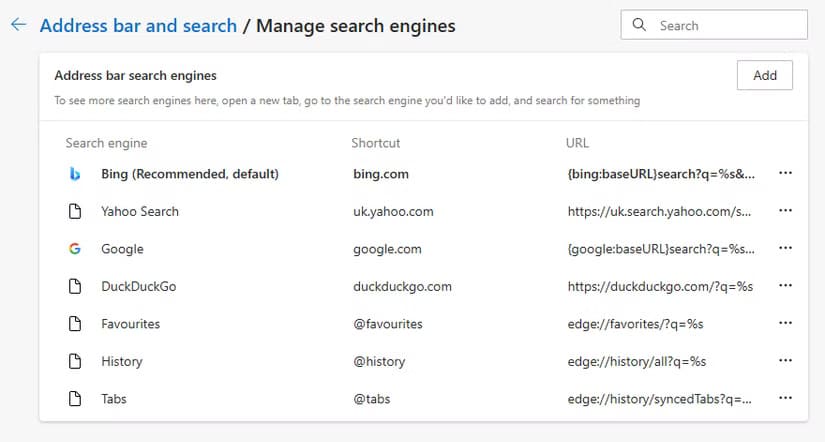
Although you can click the button "addition" To add a search engine manually, however, you need to know the URL structure of that engine. Instead, as Edge explains above, "Open a new tab, navigate to the search engine you want to add, and search for something." It will then appear as an option in the list, assuming the search engine is configured to offer this.
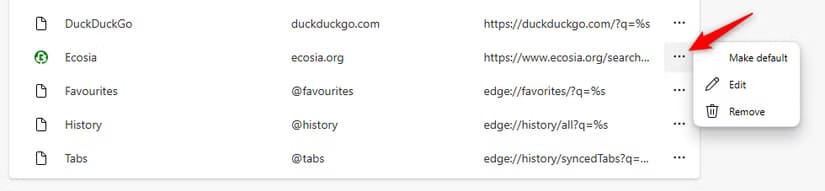
Once this happens, click on the three horizontal dots next to the engine and select "Set as default"You can also use the same menu to delete a drive by selecting "Removal".
How to change search behavior in the new tab
Even after changing your default search engine, the search box on the new tab page in Edge uses the Bing search engine. Alternatively, you can use the address bar to search using whatever engine you've set as your default.
To do this, go back to the address bar and search page in Edge (for quick access, enter Edge: // settings / search in the address bar and press Enter) and set Searching in the new tab uses the search box or address bar. on "address bar".

While there are many reasons to use Edge, searching via Bing isn't one of them – so changing your default search engine is a quick and easy way to make Edge less annoying.