قد تواجه مشاكل ضعف دقة الشاشة عند ممارسة الألعاب على Steam. تحدث المشكلة بشكل أكبر مع لعبة Team Fortress 2 (TF2). قد يكون لعب لعبة بدقة منخفضة أمرًا مزعجًا وليس جذابًا. هذا قد يجعل اللاعب يفتقر إلى الاهتمام أو يواجه الإلهاءات التي تؤدي إلى الخسارة في اللعبة. إذا كنت تواجه مشكلة منخفضة الدقة في TF2 ، فتعلم كيفية إعادة تعيين ميزة دقة خيارات تشغيل Team Fortress 2 للعبتك أدناه.

كيفية تعيين دقة خيارات تشغيل Team Fortress 2
تعد لعبة Team Fortress 2 من أشهر ألعاب Steam حول العالم. TF2 هي لعبة إطلاق نار متعددة اللاعبين ، وهي متاحة مجانًا. في الآونة الأخيرة ، وصلت TF2 إلى أعلى مشغلاتها المتزامنة على Steam. يوفر أوضاع لعب مختلفة مثل:
- الحمولة ،
- ارينا
- تدمير الروبوت
- أمسك العلم،
- نقطة تحكم،
- السيطرة الإقليمية ،
- مان مقابل آلة ، وآخرين.
لا يعمل Team Fortress 2 المعروف باسم TF2 دائمًا بدقة مثالية. تحدث هذه المشكلة بشكل أساسي أثناء لعب اللعبة في Steam. يمكن حل هذه المشكلة عن طريق تغيير دقة اللعبة من خلال خيارات تشغيل TF2.
الخيار 1: إزالة الحدود ذات النوافذ
للاستمتاع بتجربة لعب مناسبة ، يمكنك تغيير إعدادات الحدود عن طريق تغيير خيارات تشغيل TF2 إلى عدم دقة الحدود ، كما هو موضح أدناه:
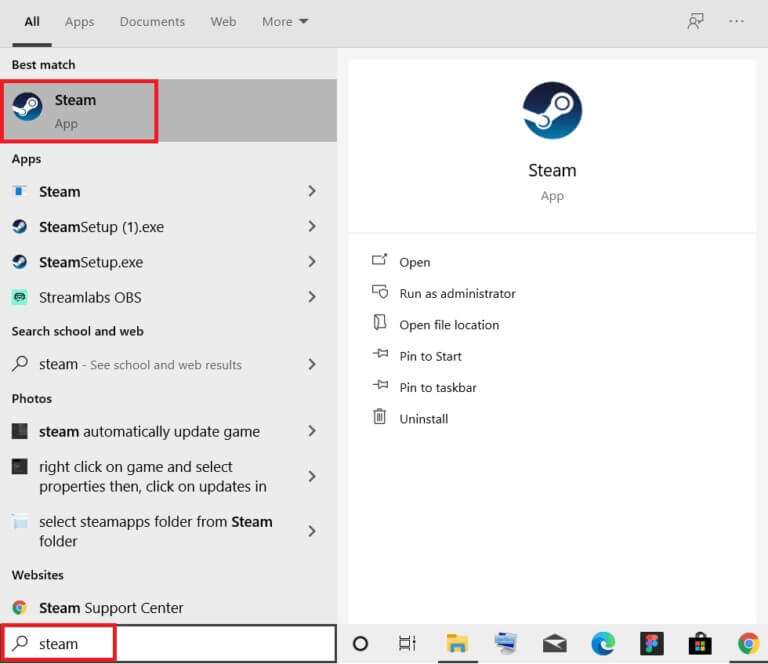
1. انقر فوق ابدأ واكتب steam. ثم اضغط على مفتاح Enter لتشغيله.
2. قم بالتبديل إلى علامة التبويب LIBRARY ، كما هو موضح.
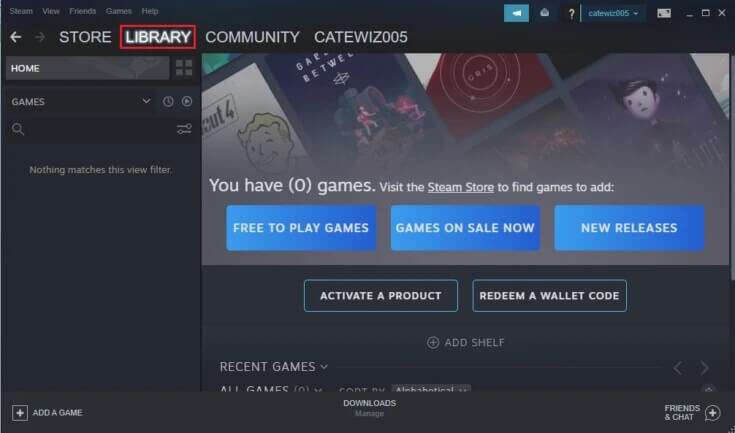
3. حدد Team Fortress 2 من قائمة الألعاب الموجودة على اليسار.
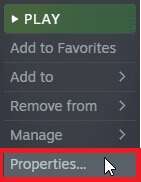
4. انقر بزر الماوس الأيمن فوق TF2 واختر خصائص … الخيار ، كما هو موضح أدناه.

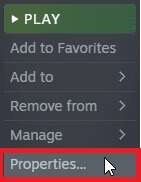
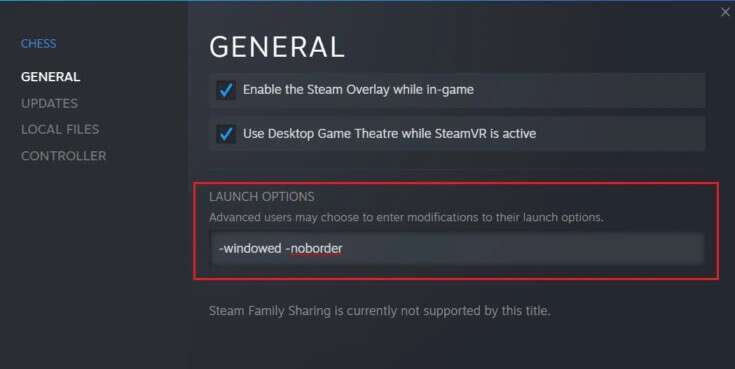
5. في علامة التبويب “عام” ، انقر فوق مربع الأوامر ضمن “خيارات الإطلاق”.
6. اكتب -windowed -noborder لإزالة حد النافذة من TF2.
الخيار 2: تغيير دقة TF2 إلى دقة سطح المكتب
يمكن تغيير خيار تشغيل TF2 يدويًا داخل تطبيق Steam لتخصيصه وفقًا لشاشة الألعاب الخاصة بك. لتغيير دقة الشاشة ، تحتاج أولاً إلى تحديد دقة العرض ضمن إعدادات Windows ثم تعيين نفس الدقة للعبتك. إليك كيفية القيام بذلك:
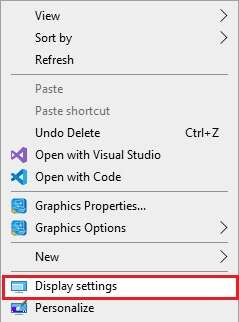
1. على سطح المكتب ، انقر بزر الماوس الأيمن فوق المنطقة الفارغة وحدد إعدادات العرض الموضحة أدناه.
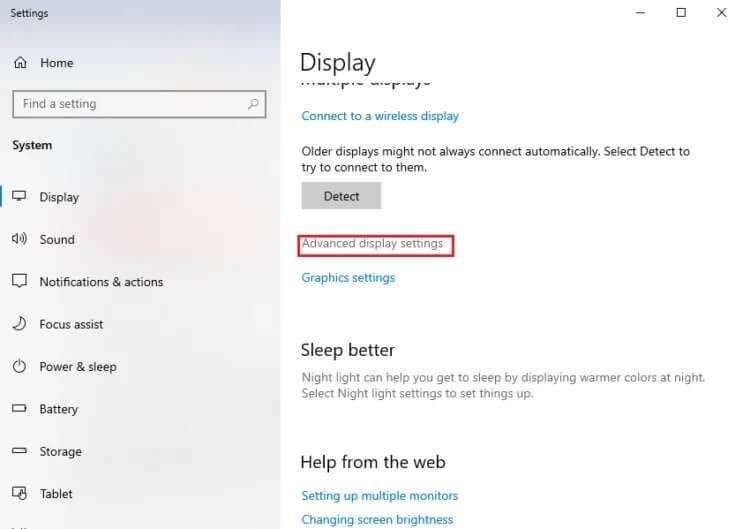
2. انقر فوق إعدادات العرض المتقدمة في قائمة العرض كما هو موضح.
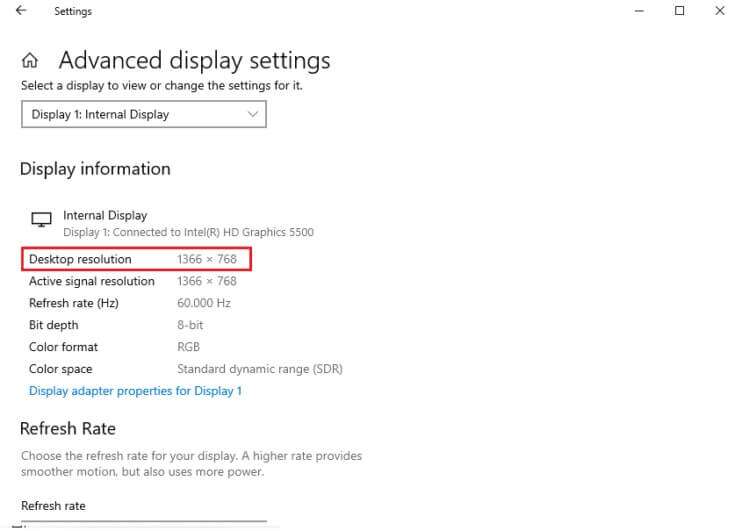
3. تحت معلومات العرض ، يمكنك العثور على دقة سطح المكتب لشاشة العرض.
ملاحظة: يمكنك تغيير والتحقق من ذلك للشاشة المرغوبة عن طريق تحديد شاشة الألعاب في القائمة المنسدلة.
4. الآن ، افتح تطبيق Steam وانتقل إلى خصائص لعبة Team Fortress 2 كما سبق.
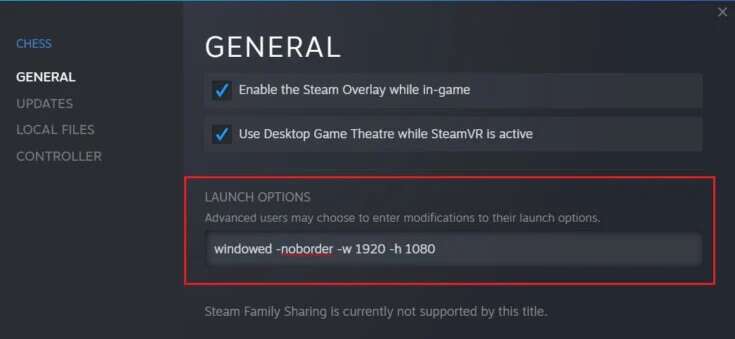
5. في علامة التبويب عام ، اكتب الأمر التالي ضمن خيارات التشغيل.
windowed -noborder -w ScreenWidth -h ScreeHeight
ملاحظة: استبدل نص ScreenWidth و ScreenHeight بالعرض والارتفاع الفعليين لشاشتك المحددة في الخطوة 3.
على سبيل المثال: أدخل windowed -noborder -w 1920 -h 1080 لتعيين دقة خيارات تشغيل TF2 إلى 1920 × 1080 ، كما هو موضح في الصورة أدناه.
الخيار 3: ضبط الدقة داخل اللعبة
يمكن تغيير دقة خيار تشغيل TF2 داخل اللعبة نفسها لتتناسب مع دقة شاشة نظامك. إليك كيفية القيام بذلك:
1. تشغيل لعبة Team Fortress 2 من تطبيق Steam.
2. انقر فوق “خيارات”.
3. قم بالتبديل إلى علامة التبويب “الفيديو” من شريط القائمة العلوي.
4. هنا ، اختر خيار Resolution (الأصلي) الذي يطابق دقة الشاشة من القائمة المنسدلة Resolution (الدقة) الموضحة مميزة.
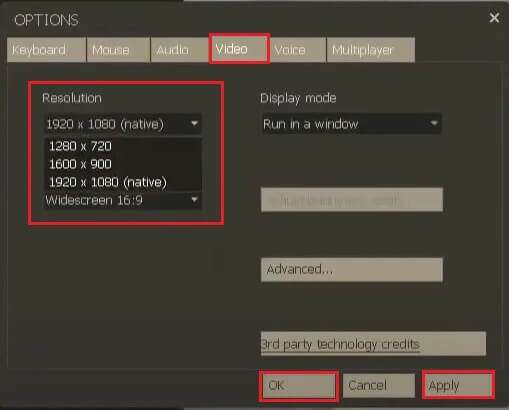
5. أخيرًا ، انقر فوق “تطبيق”> “موافق” لحفظ هذه التغييرات.
الأسئلة المتداولة (FAQs)
س 1. ما هي أفضل نسبة عرض إلى ارتفاع ووضع عرض لتجربة لعب أفضل؟
الجواب. قم بتعيين نسبة العرض إلى الارتفاع على أنها افتراضية أو تلقائية ووضع العرض على أنه ملء الشاشة لتجربة اللعب المحبط.
س 2. هل ستنطبق هذه الأوامر على الألعاب الأخرى في تطبيق Steam؟
الجواب. نعم ، يمكنك تطبيق أوامر خيارات التشغيل هذه للألعاب الأخرى أيضًا. اتبع نفس الخطوات الموضحة في الطرق 1 و 2. ابحث عن اللعبة المطلوبة في القائمة وقم بإجراء التغييرات كما فعلت في إعدادات دقة عرض خيار تشغيل TF2.
س 3. كيف يمكنني فتح لعبة TF2 كمسؤول؟
الجواب. اضغط على مفتاح Windows واكتب Team Fortress 2. الآن حدد الخيار “تشغيل كمسؤول” لبدء اللعبة بأذونات إدارية على أجهزة الكمبيوتر التي تعمل بنظام Windows.
س 4. هل من الجيد تشغيل تأثير Bloom في tf2؟
الجواب. يُنصح بإيقاف تشغيل تأثير Bloom لأنه قد يعيق طريقة اللعب وبالتالي أداءك. لديهم تأثير عميق على اللاعبين ويحدون من الرؤية.
نأمل أن يكون هذا الدليل قد ساعدك في معرفة كيفية تعيين دقة خيارات تشغيل Team Fortress 2 عبر خيارات التشغيل للعب أكثر سلاسة ومحسّنًا. قم بإسقاط استفساراتك واقتراحاتك في قسم التعليقات أدناه. دعنا نعرف ما الذي تريد أن تتعلمه بعد ذلك.