Keeping your Apple devices in sync becomes easier with each passing year. These days, you can seamlessly copy and paste items from your Mac to your iOS device, thanks to the Universal Clipboard feature. Here's how to use the Universal Clipboard on your Mac.
Setting up the Universal Clipboard is quick and easy. We'll explain what the Universal Clipboard is and show you how to activate and use the feature.
These tips will work as long as you're using a device that meets Apple's Continuity requirements, which is anything that runs at least macOS Sierra 10.12 or iOS 10.
What is the MAC Universal Clipboard?
Introduced in 2016, Universal Clipboard allows you to copy text and images—as well as other content—from one Apple device and paste it onto another.
You can use the global clipboard to:Share content from your Mac To iPhone, iPad, or iPod Touch – as long as these devices support the required operating system software.
The universal clipboard is useful because it allows you to work across multiple devices simultaneously without friction. This means you don't need to send content via email or social media, as was previously the case.
When using this feature, it is important to remember that you only have a limited window after copying on one device that you can paste on the other.
To find a full list of devices that support Continuity, visit the Apple Support page.
How to activate the global clipboard
Before using the Universal Clipboard on your Apple devices, you'll need to activate it. If you want to learn how to enable the Universal Clipboard on your Mac, follow the steps below.
Step 1: Go to the Apple logo at the top left of your screen.




Step 2: From the drop-down menu, select System Preferences.

Step 3: Click on the General icon, which is the first icon under your name.

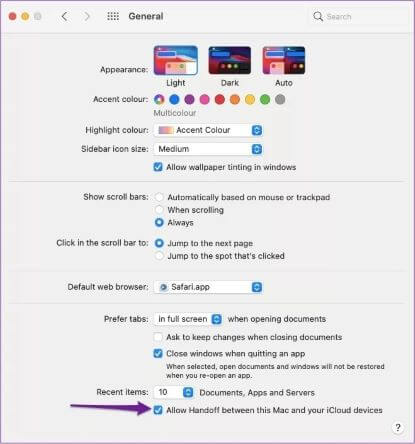

After you've enabled Universal Clipboard on your Mac, you'll need to do the same on any Apple devices you want to use. To do this, complete each step listed below.
Step 1: On your iPhone, iPod Touch, or iPad, go to the Settings app.

Step 2: When you open the app, find and tap on the “General” tab.

Step 3: Go to AirPlay & Handoff.

Step 4: Next to the option labeled Handoff, you'll see a switch. Toggle this to turn it on.

How to use the universal clipboard across your devices
When activating Universal Clipboard on both your Mac and other Apple devices, make sure that Bluetooth is turned on for both—and that they're within range of each other.
Before using the Universal Clipboard, you will also need to be All your devices on the same Wi-Fi networkOnce you've done all that, follow these steps to successfully use the feature.
Step 1: On one of your devices, highlight or select the text, video, or image you want to copy.
Step 2: If you're using a Mac, press Ctrl+C. Alternatively, you can click with your trackpad while holding down Ctrl before choosing Copy.
If you are copying content from one of your other devices, all you have to do is tap “Copy”.

Step 3: Go to the device where you want to paste the text, image, or video, and try pasting the content.

As long as you follow the steps to enable Handoff across all platforms, you shouldn't encounter any problems. If you do, go to your settings and double-check that you've given the universal clipboard the green light.
Copy content across your Apple devices
Apple has made it easier than ever to use your Mac with your other devices with various Continuity features, and Universal Clipboard is one of the most useful.
After reading this article, you should clearly understand how to enable and use the Universal Clipboard on your Mac, iPad, iPhone, and iPhone Touch. You'll also have a better understanding of why using the Universal Clipboard is beneficial.
Once you get the hang of this feature, you'll find that you can share photos, videos, and text—whether short sentences or entire articles—without difficulty.


