Janna Theme License is not validated, go to the theme options page to validate the license, you need a single license for each domain name.
How to share OneNote notes on computer and mobile
Prepare Taking notes on OneNote It's fun. Microsoft OneNote is divided into notebooks, some sections containing more pages. Sharing and collaboration are key features of any note-taking app. So, how can you share OneNote notebooks on both desktop and mobile? That's what this article is about. We'll cover all versions of OneNote across all platforms.
Before we get into the topic, we need some clarification about the different versions of OneNote.
هناك Two versions of OneNote , in typical Microsoft style. There is OneNote (Formerly OneNote 2016) and OneNote for Windows 10The former is now part of your Microsoft 365 plan and is automatically installed when you install the Microsoft 365 suite, including other apps like Word, Excel, and PowerPoint.
OneNote for Windows 10 comes preinstalled on all Windows 10 computers. Both versions of OneNote can be run simultaneously, but they differ slightly in their functionality.
It is worth noting that the two separate versions are only available on Windows , while all other platforms only get one version.
Note: You cannot share individual pages of a OneNote notebook. This feature is deprecated in OneNote and OneNote for Windows 10 Recently, you can only share a notebook in OneNote.
Step 2: Under the tab Share with people Next, you can enter the names or email addresses of the people you want to share the notebook with. Right next to it, from the drop-down menu, select whether the people you're sharing the OneNote notebook with can only view or edit the notebook. Finally, there's an option to add a personal note below. Once you're done, click the "PostBelow.
In the above method, only email invitees can view or edit the OneNote notebook.
Another way you can invite someone to view/edit the notebook is via a link. Anyone with access to this link will be able to view/edit the notebook, whether they're invited or not.
Step 1: Right-click on the notebook and select Share This Notebook.
Step 2: Under the tabGet a share link" , Click "Create a display link"Or"Create an edit linkTo grant view-only or edit permission to a OneNote notebook, respectively.
Share from the OneNote for Windows app
Now, let's take a look at the OneNote for Windows app. You'll find the Share button in the top right corner of the app. Enter the email addresses of the people you want to invite, and below that, select Can edit or Can view to grant them editing or viewing permissions. Click the "PostTo send invitations.
Now, you can't share individual pages in OneNote for Windows, but what you can do is send a snapshot or screenshot of the open page. Here's how to do it.
Step 1: Open the page you want to take a screenshot of. Click the “PostThen selectSend a copy".
Step 2: In the pop-up window that opens next, tap the Mail app to send an email with the screenshot attached.
There is no way to create and send a shareable link in OneNote for Windows like there is in OneNote.
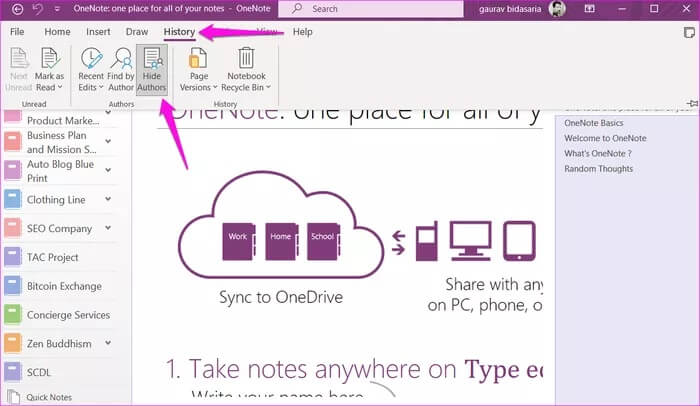
How to hide author's initials in ONENOTE
You can do this in OneNote Only, not the OneNote for Windows version.
Just go to the tab “Archives"And click the button"Hide authors".
How to Share in ONENOTE Notebook on Mac
There is only one version of OneNote available for Mac users which makes things easier.
Step 1: Click the buttonPostin the upper-right corner.
Step 2: Sharing options will be displayed. Click “Invite people to the notebookTo send email invitations.
Step 3: Enter the email addresses of the people you want to invite to view/edit the notebook. Select the button Editable Check to allow editing or deselect if you only want to view the notebook.
If you want to share a link to the notebook, you can do that too, but as mentioned earlier, anyone with access to the link will be able to edit/view the notebook.
Step 1: Click the buttonPost" one more time.
Step 2: Click "Copy link to Notebook".
Step 3: Click Show only Or View and edit To create a shareable link in the notebook accordingly.
Finally, there's no way to share a page in OneNote on Mac, but you can send a PDF of the open page. To do this:
Click the buttonPost"But specify"Send a copy of the pageYou can now attach a PDF of the page to an email and mail it to anyone.
How to Participate in ONENOTE Notebook on the Web
Sharing on the OneNote web app works largely the same way on the Windows and macOS versions. However, there are some notable differences.
Clicking the button willPost” to open a familiar sharing menu with options to copy a link or send email invitations with view-only or edit permissions.
Click the drop-down menu to select link settings.
You can set expiration date After that, the link will stop working, and a password will be added to add an extra layer of security. This way, only people with the password can access the notebook.
So, why this special treatment for the OneNote web app? It's not a OneNote feature, but rather a OneDrive feature. OneDrive allows users to share any file using a temporary link and a password, and since OneNote files are saved to OneDrive, it works there as well. If you're saving them locally, this won't work.
Can you share ONENOTE notebook on mobile?
Unfortunately, there's no way to share notes or notebooks on OneNote's Android or iOS apps. This is a serious drawback when compared to other prominent note-taking apps like Notion and Evernote و Apple Notes.
We hope Microsoft fixes this flaw in a future update. Until then, your only way to share them is using desktop or web apps.
Share wisely
Sharing is easy on OneNote as long as you're using the desktop or web app. OneDrive integration offers some additional, useful features, such as the ability to create temporary links and password-protect them. Unfortunately, the mobile apps have been left out to dry. Those who travel a lot and need to collaborate on the go would be better off using a different note-taking app.