While Outlook is available as a web app, desktop app, and even a mobile app, sometimes Outlook lets you do that.Sometimes, it will open but won't fetch new emails or send any, and it fails to connect to the server. Fortunately, there's a workaround for this problem in Outlook. If you've already checked that Your internet connection If you're fine and have restarted your computer, you may need to apply other solutions. Here are some troubleshooting tricks you can try to fix Outlook not connecting to the server on Windows 10 and Windows 11.

1. Check Outlook credentials
Did you change your Outlook account password and forget to update your browser's password manager? Incorrect user credentials are one of the most common reasons Outlook can fail to establish a connection to the servers. The quickest way to check this is to log out and log back in.
Step 1: Open Outlook app Click on the menu a file above.

Step 2: in the tab "Information" , expand "Account settings" and select "Account settings".

Step 3: Next, select Outlook account your and click removal.

Sign in with your Outlook credentials and see if the application can connect to the server now.
2. Turn off offline mode.
Outlook's offline mode allows you to check old emails (if they've been downloaded) without an active internet connection. If you've accidentally turned on Outlook's offline mode, the app may fail to connect to its server. Here's how to disable it.


Open Outlook app , and switch to the tab Send/Receive , and look for a mode “Work offline”If the option is selected, it will be grayed out. Tap it to disable it.

3. Open Outlook in Safe Mode
Opening Outlook in safe mode allows you to run the application without add-ins or custom toolbar settings. This will help determine whether these add-ins are causing Outlook connection issues.
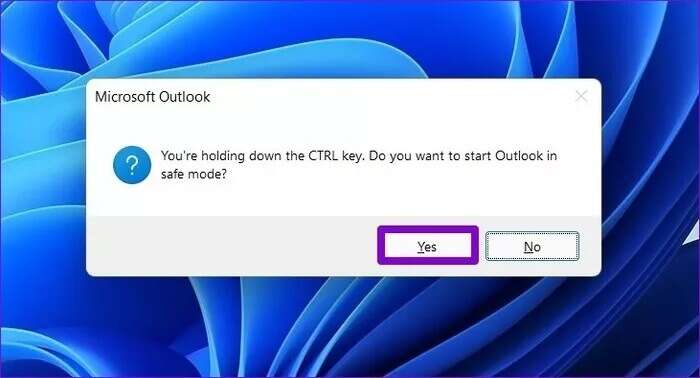
Hold down the key CTRL and double-click Outlook shortcut to start Run Outlook in Safe Mode.
Click yes When asked Open Outlook in Safe Mode.

If Outlook can connect to the server in Safe Mode An Outlook add-in might be causing the problem. To isolate which one is causing the problem, disable all of them and enable them individually.
Step 1: Click Menu a file above.
Step 2: go to the options.

Step 3: in window Outlook Options Switch to the Add-ons tab. Use the drop-down menu next to Administration and select COM add-onsThen, click the button. Go to follow.

Step 4: cancel Check the boxes to disable extra jobs And click OK.

4. Repair Outlook account
If Outlook connection issues are limited to a specific account, you can try to fix the account itself.
Step 1: Open Outlook program Click on the menu a file above.
Step 2: in the tab "Information" , Go to "account settings".
Step 3: within Email address , Locate Account that you are having problems with. Then click repair.

Outlook will attempt to connect to its server and fix any issues with your account.
5. Repair Outlook data file
If repairing your Outlook account doesn't work, the problem might be related to the Outlook data files on your computer. Here's how to fix it.
Step 1: Open Outlook program Click on the menu a file above.
Step 2: in the tab "Information" , Go to "account settings".
Step 3: Switch to tab Data files , and select Your account And click open File location.

Step 4: in window File Explorer , locate Outlook data file Yours and delete it.

Open Outlook Again. It will create a new data file which may end up resolving the issue. However, if the issue persists, you can try running the Inbox Repair Tool to fix any issues. Outlook PST files (Personal Folder File).
Step 1: Get out of Outlook appOpen a window. File Explorer Go to the next folder:
C:\Program Files\Microsoft Office\root\Office16
Step 2: Double click SCANPST.EXE file to open it.

Step 3: Click on Start To start the scan.

After the scan is complete, check to see if Outlook can connect to the server.
6. Create a new Outlook profile
Your Outlook profile contains your Outlook settings. If this profile becomes corrupted, you'll need to create a new one.
Step 1: press the . key Windows + R To open Run . dialog , And type in control , And press Enter.

Step 2: Switch the display type to icons And click Mail (Microsoft Outlook).

Step 3: within Profiles , Locate Show profiles.

Step 4: Click the button "addition" and enter a name For a new profile, click "OK".

Step 5: In the Add Account window, enter Your account details And press next one.

Step 6: Once created identification file Select your new profile under “When starting Microsoft Outlook” And press Application.

Try opening Outlook to see if the issue is resolved.
7. Fix Outlook app
Finally, if nothing works, you can try repairing the Outlook application itself. Microsoft offers an easy-to-use Office Repair Tool that can fix any issues with Office applications, including Outlook.
Step 1: press the . key Windows + R To start the command. In the field open , write appwiz.cpl And press Enter.

Step 2: in window programs and features , locate Microsoft Office Suite Or Microsoft 365Right-click on it and select changing.

Step 3: Locate fix Or Online repair and click the . button fix to follow.

After the repair is complete, check if it can connect to the servers.
Stay connected
The above solutions should help you fix it. Outlook connection issues on WindowsSpecifically, fix Outlook not connecting to the server on Windows 10 and Windows 11. Other solutions include reinstalling the Outlook app, which will also update the app to its latest version.