While driving on a busy street or highway, good music always helps calm you down. If you use Google Maps on your iPhone, you can Play and stop music from Apple Music From the same app. This means you don't have to keep switching between apps to control music and navigation.

However, some users are complaining about not being able to use Apple Music with Maps on their iPhone. If you're also experiencing this issue while driving, read on to learn the best fixes for Apple Music not working in Maps on your iPhone.
1. Check if Apple Music is enabled in Google Maps
First, you should check if Apple Music is selected for streaming and playing music in Google Maps. You can switch between multiple streaming platforms according to your preferences.
Step 1: Open Google Maps on your iPhone.

Step 2: Click on the icon personal file in the upper-right corner and select Settings.


Step 3: Locate Mobility And press Controls In playing music.


Step 4: Check if it is set Apple Music On default mode.


Next, check if you can use Apple Music in Google Maps.
2. Check screen time restrictions
Besides tracking your iPhone usage, it lets you: Screen Time Also allow or exclude apps like Google Maps from using your Apple Music library. You need to check if this access is enabled for Google Maps on your iPhone.
Step 1: Open Settings on your iPhone and select Screen Time.


Step 2: Click on Content and Privacy Restrictions.

Step 3: Scroll down and select Media and Apple Music.

Step 4: Make sure apps like: Google Maps To access your Apple Music library and make changes.
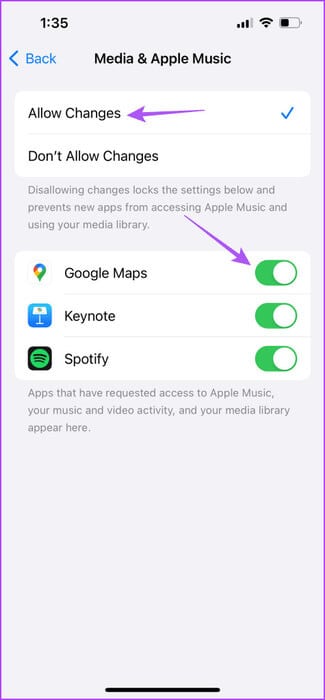

Close settings and open Google Maps To check if you can use Apple Music.
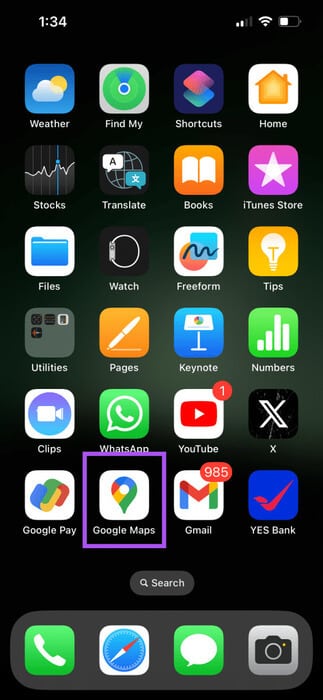
Instead, here's how to check.
Step 1: Open an app Settings on your iPhone and tap Google Maps.


Step 2: Click the toggle button next to Media and Apple Music To enable access.

Close the Settings app and open Google Maps to check if you can use Apple Music.
3. Check mobile data access for Apple Music
If you prefer to use Apple Music indoors, you may have disabled cellular data usage through the app on your iPhone. However, in that case, we suggest checking and enabling this option.
Step 1: Open an app Settings on your iPhone and select Music.

Step 2: Click the toggle button next to mobile data To enable access.

Step 3: Close settings and open Google Maps To verify the solution to the problem.
4. Switch to 5G network
If Google Maps keeps pausing Apple Music on your iPhone, we suggest Switch to 5G on your iPhoneWe only recommend this if you're confident in your data plan limits. After switching to 5G, you can download your songs from Apple Music and listen to them on the go.
5. Force quit and restart Google Maps
If the issue persists, you can force quit and restart Google Maps on your iPhone. This will give the app a fresh start.
Step 1: On the Home screen, swipe up and hold to reveal Background application windows.
Step 2: Swipe right to find Google Maps and swipe up to remove it.
Step 3: Restart Google Maps to check if you can use Apple Music in it.
6. Sign back in to Google Maps
You can also try signing back into Google Maps on your iPhone. This can also help prevent Google Maps from interrupting music playback on your iPhone.
Step 1: Open Google Maps On your iPhone, tap the icon. Profile in the upper right corner.
Step 2: Click on the icon Arrow Next to your profile name and select Account management On this device.


Step 3: Click on Remove From this device under your Google Account.

Step 4: Locate Add another account To log in again.

7. Update Google Maps
You can try updating the current version of Google Maps on your iPhone which will get rid of the bugs causing this issue.
8. Update iOS
If you're having trouble installing iOS updates, it's a good idea to install them. This will bring you the latest version of Apple Music and should help resolve the issue.
Step 1: Open an app Settings on your iPhone and tap general.


Step 2: Click on upgrade software Install it if available.

Open Google Maps after installation is complete to check if you can use Apple Music in it.
Enjoy the rhythms
These solutions will help you use Apple Music when it isn't working in Maps on your iPhone. You can also choose Create a playlist in Apple Music Which will play the perfect tunes to complement your mood while driving. You can have a different playlist for your commute to work or for a road trip with your friends and family.