أصبحت Microsoft Teams جزءًا لا يتجزأ من العديد من الشركات والمؤسسات ، خاصة تلك التي تعتمد على Microsoft Azure و Office. ومع ذلك ، يشكو العديد من مستخدمي Microsoft Teams من أنهم لا يستطيعون عرض الحالة أو أن الحالة لا يتم تحديثها. أيضًا ، يشاهد المستخدمون الآخرون خطأ غير معروف للحالة .

تلعب الحالة دورًا حيويًا في الإعداد الرسمي. يسمح للموظفين بمعرفة ما إذا كان الشخص الموجود على الجانب الآخر مشغولاً ومتاحاً في اجتماع وفي مكالمة وما إلى ذلك. اعتمادًا على الحالة المعينة في الملف الشخصي والمرئية لجميع أعضاء الفريق الآخرين ، يمكن للفرد التواصل أو اختيار الوقت المناسب للتواصل. يمكن صياغة الرسالة وفقًا لذلك ، مما يتيح للمستخدم معرفة ما إذا كان هناك شيء عاجل أم لا. في كلتا الحالتين ، تلعب الحالة ، على الرغم من كونها ميزة صغيرة ، دورًا أكبر وهامًا.
إليك كيفية إصلاحه.
1. جرِّب TEAMS عبر الويب أو الجوّال
يتوفر Microsoft Teams على جميع الأنظمة الأساسية الشائعة مثل سطح المكتب ومتصفحات الويب وتطبيقات الأجهزة المحمولة لنظامي التشغيل Android و iOS. إذا لم تتمكن من عرض الحالة بشكل صحيح على أحد الأنظمة الأساسية ، فجرّب نظامًا آخر للعثور على فترة راحة فورية. بمجرد الانتهاء من المهمة الحالية ، جرب أحد الحلول أدناه لإصلاح خطأ حالة الفريق غير معروف أو الحالة مفقودة.
2. إعادة تعيين الحالة
إذا لم تكن المشكلة منتشرة وتحدث لمستخدم واحد فقط ، اطلب منه إعادة تعيين الحالة. يمكن للمرء أن يفعل ذلك من نفس القائمة حيث يتم تحديد الحالة.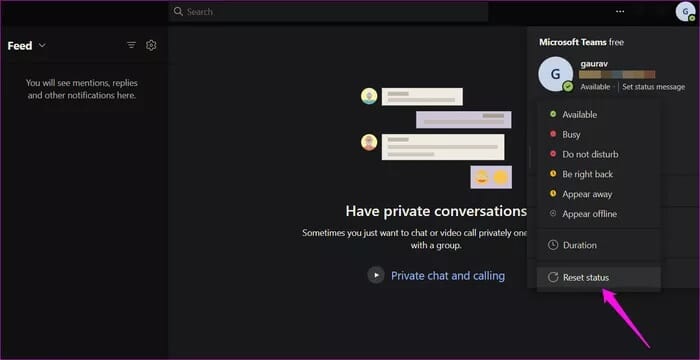
3. حدد TEAMS كخيار الوحيد
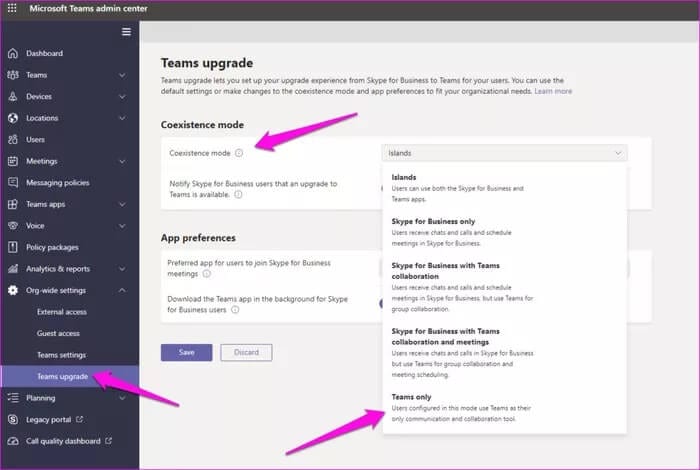
لدى Microsoft Teams خيار يسمى وضع التعايش الذي يسمح للمستخدمين الذين قاموا بالترقية من Skype for Business بالتعايش مع المستخدمين الذين انضموا مباشرةً إلى Teams. بشكل افتراضي ، يتم تعيينه على وضع الجزر.
افتح مركز إدارة Microsoft Teams وانتقل إلى الإعدادات على مستوى المؤسسة> ترقية Teams . حدد Teams فقط من القائمة المنسدلة بجوار وضع التعايش.
أعد تشغيل Teams مرة واحدة وتأكد مما إذا كانت الحالة تظهر بشكل صحيح الآن.
4. قم بإلغاء تحديد تسجيل TEAMS باعتباره تطبيق الدردشة للـ Office
قد يكون سبب آخر للتعارض هو تعيين تطبيق Teams كتطبيق افتراضي للدردشة لمستخدمي Office. هذا يعني أن Teams تستورد الحالة من Office Suite ، مما يؤدي إلى مشكلة الحالة غير معروفة أو الحالة مفقودة.


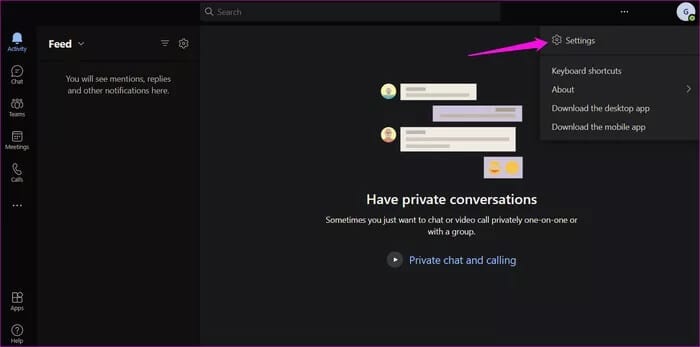
الخطوة 1: انقر فوق الصورة الرمزية لملف التعريف الخاص بك وحدد الإعدادات.
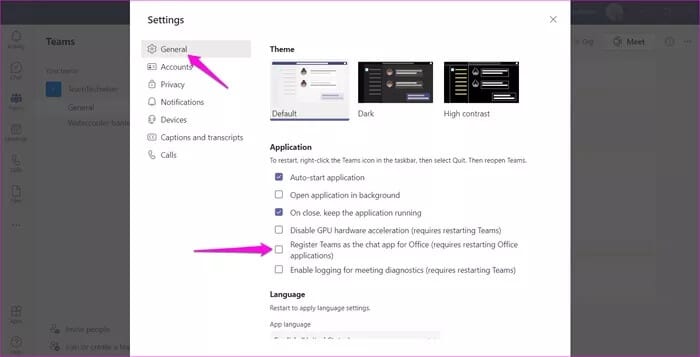
الخطوة 2: ضمن علامة التبويب “عام” في الشريط الجانبي الأيسر ، قم بإلغاء تحديد “تسجيل Teams كتطبيق الدردشة لـ Office“. إذا كان الخيار معطلاً بالفعل ، فحاول تمكينه بدلاً من ذلك لمزامنة الحالة بشكل صحيح.
5. حذف ملفات الإعدادات
سيؤدي اتباع هذه الخطوة إلى إعادة تعيين تطبيق Teams. هذا يعني أنه قد يتعين عليك تسجيل الدخول مرة أخرى إلى Teams وتعيين بعض التفضيلات مرة أخرى. ستظل جميع البيانات المخزنة في السحابة كما هي. يعد ملف settings.json هو الملف الذي يتم فيه حفظ جميع إعدادات Microsoft Teams الخاصة بك. سيؤدي حذفه إلى إجبار الفرق على إنشاء واحدة جديدة.
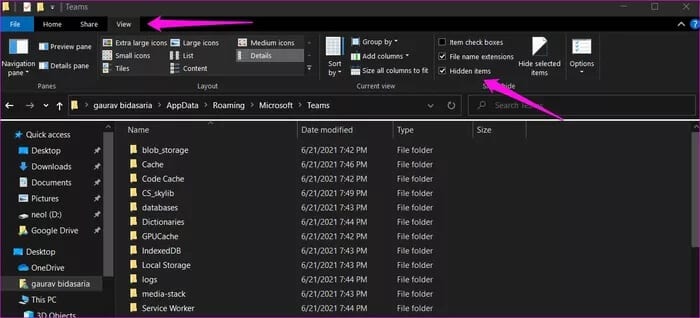
الخطوة 1: اضغط على مفتاح Windows + E لفتح File Explorer واكتب العنوان أدناه للوصول إلى مجلد الملف بسرعة. إذا قمت بعرض خطأ ما ، فتحقق من العناصر المخفية ضمن علامة التبويب عرض في مستكشف الملفات أولاً.
%appdata%\Microsoft\teams
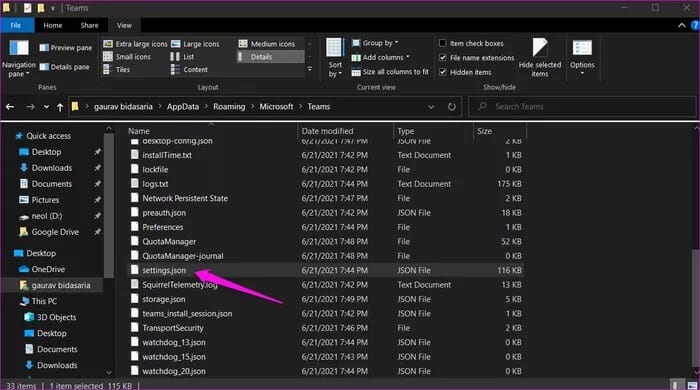
الخطوة 2: احذف ملف “settings.json“. يوصى بأخذ نسخة احتياطية من الملف قبل القيام بذلك. انسخه إلى سطح المكتب.
6. تسجيل الدخول مرة أخرى
الآن ، قمت بإجراء العديد من التغييرات وجربتها باستخدام الحلول المذكورة أعلاه. قد يساعد هذا في حل مشكلة الحالةالتي لا تعمل أو الحالة غير معروفة.
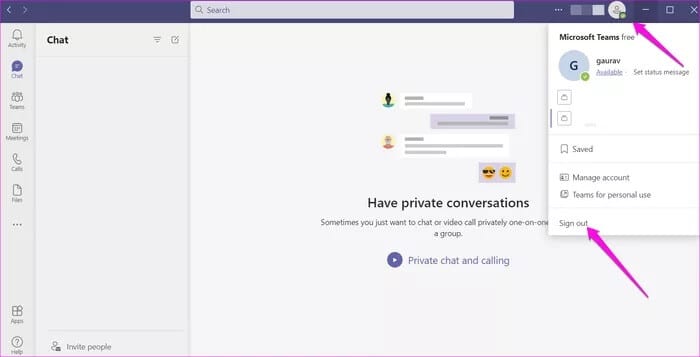
قد يجد المرء الخيار ضمن قائمة شعار الملف الشخصي.
7. حسابات TEAMS متعددة
هل أنت جزء من Teams متعددة وقمت بتسجيل الدخول إلى أكثر من حساب Teams؟ يمكن أن يتسبب ذلك أيضًا في حدوث صراع. قم بتسجيل الخروج من كافة الحسابات ثم قم بتسجيل الدخول إلى الحساب الذي تريد استخدامه الآن أو حيث لا تظهر الحالة في Teams.
8. مسح ذاكرة التخزين المؤقت لتطبيق MICROSOFT TEAMS
غالبًا ما تكون ذاكرة التخزين المؤقت المسؤولة عن التسبب في جميع أنواع الأخطاء ، وهذا ينطبق على جميع التطبيقات وليس فقط Teams. لاحظ أن مسح ملفات ذاكرة التخزين المؤقت سيؤدي إلى تسجيل خروجك ولكن لن يؤدي إلى فقدان أي بيانات.
الخطوة 1: أغلق تطبيق Teams إما عن طريق النقر فوق الزر المتقاطع.
الخطوة 2: افتح File Explorer مرة أخرى (مفتاح Windows + E) والصق العنوان أدناه في شريط البحث.
%appdata%\Microsoft\teams
خطوة 3: احذف الملفات والمجلدات أدناه.
- application cache\cache
- blob_storage
- Cache
- databases
- GPUcache
- IndexedDB
- Local Storage
- tmpdelete teams cache files
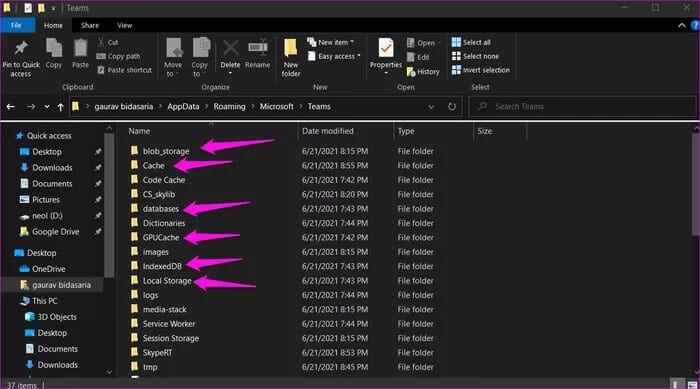
خطوة 4: أعد تشغيل الكمبيوتر وابدأ تشغيل تطبيق Teams مرة أخرى. هل يمكنك عرض الحالة بشكل صحيح؟
9. إعادة التثبيت النظيف
ربما تعرضت بعض ملفات النظام أو التثبيت القديمة للتلف ، مما يؤدي إلى عدم ظهور الخطأ. في هذه الحالة ، ستحتاج إلى إعادة تثبيت التطبيق. احصل على Revo Uninstaller لإلغاء تثبيت Teams والملفات المتبقية. ثم قم بتنزيل نسخة حديثة من Microsoft وقم بتثبيتها.
10. قم بتحديث MICROSOFT TEAMS و WINDOWS
سيؤدي الحفاظ على تحديث نظام التشغيل Windows وتطبيق Microsoft Teams إلى تثبيت أحدث التصحيحات لأي إصلاحات أخطاء أساسية. خطأ الحالة غير المعروفة أو المفقودة ليس جديدًا ، وفي الماضي ، أقرت Microsoft بالمشكلة. ومع ذلك ، فإنه لا يزال يصيب المستخدمين. نأمل أن يتم حلها قريبًا.
يمكن أن تكون الحالة مفيدة
يعد Microsoft Teams منطقيًا للغاية ويجمع الدردشات من جميع تطبيقات Microsoft Office الأخرى في تطبيق واحد. نظرًا لأنه كان فكرة متأخرة بعد نجاح Zoom ، واجهت Microsoft بعض المشكلات في دمج Teams مع نظام Office البيئي الأكبر. بمرور الوقت ، يتم إصلاح معظم الأخطاء ، ويعمل كل شيء على النحو المنشود. هناك بعض السقطات العرضية في بعض الأحيان ، ولكن هذا أمر متوقع من أي تطبيق. نأمل أن تتمكن الآن من عرض الحالة بشكل صحيح في Microsoft Teams.