Janna Theme License is not validated, go to the theme options page to validate the license, you need a single license for each domain name.
How to Add Friends on Discord for Desktop and Mobile
People join Discord To meet and connect with like-minded people in their location. Some of the people you talk to regularly often become friends, and you may want to stay in touch with them. You can either send them a friend request or invite your friends on the server. Discord of which you are a part. It contains Discord The interface is similar across desktop, web, and mobile apps. However, there's a slight difference when you want to add friends. This post will show you how to add friends on Discord For desktop and mobile.
Step 6: Type the Discord tag of the friend you want to add.
Step 7: Click “Send Friend Request” to your friend.
After the person accepts your request, the person's name appears in your friends list.
Add friends from Discord server
Another way to add friends on Discord is through the server. Check out the steps below to learn how:
Step 1: On your Windows PC, click the Start menu and search for Discord.
Step 2: Click on the Discord app from the results.
Step 3: When the Discord app starts, click on your Discord server on the left side of the window.
Step 4: Browse the server member list from the left column of the server window. If the member list isn't visible, click the Show Member List icon at the top of the window.
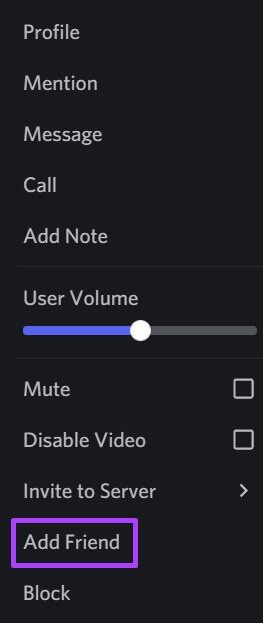
Step 5: Locate your friend or member in the list and right-click on their profile.
Step 6: From the options presented, click Add Friend, and Discord will send an add request on your behalf.
Add friends on disk using iPhone
Adding friends on Discord using an iPhone is similar to how you add friends on an Android device. You can add a friend directly or through the Discord server. Check out how to do both below:
Add friends from the Discord home page
Follow these steps to add a friend directly using your iPhone:
Step 1: Tap the Discord app on your iPhone's Home screen.
Step 2: When the Discord app is open, click Home in the top-left corner of your screen.
Step 3: Click Add Friends.
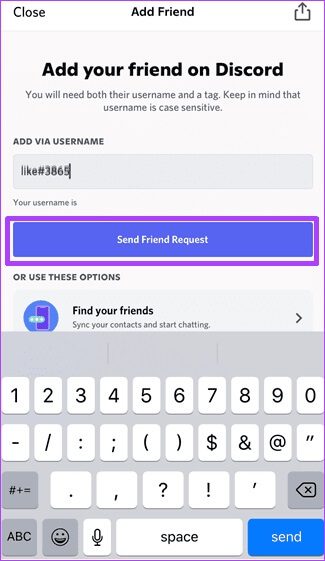
Step 4: In the box labeled "Add via Username," provide your friend's tag. Another option is to sync your phone's contacts to identify your contacts using your Discord account.
Step 5: Click Send Friend Request when finished.
Add friends from a Discord server on iPhone
The steps below will guide you:
Step 1: Tap the Discord app on your iPhone's Home screen.
Step 2: When you start the Discord app, click on a server on the left of the screen.
Step 3: Select the channel to find the individual you want to add.
Step 4: At the top right of the channel page, click the channel users list to show all the people on that channel.
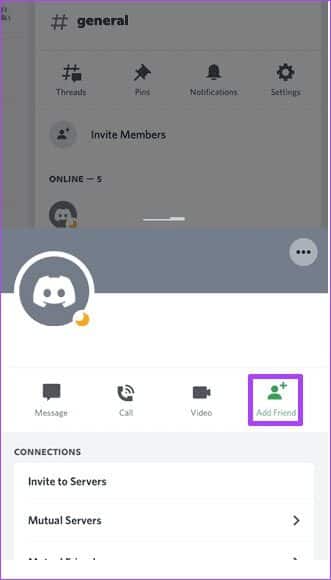
Step 5: Click on your friend's profile to open a pop-up window.
Step 6: Send your friend request by clicking the Add Friend button.
Add friends on the disk using Android
Using the Discord app on your Android device, adding friends is very easy. As we explained above, you can either add friends directly or through the Discord server. We'll explain both below.
Add friends from the Discord home page
Follow the steps below to add a new friend on Discord for Android:
Step 1: Tap the Discord app on your Android home screen.
Step 2: When the Discord app is open, click Home in the top-left corner of your screen.
Step 3: Click Add Friend.
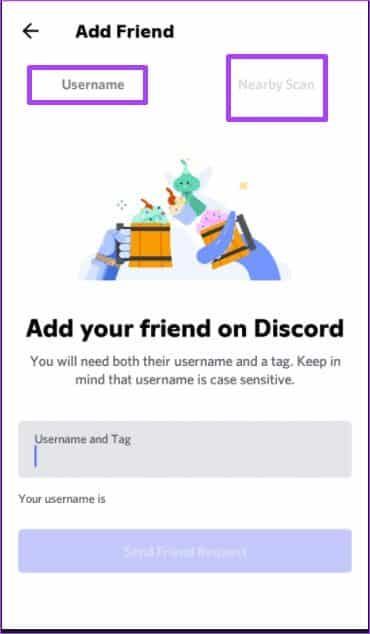
Step 4: In the box labeled "Add via Username," provide your friend's tag. Another option is to run a nearby scan to find nearby contacts.
Step 5: Click Send Friend Request when finished.
Add friends from a Discord server on Android
If you're using an Android phone or tablet, you can still add a friend via a Discord server. Here's what to do:
Step 1: Tap the Discord app on your Android home screen.
Step 2: When you launch the Discord app, click on a server from the list in the left column.
Step 3: Select the channel to find the individual you want to add.
Step 4: At the top right of the channel page, click the channel users list to show all the people on that channel.
Step 5: Click on your friend's profile to open a pop-up window.
Step 6: Send your friend request by clicking Add Friend.
Create a Discord channel
Now learn how to add friends on Discord For desktop and mobile. If you want to talk to a group of friends at once, learn how to create or Lock a channel on Discord To make it easier.