With the increase 1000% in use At the height of the COVID-19 pandemic, Microsoft Teams' deep integration with Office 365 makes it one of the most popular collaboration tools. The app works on Windows, Mac, iOS, and Android devices. Besides being a collaboration software, the app also offers video conferencing and chat messaging features. In this guide, we'll walk you through how to block a contact in Microsoft Teams.

To call or message someone using the Teams app, all you have to do is make sure they're in your contact list. However, you can block them if you no longer want the individual to contact you on the Microsoft Teams platform. Here's how it works:
Note: The block option is only available for personal Microsoft Teams accounts.
Block a contact in Microsoft Teams for Android
If you're using an Android device, here's how to block a contact on Microsoft Teams:
Step 1: Launch Microsoft Teams and tap Chat at the bottom of the screen.

Step 2: Select the contact or chat you want to block by tapping and holding it for a few seconds.
Step 3: Select the block option to block the contact.

To unblock a contact on Microsoft Teams for Android, you can follow the same steps above. However, if the contact is no longer in your recent chat list, follow the steps below:


Step 1: Launch Microsoft Teams and tap your profile picture.

Step 2: Click on Settings from the menu options.

Step 3: Scroll through the list of options on the Settings page and select People.

Step 5: Tap Unblock Contact.

Block a contact in Microsoft Teams for iOS
Here's how to block a contact on Microsoft Teams on your iOS device:
Step 1: Launch the Teams app from your device's home screen.

Step 2: At the bottom of the screen, tap Chat.

Step 3: Select the contact or chat you want to block by tapping on it.

Step 4: At the top of the screen, tap the contact's name.

Step 5: After opening the chat details window, tap the contact name again.

Step 6: Click Block Contact.

To unblock a contact on Microsoft Teams for iOS, you can follow the same steps above. However, if the contact is no longer in your recent chat list, follow the steps below:
Step 1: Launch Microsoft Teams and tap your profile picture.

Step 2: Click on Settings from the menu options.

Step 3: Scroll through the list of options on the Settings page and select People.

Step 4: Tap Blocked Contacts and select the contact you want to unblock by tapping on it.

Step 5: Tap Unblock Contact.

Block a contact in Microsoft Teams for Windows
Check out the steps below to learn how to block a contact on Microsoft Teams for Windows.
Step 1: Launch Microsoft Teams on your computer.

Step 2: Select the Chat tab and hover over the contact you want to block. You can use the search option to locate the contact if they aren't already in your recent chats list.

Step 3: Click on the three horizontal dots next to the contact's name, also known as More options.

Step 4: From the listed options, select Block, and instead of seeing the contact's status, you'll see a new label showing that they've been blocked.

To unblock a contact on Microsoft Teams when using a Windows computer, you can use the same steps above. However, if the contact is no longer in your recent chat list, follow the steps below:
Step 1: Click the three horizontal dots, also known as Settings and More, next to your profile picture.

Step 2: Click Settings.

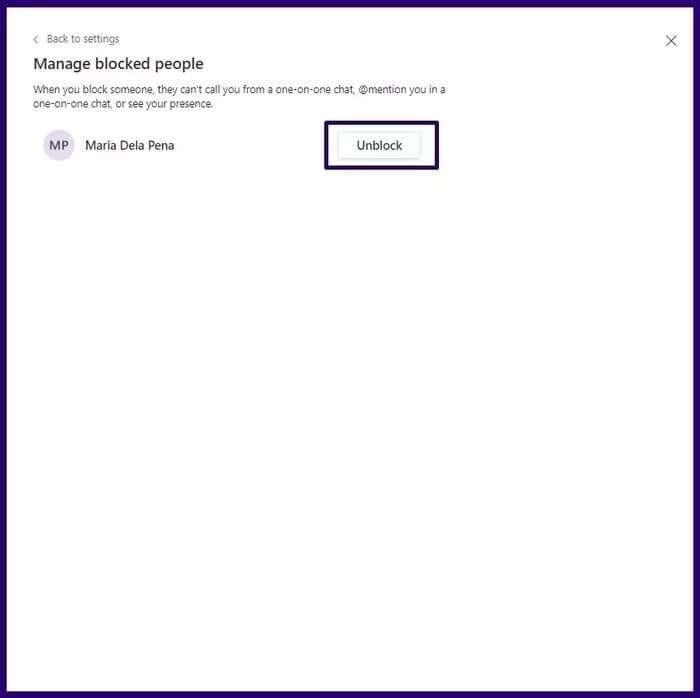
Step 3: Click Privacy and click Edit blocked contacts or Managed blocked users if you're using Windows 11.

For step 4: Select the contact you want to unblock and click Unblock.

Repair status not showing in Microsoft Teams
By blocking a contact in Microsoft Teams, their status changes to Blocked. You can review our guide on how to do this. Fix Microsoft Teams now showing status on Windows.