في معظم تطبيقات المراسلة ، يجب أن تكون إدارة الدردشات أكثر المهام تعقيدًا في متناول اليد. على وجه الخصوص ، في تطبيق مثل Telegram حيث لا تقتصر محادثاتك على الأفراد أو المجموعات ولكن القنوات وروبوتات Telegram. أقر Telegram بالتأكيد بالحاجة عندما قدم ميزة مجلد الدردشة، في هذا المقال سنتعرف على كيفية إنشاء وإدارة مجلدات الدردشة في Telegram.

بالطبع ، يمكنك تثبيت محادثاتك المفضلة للتأكد من أنك لن تفوتها أبدًا. لكن إنشاء مجلدات دردشة يتيح لك تنظيم محادثاتك وتصنيفها بسهولة أفضل. ستوضح لك هذه المقالة كيفية إنشاء مجلدات الدردشة وإدارتها في تطبيق Telegram. لذلك دعونا نبدأ.
كيفية إنشاء مجلد دردشة على الهاتف
أولاً ، دعنا نرى كيفية إنشاء مجلد دردشة في Telegram. نظرًا لأن تطبيق Telegram يعمل بنفس الطريقة تقريبًا على كل نظام أساسي ، سنستخدم هاتف Android لتوضيح العملية.
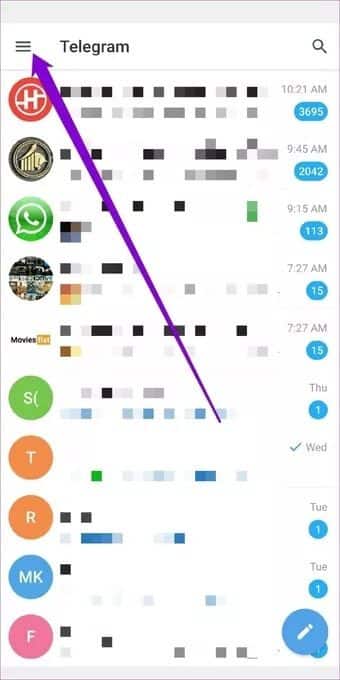
الخطوة 1: افتح تطبيق Telegram على هاتفك وانتقل إلى الإعدادات.
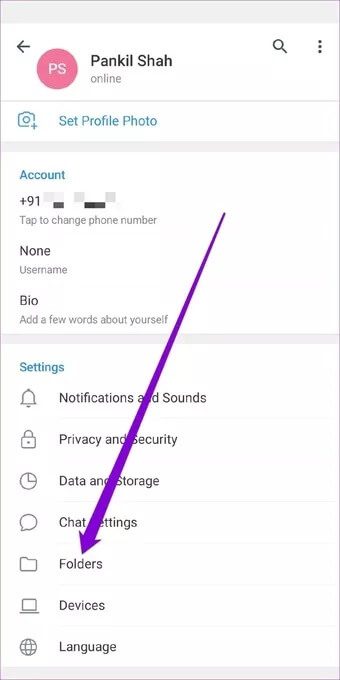
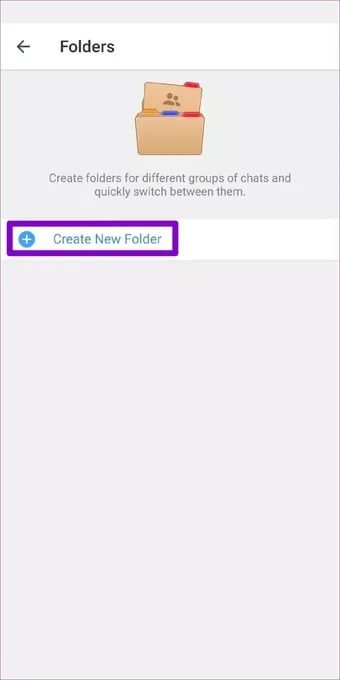
الخطوة 2: انتقل الآن إلى خيار المجلدات واضغط على إنشاء مجلد جديد.
خطوة 3: بعد ذلك ، أدخل اسمًا مناسبًا لمجلد الدردشة وانقر على زر إضافة الدردشات لبدء تضمين الدردشات في مجلدك.
يمكنك تضمين الدردشات إما حسب نوعها أو بشكل فردي. عند الانتهاء ، انقر فوق علامة الاختيار للمتابعة.
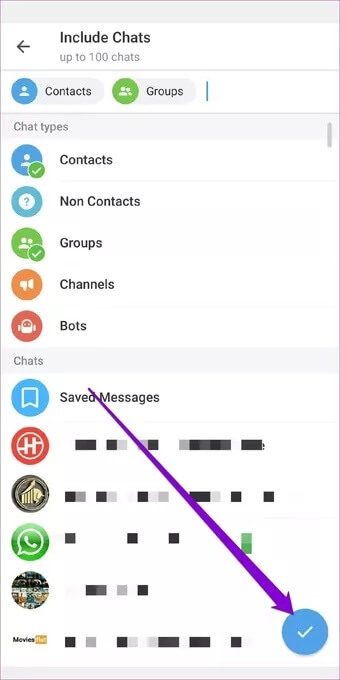



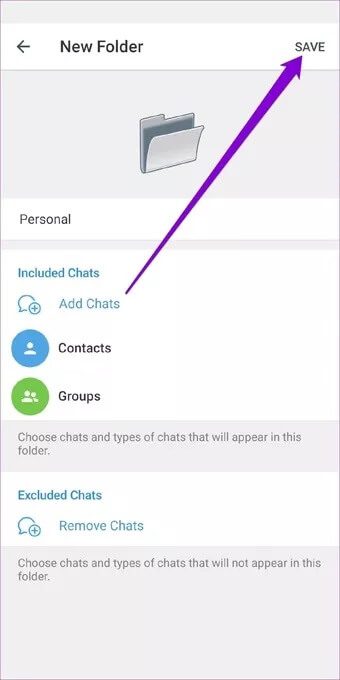
وهذا كل شيء. بمجرد الإنشاء ، ستجد مجلد الدردشة الخاص بك على الشاشة الرئيسية للتطبيق. يمكنك تكرار نفس الخطوات أعلاه لإنشاء المزيد من مجلدات الدردشة في Telegram.
كيفية إضافة أو حذف المحادثات من المجلد
إذا قمت بتضمين الدردشات حسب أنواعها ، فستتم إضافة جميع المحادثات التي تندرج في هذه الفئة تلقائيًا. بطبيعة الحال ، قد ترغب في إضافة أو إزالة بعض الدردشات من المجلد في المستقبل. حسنًا ، من السهل جدًا القيام بذلك. إليك الطريقة.
الخطوة 1: افتح تطبيق Telegram وانتقل إلى الإعدادات. هناك ، انتقل إلى المجلدات وافتح المجلد الخاص بك لإجراء تغييرات عليه.
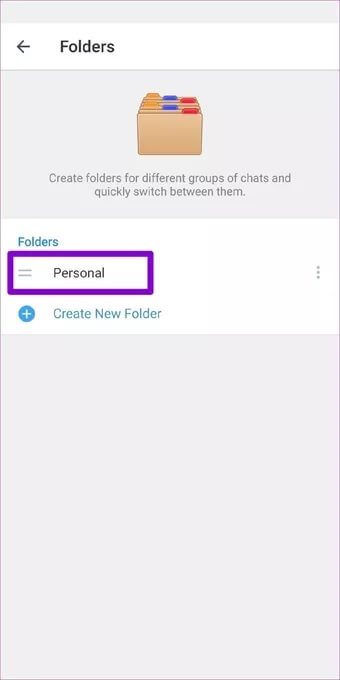
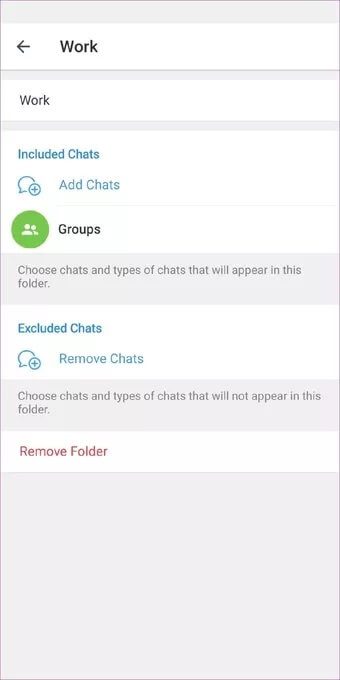
الخطوة 2: الآن اضغط على خيار إزالة الدردشات لاستبعاد بعض الدردشات من مجلدك.
يمكنك اختيار استبعاد الدردشات التي تم كتمها أو قراءتها أو وضعها في الأرشيف. أو يمكنك استبعادهم بشكل فردي عن طريق تحديدهم من القائمة. عند الانتهاء ، انقر فوق علامة الاختيار للمتابعة.
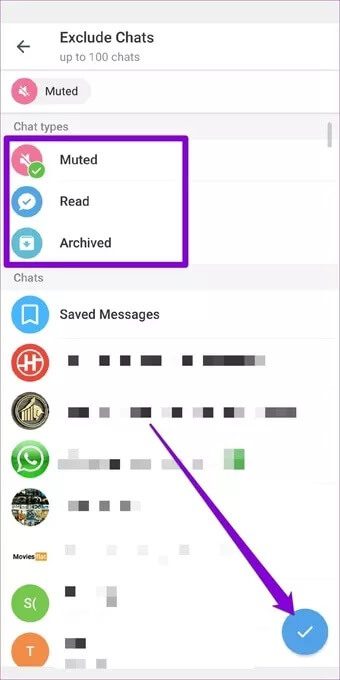
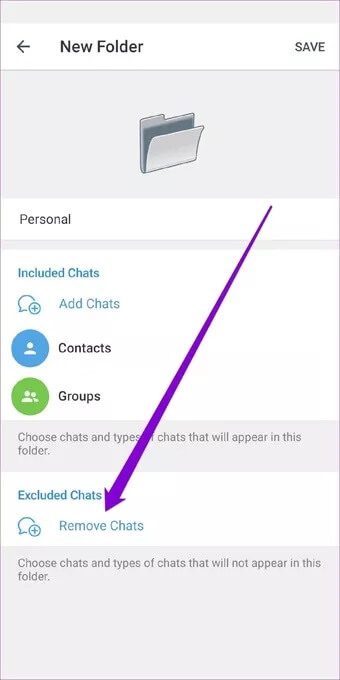
خطوة 3: في مجلد الدردشة ، ستجد المحادثات التي تمت إزالتها ضمن الدردشات المستبعدة. أخيرًا ، انقر فوق خيار حفظ للتأكيد.
وبالمثل ، يمكنك أيضًا إضافة محادثات جديدة إلى مجلدك عن طريق النقر على خيار إضافة الدردشات واختيار محادثات جديدة من القائمة.
كيفية إدارة مجلدات الدردشة في الهاتف
يعرض تطبيق Telegram جميع مجلدات الدردشة على الصفحة الرئيسية في شكل علامات تبويب. يمكنك التبديل بسهولة بين علامات التبويب هذه للوصول إلى مجلداتك.
بالإضافة إلى ذلك ، يمكنك أيضًا إعادة ترتيب علامات تبويب المجلد أو تحريرها أو حذفها من هناك.
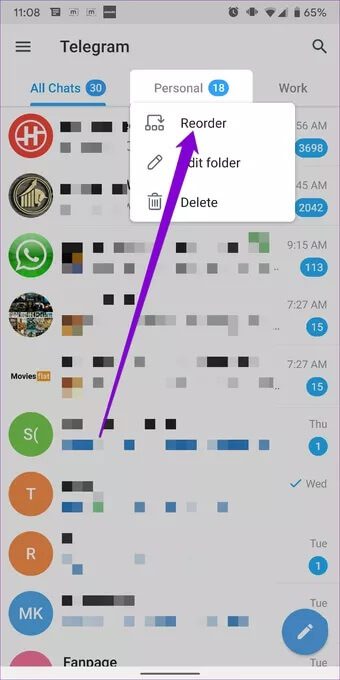
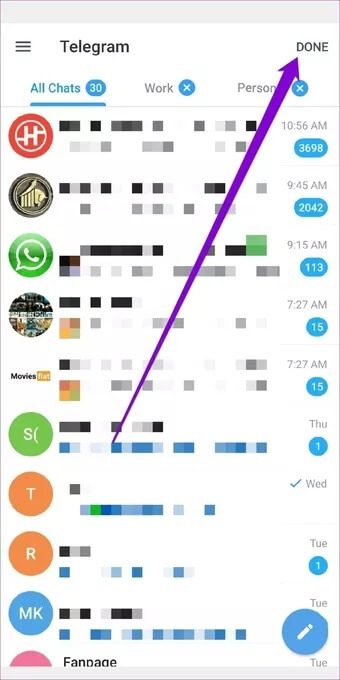
لتغيير ترتيب مجلدات الدردشة ، اضغط مع الاستمرار على أي من مجلدات الدردشة واختر إعادة ترتيب من القائمة الناتجة. الآن اضغط مع الاستمرار على مجلد الدردشة وانقله إلى اليسار أو اليمين. أخيرًا ، انقر فوق تم لحفظ التغييرات.
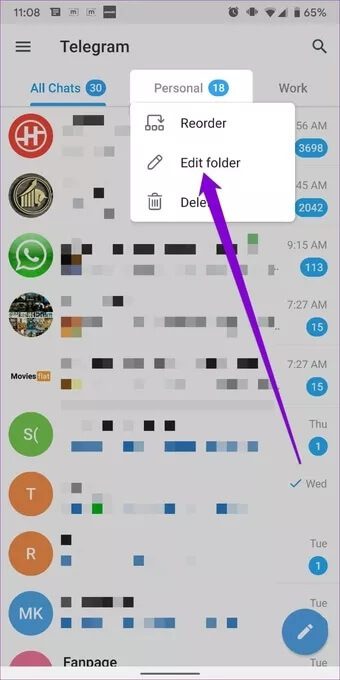
وبالمثل ، انقر مع الاستمرار فوق علامة تبويب مجلد الدردشة وحدد خيار تحرير المجلد لتعديل مجلد. سينقلك هذا إلى صفحة التحرير. هنا ، يمكنك إعادة تسمية المجلد أو إضافة أو إزالة الدردشات منه أو حذف المجلد نفسه.
المكافأة: كيفية إجراء محادثة عبر TELEGRAM
بصرف النظر عن إنشاء المجلدات ، يتيح لك Telegram أيضًا تثبيت محادثات معينة داخل المجلد حتى لا تضيع محادثاتك المفضلة في الفوضى. يتيح لك تثبيت الدردشات داخل المجلد الوصول إلى الدردشات بسرعة من خلال إبقائها في الأعلى.
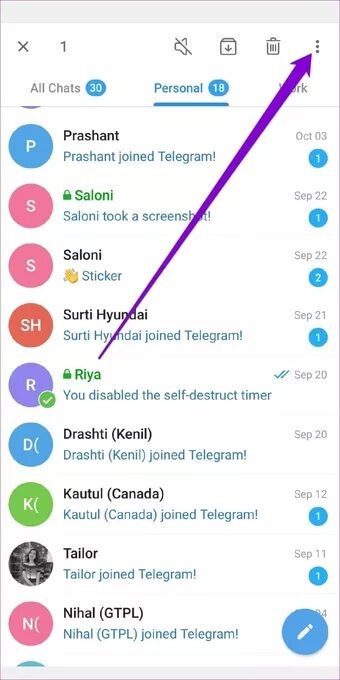
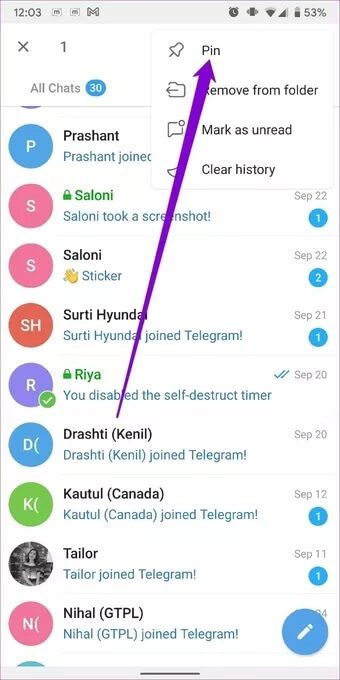
لتثبيت دردشة في Telegram لنظام Android ، انقر مع الاستمرار فوق الدردشة واستخدم قائمة النقاط الثلاث في الجزء العلوي لاختيار خيار Pin.
وبالمثل ، يمكن لمستخدمي iPhone أيضًا التمرير سريعًا على المحادثة والنقر فوق خيار Pin لتثبيت الدردشة.
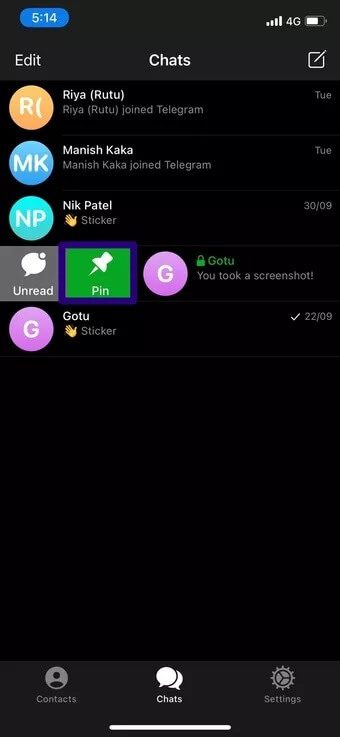
وهذا هو مدى سهولة الأمر. سترى الآن دائمًا الدردشات والقنوات المثبتة في الأعلى.
إدارة المحادثات أصبحت سهلة
بالنظر إلى جميع محادثاتنا والقنوات التي نتابعها ، يبدو إنشاء وإدارة مجلدات الدردشة في Telegram لتنظيم محادثاتك ضرورة أكثر من كونها رفاهية. بهذه الطريقة ، يمكنك التأكد من أن الدردشات المفضلة لديك لا تمر مرور الكرام.
هل تحب استخدام Telegram ولكنك قلق بشأن الخصوصية؟ تعرف على كيفية الدردشة في سرية باستخدام ميزة الدردشة السرية في Telegram، كما يمكنك استعمال دردشة Telegram على الويب في كل وقت.