Online security can be tricky. You come across a lot of threats while browsing the web. And while your favorite web browser may be able to protect you from most of them, it can't eliminate every threat every time, unless you let it. To protect you from these threats, browsers like Chrome have introduced what's calledSafe BrowsingIn this article, we will discuss how to enable enhanced protection mode in Google Chrome.

Safe Browsing basically comes in two types: Standard Protection Mode (enabled by default) and Enhanced Protection Mode, which is a more advanced level of safe browsing. We'll talk about What does Enhanced Protection mean in Google Chrome? And how you can enable it is explained in this post. So let's get started.
What is enhanced protection in Google Chrome?
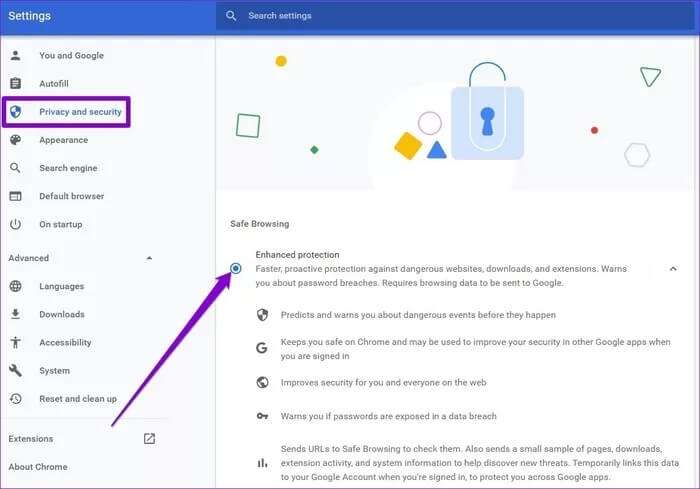
Enhanced Protection Mode protects you from websites, downloads, or Additions Malicious. When enabled, it essentially allows Chrome to access your online activity and act proactively. Chrome will use this data to predict any dangerous events and notify you before they occur by constantly checking and analyzing uncommon URLs and sample pages from the website in real time.

Enabling enhanced protection also increases the security of other Google apps (such as Gmail, Drive, etc.) that you may use. It will provide enhanced protection based on a comprehensive view of the threats to your Google account. For example, if Gmail detects a spam email containing a phishing link, enhanced protection passes the information to Chrome if you click on it.
Furthermore, if any of the Your saved passwords If you're hacked into in a data breach of some kind, Chrome will let you know.
By default, Chrome comes with standard protection, which is good enough to warn you about potentially risky downloads, sites, and extensions. If you've decided to up your online security game, here's how to enable enhanced protection on both the mobile and web versions of Google Chrome.
How to enable enhanced protection in Google Chrome for Android
Previously, the Safe Browsing feature was only accessible via Chrome Flags for Android. Well, not anymore, as the feature has finally made its way to Chrome's privacy and security settings. Read on to learn how to enable enhanced protection in Google Chrome for Android.
Step 1: Open the Google Chrome app on your Android device. Use the three-dot menu in the top-right corner to open Settings.


Step 2: Under Basics, click Privacy & Security. Now go to Safe Browsing.


Step 3: Next, select the Enhanced Protection option. You can click the arrow next to it to learn more about it.

How to enable enhanced protection in Google Chrome for iOS
Google Chrome also offers enhanced sandbox mode for iOS devices. Here's how to enable it.
Step 1: Launch Google Chrome on your iPhone. Tap the three-dot menu icon to select Settings from the menu.


Step 2: Go to Google Services. Toggle the switch next to Safe Browsing and click Done to save your changes.


How to enable enhanced protection in Google Chrome for PC
For the basic version of Google Chrome, here's how to enable Enhanced Protection Mode.
Step 1: Open Google Chrome on your computer. Now click the three-dot menu icon in the top right to go to Settings.

Step 2: Switch to the Privacy & Security tab and click Security.

Step 3: Finally, select the Enhanced Protection option under Safe Browsing.
Bonus: How to Run a Security Scan in Google Chrome
Whether or not you intend to enable Enhanced Protection, we recommend running the built-in Security Checkup tool regularly to protect yourself from data breaches, malicious extensions, and more. Here's how to run a Security Checkup in Google Chrome.
Step 1: Launch Google Chrome and click on the three-dot menu icon at the top to open Settings.
Step 2: Use the right pane to navigate to the Privacy & Security tab. Under Security Scan, click the Scan Now button to perform a quick scan.

Once finished, Chrome will suggest some changes based on the scan results.

Take the recommended steps if necessary and you should be clear.
Contact Us
While browsing the web on Chrome, it's best to take care of your system's security. Enabling enhanced protection in Chrome is the right thing to do, especially if you browse the web a lot and like to use extensions. And while you're at it, don't forget to check out Other security tips for Chrome.