Janna Theme License is not validated, go to the theme options page to validate the license, you need a single license for each domain name.
Top 6 Ways to Fix Clipboard Not Working in Windows 11
When you copy any text or image (less than 4MB in size) to your computer, Windows automatically stores that item on the Clipboard. You can access your Clipboard history at any time andSync it across all your devicesHowever, if you are unable to reap these benefits due to clipboard history not working in Windows 11, we are here to help.
Clipboard history can be a time-saver on Windows. But when it stops working, you don't need to keep pasting snippets into Notepad. If Windows fails to save copied items to the clipboard history, you can use the following troubleshooting tips to fix the problem.
Let's start troubleshooting with the classic trick from the book—disabling and re-enabling clipboard history. If it's just a temporary glitch causing the problem, re-enabling the clipboard history feature should do the trick.
Step 1: Click on Windows key + I to turn on Settings app. in a System tab Scroll down to tap The clipboard.
Step 2: turn off Clipboard history option ثم Restart it.
Try copying some text and press Windows key + V to reach Clipboard history panelCheck to see if Windows has saved your text.
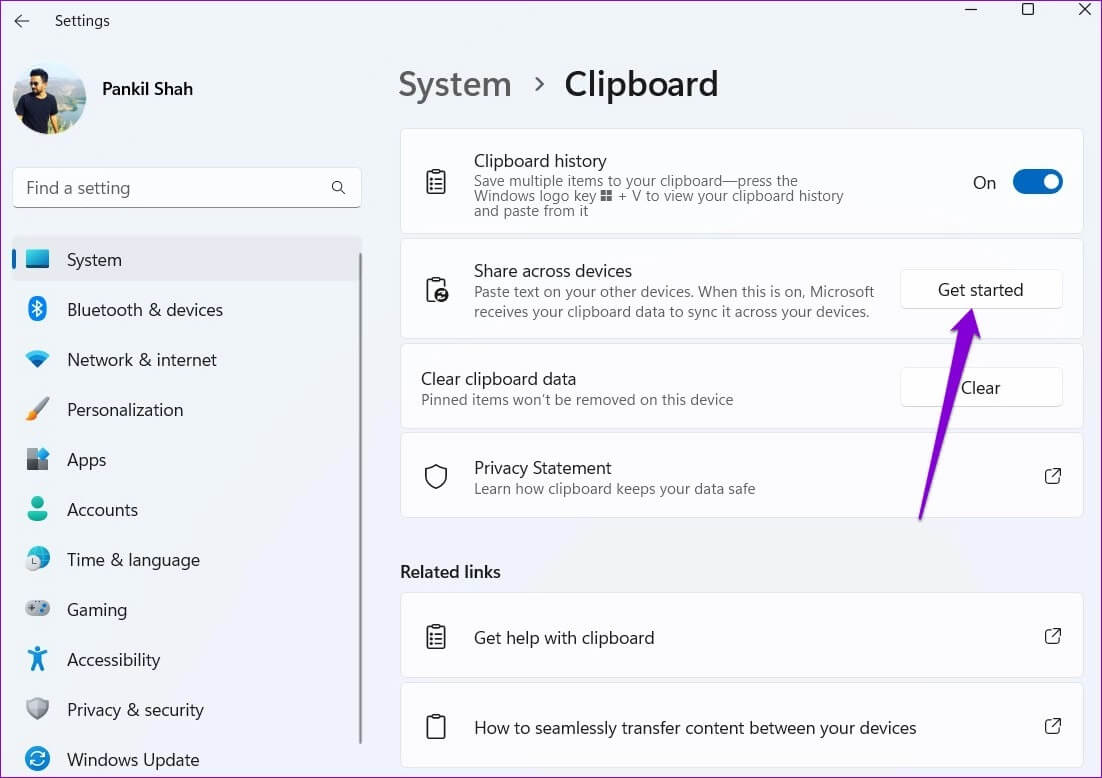
Windows requires you to sign in with Microsoft account To sync the clipboard across your devices. If you switch to a local account or disable the sync feature, Windows will fail to sync your clipboard history across devices. Here's how to enable it again.
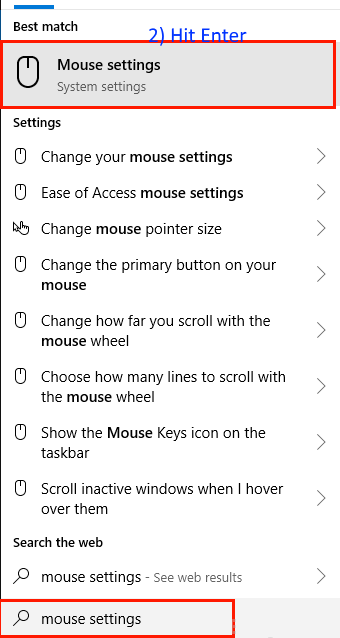
Step 1: Click Search code in Taskbar , And type Clipboard settings , And press Enter.
Step 2: Enable the key next to Share across your devices If it is closed.
If you aren't signed in with a Microsoft account, you'll see the Get Started button instead. Click it and sign in with your Microsoft account to access Toggle “Share across your devices.”
Old clipboard data can also cause it to run. Therefore, you can clear the current clipboard data from Windows and start over. Here's how.
Step 1: Click Search code in Taskbar or press Windows key + S To open Search menu. Write Clipboard data in the box and press Enter.
Step 2: tap on The Clear button next to “Clear Clipboard Data.”
After clearing the clipboard data, check to see if the clipboard history is working.
4. Check group policy
Another reason why clipboard history might not work on Windows 11 is if the feature is disabled through Group Policy. To ensure this isn't the case, you can check the Group Policy settings on your computer by following the steps below.
Note that Group Policy Editor Only accessible at Windows Pro editions و Enterprise و Education So, if you are using Windows Home edition, move on to the next solution.
Step 1: Click on Windows key + R to start Dialog box. Write gpedit.msc 1. Open And press Enter.
Step 2: in Local Group Policy Editor window Use the right pane to navigate to the next folder:
Step 3: Double click Allow Clipboard History On your right.
Step 4: in Next window , Locate Maybe And press Application.
Step 5: Likewise, enable Setting “Allow clipboard sync across devices.”
Policy changes should take effect immediately, and the feature should start Clipboard history Back at work.
5. TWEAK Log Files
Contains Log files The Windows settings and services on your computer contain details. If you don't have access to the Group Policy Editor, you can use the Windows Registry Editor to enable the Clipboard History feature. Here's how.
However, before proceeding with the changes, it is important that you do some work. Backup all registry files on your computer.
Step 1: Click on Windows key + R To start the utility, type regedit 1. Open And press Enter.
Step 3: Right click on System key , and go to New And specify the valueDWORD (32-bit) value. Name it AllowClipboardHistory.
Step 4: Double click DWORD newly created and change its value data to 1 Before clicking OK.
Step 5: Right click on System key Again, go to New , and specify the value DWORD (32-bit). Name it AllowCrossDeviceClipboard.
Step 6: Double click DWORD and change its value data to 1.Then click on OK.
Get out of Registry EditorAnd restart the computer to apply the changes.
6. Update Windows
Windows updates can also go wrong. Sometimes. If your clipboard history still doesn't work even after trying the solutions above, there's likely something wrong with your current version of Windows, especially if you're using Insider builds. To resolve this issue, you should immediately install all pending Windows updates.
To do this, press Windows key + I to turn on Settings app. Next, head to Windows Update section and check out Pending updates.
Create History
Clipboard history can be useful if your work involves manipulating a lot of text or images throughout the day. However, such issues with the feature can ruin your experience and force you to look for third-party clipboard managers for Windows. We hope the solutions above helped you resolve the issue once and for all, and things are back to normal.