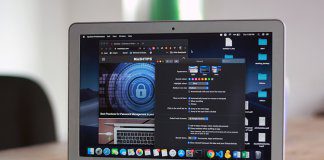
Using a mobile hotspot is a great way to connect to the internet when you're away from a Wi-Fi network. If you have a good data connection on your phone, you can use it as a Wi-Fi hotspot and connect to your Mac. However, you may encounter issues such as your Android mobile hotspot not working or your iPhone hotspot not working with your Mac.

If your Mac won't connect to a hotspot from your Android or iPhone, you can troubleshoot this issue with the helpful solutions in this post. Following these steps should allow your Mac to connect to a mobile hotspot seamlessly.
1. Forget the network and reconnect to it.
When your Android or iPhone device appears as a hotspot in your connection list but isn't working as expected, you can "forget" those connections. Whether it's not connected or not working, you can try forgetting the relevant hotspot and trying to reconnect. Here's how.
Step 1: Click the Wi-Fi icon on your Mac to show connected networks.

Step 2: Select network preferences.

Step 3: Click the Advanced Options button in the lower right corner.

Step 4: The next screen will show you a list of all the Wi-Fi networks you've used with your Mac. Scroll down until you find the name of your hotspot and click it to select it.


Step 5: Click the “-” button below the box to remove the selected hotspot entry from the list.

Step 6: Then, click OK to apply the changes.

Enable the hotspot on your Android and iPhone. Let your Mac search for it, and when it appears, try connecting them again.
2. Make sure your phone has a working internet connection.
This may seem like a basic step, but it's one of the most important to ensuring your Mac stays connected to your hotspot. On your phone, launch a web browser and visit some websites to see if they load properly. If the web pages don't load, there may be something wrong with your phone's internet connection.
Check out our guides on the best ways to fix mobile data not working on Android or iPhone to troubleshoot the issue before connecting to a hotspot.
3. Add a password if it is an open network.
Sometimes your Mac won't connect to open networks for security reasons. Therefore, if your hotspot is on an open network without any encryption, secure it with a password and then try connecting your Mac to it. The hotspot on an iPhone is secure by default, so this only applies to Android. Here's how to do it.
Note that the screenshots below were taken from a Samsung phone. The interface and options may vary depending on your phone model and Android version.
Step 1: Open the Settings app on your smartphone and use the search bar to search for a hotspot.


Step 2: Select Mobile Hotspot from the search results.
Step 3: Tap Mobile Hotspot again to access additional settings.

Step 4: Click Configure to modify the encryption.

Step 5: Click Security and choose any security standard you want other than Open.

Step 6: You'll now be asked to set a password for the network. Enter it and click Save.

Step 7: Forget the network on your Mac using the first method and then add the hotspot again.
4. Change the band to 2.4 GHz if the device is far away.
There are two frequencies you can use to run a mobile hotspot on Android phones—2.4 GHz and 5 GHz. While the 5 GHz band offers faster speeds, it comes at the cost of reduced range. So, if your phone is farther away from your Mac, for example, it's best to use the 2.4 GHz configuration in the next room. You'll get slightly slower speeds, but the range will be better. Here's how to switch.
Step 1: Open the Settings app on your smartphone and use the search bar to search for your hotspot.
Step 2: Select Mobile Hotspot from the search results.
Step 3: Tap Mobile Hotspot again to access additional settings.
Step 4: Now, click Configure to modify the domain preference.
Step 5: Select the band and choose 2.4 GHz.


Step 6: Click save and you're good to go.
5. Enable maximum compatibility on iPhone
Your iPhone comes with a switch that allows you to expand iPhone hotspot compatibility when you try to connect a new device. Enabling the switch will ensure your Mac is compatible with the hotspot and connects instantly. Here's how to enable it.
Step 1: Open the Settings app on your iPhone and select the Personal Hotspot option.

Step 2: Enable the toggle next to Increase Compatibility.

Try connecting your Mac to the hotspot.
6. Manually add the SSID and password to the MAC.
If you don't even see your hotspot listed among the available networks, the best way to address this is to manually add the network on your Mac. This is especially useful if you're trying to connect to a hotspot from an Android phone.
Sometimes, there may be a mismatch in the encryption standards used by your phone and your Mac. Using this method, you can eliminate this and add a direct network. Here's how.
Step 1: Enable hotspot on your Android phone.
Step 2: Secure it with an encryption standard by following step 3. Make a note of the encryption you choose. In our case, it's WPA2-Personal.
Step 3: On your Mac, click the Wi-Fi icon at the top and then select Other Networks.

Step 4: Now, click Other.

Step 5: You'll now see a dialog box asking you to enter the network name and other details. Enter the exact name of the hotspot as displayed on your phone.

Step 6: Click Security and select the same encryption standard you set on your phone. In this case, it will be WPA2/WPA3 Personal.

Step 7: Enter the password you set and click “Join”.

Wait for a while, and your Mac should now connect to the hotspot without any issues.
Use mobile hotspot on MAC while you're on the go
It can be frustrating if you're out and about and your Mac refuses to connect to your phone's hotspot. However, the steps above should help your Mac connect to your hotspot without any issues, regardless of which phone you're using.