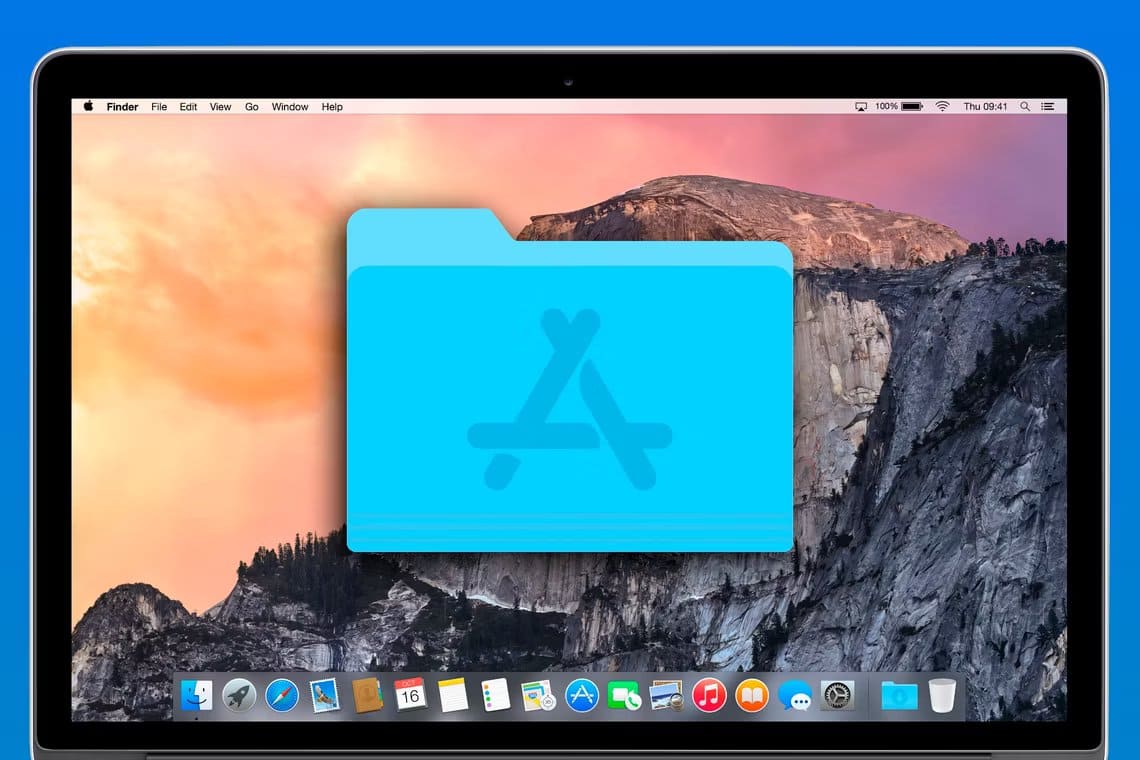
Apple has introduced a new line of MacBooks with USB-C ports It wasn't until 2016 that many users had to purchase additional dongles to connect external devices such as solid-state drives, which use a different interface than USB-C. However, Apple has reintroduced some useful ports in the 2021 version of its lineup. MacBook Pro Since dongles act as intermediaries, you may sometimes encounter problems connecting USB accessories to your Mac. Also, if your Mac doesn't detect an external accessory and throws a USB accessories disabled error, these practical solutions can fix USB accessories being disabled on your Mac.

1. Unplug the accessory and plug it back in.
While this may seem obvious, you'll be surprised to learn that it works almost every time. Unplug the USB accessory connected to your Mac's USB port and plug it back in. Give your Mac a few seconds to detect the accessory.
If it still doesn't work, disconnect the accessory and restart your Mac. Then try connecting it again.
2. Connect one accessory at a time.
When you connect an external accessory to your Mac via USB ports, your Mac provides power to these accessories. If you connect too many USB devices, your Mac won't be able to provide enough power to all of them at once.

So, try disconnecting all accessories and connecting just one to see if it's detected. You can connect the remaining accessories one by one if that's the case.
3. Try using a different USB port.
Sometimes, a USB port on your Mac can stop working for a variety of reasons. Whether it's a hardware defect in the port or something related to an external device frying the port, the possibilities are many. To rule out any issues related to a specific USB port, try connecting your device to a different port on your Mac.

If it works fine, the problem isn't with your device but with that specific port on your Mac. Your best bet is to take your Mac to an Apple Authorized Service Center for repair.
4. Connect the accessory to a different device.
The previous solution addresses the problem with the USB port on your Mac. However, there may be a problem with the external USB device itself. This could be the reason why your Mac cannot detect or connect it.

So, try connecting the accessory to another computer or device. If the other device doesn't detect it either, there may be a problem with the accessory or the cable used to connect the accessory. Try replacing the cable and then connecting the device again. If it's detected on another device, format the drive and connect it to your Mac.
5. Make sure the dongles are working properly if you are using one.
As mentioned earlier, all MacBook computers between 2016 and 2020 have only USB-C ports. Therefore, you may need to use dongles or a USB hub to connect additional accessories. If so, make sure the dock is working properly by connecting different accessories or devices.

6. Try connecting the device directly to the MAC.
Your dongles may not be working. However, there may also be an issue with your accessory's compatibility with the dongles. Some external accessories or drives may not work well with external dongles and may need to be plugged directly into the USB-C port on your Mac.
If your accessory supports USB-C connectivity, try connecting directly to Git without any dongles or adapters. This will ensure the connection is uninterrupted and the USB device works as intended.
7. Change USB device settings while connecting an Android phone
Your Android phone doesn't work well with your Mac. Therefore, connecting your Android phone may appear as an undetected accessory. However, you can change this by changing the USB connection settings on your Android device. Here's how.
Step 1: Connect Android phone On your Mac using USB cable.
Step 2: Swipe down from the top of your phone to drop Notification Center.

Step 3: Click on USB connection notification.

Step 4: within "Using USB for" section , Locate Transfer files or transfer photos.

Your phone should now appear when connected to your Mac.
8. Ensure a high battery level on your MAC.
As mentioned earlier, your Mac provides power to any external devices connected to it via USB ports. Therefore, to provide this power, your computer will need sufficient battery power. Your Mac cannot power other USB devices if its battery is low.
Plug your Mac into a power outlet if the battery is critically low, then try connecting an external device. It should work perfectly at this point.
Connect your USB devices
Use these methods to fix the USB accessories disabled error on your Mac and connect any external drives or devices you want. If you're trying to connect an external drive to your Mac but it's not working, check out how to fix an external drive not showing up on your Mac.