Discord هو تطبيق تم تطويره بشكل أساسي للاعبين للتواصل مع بعضهم البعض أثناء ألعابهم. يتم استخدام خدمة VoIP في Discord من قبل جميع اللاعبين تقريبًا في الوقت الحاضر ، لكن العديد من المستخدمين يشكون من تجميد Discord. إذا كنت تواجه أيضًا مشكلة تجميد فيديو Discord في جهاز الكمبيوتر الخاص بك ، فلا داعي للقلق. نقدم لك دليلًا مثاليًا يعلمك كيفية إصلاح مشكلة تعطل Discord باستمرار. لذا ، أكمل القراءة!

كيفية إصلاح مشكلة تعطل Discord باستمرار
عندما تلعب لعبة وتستخدم Discord للتواصل مع أصدقائك وفجأة يستمر Discord في الانهيار ، فسوف تنزعج. قد تظهر هذه المشكلة أيضًا حتى عند البث مع استمرار تجميد فيديو Discord. قد تكون هناك أسباب مختلفة لهذه المشكلة. فيما يلي بعض الأسباب الجذرية لهذه المشكلة.
- مشاكل التحديث
- ملفات ذاكرة التخزين المؤقت الفاسدة
- برامج التشغيل التي عفا عليها الزمن
- قضايا التخزين
- إعدادات مهيأة بشكل خاطئ
- ملفات النظام الفاسدة
- نسخة Discord قديمة
الحل الأكثر شيوعًا لمشكلة تعطل Discord باستمرار هو فرض إيقاف تشغيل التطبيق عبر Task Manager. ومع ذلك ، إذا استمرت المشكلة بعد إعادة فتح Discord مرة أخرى ، فقد قدمنا جميع الطرق الممكنة لإصلاح المشكلة أدناه. لذلك ، اتبع هذه الطرق خطوة بخطوة وحل المشكلة.
الفحوصات الأولية
قم بإجراء الفحوصات الأولية المقدمة قبل تجربة طرق استكشاف الأخطاء وإصلاحها.
- تحقق من الإنترنت الخاص بك: قد تحتاج إلى اتصال شبكة ثابت ، خاصة إذا كنت تعيش لبث الفيديو الخاص بك. تأكد من اتصالك بالإنترنت عن طريق إجراء اختبار السرعة. قبل إجراء اختبار السرعة ، أوقف مؤقتًا جميع التحديثات والتنزيلات الجارية وافصل الأجهزة الأخرى. يمكنك استخدام SpeakEasy أو SpeedTest.net لإجراء اختبار سرعة.
- التحقق من انقطاع الخادم: عندما يحدث خطأ ما في Discord ، عليك أولاً تحليل ما إذا كانت هناك أي مشكلة من جانب الخادم. اتبع الخطوات للتحقق من حالة الخادم في Discord.
1. انتقل إلى صفحة حالة Discord.
2. تحقق مما إذا كانت لديك رسالة All Systems Operational في النافذة الرئيسية كما هو موضح. هذا يعني أنه لا توجد أنشطة صيانة أو تكوين للخادم من Discord.

الطريقة الأولى: إعادة تشغيل جهاز الكمبيوتر
تعد إعادة تشغيل جهاز الكمبيوتر الخاص بك طريقة بسيطة لاستكشاف الأخطاء وإصلاحها لحل جميع مواطن الخلل الفنية. لذلك ، قبل الانتقال إلى طرق استكشاف الأخطاء وإصلاحها المتقدمة ، اتبع هذه الخطوات لإعادة تشغيل جهاز الكمبيوتر الخاص بك لإصلاح مشكلة تعطل Discord.
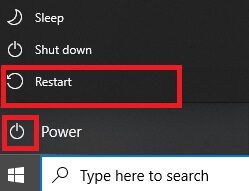
1. انتقل إلى قائمة ابدأ.
2. الآن ، حدد رمز الطاقة.



ملاحظة: في نظام التشغيل Windows 10 ، توجد أيقونة الطاقة في الأسفل. بينما في Windows 8 ، توجد أيقونة Power في الأعلى.
3. سيتم عرض عدة خيارات مثل Sleep و Shut down و Restart (إعادة التشغيل). هنا ، انقر فوق إعادة التشغيل.
الطريقة 2: قم بتشغيل Discord كمسؤول
أنت بحاجة إلى امتيازات إدارية للوصول إلى بعض الملفات والخدمات في Discord. إذا لم يكن لديك الحقوق الإدارية المطلوبة ، فقد تواجه مشكلة تعطل Discord باستمرار. فيما يلي خطوات تشغيل Discord كمسؤول.
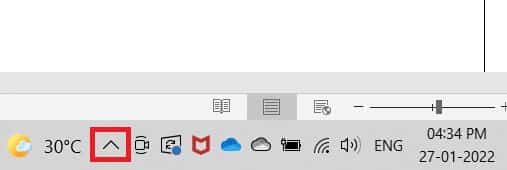
1. انقر فوق إظهار الرموز المخفية في شريط المهام.
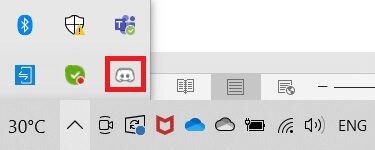
2. هنا ، انقر بزر الماوس الأيمن على أيقونة Discord.
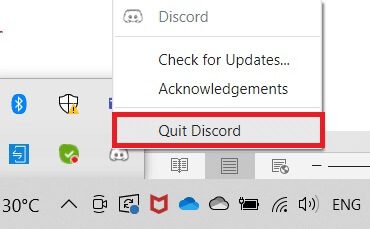
3. حدد الخيار Quit Discord.
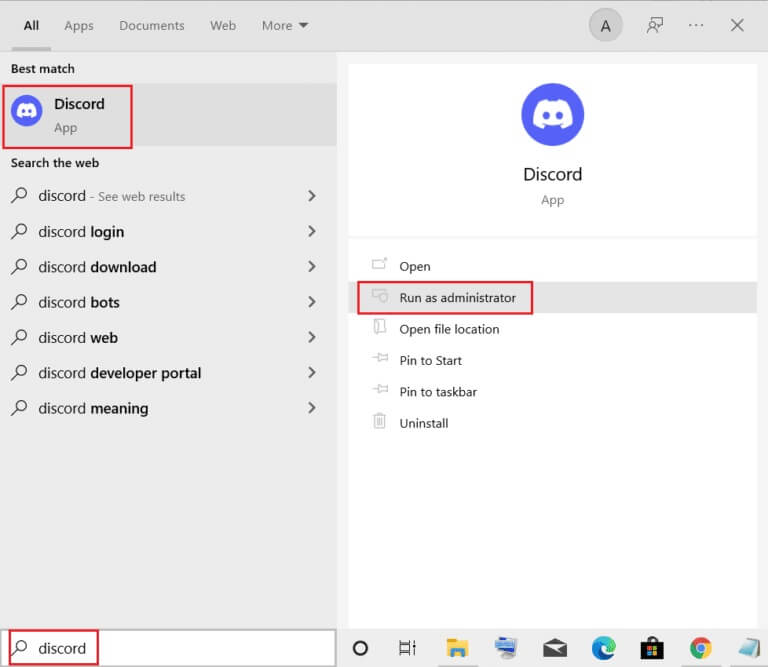
4. ثم اضغط على مفتاح Windows ، واكتب discord ، ثم انقر فوق تشغيل كمسؤول.
الطريقة الثالثة: إزالة العمليات في الخلفية
إذا كنت تواجه مشكلة تعطل Discord ، فقد يتم تشغيل الكثير من التطبيقات في الخلفية. سيؤدي ذلك إلى زيادة مساحة وحدة المعالجة المركزية والذاكرة ، وبالتالي التأثير على أداء الكمبيوتر. اتبع الخطوات المذكورة أدناه لإغلاق مهام الخلفية.
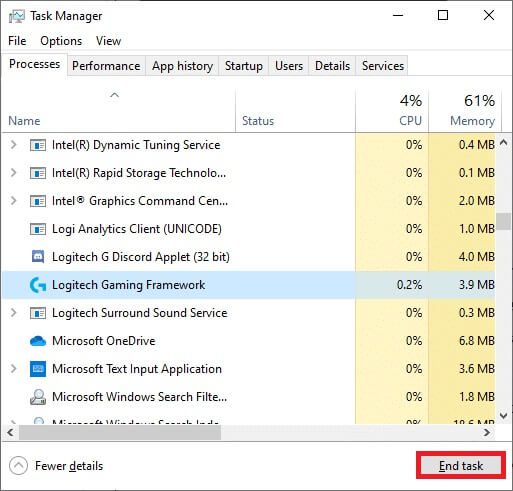
1. قم بتشغيل Task Manager ، واضغط على مفاتيح Ctrl + Shift + Esc في نفس الوقت.
2. حدد موقع عمليات الخلفية غير المرغوب فيها وحددها باستخدام ذاكرة عالية.
3. ثم انقر فوق إنهاء المهمة ، كما هو موضح.
الطريقة الرابعة: حذف ملفات ذاكرة التخزين المؤقت Discord
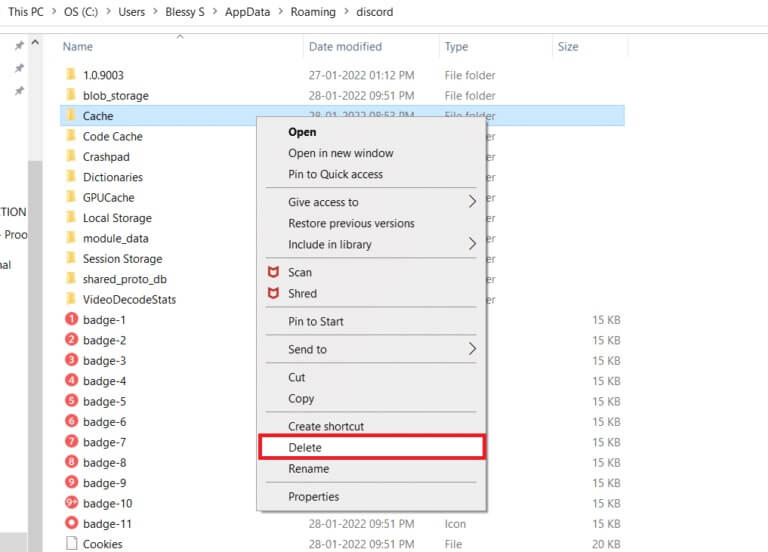
قد تتسبب ملفات ذاكرة التخزين المؤقت المؤقتة والفاسدة في Discord في تعطل المشاكل. لذا امسح جميع ملفات Discord في مجلدات ذاكرة التخزين المؤقت والتخزين المحلي لإصلاح المشكلة. اتبع هذه الخطوات للقيام بذلك.
1. انقر فوق ابدأ ، واكتب AppData%\discord% ، واضغط على مفتاح Enter.
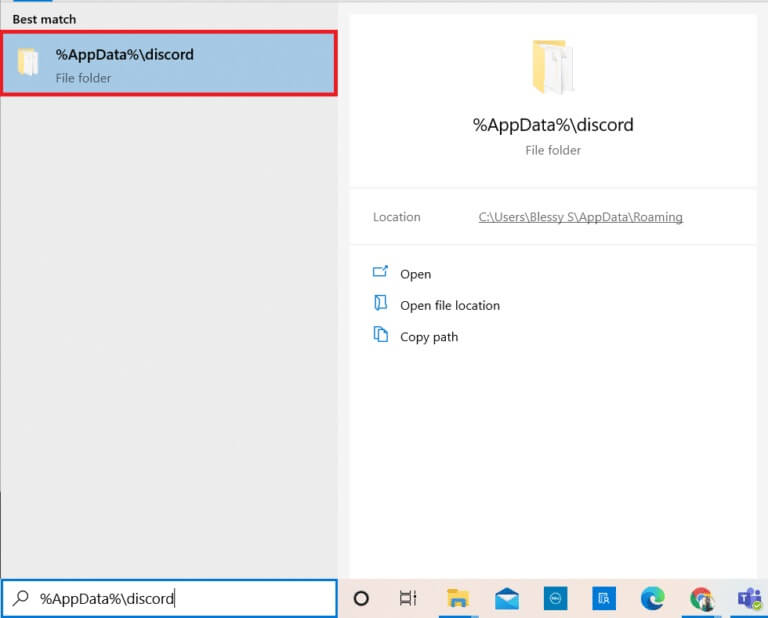
2. انقر بزر الماوس الأيمن فوق مجلد ذاكرة التخزين المؤقت وحدد حذف.
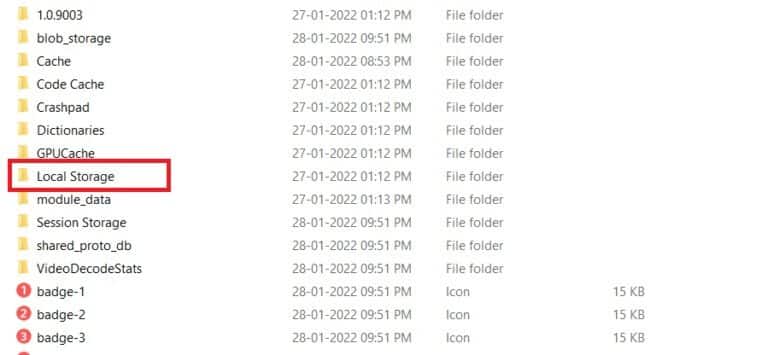
3. وبالمثل ، احذف مجلد التخزين المحلي.
4. أخيرًا ، أعد تشغيل النظام.
الآن ، لقد نجحت في حذف ملفات ذاكرة التخزين المؤقت الفاسدة من Discord من جهاز الكمبيوتر الخاص بك. تحقق مما إذا كان Discord يستمر في التعطل أم لا.
الطريقة الخامسة: إيقاف تشغيل وضع التوافق
إذا تم تشغيل Discord للتشغيل في وضع التوافق ، فقد تواجه مشكلة تجميد Discord للفيديو. وذلك لأن البرنامج سيعمل على إصدارات أقدم من البرنامج. لذلك ، لضمان تشغيل Discord بسلاسة في أحدث نظام تشغيل Windows لديك ، قم بإيقاف تشغيل وضع التوافق من الخطوات المحددة.
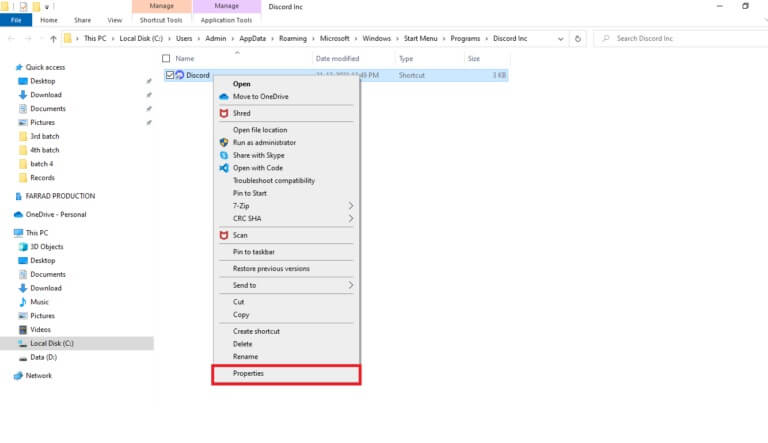
1. انتقل إلى موقع ملف Discord في File Explorer.
2. ثم ، انقر بزر الماوس الأيمن على تطبيق Discord واختر خصائص ، كما هو موضح أدناه.
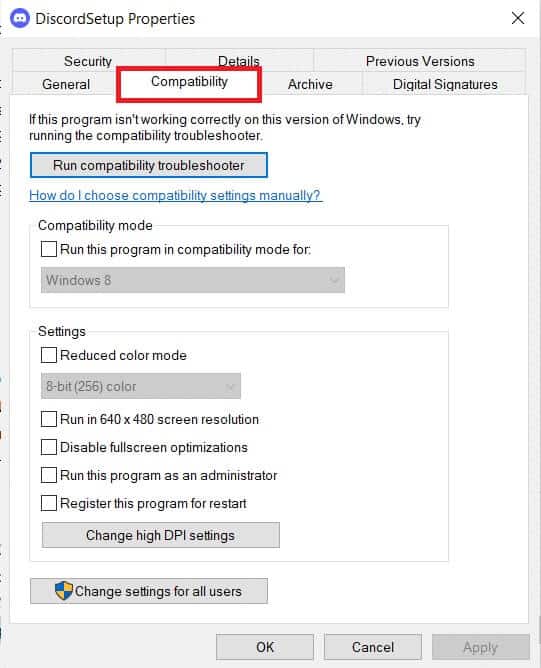
3. قم بالتبديل إلى علامة التبويب التوافق.
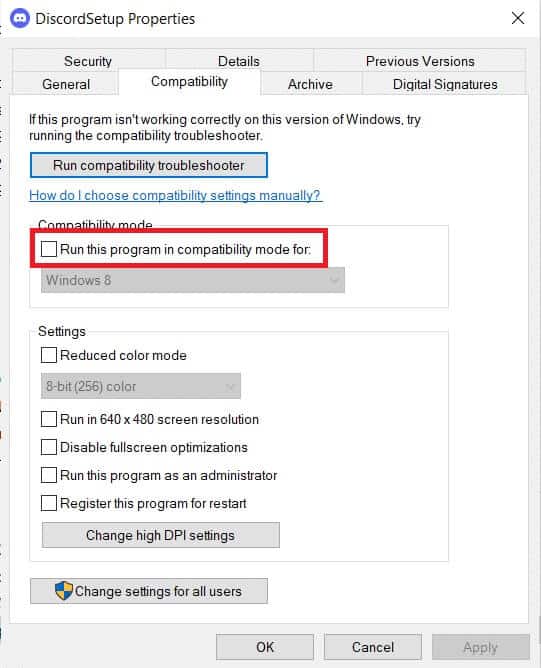
4. قم بإلغاء تحديد الخيار تشغيل هذا البرنامج في وضع التوافق.
5. انقر فوق “تطبيق” ثم “موافق” لحفظ هذه التغييرات.
الطريقة 6: إيقاف تشغيل تسريع الأجهزة
سيساعدك إيقاف تشغيل ميزة تسريع الأجهزة في إصلاح مشكلة تعطل Discord باستمرار. اتبع الخطوات المذكورة أدناه للقيام بذلك.
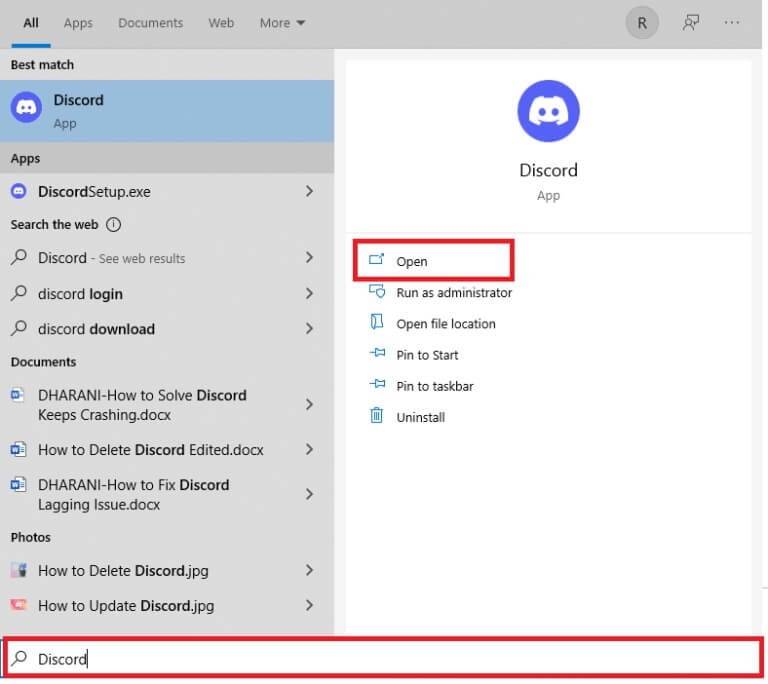
1. اضغط على مفتاح Windows واكتب Discord ، انقر فوق فتح.
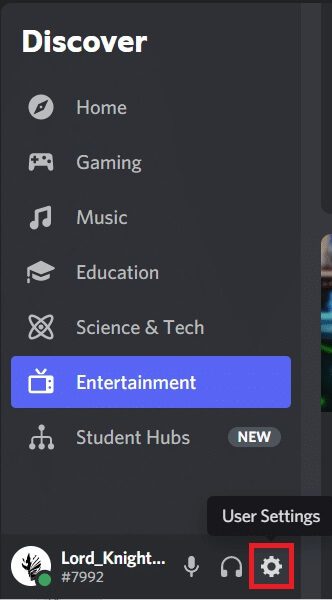
2. انقر على أيقونة الإعدادات في الجزء الأيمن.
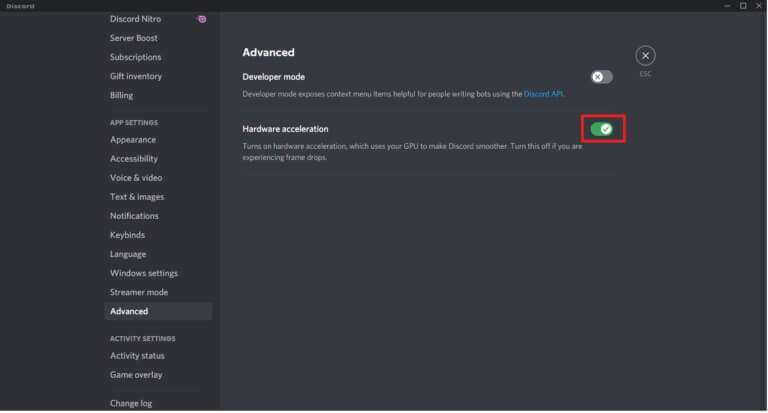
3. انتقل إلى علامة التبويب خيارات متقدمة وقم بإيقاف تشغيل زر التبديل لتسريع الأجهزة ، كما هو موضح أدناه.
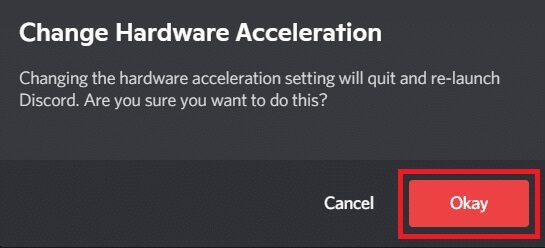
4. انقر فوق “موافق” في نافذة “تغيير تسريع الأجهزة”.
الطريقة 7: تعطيل ميزة اضغط لتتحدث
يمكنك أيضًا تعطيل ميزة الضغط والتحدث لإصلاح مشكلة تجميد فيديو Discord باتباع الخطوات المحددة.
1. اضغط على مفتاحي Windows + Q معًا لفتح شريط بحث Windows.
2. اكتب Discord وانقر فوق فتح في الجزء الأيمن.
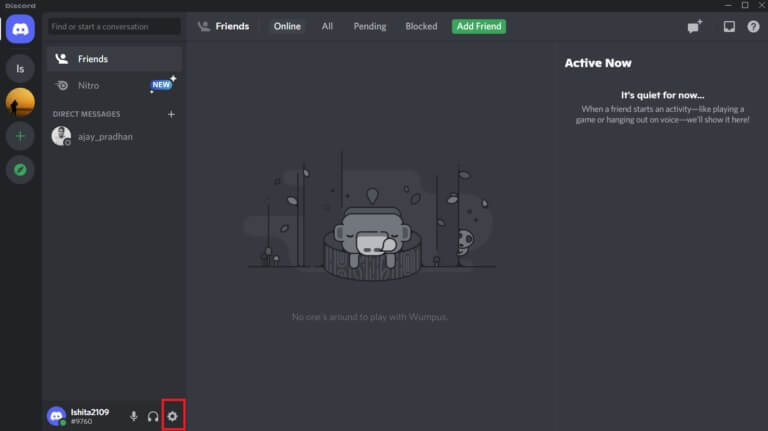
3. انقر فوق رمز الترس في الجزء السفلي من الجزء الأيمن لفتح الإعدادات ، كما هو موضح.
4. ضمن قسم إعدادات التطبيق في الجزء الأيمن ، انقر فوق علامة التبويب الصوت والفيديو.
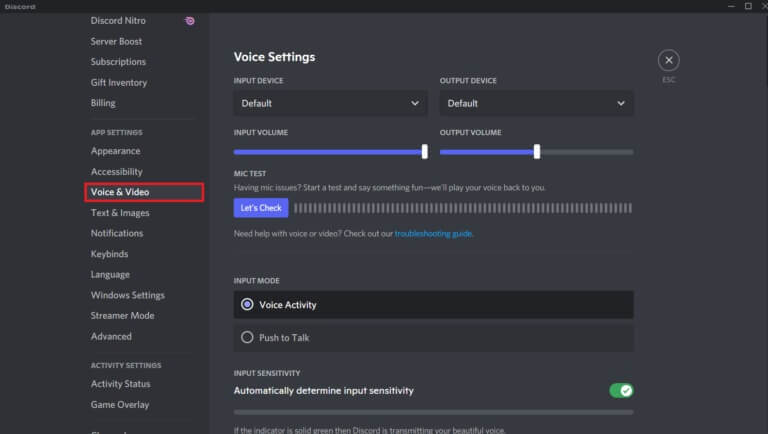
5. هنا ، قم بالتبديل من ميزة Push to Talk إلى Voice Activity ضمن INPUT MODE كما هو موضح.
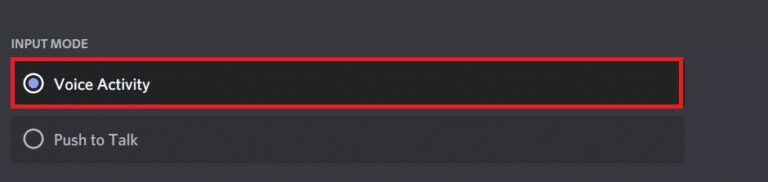
الآن ، تحقق مما إذا كنت قد أصلحت المشكلة.
الطريقة الثامنة: إيقاف تشغيل “النشاط الصوتي المتقدم”
لن تعمل الإعدادات القديمة والافتراضية بشكل صحيح عند تمكين ميزة “نشاط صوتي متقدم” في Discord. حاول تعطيل هذه الميزة لإصلاح مشكلة تعطل Discord باستمرار كما هو موضح أدناه.
1. قم بتشغيل Discord وانتقل إلى إعدادات المستخدم> قائمة الصوت والفيديو.
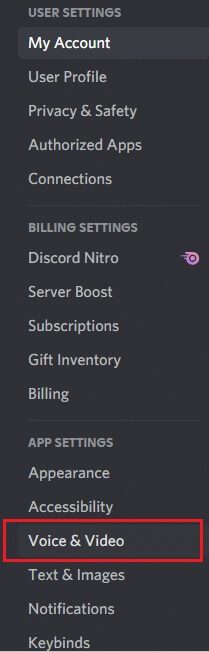
2. الآن ، قم بالتمرير لأسفل إلى خيار Advanced Voice Activity وقم بإيقاف تشغيل التبديل.
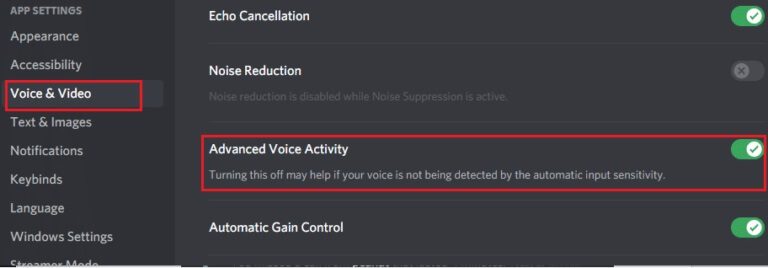
ملاحظة: إذا كان خيار إيقاف تشغيل “النشاط الصوتي المتقدم” غير نشط ، فاتبع الخطوات المحددة:
1. قم بالتمرير لأعلى في نفس الجزء ، واضبط INPUT MODE على نشاط الصوت.
2. ثم قم بتشغيل مفتاح التبديل لخيار تحديد حساسية الإدخال تلقائيًا.
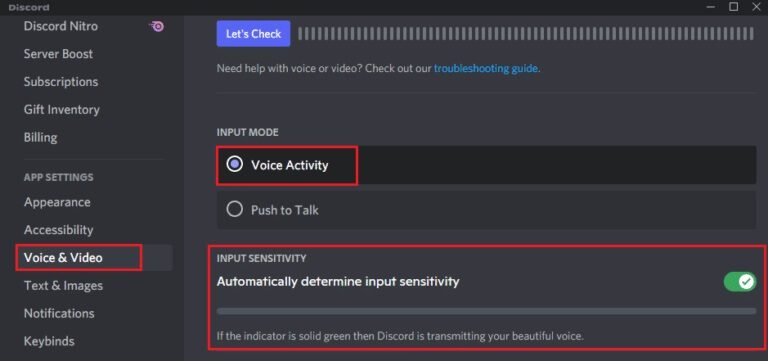
الآن ، يمكنك إيقاف تشغيل “النشاط الصوتي المتقدم” كما هو موضح أعلاه.
الطريقة 9: تعطيل أولوية الحزمة العالية لجودة الخدمة
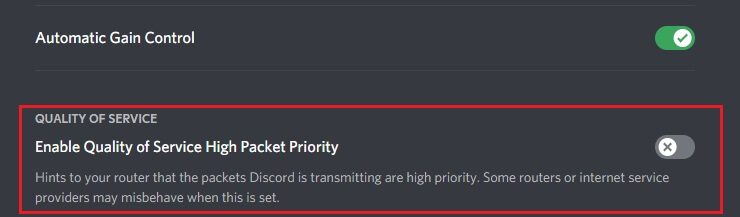
قد يتداخل إعداد أولوية الحزمة العالية لجودة الخدمة في Discord مع بعض الإعدادات الافتراضية لجهاز الكمبيوتر الخاص بك. وبالتالي ، قد تواجه مشكلة تعطل Discord باستمرار. لحلها ، قم بتعطيل إعداد أولوية الحزمة العالية لجودة الخدمة في Discord باتباع الخطوات المذكورة أدناه.
1. افتح تطبيق Discord وانتقل إلى إعدادات المستخدم.
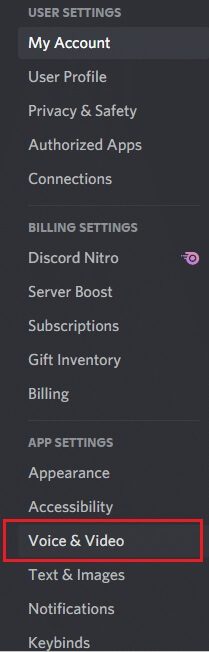
2. الآن ، في الجزء الأيمن ، انقر فوق الصوت والفيديو ضمن إعدادات التطبيق كما هو موضح.
3. الآن ، ضمن قسم جودة الخدمة ، قم بإيقاف تشغيل الخيار “تمكين أولوية الحزمة العالية لجودة الخدمة” كما هو موضح.
الطريقة 10: حذف Keybinds
ربما تكون قد أنشأت بعض روابط المفاتيح لراحتك. ربما عملت روابط المفاتيح هذه بشكل صحيح على الإصدار السابق ولكنها قد تؤدي إلى بعض المشكلات بعد ذلك. اتبع الإرشادات أدناه لحذف keybinds لإصلاح مشكلة تجميد فيديو Discord.
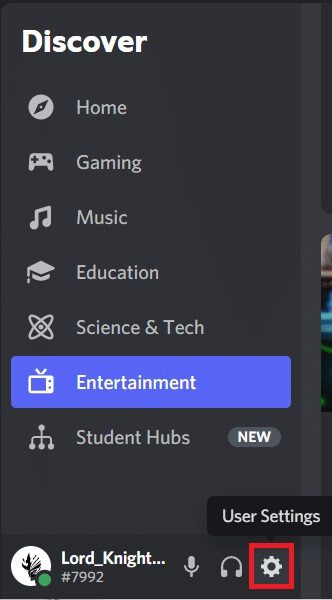
1. قم بتشغيل تطبيق Discord وانقر على أيقونة الإعدادات كما هو موضح.
2. انتقل إلى علامة التبويب Keybinds في الجزء الأيمن.
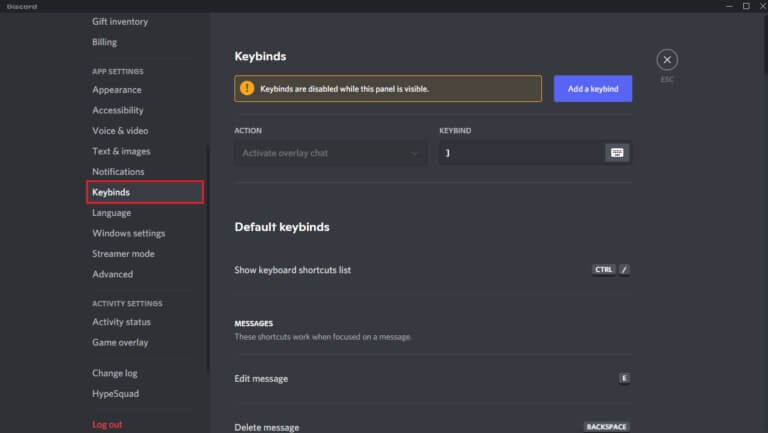
3. اختر واحدة. ستظهر قائمة بها رمز X أحمر بجوار كل مفتاح. انقر فوق رمز X الأحمر لإزالة مفتاح الربط ، كما هو موضح أدناه.
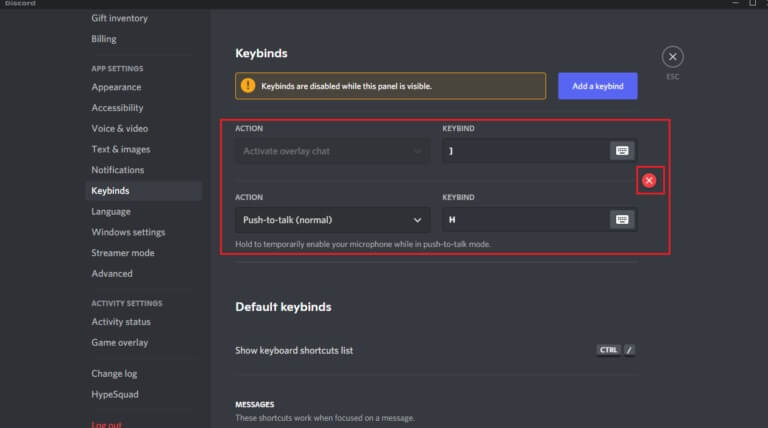
4. كرر نفس الشيء مع كل جهاز وأعد تشغيل الكمبيوتر.
الطريقة 11: تمكين الوضع القديم
في بعض الأحيان ، قد تواجه Discord تحطم المشكلة في الوضع القياسي. لحل هذه المشكلة ، يمكنك التبديل إلى الوضع القديم باتباع الخطوات التالية.
1. افتح Discord وانتقل إلى إعدادات المستخدم> قائمة الصوت والفيديو.
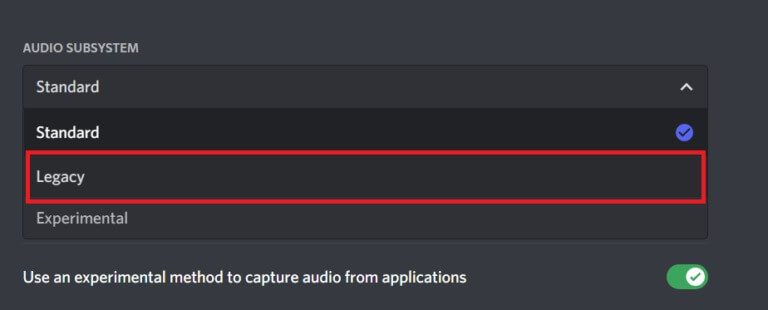
2. قم بالتمرير لأسفل إلى قسم نظام فرعي الصوت.
3. هنا ، حدد الخيار Legacy من القائمة المنسدلة.
4. انقر فوق الزر “موافق” في موجه تأكيد تغيير النظام الفرعي للصوت.
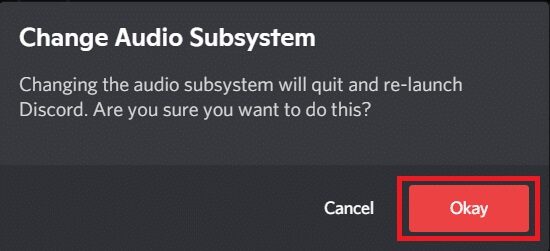
الآن ، تحقق من حل المشكلة.
الطريقة 12: إصلاح ملفات النظام
يمكن لمستخدمي Windows 10 مسح ملفات النظام وإصلاحها تلقائيًا عن طريق تشغيل System File Checker. بالإضافة إلى ذلك ، فهي أداة مدمجة تتيح للمستخدم حذف الملفات وإصلاح Discord الذي يحافظ على تعطل المشكلة. بعد ذلك ، اتبع الخطوات المذكورة أدناه لتشغيل عمليات فحص SFC و DISM.
1. اضغط على مفتاح Windows ، واكتب موجه الأوامر وانقر فوق تشغيل كمسؤول.
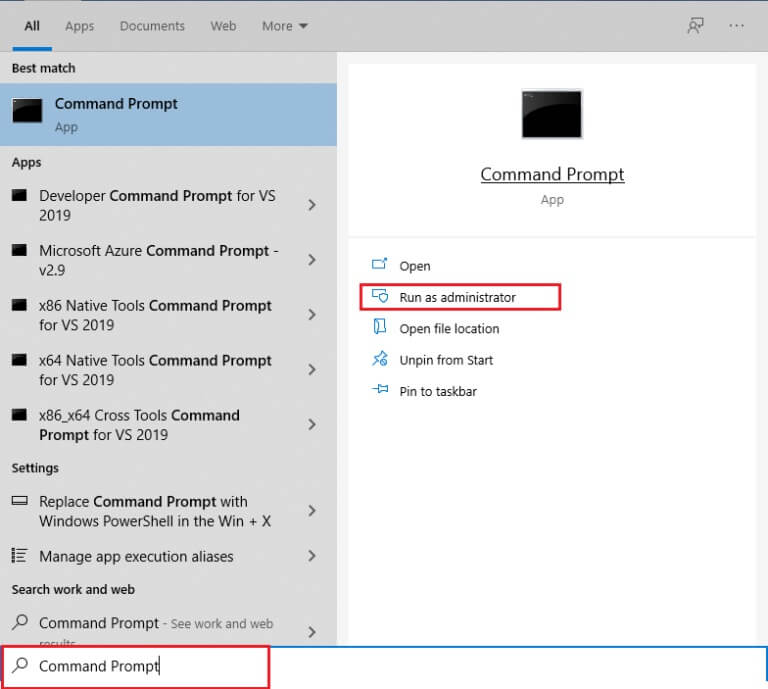
2. انقر فوق “نعم” في موجه “التحكم في حساب المستخدم”.
3. اكتب الأمر: sfc / scannow واضغط على مفتاح Enter لتشغيل فحص مدقق ملفات النظام.
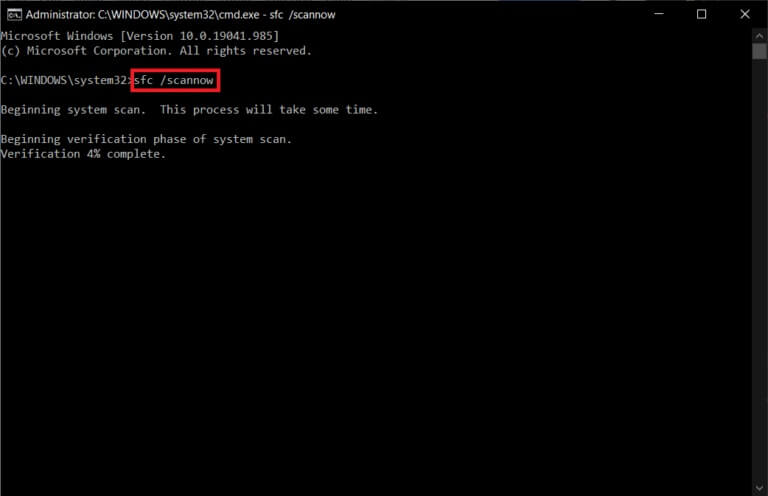
ملاحظة: سيبدأ فحص النظام وسيستغرق دقيقتين للانتهاء. في غضون ذلك ، يمكنك الاستمرار في أداء الأنشطة الأخرى ولكن احذر من إغلاق النافذة عن طريق الخطأ.
بعد الانتهاء من الفحص ، ستظهر أيًا من هذه الرسائل:
- لم يعثر Windows Resource Protection على أي انتهاكات للتكامل.
- تعذر على Windows Resource Protection تنفيذ العملية المطلوبة.
- عثر Windows Resource Protection على ملفات تالفة وأصلحها بنجاح.
- عثر Windows Resource Protection على ملفات تالفة ولكن لم يتمكن من إصلاح بعضها.
4. بمجرد انتهاء الفحص ، أعد تشغيل الكمبيوتر.
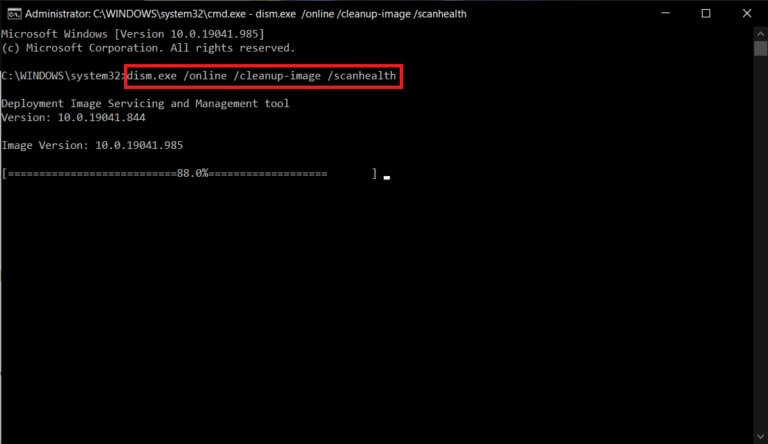
5. مرة أخرى ، قم بتشغيل موجه الأوامر كمسؤول وقم بتنفيذ الأوامر المحددة واحدة تلو الأخرى:
dism.exe /Online /cleanup-image /scanhealth
dism.exe /Online /cleanup-image /restorehealth
dism.exe /Online /cleanup-image /startcomponentcleanup
ملاحظة: يجب أن يكون لديك اتصال إنترنت فعال لتنفيذ أوامر DISM بشكل صحيح.
الطريقة 13: تحديث برامج تشغيل العرض أو التراجع عنها
قد تؤدي برامج تشغيل العرض القديمة أو غير المتوافقة إلى استمرار Discord في التعطل . قم بتحديث برامج تشغيل الفيديو أو التراجع عنها لتمكين بطاقات التشغيل من التوافق مع نظام التشغيل من الخطوات الواردة أدناه.
الخيار 1: تحديث برنامج التشغيل
قم بتحديث برنامج تشغيل جهاز العرض لإصلاح مشكلة تجميد فيديو Discord باتباع الخطوات المحددة.
1. اضغط على مفتاح Windows ، واكتب مدير الجهاز ، وانقر فوق فتح.
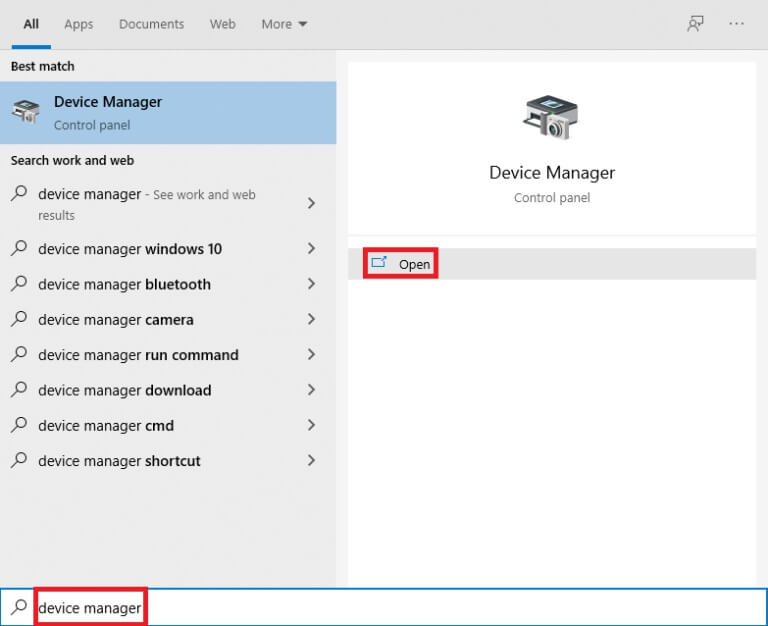
2. انقر فوق السهم الموجود بجوار محولات العرض لتوسيعه.
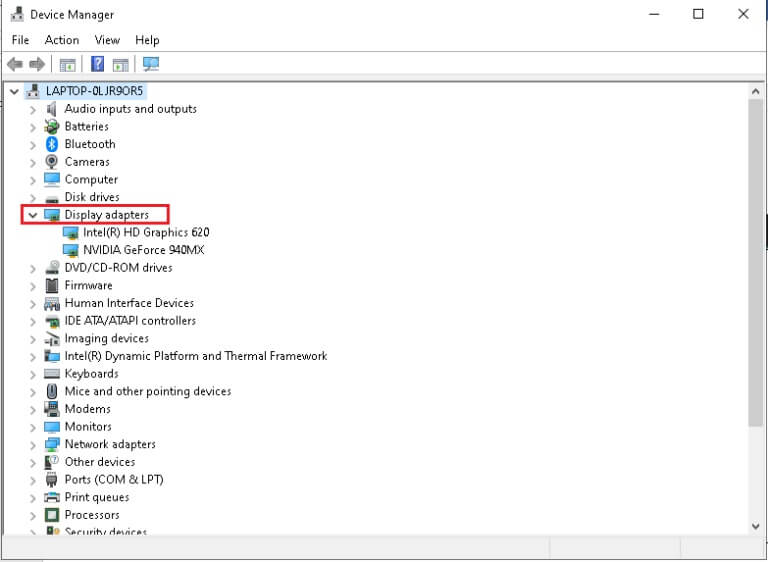
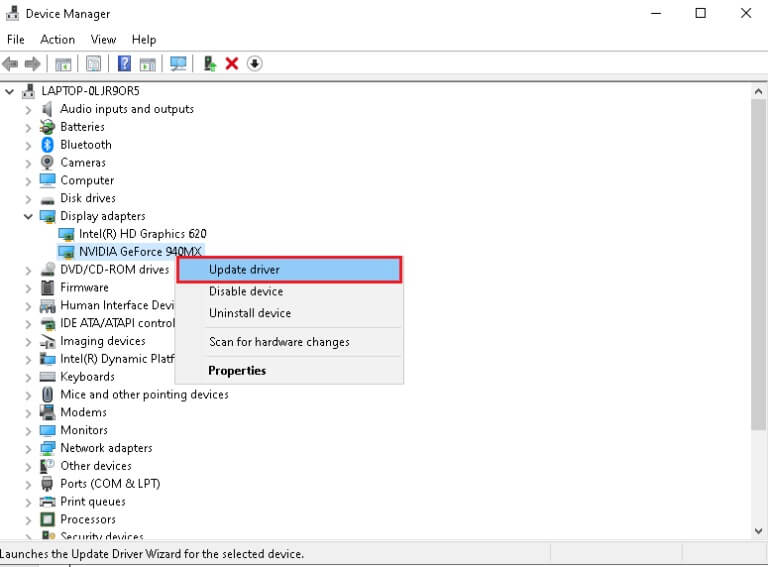
3. انقر بزر الماوس الأيمن فوق برنامج تشغيل الرسومات الخاص بك (على سبيل المثال محرك NVIDIA GeForce) وحدد تحديث برنامج التشغيل ، كما هو موضح.
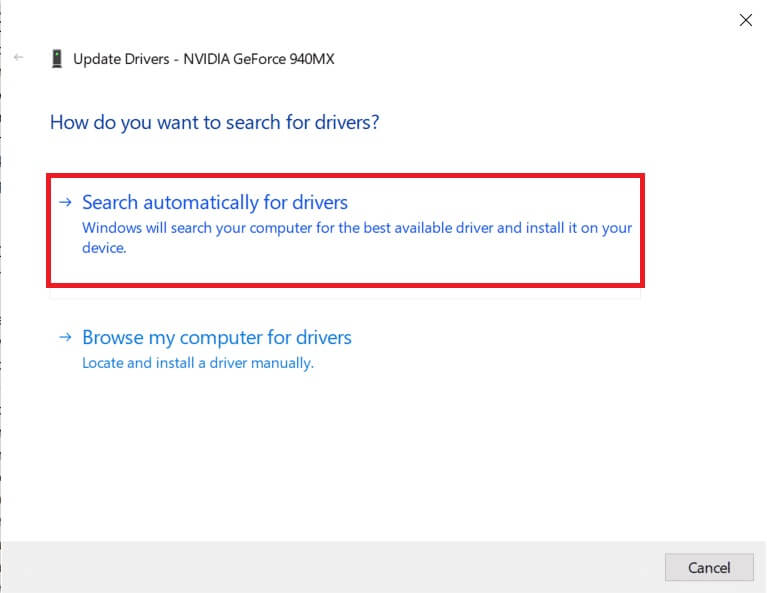
4. الآن ، انقر فوق “بحث” تلقائيًا عن برامج التشغيل للعثور على برامج التشغيل وتثبيتها تلقائيًا.
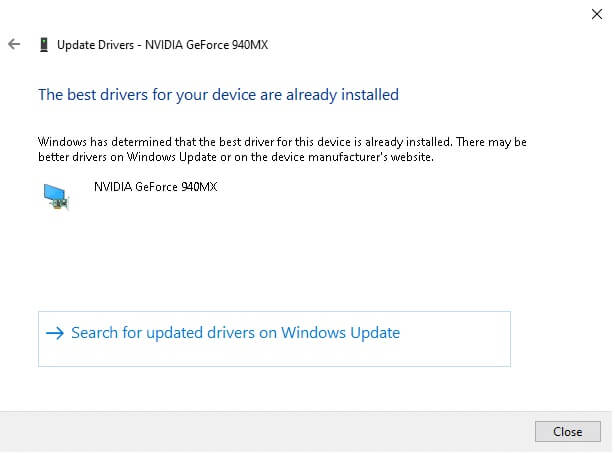
5 أ. انتظر حتى يتم تحديث برامج التشغيل إلى أحدث إصدار. ثم قم بإعادة تشغيل جهاز الكمبيوتر الخاص بك.
5 ب. إذا كانوا بالفعل في مرحلة محدثة ، فستظهر الشاشة التالية مع الرسالة: تم تثبيت أفضل برامج التشغيل لجهازك بالفعل. انقر فوق الزر “إغلاق” للخروج من النافذة.
الخيار 2: تحديثات برنامج RollBack
إذا استمر Discord في ظهور مشكلة التعطل بعد التحديث ، فحاول التراجع عن تحديثات برنامج التشغيل لإصلاح مشكلة تجميد فيديو Discord كما هو موضح أدناه.
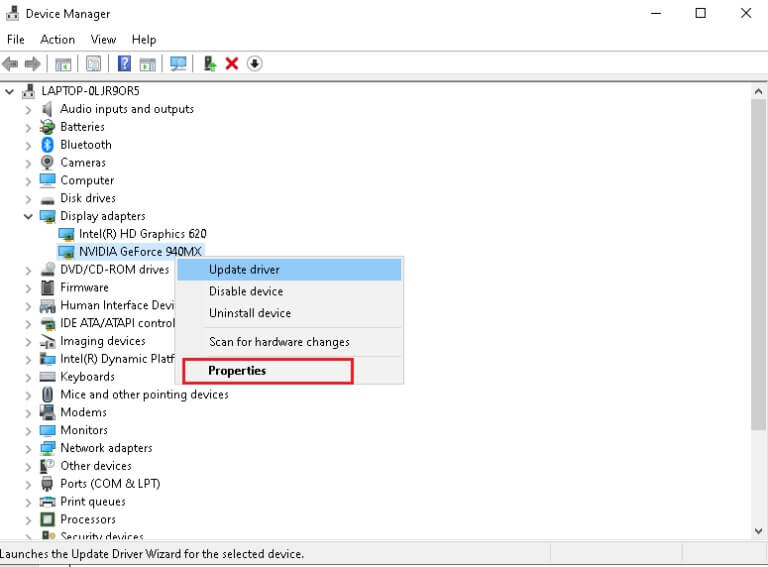
1. انتقل إلى إدارة الأجهزة> محولات العرض كما هو موضح في الطريقة أعلاه.
2. انقر بزر الماوس الأيمن فوق برنامج تشغيل جهاز العرض (مثل برنامج تشغيل NVIDIA GeForce) وحدد خصائص ، كما هو موضح أدناه.
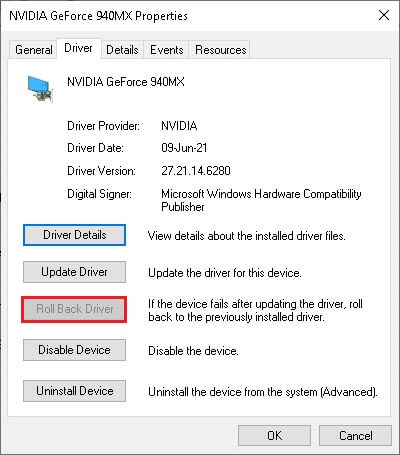
3. قم بالتبديل إلى علامة التبويب Driver وانقر فوق Roll Back Driver ، كما هو موضح.
ملاحظة: إذا كان خيار استرجاع برنامج التشغيل غير نشط ، فهذا يشير إلى أن جهاز الكمبيوتر الذي يعمل بنظام Windows لا يحتوي على ملفات برنامج التشغيل المثبتة مسبقًا أو أنه لم يتم تحديث الحل مطلقًا. في هذه الحالة ، جرب طرقًا بديلة تمت مناقشتها في هذه المقالة.
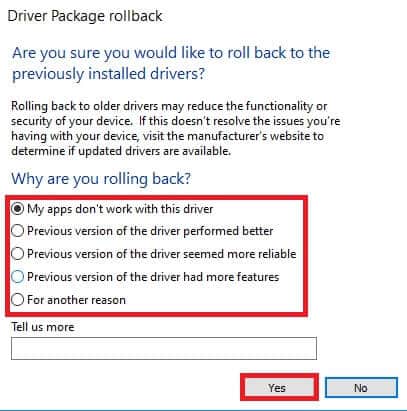
4. تقديم سبب لماذا تتراجع؟ في نافذة استرجاع حزمة برنامج التشغيل. ثم ، انقر فوق الزر “نعم” ، الموضح في الصورة المميزة.
5. الآن ، أعد تشغيل النظام لجعل التراجع فعالاً.
الطريقة 14: تحديث Windows
يمكن أن يتسبب نظام التشغيل Windows القديم أيضًا في استمرار Discord في التعطل. لذلك ، لتحسين نظام التشغيل الخاص بك ، حاول تحديث Windows كما هو موضح في الخطوات أدناه.
1. اضغط على مفتاحي Windows + I في نفس الوقت لتشغيل الإعدادات.
2. انقر فوق مربع التحديث والأمان ، كما هو موضح.
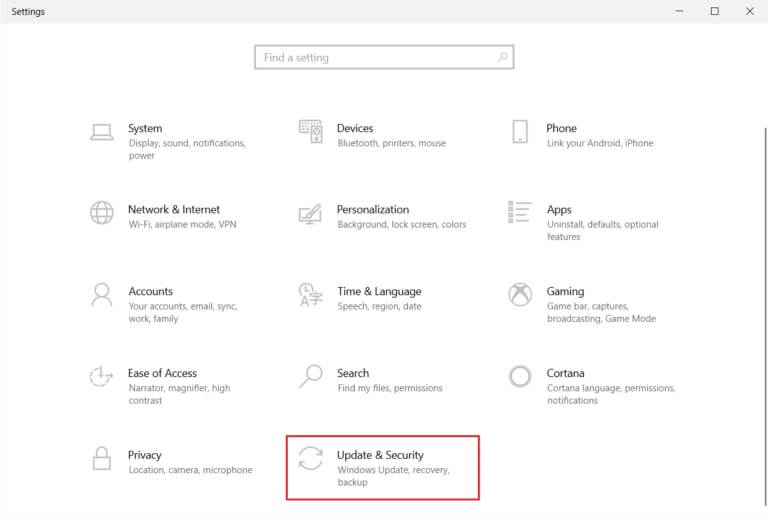
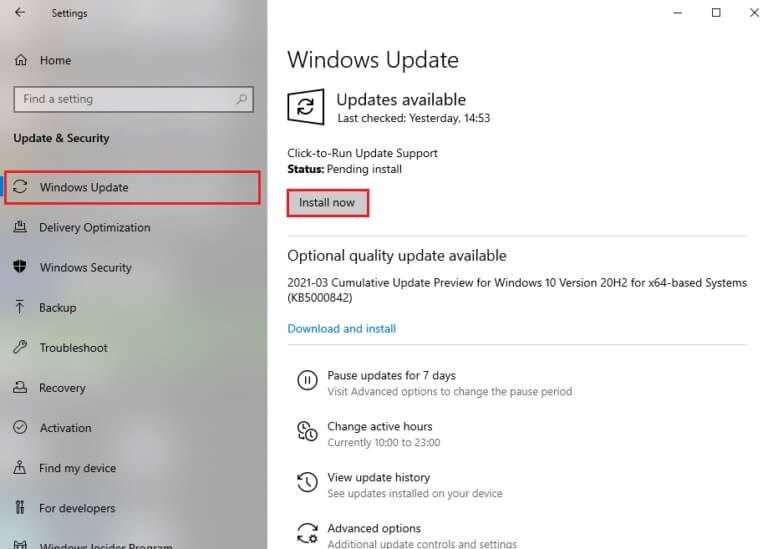
3. في علامة التبويب Windows Update ، انقر فوق الزر Check for updates (التحقق من وجود تحديثات).
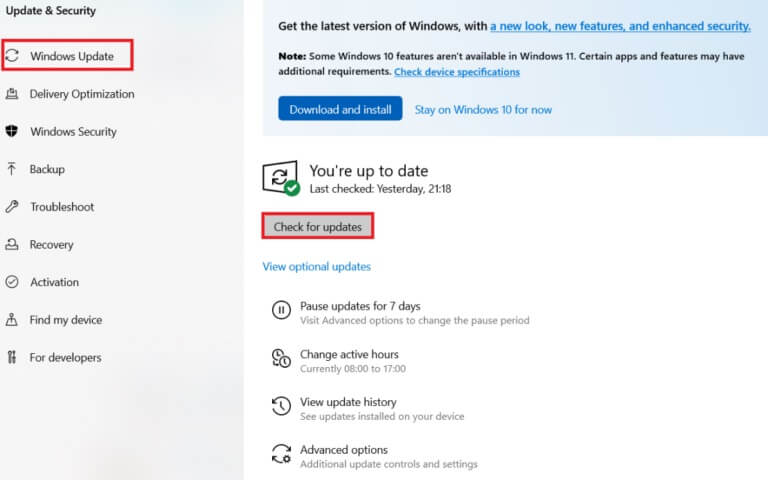
4 ا. في حالة توفر تحديث جديد ، انقر فوق التثبيت الآن واتبع الإرشادات للتحديث.
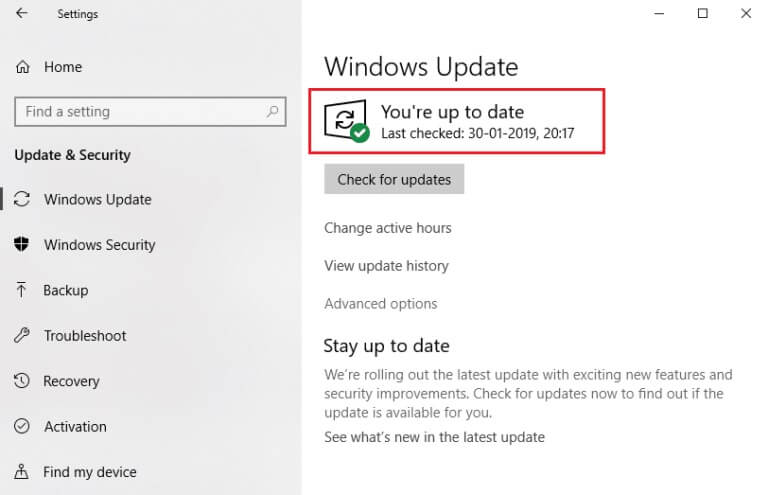
4 ب. وإلا ، إذا كان Windows محدثًا ، فسيظهر لك رسالة محدثة.
الطريقة 15: تحديث Discord
إذا كنت تواجه مشكلة تعطل Discord ، فقد يكون تطبيق Discord الخاص بك قديمًا. لذلك ، قم بتحديث تطبيق Discord الخاص بك لإصلاح المشكلات. اقرأ مقالتنا حول كيفية تحديث Discord.
الطريقة 16: أعد تثبيت Discord
إذا لم تساعدك أي من الطرق ، فحاول إعادة تثبيت Discord إن أمكن. سيتم تحديث جميع الإعدادات والإعدادات التكوينية عند إعادة تثبيت Discord ، وبالتالي هناك المزيد من الفرص التي ستحقق فيها مشكلة تعطل Discord باستمرار. اتبع هذه الخطوات لإعادة تثبيت Discord.
1. اضغط على مفتاحي Windows + I معًا لفتح إعدادات Windows.
2. انقر فوق التطبيقات من المربعات المحددة
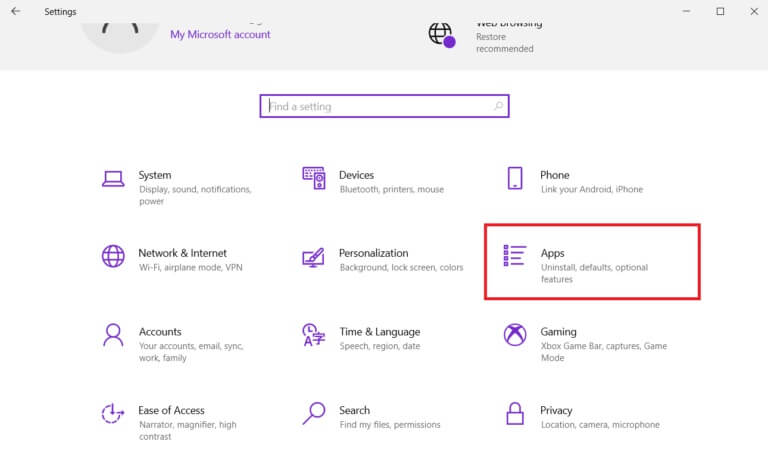
3. في علامة التبويب “التطبيقات والميزات” ، حدد موقع Discord وانقر عليه. ثم ، انقر فوق زر إلغاء التثبيت.
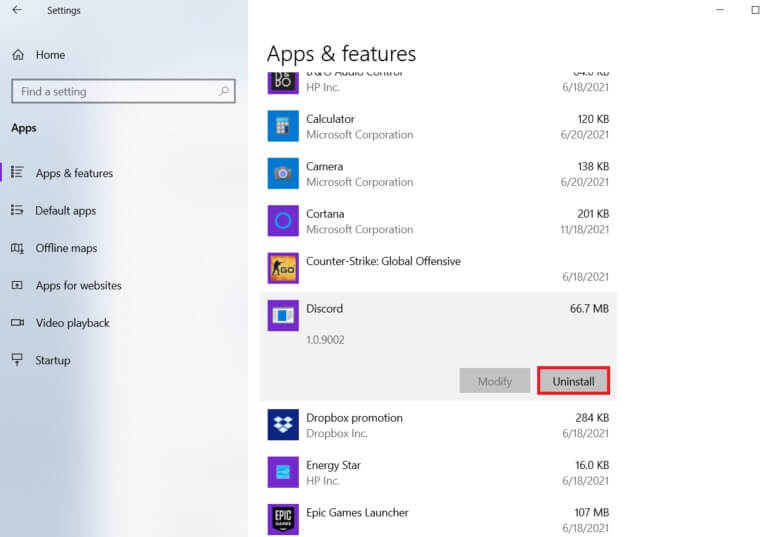
4. اتبع الإرشادات التي تظهر على الشاشة لإكمال عملية إلغاء التثبيت.
5. ثم اضغط على مفتاحي Windows + E في نفس الوقت لفتح مدير الملفات.
6. انتقل إلى المسار التالي من شريط العناوين.
C: \ Users \ USERNAME \ AppData \ Local.
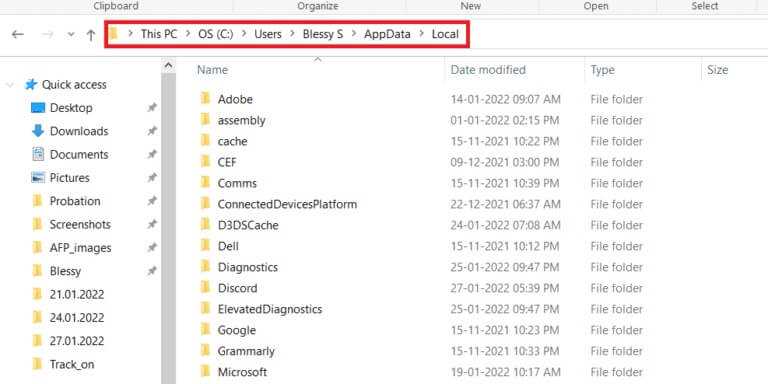
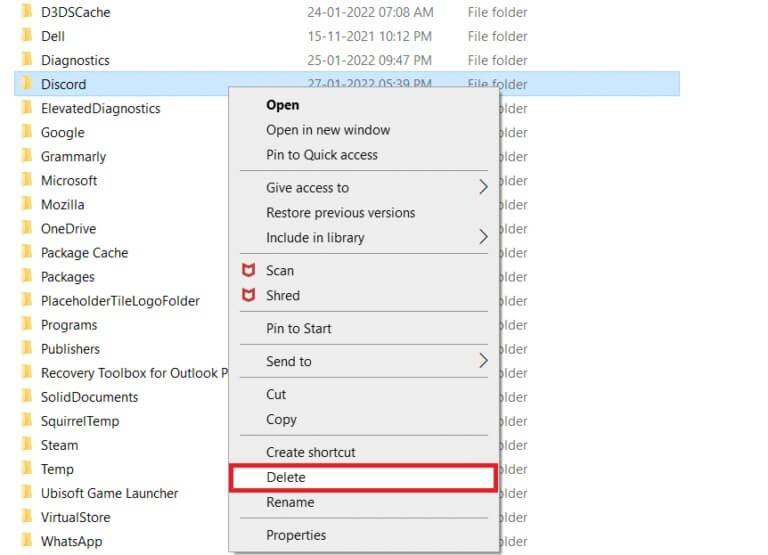
7. انقر بزر الماوس الأيمن على Discord وحدد خيار الحذف.
8. اذهب الآن إلى موقع Discord وانقر على زر Download for Windows.
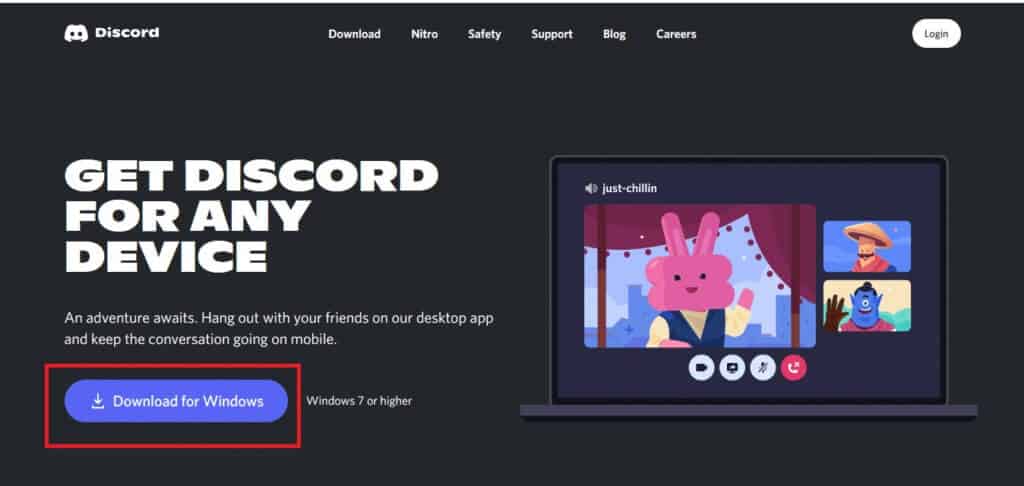
9. افتح ملف DiscordSetup.exe الذي تم تنزيله وقم بتثبيت البرنامج.

10. سيتم تحديث نفسه تلقائيًا في كل مرة تقوم فيها بتشغيل التطبيق أيضًا.

الطريقة 17: اتصل بدعم Discord
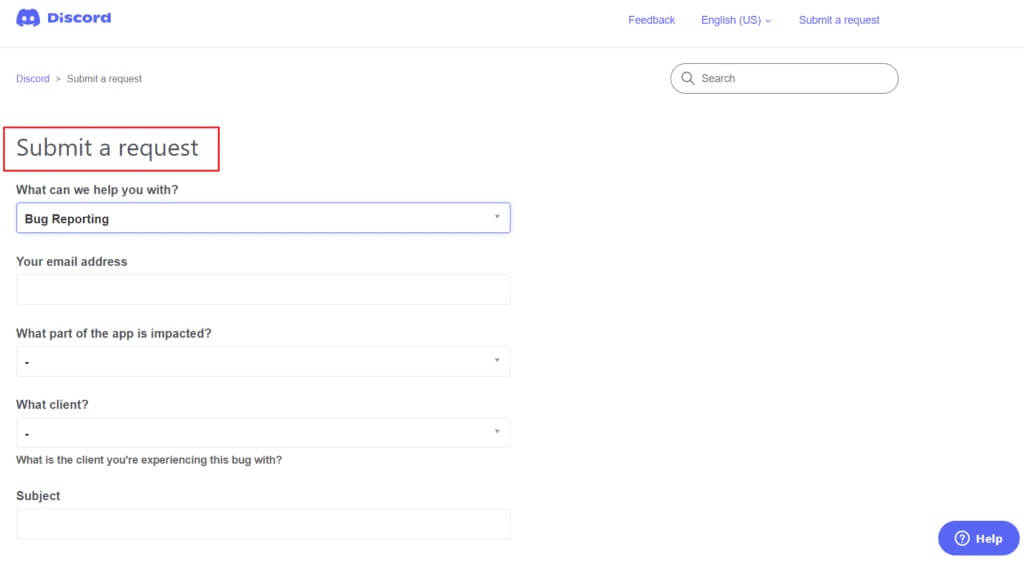
كحل أخير لإصلاح مشكلة تجميد فيديو Discord ، يجب عليك إرسال طلب إلى دعم Discord. سيرى فريق الدعم مشكلتك ويحللها ويقدم الحلول المناسبة لها.
نأمل أن يكون هذا الدليل مفيدًا ويمكنك إصلاح مشكلة تعطل Discord باستمرار. دعنا نعرف الطريقة الأفضل بالنسبة لك. أيضًا ، إذا كان لديك أي استفسارات / اقتراحات بخصوص هذه المقالة ، فلا تتردد في تركها في قسم التعليقات.