تبرز أجهزة Amazon Fire اللوحية في فئة الأجهزة هذه بفضل ميزاتها الممتازة وأسعارها الجذابة. ولكن بقدر ما قد يمتدحهم التقنيون ، فهم ليسوا محصنين ضد المضاعفات. واحدة من أكثرها شيوعًا هي الشاشة السوداء ، التي توقف كل شيء. تتناول هذه المقالة كيفية إصلاح الشاشة السوداء على جهاز Fire الوحي .

الشاشة السوداء على جهاز Fire الوحي
تشير الشاشة السوداء عادةً إلى وجود خلل في النظام. قد يكون الخلل ناتجًا عن مشكلات في البرامج أو الأجهزة أو الطاقة. يجبر نظام التشغيل الخاص بك على الإغلاق لأنه لم يعد يعمل بكفاءة. في بعض الأحيان ، قد تجد أن الصوت على ما يرام ، ولكن لا يتم عرض أي شيء.
إذن ، ما الذي يسبب ظهور الشاشة السوداء على جهاز Fire اللوحي ، وكيف يمكنك إصلاحه؟ دعنا نستكشف الأسباب والحلول الممكنة بالتفصيل في القسم أدناه.
مواطن الخلل المتعلقة بالبطارية والطاقة
فيما يلي أربع مشكلات متعلقة بالطاقة تتسبب في ظهور شاشة سوداء لجهاز Fire اللوحي وحلها.
1. بطارية منخفضة
تعد البطارية الفارغة سببًا محتملاً واضحًا للشاشة السوداء. لا يمكن للجهاز تشغيله وقد تم إغلاقه على الأرجح. يحدث ذلك من خلال الاستخدام المستمر أو التطبيقات التي تُركت تعمل في الخلفية.
يمكن أن يؤدي إعادة شحن البطارية إلى إصلاح هذا بسرعة. قم بتوصيل كابل الشحن بالكمبيوتر اللوحي وقم بتوصيله بمأخذ الحائط. اتركه يشحن لمدة ساعة على الأقل لمعرفة ما إذا كان يعمل مرة أخرى. إذا كانت بطارية جهازك اللوحي فارغة ، فقد يستغرق الأمر ما يصل إلى 15 دقيقة لإعادة شحن البطارية بدرجة كافية لتشغيلها.
عند الشحن بشكل صحيح ، يتحول ضوء المؤشر الموجود على زر الطاقة تدريجيًا من الأحمر إلى البرتقالي والأخضر عند الشحن الكامل. يجب الآن تشغيل الجهاز اللوحي كما هو متوقع.
2. زر الطاقة عالق
يتعطل زر تشغيل الجهاز اللوحي في بعض الأحيان بسبب الضغط المستمر أو دخول الحطام إلى الجهاز. هذا يعني أن الضغط الإضافي لا ينقل إشارة إلى زر الطاقة الداخلي.
يمكنك حل هذه المشكلة عن طريق إزالة الغلاف الخارجي وإزالة أي مادة غريبة بالملاقط. بدلاً من ذلك ، حاول الضغط على زر الطاقة بشكل متكرر ولكن برفق لإزالة الحطام.
3. مشاكل امدادات الطاقة
قد يرى العديد من الأشخاص شاشة سوداء ويستنتجون أن المشكلة تكمن في جهاز Fire اللوحي نفسه. قبل افتراض أن جهازك اللوحي بحاجة إلى الإصلاح ، تحقق من نظام الشحن. جهاز Fire اللوحي عرضة لمشكلات الشحن.


فيما يلي بعض مشكلات الإمداد بالطاقة التي قد تتسبب في ظهور شاشة جهاز Fire اللوحي باللون الأسود وإصلاحاتها:
- شاحن غير متوافق أو معيب: على الرغم من أنه يبدو واضحًا ، فقد تكون قد قمت بتوصيل جهاز Fire اللوحي بالشاحن الخطأ. يؤدي ذلك إلى استنزاف البطارية إذا واصلت استخدام جهازك. لذلك ، تأكد دائمًا من توصيل الشاحن الصحيح.
- منفذ الشحن الخاطئ: هذه مشكلة شائعة بين مستخدمي جهاز Fire اللوحي. الاستخدام المستمر يضعف الدوائر التي تربط البطارية والمنفذ. نتيجة لذلك ، سيفشل جهازك في الشحن. حل هذه المشكلة هو تغيير وحدة منفذ الشحن.
- مشكلة في مأخذ التيار الكهربائي: في بعض الأحيان ، قد تكون مشكلة في مصدر الكهرباء. يمكنك محاولة شحن هاتفك. إذا فشل الشحن ، فربما تكمن المشكلة في منفذ الطاقة.
4. نفاد البطارية
تعني بطارية الكمبيوتر اللوحي الميتة أنها لم تعد قادرة على تحمل الشحن. ستحتاج إلى البحث عن بدائل. البديل الأول هو شراء بطارية جديدة. قد يؤدي هذا إلى إطالة عمر جهازك اللوحي. لكن التكلفة ستعادل تكلفة الجهاز اللوحي الجديد. ليس اقتصاديًا ، أليس كذلك؟
الخيار الآخر هو معرفة ما إذا كنت مؤهلاً للاستبدال. إذا لم تتجاوز الضمان الخاص بك ووجدت أن المشكلة هي عيب من الشركة المصنعة ، فيمكنك إعادتها إلى Amazon لاستبدالها.
مواطن الخلل البرمجيات ذات الصلة
تتضمن مشكلات البرامج الرئيسية التي تتسبب في ظهور شاشة سوداء على جهاز Fire اللوحي:
1. تعارض التطبيق
ليس كل تطبيق على الويب شرعيًا. قد يكون بعضها مشكلة ، خاصةً تلك الموجودة في مواقع الأطراف الثالثة. تبدو جيدة من الخارج ولكن يمكنها إدخال الأخطاء والبرامج الضارة في جهاز Fire اللوحي. يمكنهم إجبار نظام التشغيل على عرض شاشة سوداء إلى أجل غير مسمى. نتيجة لذلك ، سيفشل جهازك في التشغيل.
يتطلب حل هذه المشكلة إعادة تشغيل جهازك أو فرض إعادة تشغيله. للقيام بذلك ، اضغط على زر “التشغيل / الإيقاف” لمدة 40 إلى 45 ثانية. إذا نجحت ، فسترى شعار Amazon ، أو سوف يتوهج مؤشر LED الخاص بمنفذ الشحن ، حسب جهازك.
عندما تعود إلى شاشتك ، تذكر إلغاء تثبيت تطبيقات الطرف الثالث. للقيام بذلك ، تابع ما يلي:
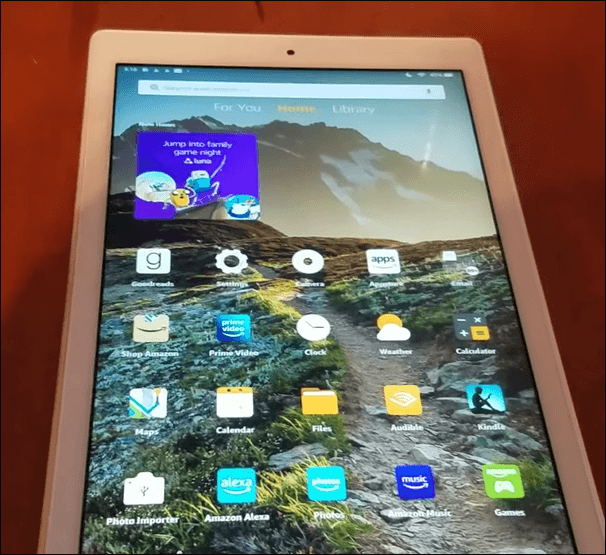
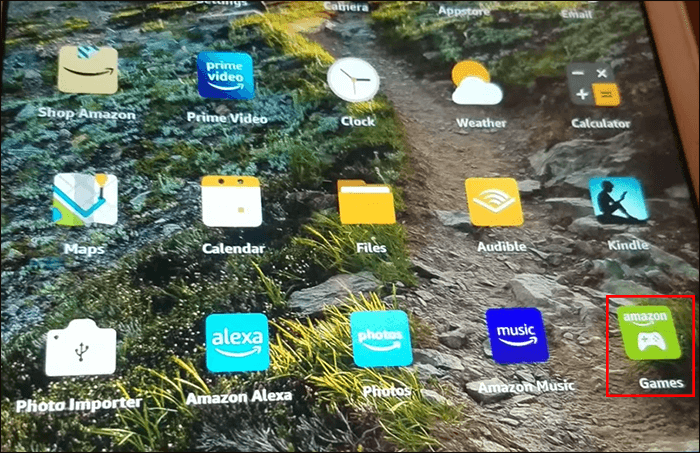
- انتقل إلى “درج التطبيقات” وحدد موقع التطبيقات التي ثبتها من مصادر لم يتم التحقق منها.

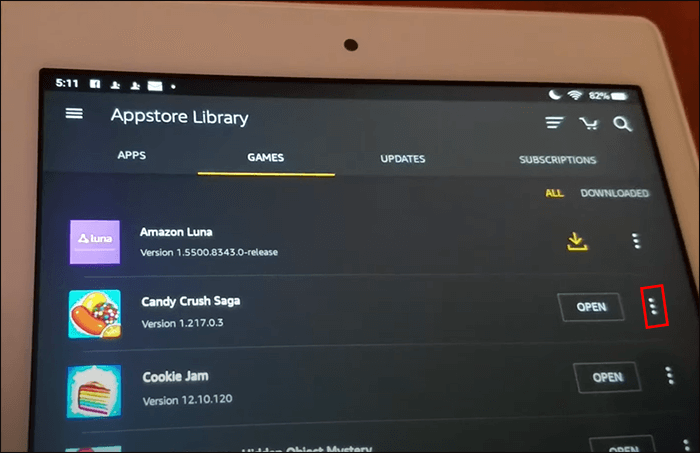
- افتح “الألعاب والتطبيق” واضغط على “المكتبة”.

- حدد التطبيق الذي تريد إلغاء تثبيته وانقر على “رمز Ellipses”.
2. البرمجيات التي عفا عليها الزمن
متى كانت آخر مرة قمت فيها بتحديث برنامج جهاز Fire اللوحي؟ إذا مرت فترة من الوقت ، فقد يكون نظام تشغيل جهازك اللوحي غير متوافق مع البرنامج الأحدث. يؤدي هذا إلى عدم الاستقرار ، والتجميد ، والتعطل المنتظم ، وخلل النظام ، والذي يمكن أن يظهر على شكل شاشة سوداء.
لتحديث برنامج جهاز Fire اللوحي ، اتبع هذه الخطوات البسيطة:
- قم بإيقاف تشغيل جهاز Fire اللوحي الخاص بك.
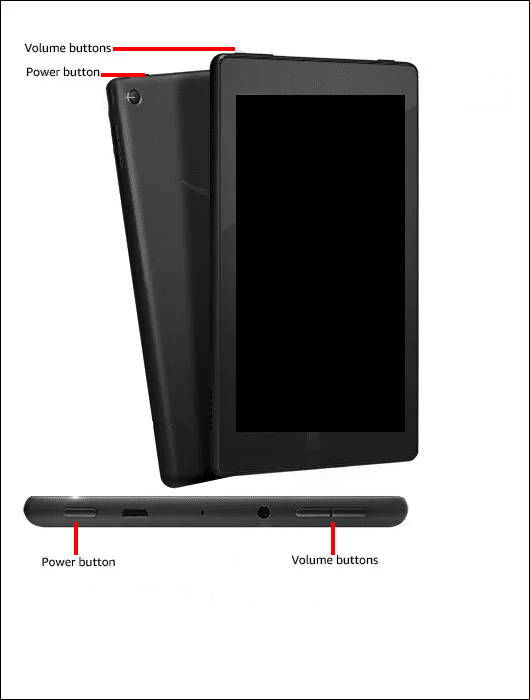
- اضغط مع الاستمرار على زر “رفع الصوت” وزر “التشغيل / الإيقاف” لمدة 40 ثانية حتى يتم تشغيل الجهاز اللوحي.
- حرر زر “التشغيل / الإيقاف” ولكن استمر في الضغط على زر “رفع مستوى الصوت” حتى ترى “تثبيت أحدث برنامج”.
- انتظر حتى يكتمل التثبيت وفتح جهازك اللوحي.
3. تعطل النظام
يتطلب تعطل النظام الشديد اتخاذ تدابير جذرية لاستعادة جهاز Fire اللوحي الخاص بك. قد يؤثر الانهيار على نظام التشغيل أو التطبيقات. ويتجلى ذلك في الشاشة وهي تتحول بانتظام إلى اللون الأسود.
يمكنك حل هذه المشكلة عن طريق تحديث البرنامج (كما هو موضح أعلاه) أو إعادة ضبط المصنع لجهاز Fire اللوحي الخاص بك. هذا الأخير هو طريقة صارمة تمسح جميع بياناتك من جهازك اللوحي. إذا كانت لديك معلومات مهمة لم تقم بنسخها احتياطيًا، فسيكون من الحكمة تجربة الطريقة الأخرى أولاً. تقوم بإعادة ضبط المصنع لجهاز Fire اللوحي الخاص بك على النحو التالي:
- قم بإيقاف تشغيل جهاز Fire اللوحي

- اضغط على “الطاقة” و “خفض الصوت” في وقت واحد حتى يتم تشغيل وضع استرداد Android.

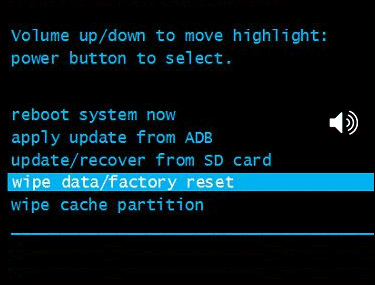
- استخدم “مفتاح رفع الصوت أو خفضه” للتمرير لأسفل إلى “مسح البيانات / إعادة تعيين إعدادات المصنع”.

- استخدم “زر الطاقة” للنقر فوق الأمر. هذا يمحو جميع البيانات والإعدادات.
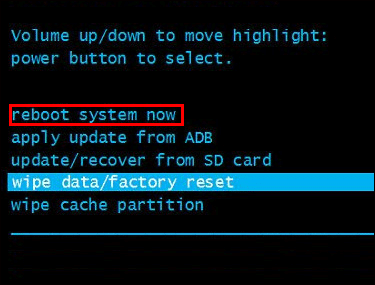
- انقر على “إعادة تشغيل النظام الآن” وانتقل إلى “الشاشة الرئيسية”.
مواطن الخلل المتعلقة بالأجهزة
تشير مشكلات الأجهزة إلى المكونات المادية للكمبيوتر اللوحي. يوجد أدناه سببان للأجهزة في شاشة سوداء على جهاز Fire اللوحي.
1. اتصال عرض فضفاض
بقدر ما قد يكون جهاز Fire اللوحي قوية ، فهو ليس محصنا ضد الضرر المادي. في حالة سقوطه أو ملامسته سائلًا ، يمكن أن تتشقق كابلات التوصيل أو تصبح مفكوكة أو تحترق. يؤثر ذلك على نقل إشارة الشاشة من اللوحة الأم للجهاز اللوحي إلى الشاشة. النتائج؟ شاشة سوداء.
الحل لهذه المشكلة هو البحث عن المساعدة المهنية أو الاتصال بدعم عملاء Amazon.
2. مكونات العرض الخاطئة
يمكن أن تتسبب مكونات العرض المعيبة مثل الإضاءة الخلفية أو LCD screen في ظهور شاشة سوداء. يمكن أن تعرض شاشة LCD المعطلة صورًا مهتزة أو تتحول إلى اللون الأسود تمامًا. من ناحية أخرى ، قد تتسبب الإضاءة الخلفية المعيبة في ظهور الشاشة معتمة.
إذا كانت مكونات الشاشة معيبة ، فإن الاستعانة بمحترف لإصلاح أو تثبيت بديل من شأنه أن يحل المشكلة.
إصلاح الشاشة السوداء على جهاز Fire اللوحي
تعد مشكلات الشاشة السوداء على جهاز Fire اللوحي شائعة ويمكن أن تنجم عن أسباب مختلفة. في بعض الأحيان ، قد لا يكون سبب الشاشة السوداء واضحًا. يجب عليك تجربة خيارات مختلفة لمعرفة ما إذا كان يمكنك العثور عليها. يمكنك إصلاح بعضها بسرعة عن طريق إعادة تشغيل الجهاز وتحديث البرامج وإزالة التطبيقات التالفة. إذا كانت الشاشة السوداء خارجة عن تصميمك ، فاطلب المساعدة المتخصصة.
هل واجهت مشكلات الشاشة السوداء على جهاز Fire الوحي ؟ ما هي المشكلة وكيف أصلحتها؟ اسمحوا لنا أن نعرف في التعليقات أدناه.