Known Telegram Share large photos and videos without any loss in quality. With Telegram Premium, you can send files up to 4GB in size. For faster data transfer speeds, a Wi-Fi connection is recommended.

However, some users are complaining that the Telegram app doesn't work on Wi-Fi on their iPhone or Android devices. If you're also experiencing similar Wi-Fi connectivity issues, here are some troubleshooting methods to fix Telegram not connecting to Wi-Fi on iPhone and Android.
1. Switch to 5GHz Wi-Fi
The first solution if you can't use Telegram on Wi-Fi is to switch to the 5GHz frequency band, if you have a dual-band router. Switching to the 5GHz frequency band will immediately improve your internet speed and allow you to: Run a speed test To ensure that your ISP does not experience any downtime.
2. Disable Low Data Mode on Wi-Fi
After connecting to a 5GHz Wi-Fi network, you need to check if the Low Data Mode option for Wi-Fi is disabled on your iPhone. For Android, you need to ensure that the selected Wi-Fi network isn't treated as a metered connection. Here's how.
for iPhone
Step 1: Open an app Settings on your iPhone.

Step 2: Click on Wi-Fi access.

Step 3: Click on the icon "I" Next to the connected Wi-Fi network.


Step 4: Click the toggle button next to Low data mode to disable the feature.

Step 5: Close the application Settings Open Telegram to check if the issue is resolved.

for Android
Step 1: Open an app Settings on your Android phone.

Step 2: Click on Network and Internet.


Step 6: After that, close the application. Settings Open Telegram to check if the issue is resolved.

3. Disable Low Power Mode
If Telegram still doesn't connect to the internet over Wi-Fi, you'll need to disable Low Power Mode or Low Battery Mode on your device. In this mode, you may not get good internet speeds from your connected Wi-Fi network to conserve battery life. That's why we recommend turning it off.
on iPhone
Step 1: Open an app Settings on your iPhone.

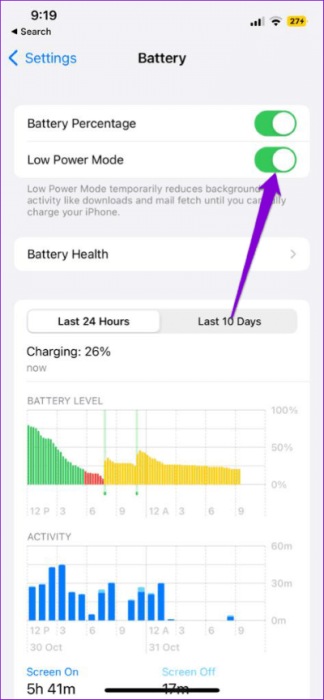
Step 4: close Settings Open Telegram to check if the issue is resolved.
on Android
Step 1: Open an app Settings on your Android phone.

Step 2: Scroll down and tap Battery.

Step 3: Click Save Battery.

Step 4: Click the toggle button next to Battery Saver to disable the feature.

Step 5: close Settings Open Telegram to check if the issue is resolved.
4. Check data settings in the Telegram app.
After you've taken care of your phone's internet data settings, you should check your Telegram data usage settings. The app gives you various options to limit data usage. Here's how to check them.
Step 1: Open Telegram On your iPhone or Android phone.
Step 2: Click on the icon Settings In the lower right corner (iPhone).
For Android, tap the hamburger menu icon in the upper left corner and select Settings.

Step 3: Locate data and storage.

Step 4: Check all data settings and make sure that: Do not disable Which one?

You should also check and disable lower data usage for calls on Telegram.

Step 5: Go back to your conversations and check if the issue is resolved.
5. Disable unrestricted data usage (Android)
If you have an Android phone and have data saver enabled, you should check if unrestricted data usage is enabled in Telegram. Here's how.
Step 1: Long press Telegram app icon And press Application information.
Step 2: Click on Mobile data and Wi-Fi.

Step 3: Click the toggle button next to Unrestricted use of data To enable this feature.

6. Enable Background App Refresh (iPhone)
Background app refresh is designed to keep app data up to date while it's running in the background. To resume Telegram downloads while the app is running in the background, you'll need to check if you've enabled this feature for the app.
Step 1: Open an app Settings on your iPhone.

Step 3: Click the toggle button next to Update applications In the background to enable the feature.

7. Switch to a public DNS service
If you're using a DNS server on your iPhone or Android device, we suggest switching to a public DNS service such as Google DNS or Open DNS. Using a DNS server can improve privacy and internet speeds on your device. However, sometimes you may encounter errors connecting to the default DNS server provided by your internet service provider.
Read our post about How to Change DNS Server on Android and iPhone.
8. Clear Telegram cache
If Telegram still isn't working on Wi-Fi, you can clear the app cache on your Android or iPhone. Every app collects cache data over time to store information that improves app performance and reduces loading times. However, app caches can become corrupted, leading to issues like these. Here's how to clear the cache in Telegram.
Step 1: Open Telegram On your iPhone or Android device.
Step 2: Click on the icon Settings In the upper right corner (iPhone).
On Android, tap the hamburger menu icon in the top left corner and select Settings.

Step 3: Click on data and storage.
Step 4: Locate Storage usage.

Step 5: Click on Clear cache Balkam.

9. Update Telegram
The last resort is to update the Telegram version on your iPhone or Android device to remove any bugs or glitches that may be causing this issue.
Use Telegram on Wi-Fi
These solutions will help you when Telegram isn't working on Wi-Fi. You can also read our post on Telegram calls not connecting on iPhone and Android.