تعتبر بيئات سطح المكتب GNOME وKDE Plasma من أبرز الخيارات المتاحة لمستخدمي نظام Linux. كل واحدة منها تقدم تجربة فريدة، سواء من حيث التصميم أو الأداء. إذا كنت تفكر في التبديل بين بيئات سطح المكتب أو تبحث عن الخيار الأنسب لك، فإن هذا المقال سيقدم لك مقارنة مفصلة بين GNOME وKDE Plasma، لتتمكن من اتخاذ القرار الأمثل بناءً على احتياجاتك وتفضيلاتك.
الملخص
- يفضل GNOME البساطة مع التركيز على أجهزة سطح المكتب الافتراضية، بينما يقدم KDE Plasma تجربة تقليدية غنية بالميزات تشبه نظام التشغيل Windows.
- يتطلب GNOME أدوات إضافية للتخصيص مع إمكانيات محدودة للتخصيص، بينما يحتوي KDE Plasma على خيارات تخصيص مضمنة واسعة النطاق.
- يعد GNOME أكثر ملاءمة لأجهزة الكمبيوتر المحمولة، بينما يلبي KDE Plasma احتياجات مستخدمي أجهزة سطح المكتب الثقيلة.
في حين أن GNOME وKDE Plasma يمثلان بيئات سطح المكتب الأكثر شعبية في Linux، إلا أنهما مختلفان تمامًا. دعنا نقارن تجربة سطح المكتب وقابلية التخصيص والأداء لنمنحك فكرة أفضل عما يقدمه كل منهما.
النهج المتبع في التعامل مع سطح المكتب
أكبر نقطة اختلاف بين GNOME وKDE Plasma هي كيفية التعامل مع سطح المكتب. بينما يوفر KDE Plasma تجربة أكثر تقليدية بشكل افتراضي مع الكثير من الميزات، فإن GNOME يسلك طريقًا مختلفًا، بهدف إعادة اختراع سطح المكتب مع التركيز على البساطة.
GNOME: بسيط وغير تقليدي
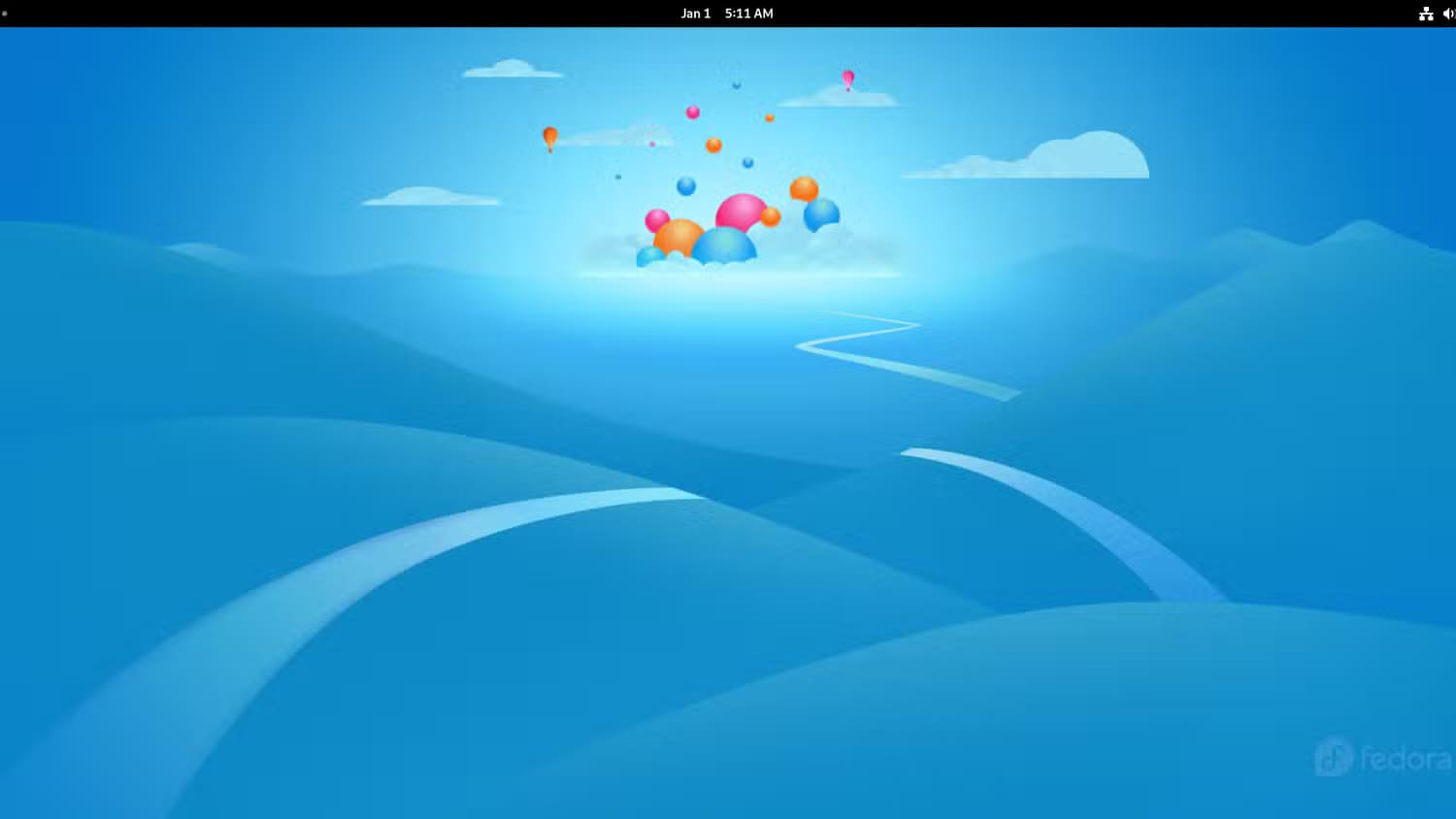
يركز GNOME على البساطة والتصميم البسيط وسير العمل المبسط مما يؤدي إلى تجربة سطح مكتب فريدة من نوعها. على عكس أجهزة سطح المكتب التقليدية، يزيل GNOME العناصر الشائعة مثل شريط المهام السفلي (أو الرصيف) وأيقونات سطح المكتب والمجلدات والأدوات بشكل افتراضي. بدلاً من ذلك، تحصل على سطح مكتب نظيف مصمم لاحتواء النوافذ النشطة فقط.
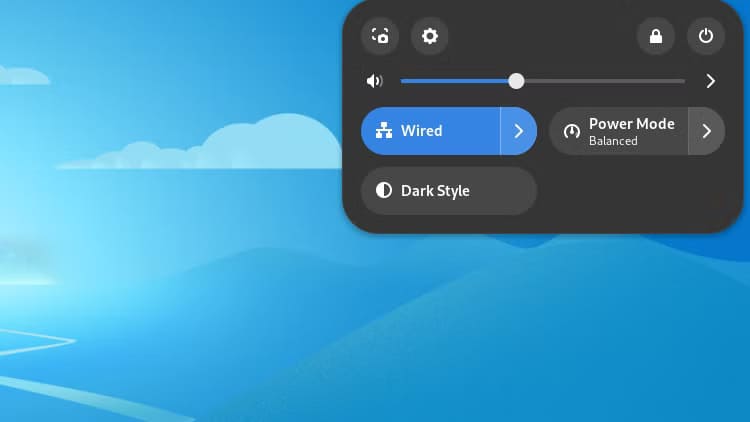
يوجد شريط علوي رفيع، يشبه إلى حد ما شريط القائمة في macOS، حيث ستجد إعدادات النظام على اليمين، ومؤشر التاريخ والوقت في المنتصف (يفتح منطقة الإشعارات عند النقر فوقه)، وزر الأنشطة على اليسار.
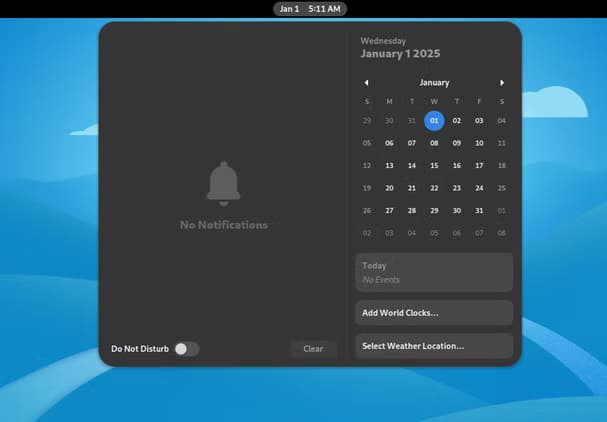
يفتح زر “الأنشطة” نظرة عامة على الأنشطة، والتي تعمل كمركز مركزي لـ GNOME. فهو يبتعد عن سطح المكتب لتوفير عرض سريع لجميع النوافذ النشطة، وشريط بحث عالمي في الأعلى، ورصيف في الأسفل للتطبيقات المثبتة والجاري تشغيلها.
يمكنك الوصول إلى نظرة عامة على الأنشطة بالضغط على مفتاح Super (Windows) مرة واحدة. أو يمكنك النقر نقرًا مزدوجًا على مفتاح Super لفتح نظرة عامة على التطبيقات، والتي تتميز بمبدل سطح مكتب افتراضي ودرج يحتوي على جميع التطبيقات المثبتة. يمكنك سحب التطبيقات وإفلاتها من الدرج أو الرصيف إلى أسطح مكتب افتراضية، مما يجعل فتح تطبيقات متعددة بطريقة منظمة أمرًا سريعًا للغاية.
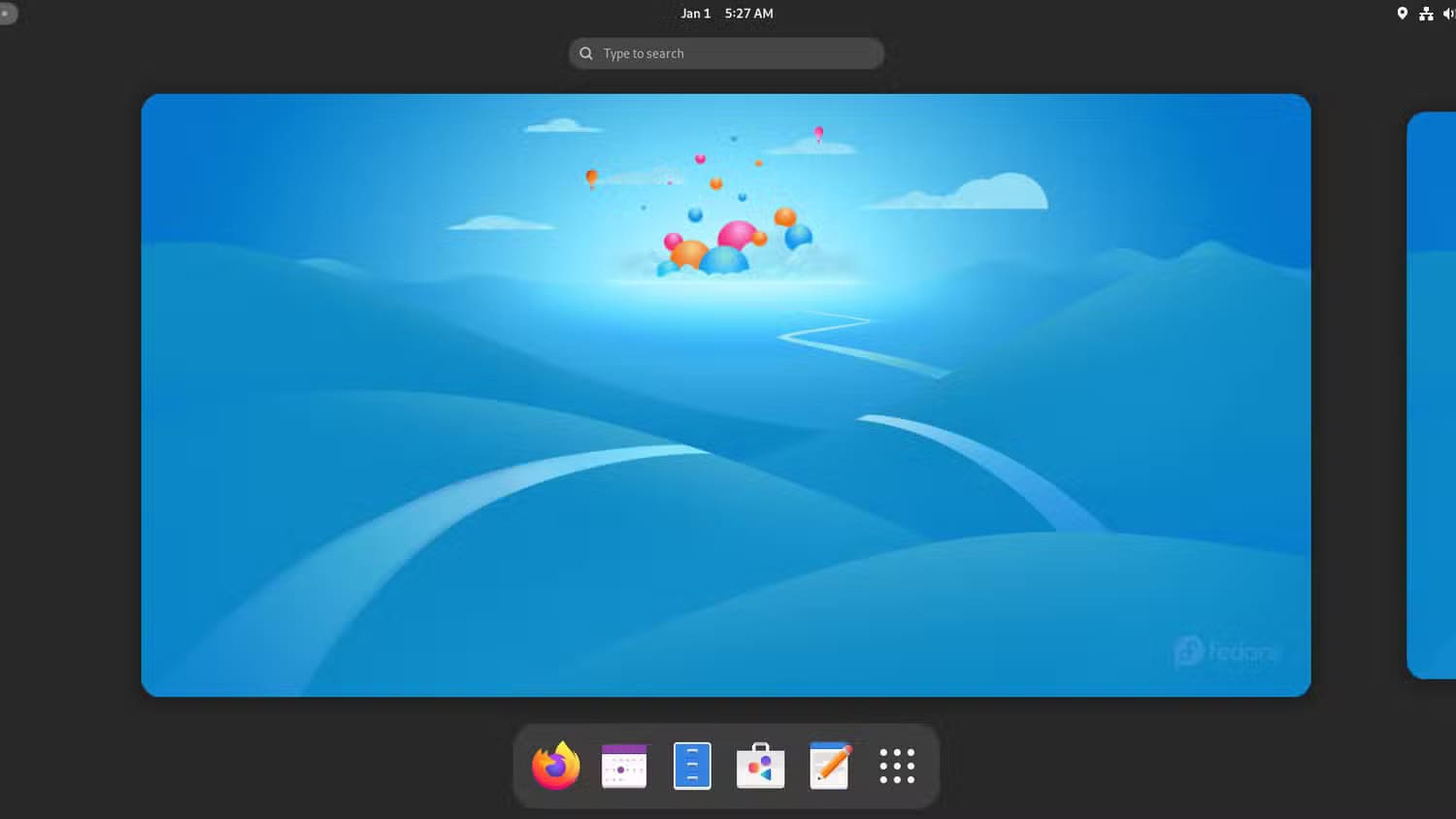
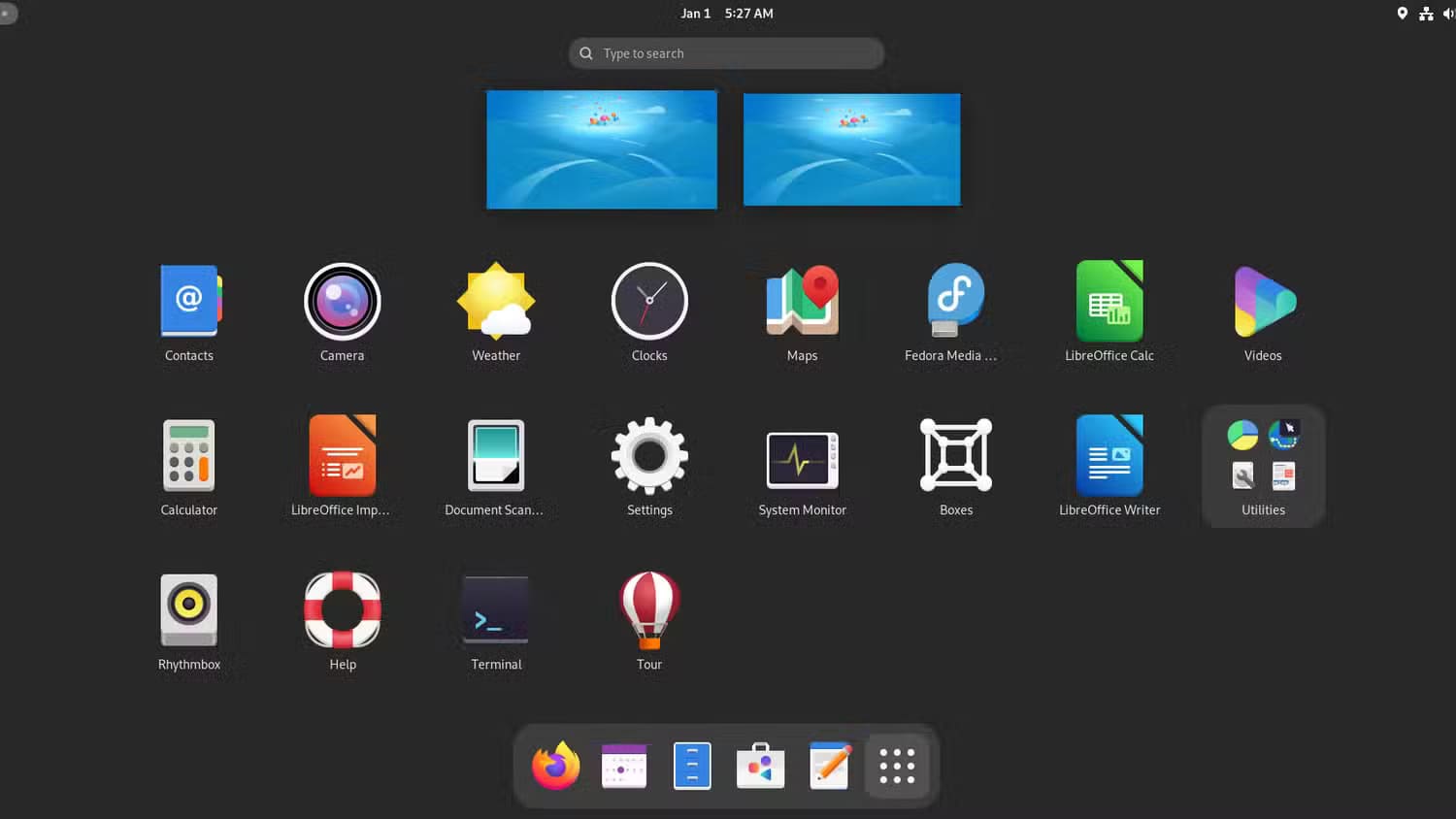

كما ترى، فإن هذا النهج يمثل انحرافًا كاملاً عن تجربة سطح المكتب التقليدية التي قد تكون معتادًا عليها على أنظمة التشغيل macOS أو Windows.
هناك فوائد واضحة لهذا الاتجاه. أولاً، يمكنك الحصول على مساحة أكبر على الشاشة من خلال التخلص من شريط المهام النشط أو الرصيف في الأسفل. كما أن غياب شريط المهام يثبط أيضًا سير العمل لتقليل وتعظيم المهام المتعددة. وبدلاً من ذلك، يشجع GNOME إعداد أجهزة سطح مكتب افتراضية متعددة، كل منها يضم تطبيقات مختلفة، للحفاظ على كل شيء منظمًا بشكل أفضل.
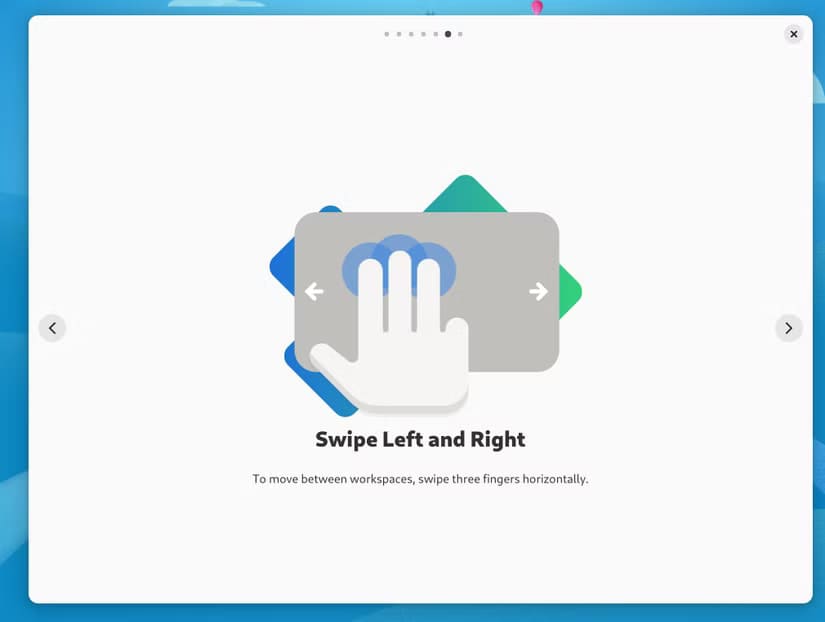
يجب أن أسلط الضوء أيضًا على أن GNOME يتمتع بدعم ممتاز للوحة اللمس، وهو ما يكمل فلسفة التصميم هذه. فبدلاً من استخدام نظرة عامة على الأنشطة، يمكنك التمرير بثلاثة أصابع إلى اليسار أو اليمين للتبديل بين أجهزة سطح المكتب الافتراضية. تجعل مجموعة الميزات هذه GNOME مثاليًا لأجهزة الكمبيوتر المحمولة ذات لوحات اللمس المدمجة والشاشات الأصغر حجمًا، حيث قد يكون تعدد المهام بإعدادات النوافذ المتعددة غير منتج للغاية.
KDE Plasma: مألوف وقوي
يأتي KDE Plasma مع نموذج سطح مكتب Windows التقليدي، والذي من المؤكد أنك ستحبه إذا كنت من محبي Windows 7 أو XP. ستحصل على شريط مهام سفلي مع مشغل تطبيقات على اليسار (مشابه لقائمة ابدأ)، وقسم مخصص للتطبيقات المثبتة والجاري تشغيلها في المنتصف، ومنطقة إعدادات سريعة على اليمين. بالإضافة إلى ذلك، لديك حرية كاملة في التحكم في سطح المكتب، مما يسمح لك بملئه بالمجلدات واختصارات التطبيقات وحتى الأدوات.
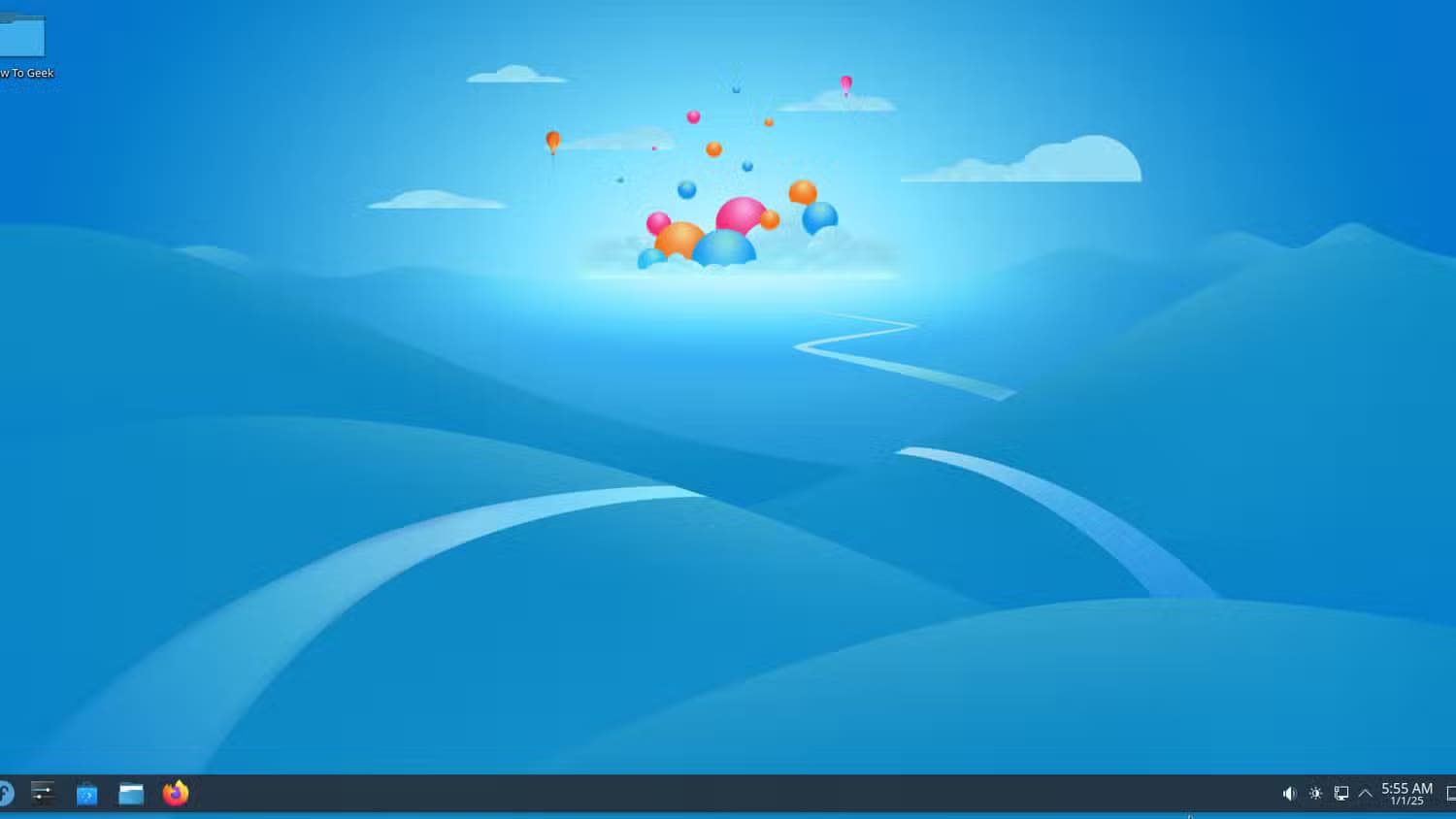
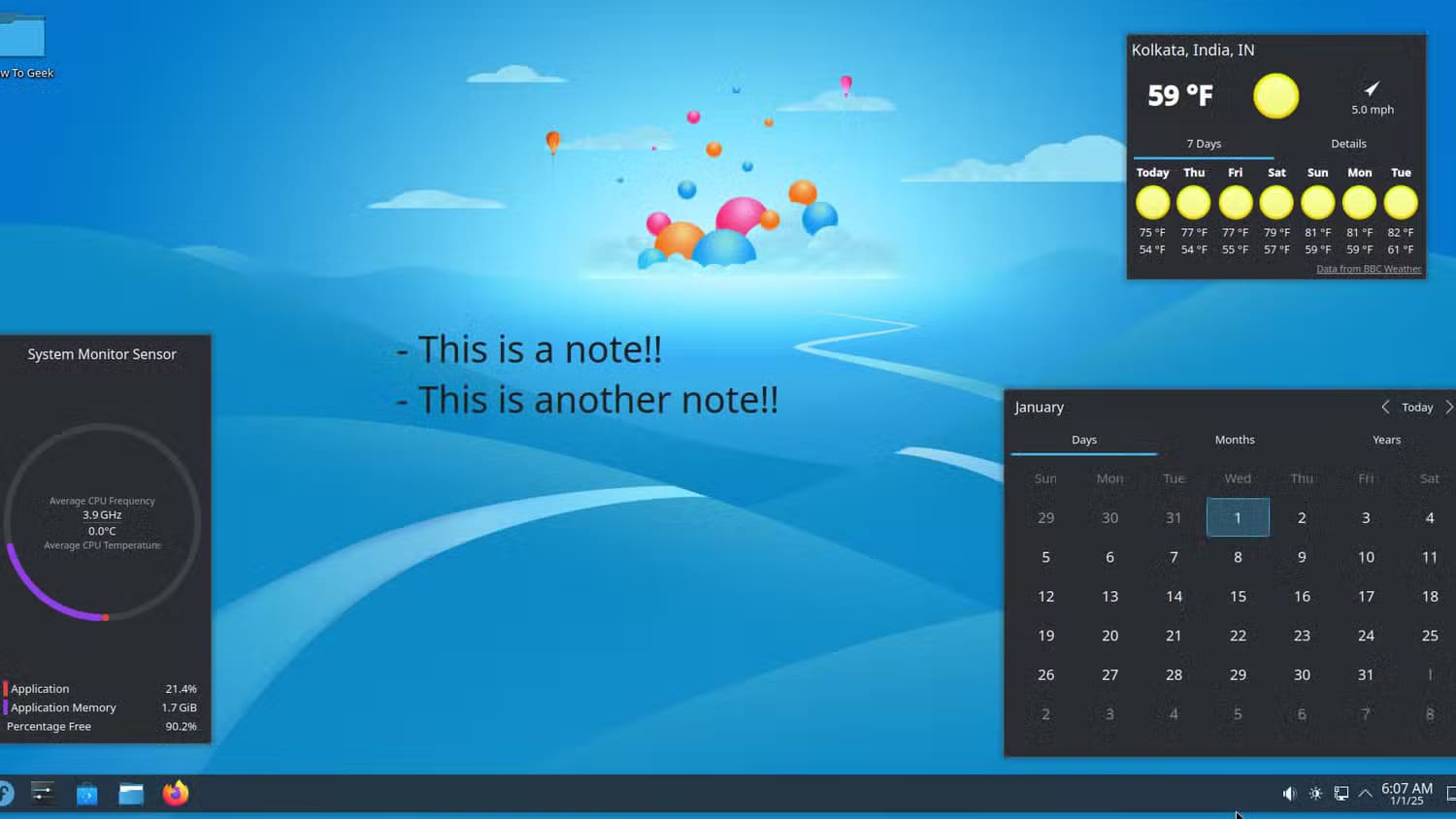
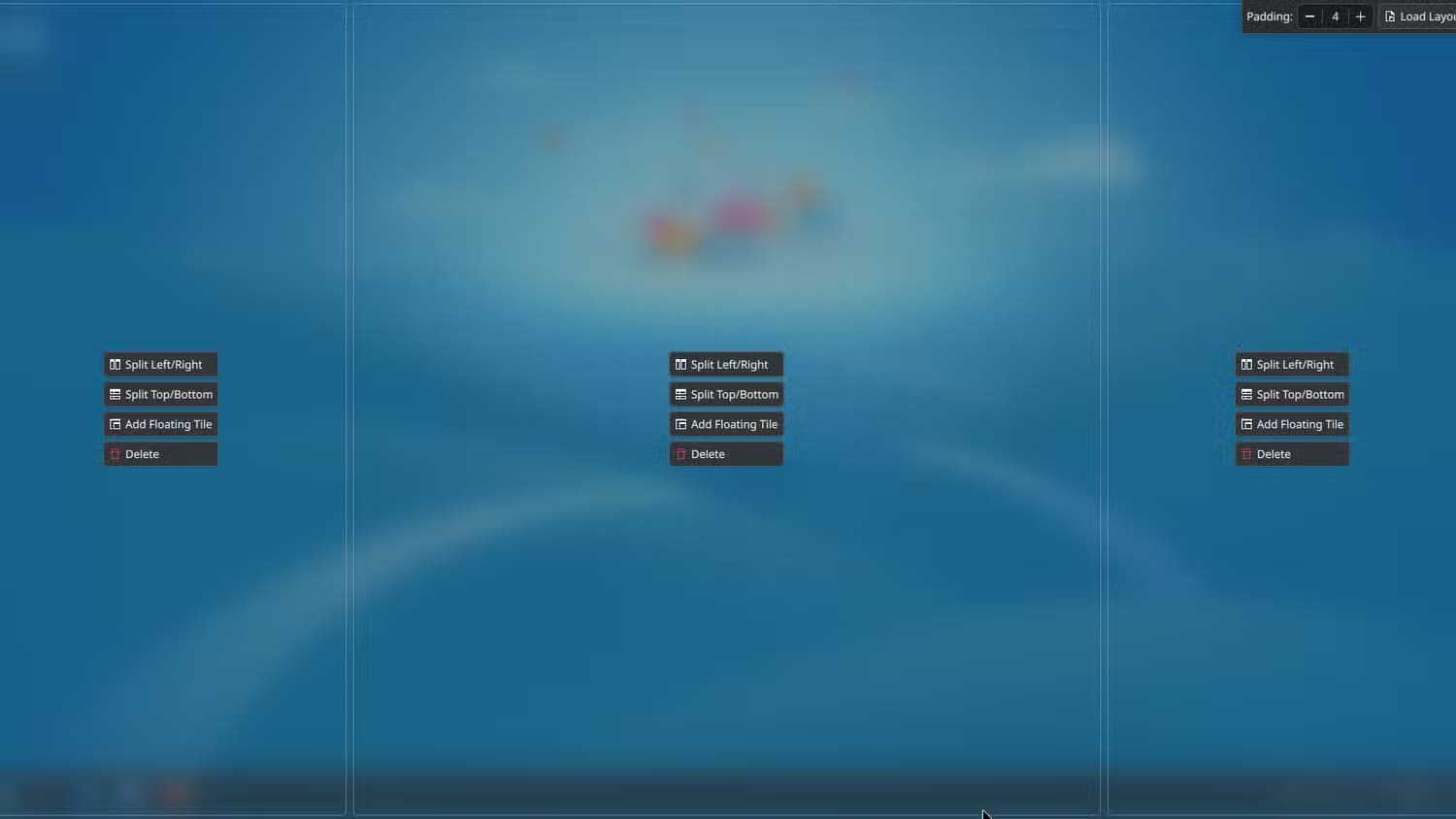
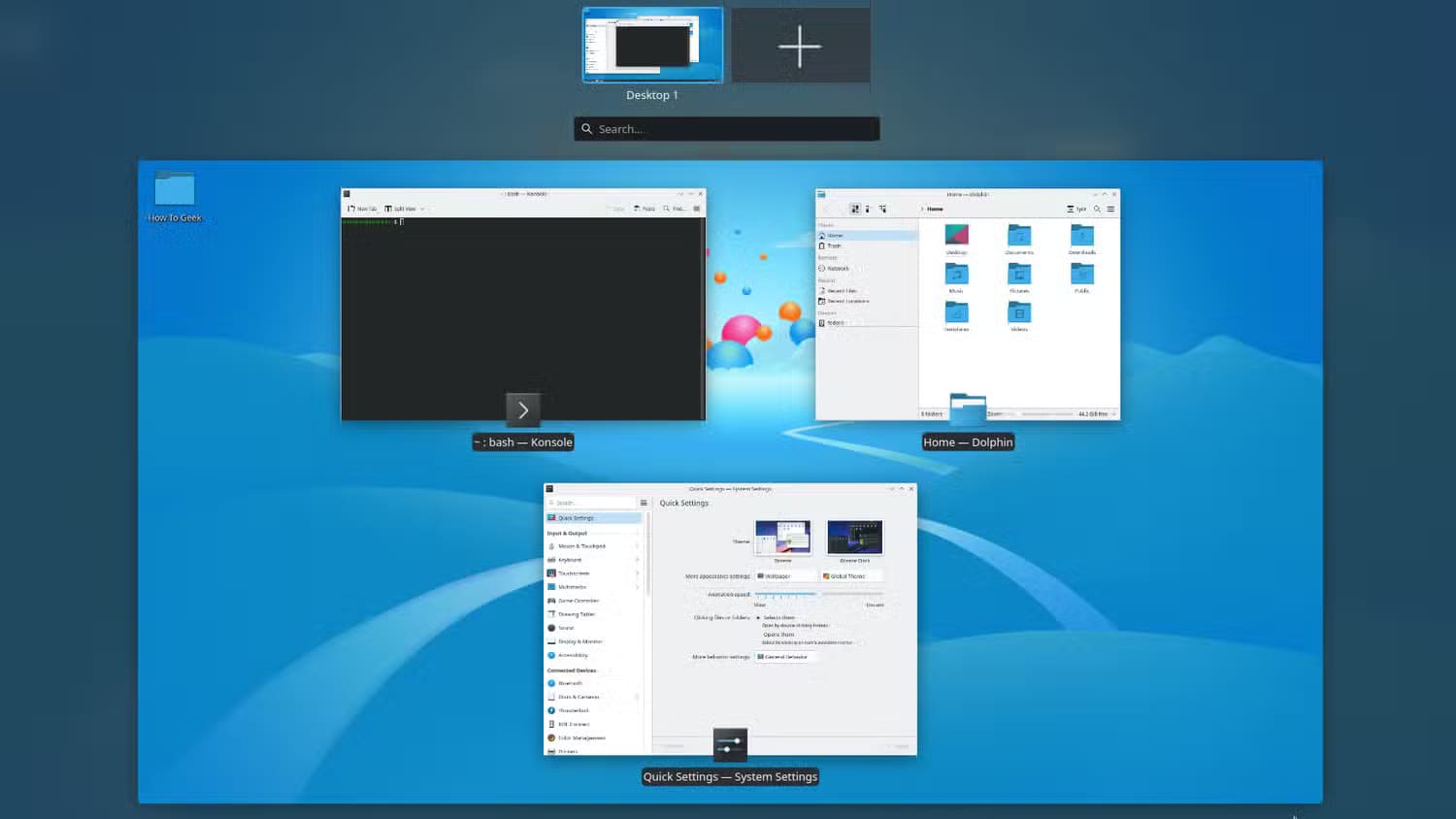
كما تتمتع بوظائف إدارة النوافذ القوية، بما في ذلك مدير النوافذ المدمج الذي يتيح لك ربط النوافذ بمناطق معينة على سطح المكتب. وتعتبر تجربة سطح المكتب الافتراضي من الدرجة الأولى، مع منطقة نظرة عامة واضحة – تشبه Windows 11 – والتي يمكنك من خلالها التبديل بسهولة بين أسطح المكتب الافتراضية أو إنشاء أسطح مكتب جديدة.
بخلاف ذلك، يوفر KDE Plasma إمكانية الوصول إلى أنشطة KDE، والتي تعمل مثل أجهزة سطح المكتب الافتراضية ولكن على نطاق أوسع. فهي تسمح لك بإنشاء مساحات عمل مخصصة، ولكل منها مجموعة خاصة بها من اختصارات سطح المكتب وخلفيات الشاشة والأدوات واللوحات.
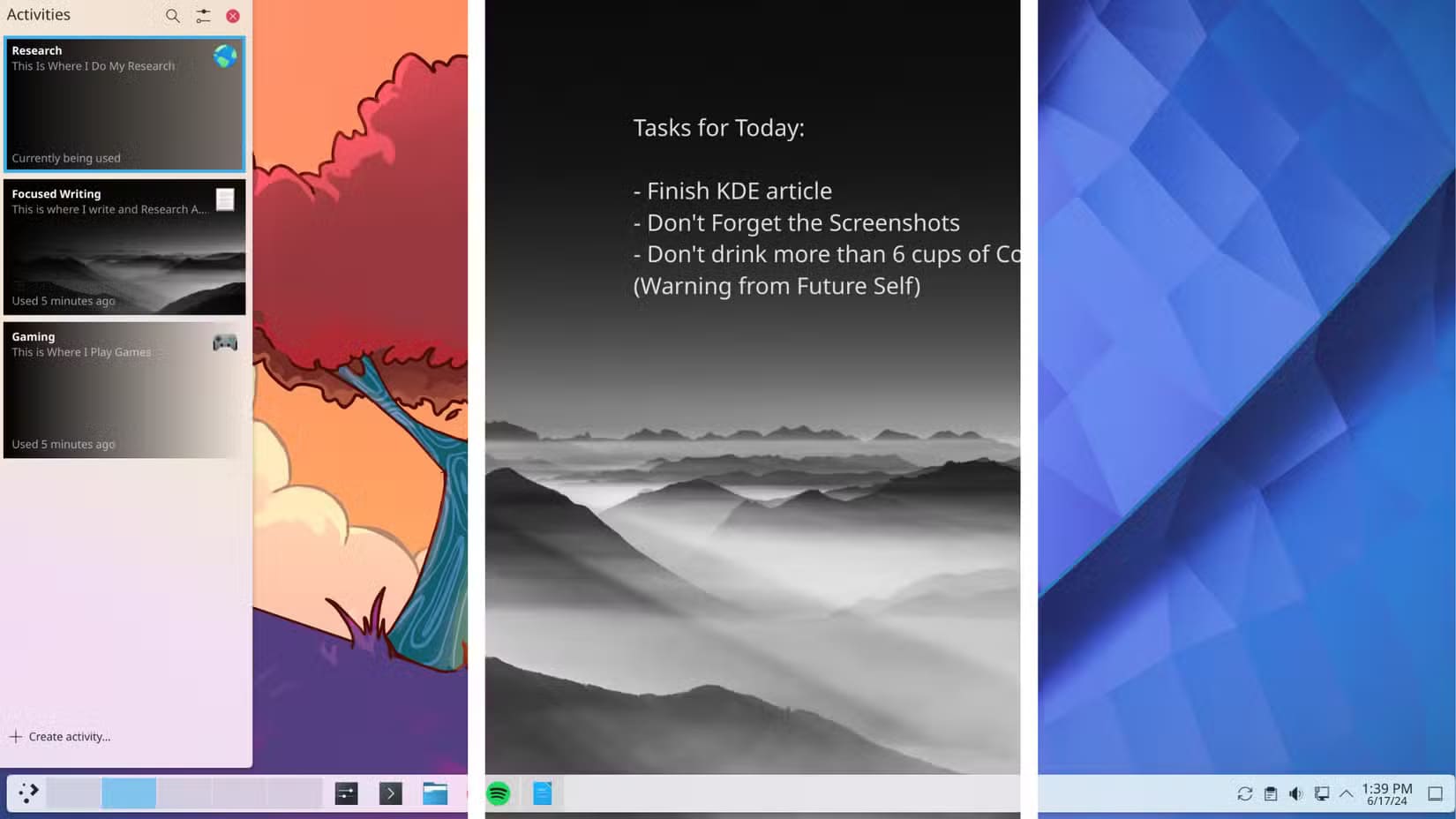
أفضل جزء هو أنه يمكنك الانتقال بين هذه الأنشطة بسلاسة مثل تبديل أجهزة سطح المكتب الافتراضية، مما يجعلها نعمة لمن يقومون بمهام متعددة بكثافة.
إمكانية التخصيص
على الرغم من أنه يمكنك تخصيص كل من GNOME وKDE Plasma، إلا أن النطاق الإجمالي وإمكانية الوصول يختلفان بشكل كبير. يفضل GNOME بيئة أكثر تقييدًا ومناسبة للمبتدئين، ولكن يمكن للمستخدمين المتقدمين فتح خيارات تخصيص إضافية باستخدام أدوات إضافية. من ناحية أخرى، يضيف KDE Plasma كل شيء – بما في ذلك حوض المطبخ – مما يجعله قويًا بشكل لا يصدق ولكنه قد يكون ساحقًا للمبتدئين.
GNOME: مطلوب إعداد إضافي
افتراضيًا، تقتصر خيارات التخصيص في GNOME على تغيير خلفية الشاشة وألوان التمييز وبعض الإعدادات الأساسية. لفتح إمكاناته الكاملة، تحتاج إلى تثبيت تطبيقين إضافيين: GNOME Tweaks وGNOME Extensions.
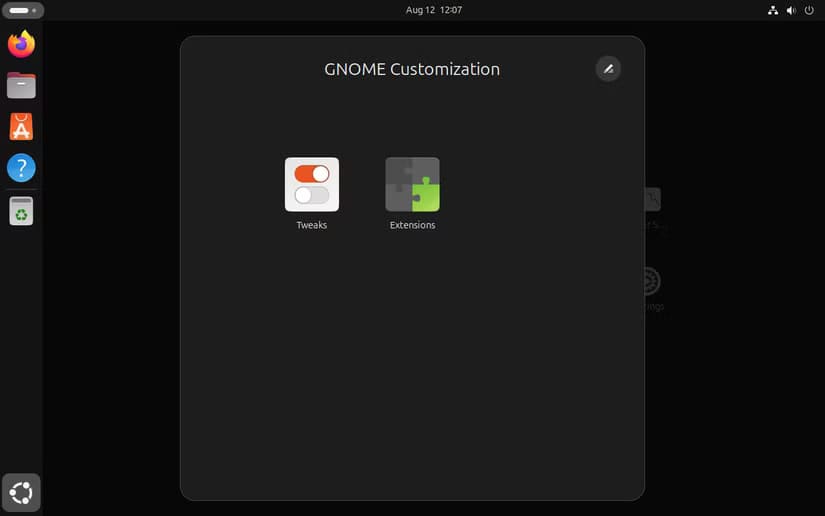
تعمل ملحقات GNOME كنظام إضافي، مما يسمح لك بتثبيت ملحقات جديدة لإضافة المزيد من الميزات أو الحصول على تحكم محسّن في التخصيص. من ناحية أخرى، تتيح لك GNOME Tweaks ضبط خطوط النظام والأيقونات وأنماط المؤشر وتثبيت سمات مختلفة لتغيير مظهر سطح المكتب. باستخدام هذه الأدوات، يمكنك تغيير مظهر ووظائف GNOME بشكل كبير – حتى جعله يشبه Windows 11 أو macOS.
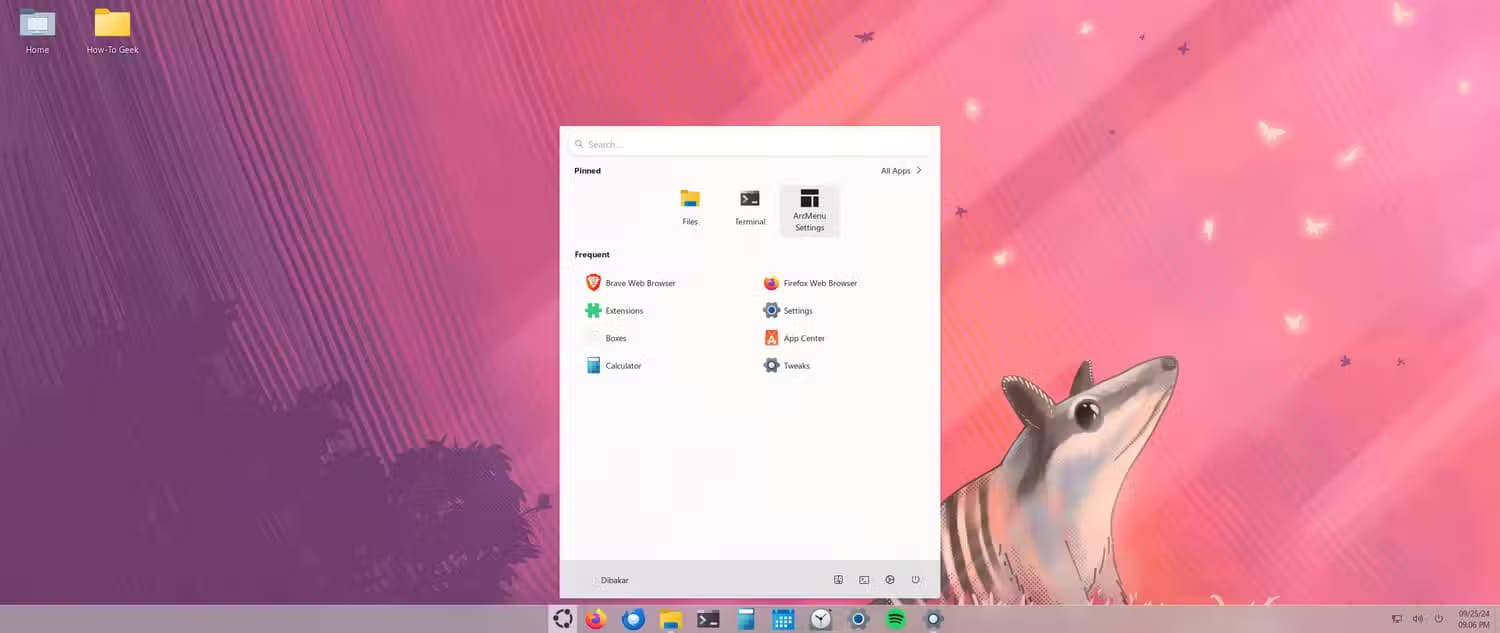
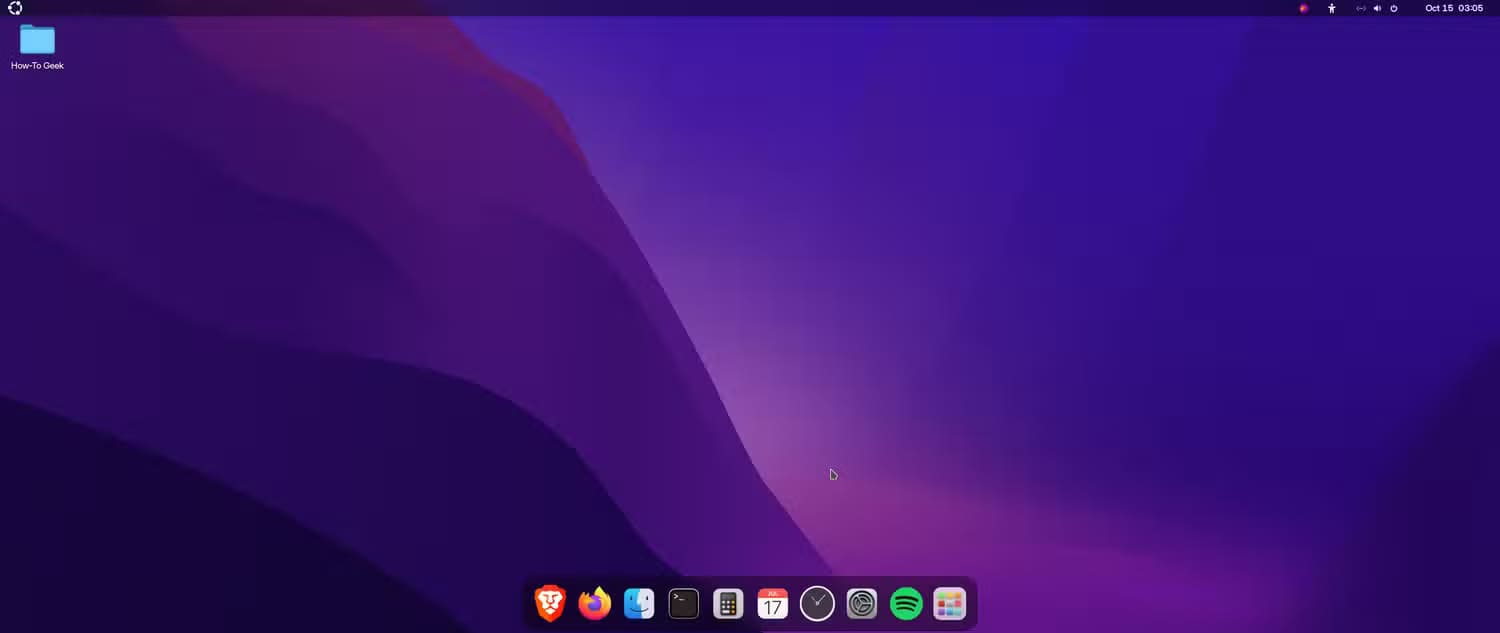
مع ذلك، فإن التغييرات الأخيرة التي طرأت على بنية GNOME—خاصة مع GTK4 وLibadwaita لتطبيقات النظام—جعلت عملية تخصيص السمات أكثر صعوبة. ورغم أنه يمكنك العثور على الكثير من السمات المخصصة لـ GNOME، فإن معظمها لن يؤثر على تطبيقات النظام الأحدث هذه. والخبر السار هو أن تطبيقات Libadwaita تبدو نظيفة ومصقولة افتراضيًا، وقد نرى حلول تخصيص سمات أفضل في المستقبل مع تكيف النظام البيئي.
KDE Plasma: مصمم للضبط
تتميز KDE Plasma بأنها بيئة سطح المكتب الأكثر قابلية للتخصيص. إن حرية التخصيص هنا لا حدود لها تقريبًا، وعلى عكس GNOME، فإن كل ما تحتاجه يأتي مدمجًا. يعمل مركز إعدادات النظام كمركز تكوين مركزي، مما يوفر سهولة الوصول إلى تنزيل وتثبيت السمات المختلفة وزخارف النوافذ والخطوط وحزم الأيقونات وخلفيات الشاشة والمزيد. هناك ميزتان بارزتان هما Desktop Effects وKWin Scripts، والتي تمنحك تحكمًا محسنًا في سطح المكتب ونوافذه.
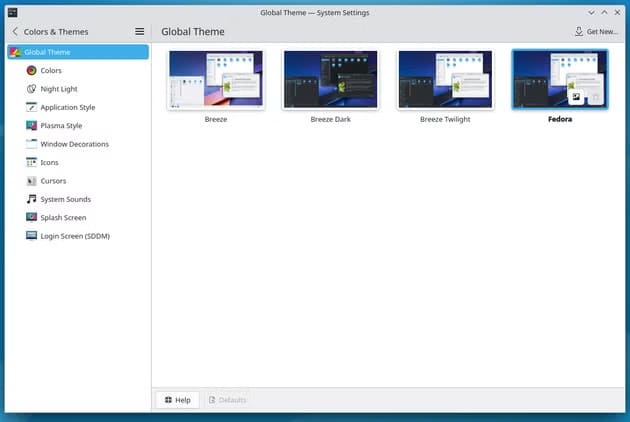

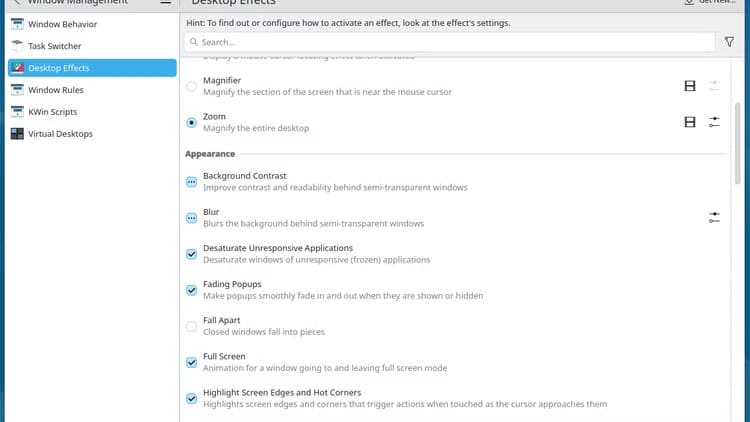
حتى اللوحة – شريط المهام في الأسفل – قابلة للتخصيص بدرجة كبيرة. على سبيل المثال، لا تقتصر على لوحة واحدة فقط. يمكنك إضافة لوحات متعددة ووضعها أينما تريد.
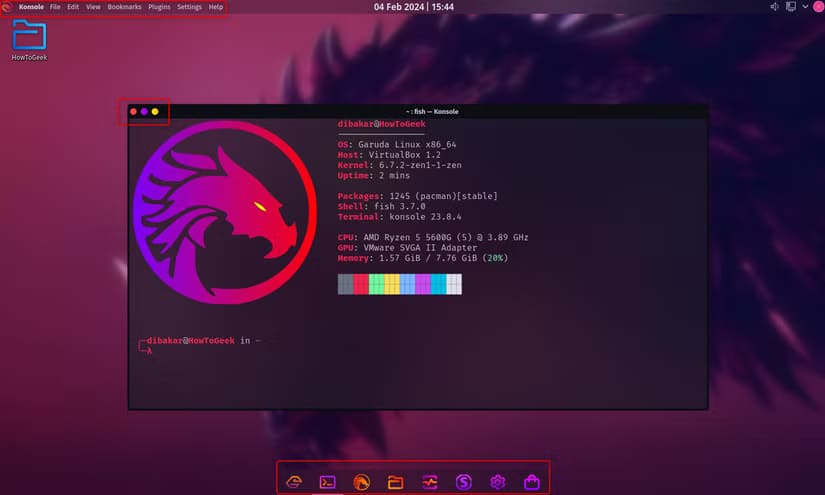
يمكنك أيضًا ضبط طولها وعرضها وتعبئتها بأدوات مختلفة لتعزيز وظائفها. على سبيل المثال، يمكنك الحصول على لوحة بعرض كامل في الأعلى لإعدادات النظام المختلفة ولوحة أصغر في الأسفل، في المنتصف، لاحتواء التطبيقات المثبتة والجاري تشغيلها. هذا النهج هو ما يستخدمه Garuda Linux لإعادة إنشاء تجربة سطح مكتب macOS.
الأداء واستخدام الموارد
للحصول على تقييم عادل لاستخدام الموارد بين GNOME وKDE Plasma، قمت باختبار كل من بيئتي سطح المكتب على Fedora، والذي يأتي بإعداد عادي نسبيًا لكلا البيئتين. وهذا يضمن ثبات النظام الأساسي، مع كون بيئة سطح المكتب هي المتغير الأساسي.
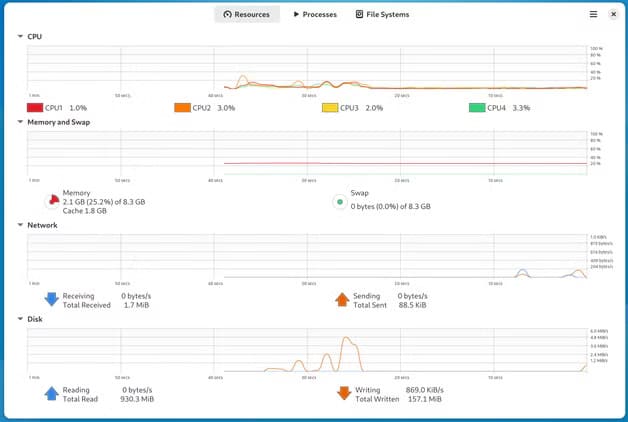
الآن، بعد التثبيت الجديد والتمهيد النظيف، يستهلك Fedora Workstation الذي يعمل بنظام GNOME حوالي 2 جيجابايت من ذاكرة الوصول العشوائي في وضع الخمول، مع استخدام وحدة المعالجة المركزية بنسبة 1-2% موزعة على النوى. ويبلغ إجمالي مساحة التخزين التي يشغلها النظام حوالي 4 جيجابايت.
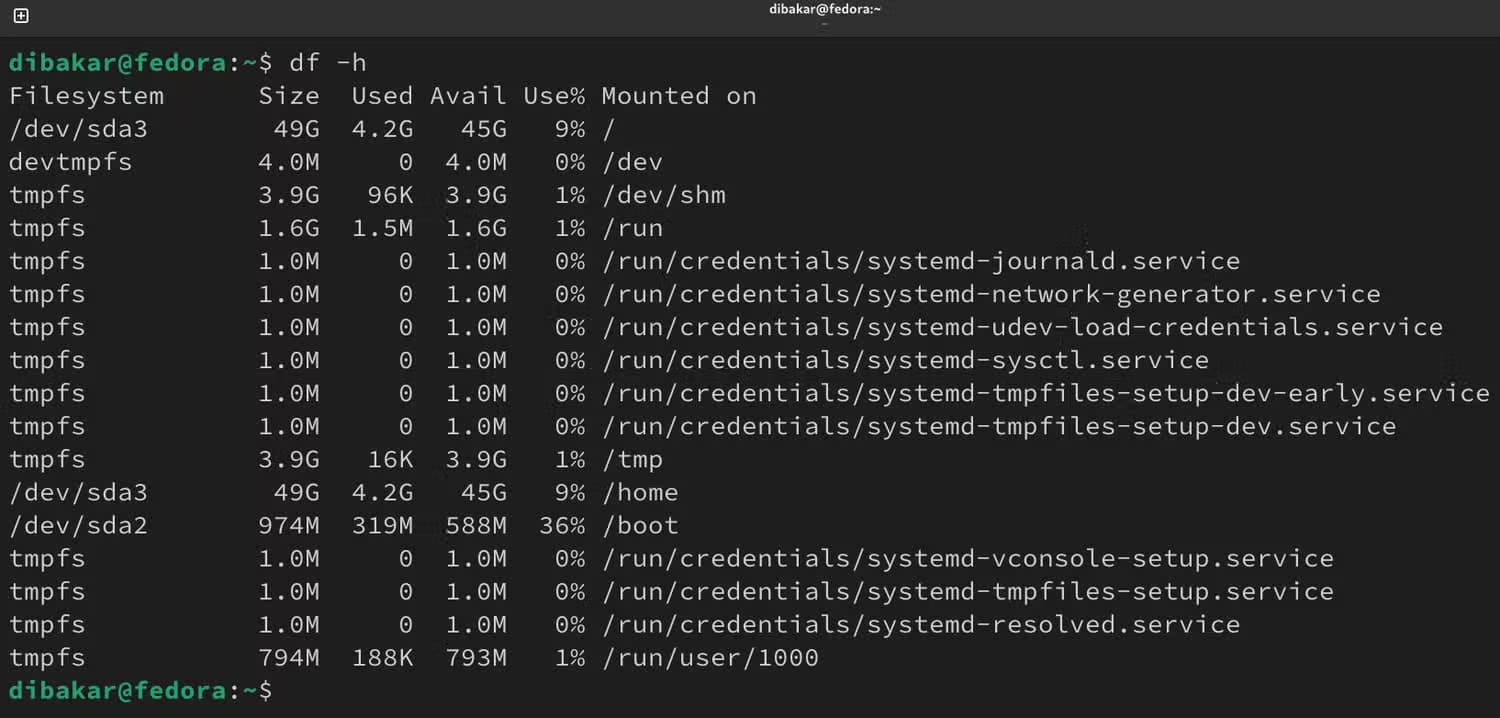
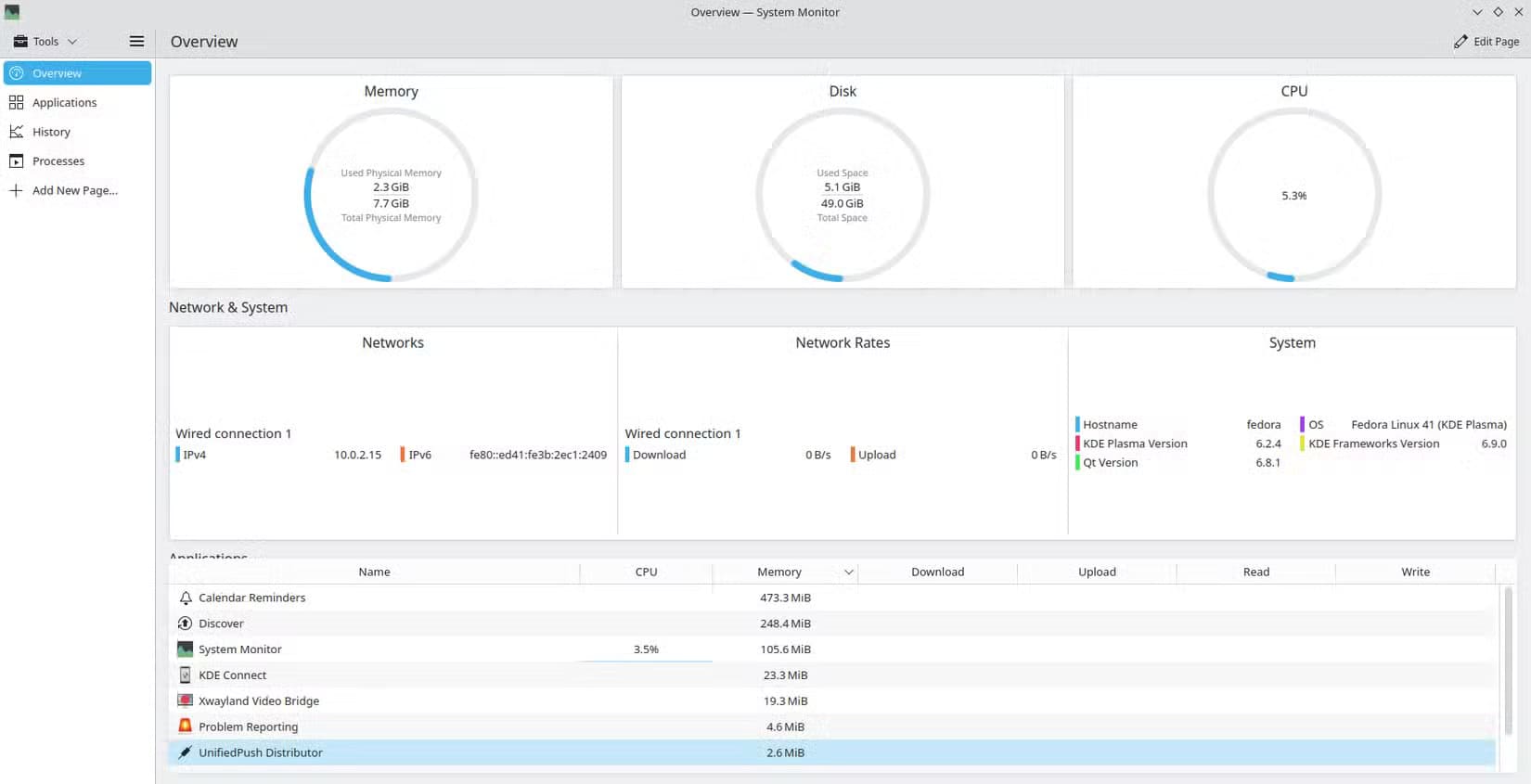
على النقيض من ذلك، يستهلك نظام التشغيل Fedora KDE Plasma Desktop ما يزيد قليلاً عن 2 جيجابايت من ذاكرة الوصول العشوائي في وضع الخمول بعد إعادة التشغيل، مع استخدام وحدة المعالجة المركزية بنسبة 5-6%. وتبلغ مساحة التخزين الإجمالية للنظام حوالي 5 جيجابايت.
ومع ذلك، هناك تحذير مهم يجب مراعاته – GNOME هي بيئة سطح المكتب الافتراضية لـ Fedora، في حين أن إصدار Plasma هو إصدار بديل. وبالتالي، قد تتوقع تحسينًا أفضل لـ GNOME على Fedora. ولتوضيح ذلك، قمت أيضًا باختبار KDE Neon – التوزيعة الرئيسية لعرض KDE Plasma – ووجدت أنها تستخدم 1.4 جيجابايت فقط من ذاكرة الوصول العشوائي وموارد وحدة المعالجة المركزية الدنيا في وضع الخمول بعد التمهيد الجديد.
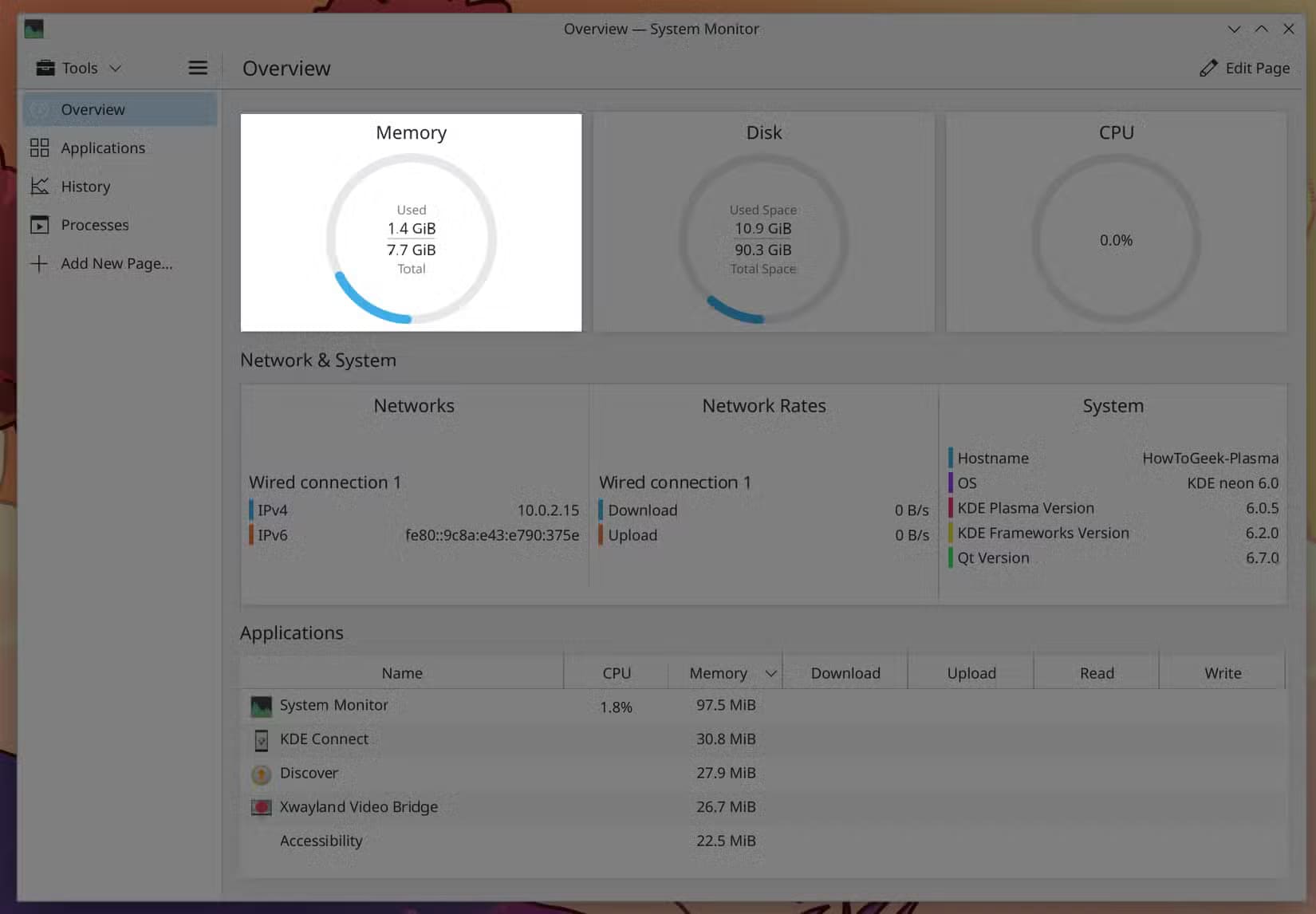
يسلط هذا التنوع الضوء على كيفية تأثير التوزيع الأساسي بشكل كبير على مقاييس الأداء، مما يجعل من الصعب تصنيف بيئة سطح مكتب واحدة على أنها أكثر كثافة في استخدام الموارد من الأخرى. ومع ذلك، يمكننا أن نستنتج أن كل من GNOME وKDE Plasma يتمتعان بكفاءة ملحوظة في استخدام موارد النظام، على الرغم من الاختلافات الطفيفة بينهما، وخاصة عند مقارنتهما بنظام Windows.
يعتمد اختيار سير عمل GNOME البسيط أو مرونة KDE Plasma الغنية بالميزات في النهاية على احتياجاتك. في رأيي، يتفوق GNOME للاستخدام الموجه لأجهزة الكمبيوتر المحمولة بتصميمه الملائم للوحة اللمس، بينما يوفر KDE Plasma تخصيصًا لا مثيل له لمستخدمي الطاقة الذين يريدون التحكم الكامل في تجربة سطح المكتب الخاصة بهم.