Does your Android keep interrupting you with the “Processing System Not Responding” error? If so, your frustration is understandable. The error can occur at any time and end up ruining your Android experience. If you’re interested in fixing the error, this guide has all the answers you need. Lack of system resources, a corrupted SD card, and faulty apps are some of the most common causes behind the error. In any case, the solutions below should help fix the process system not responding issue on Android once and for all. So, let’s get started.

1. Close recent apps
If you have too many apps running in the background, Android will have too little free RAM to work with. This can affect how Android operates and lead to the "System Process Not Responding" error.
You'll need to free up some RAM on your Android device to fix this. Swipe up from the bottom of the device to reveal the app switcher and swipe up to close apps.

Alternatively, you can also restart your phone to end all background apps and processes at once.
2. Empty storage space
Like RAM, if your device is on Low storage space Android may have difficulty performing certain tasks and encounter errors like these.
To check your phone's storage space, go to Settings app and select Storage.


Make sure your device has at least 1 GB of free storage space to work with. Consider removing some apps you no longer use or moving your files to the cloud.
3. Remove the SD card
Sometimes, issues with your SD card can prevent Android from accessing essential files and information. For example, if your SD card is damaged, Android will fail to fetch app data from it, leading to issues like this one.


To check this, remove SD card وRestart your phoneTry using your phone again to see if the error occurs again.
4. Update applications
Updating your apps from time to time is vital if you want to avoid such anomalies. If the error is caused by an app installed on your device, updating it will help.
Step 1: Open Play Store On your phone. Tap profile picture Your in the top right and select Manage apps and devices.


Step 2: Click on Update all To download and install any pending app updates.

Once updated, check to see if the error occurs again.
5. Update the Android operating system
Similar to apps, the Android operating system also needs to be updated from time to time to continue performing at its peak capacity. This will also remove any system bugs that may be interfering with Android's functionality.
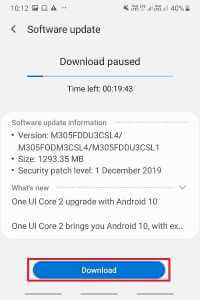
To check for software updates on Android, open Settings menu and go to the system. Locate system update Install any pending updates from here.


6. Try Safe Mode
If the above solutions didn't help much and you are still bothered by the “process system is not responding” error, then it's time to run Android in safe modeThis will allow you to use your phone without any third-party apps and services, helping you determine if one of them is causing the issue.
Press and hold the power button on your Android device. Then long-press the Reboot option and tap OK when prompted to boot into Safe Mode.


Try using your Android in safe mode for a few minutes and see if the error appears.
7. Remove recently installed apps
If your device works fine in safe mode, a third-party app installed may be causing the issue. Recently installed apps or games are often the culprit, so start with those.
8. Perform a factory reset.
Finally, if all the above solutions fail to resolve the issue, you'll have to take the difficult step of performing a factory reset on your Android device. Note that this will delete all apps, contacts, system settings, media files, and more. Therefore, back up all your data first.
Step 1: Open the Settings app. Go to System and select Reset options.


Step 2: Select the Erase All Data (Factory Reset) option. Then tap the Erase All Data button at the bottom.


All systems are working
One of the solutions should help you fix the unresponsive system on Android. However, if you're using a rooted device with a custom ROM on your Android device, such issues may arise. Consider switching to a custom ROM for a better experience.