تطبيق Mail على iOS ليس الأفضل مع سهولة الاستخدام والميزات. تفتقر الواجهة إلى حدس كبير وتصنيف رسائل البريد الإلكتروني يمثل تحديًا. هذا هو السبب في أن التبديل إلى Gmail كتطبيق افتراضي للبريد الإلكتروني يعد خيارًا جيدًا. يحتوي تطبيق Gmail على نظام iOS على الكثير من الميزات ويتميز بتصميم موحد عبر الأنظمة الأساسية. لذلك ، إذا كنت تستخدم Gmail على جهاز الكمبيوتر الخاص بك ، فستكون على دراية بالطريقة التي يعمل بها التطبيق على جهاز iPhone الخاص بك. وإليك أهم 3 طرق لإرفاق الملفات على Gmail لأجهزة iPhone.

تختلف عملية إرفاق الملفات برسالة بريد إلكتروني في Gmail. إنه ليس بهذه البساطة لأن نظام ملفات iPhone لا يمكن الوصول إليه بشكل كامل ، على عكس Android. فيما يلي أهم 3 طرق يمكنك من خلالها إرفاق الملفات بسهولة على Gmail من جهاز iPhone الخاص بك.
ما هي الملفات التي يمكنك إرفاقها على GMAIL لهاتف IPHONE
على جهاز Android أو الكمبيوتر ، يمكنك الوصول إلى مدير الملفات لتصفح أي ملف تريده وإرفاقه برسالة بريد إلكتروني. على iPhone ، هذا غير ممكن. لديك حق الوصول إلى تطبيق الملفات ، ومع ذلك ، يمكنك إرفاق بعض الملفات التي قمت بحفظها في وضع عدم الاتصال على جهاز iPhone الخاص بك.
يعد إرفاق الصور من تطبيق الصور أو مباشرة من الكاميرا أكثر وضوحًا. يمكنك أيضًا إضافة المرفقات التي تلقيتها من رسائل بريد إلكتروني أخرى أو حتى استيراد ملف من Google Drive. دعونا نرى كيف يمكنك القيام بكل ذلك.
1. كيفية إرفاق الصور على GMAIL لـ IPHONE
أسهل ملف يمكن إرفاقه في Gmail لأجهزة iPhone هو صورة. يمكنك إما إرفاق صورة التقطتها بالفعل أو التقاط صورة مباشرة من الكاميرا داخل تطبيق Gmail. هيريس كيفية القيام بذلك.
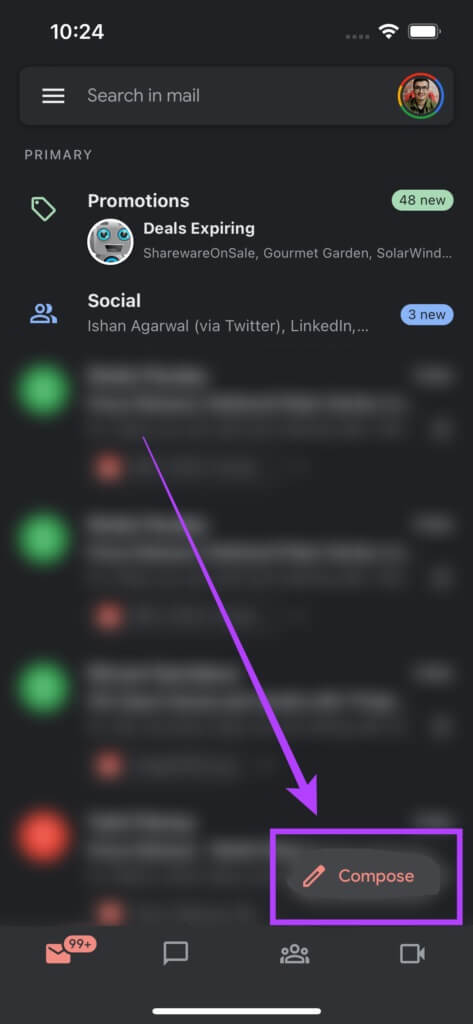
الخطوة 1: افتح تطبيق Gmail على جهاز iPhone الخاص بك واضغط على خيار Compose.
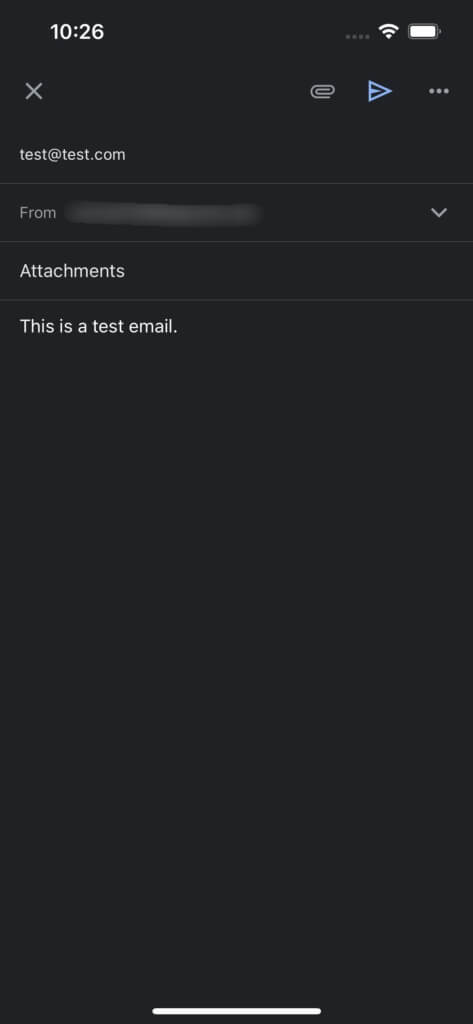
الخطوة 2: أدخل عنوان البريد الإلكتروني للمستلم وجميع المعلومات المطلوبة في نص البريد الإلكتروني.


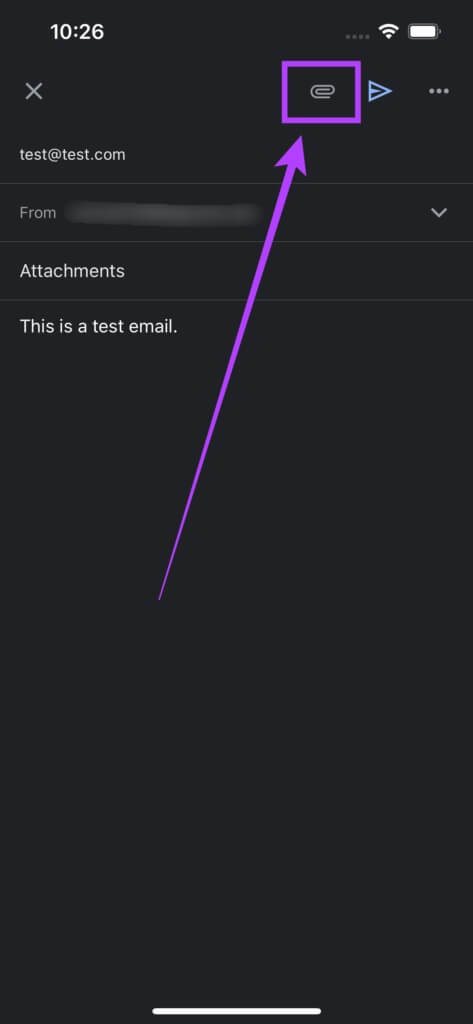
خطوة 3: اضغط على أيقونة إرفاق في الزاوية العلوية اليمنى من الشاشة.
الخطوة 4: سترى الآن نافذة منبثقة من أسفل الشاشة مع خيار الصور. يمكنك الآن التمرير أفقيًا على الصور المصغرة للصور والنقر فوق صورة لإضافتها كمرفق.
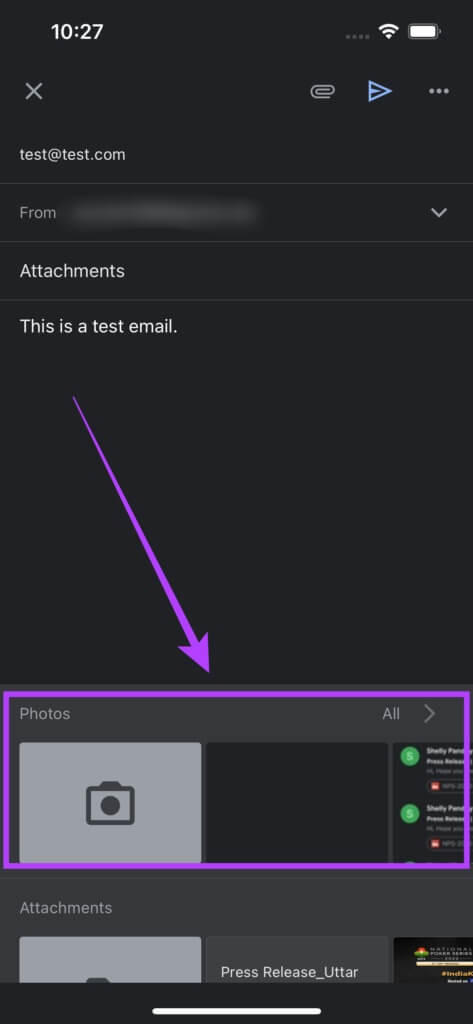
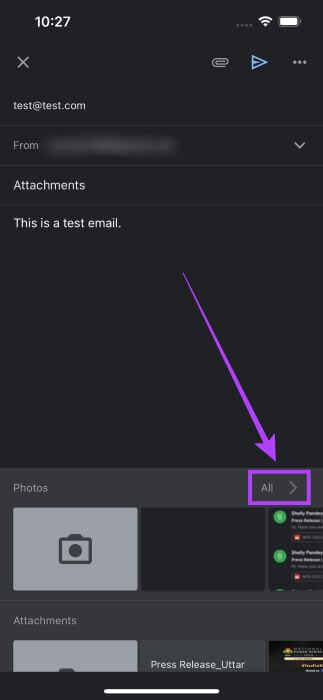
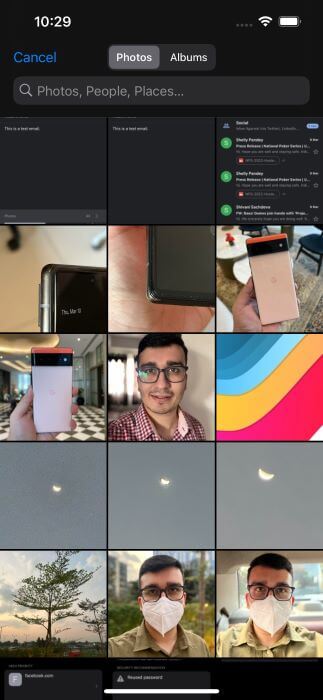
الخطوة 5: إذا كنت تريد إلقاء نظرة أفضل على معرض الصور الخاص بك وتريد إضافة صورة غير معروضة ، فحدد خيار الكل لفتح تطبيق الصور. اختر الصور التي تريد إرفاقها هنا.
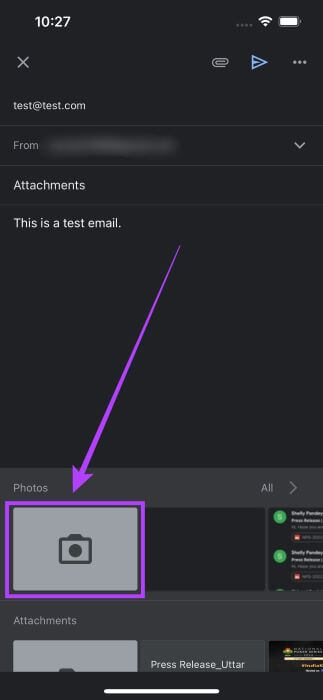
خطوة 6: في حالة رغبتك في النقر فوق صورة جديدة لإرفاقها ، انقر فوق رمز الكاميرا في القائمة المنبثقة وسيقودك ذلك إلى عدسة الكاميرا.
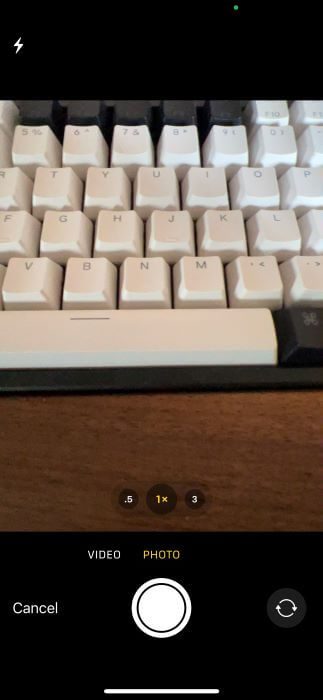
الخطوة 7: التقط الصورة أو الفيديو المطلوب ثم حدد استخدام الصورة.
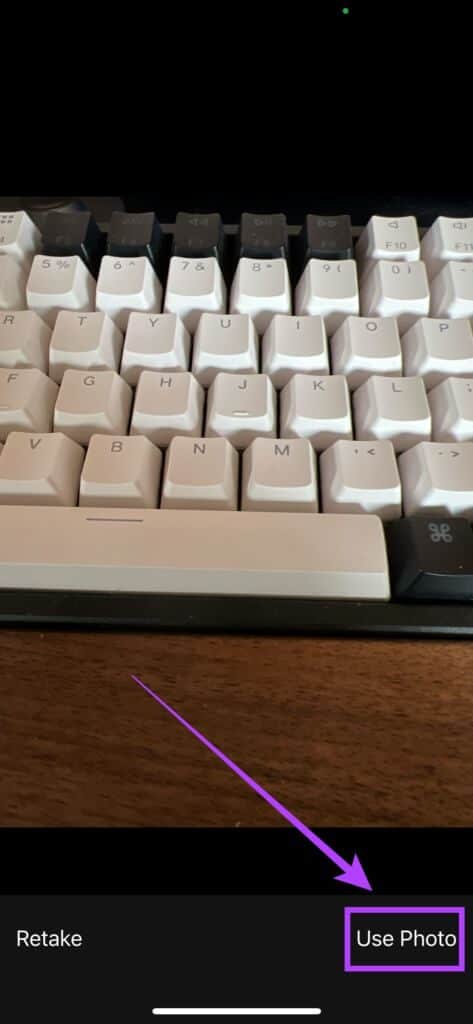
لقد نجحت الآن في إضافة صورة كمرفق على Gmail على جهاز iPhone الخاص بك. كرر العملية لإضافة صور متعددة.
2. كيفية إرفاق المستندات على GMAIL لـ IPHONE
هذا سيناريو أكثر شيوعًا حيث قد ترغب في إرسال مستند موقع إلى شخص ما أو عرض تقديمي للاجتماع. إليك كيف يمكنك القيام بذلك.
الخطوة 1: افتح تطبيق Gmail على جهاز iPhone الخاص بك واضغط على خيار Compose.
الخطوة 2: أدخل عنوان البريد الإلكتروني للمستلم وجميع المعلومات المطلوبة في نص البريد الإلكتروني.
خطوة 3: اضغط على أيقونة إرفاق في الزاوية العلوية اليمنى من الشاشة.
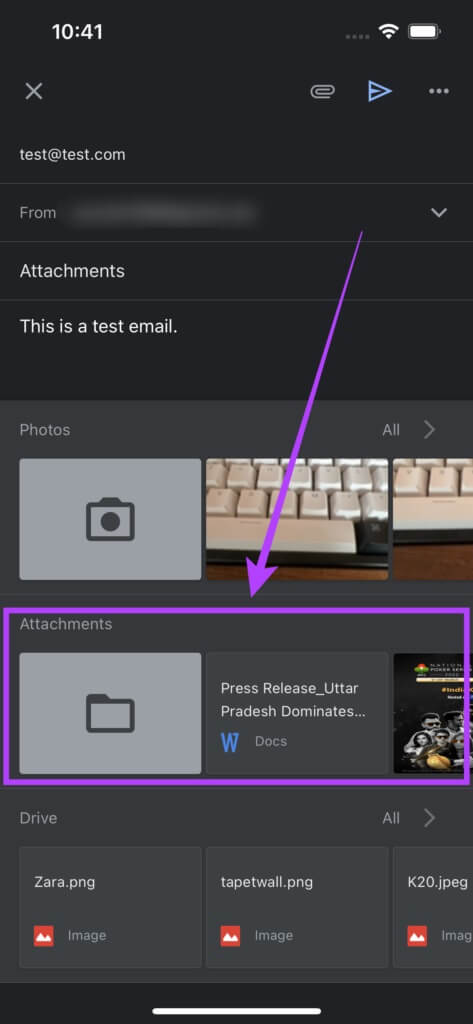
الخطوة 4: سترى الآن نافذة منبثقة من أسفل الشاشة. اسحب فوقه قليلاً ، وستكشف عن جميع خيارات المرفقات.
الخطوة 5: ضمن قسم المرفقات ، سترى المرفقات التي تلقيتها مؤخرًا. يمكنك تحديد ملف من هذا القسم إذا كنت ترغب في ذلك.
خطوة 6: إذا كنت ترغب في إرفاق مستند مخزن على جهاز iPhone الخاص بك ، فانقر فوق صورة المجلد المصغرة لفتح تطبيق الملفات.
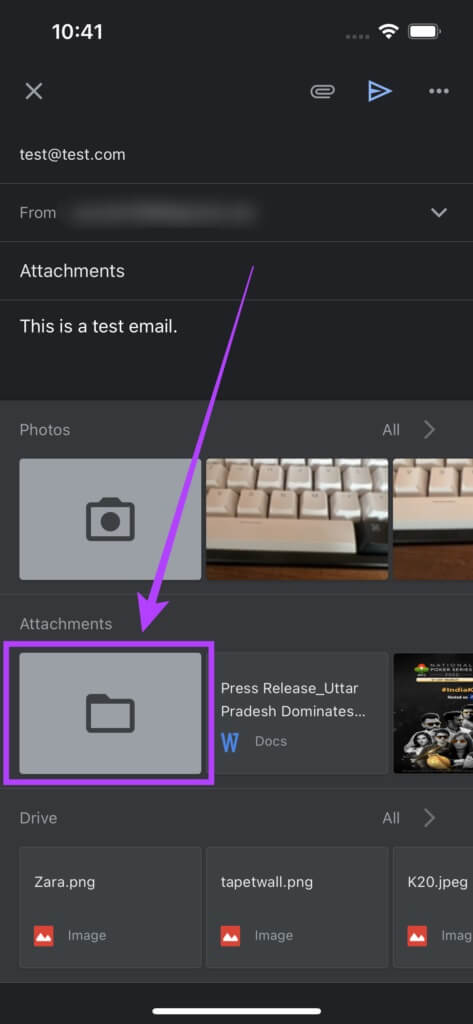
الخطوة 7: تصفح إلى الموقع حيث تم تخزين ملفك واضغط عليه لإضافته كمرفق.
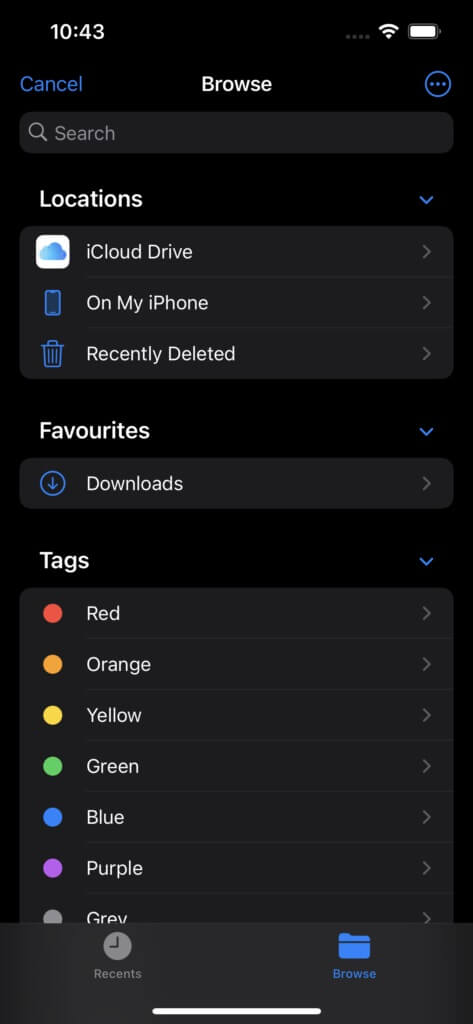
سترى أن iOS يضيف المستند إلى بريدك الإلكتروني كمرفق. كرر العملية لإضافة مستندات متعددة.
3. كيفية إرفاق ملفات من Google Drive على GMAIL لهاتف IPHONE
يمكنك أيضًا إرفاق ملفات من حساب Google Drive مباشرةً في تطبيق Gmail على iPhone. إليك كيفية القيام بذلك.
الخطوة 1: افتح تطبيق Gmail على جهاز iPhone الخاص بك واضغط على خيار Compose.
الخطوة 2: أدخل عنوان البريد الإلكتروني للمستلم وجميع المعلومات المطلوبة في نص البريد الإلكتروني.
خطوة 3: اضغط على أيقونة إرفاق في الزاوية العلوية اليمنى من الشاشة.
الخطوة 4: سترى الآن نافذة منبثقة من أسفل الشاشة. اسحب فوقه قليلاً وستكشف عن جميع خيارات المرفقات.
الخطوة 5: سيتم عرض أحدث ملفاتك في قسم Drive. يمكنك التمرير خلالها لتحديد ملف.
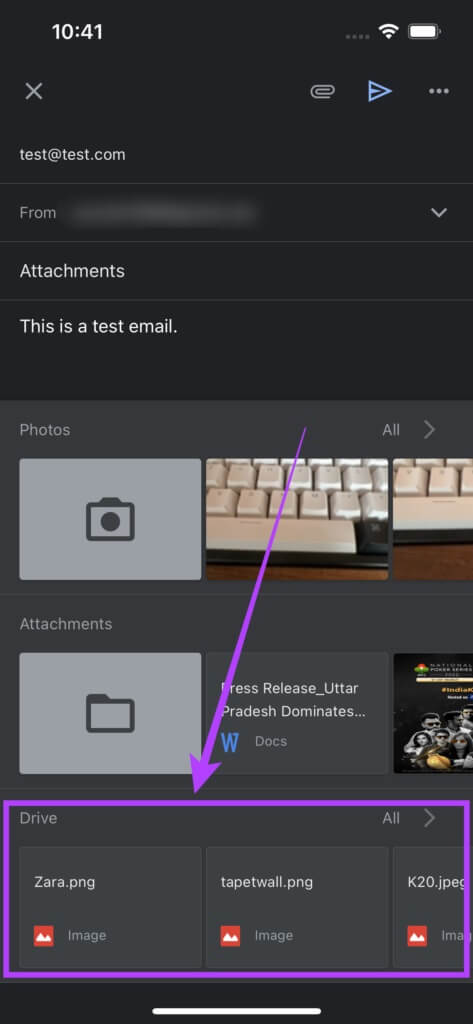
خطوة 6: بدلاً من ذلك ، انقر فوق خيار الكل لفتح تطبيق Drive واختر الملف ذي الصلة لإرفاقه.
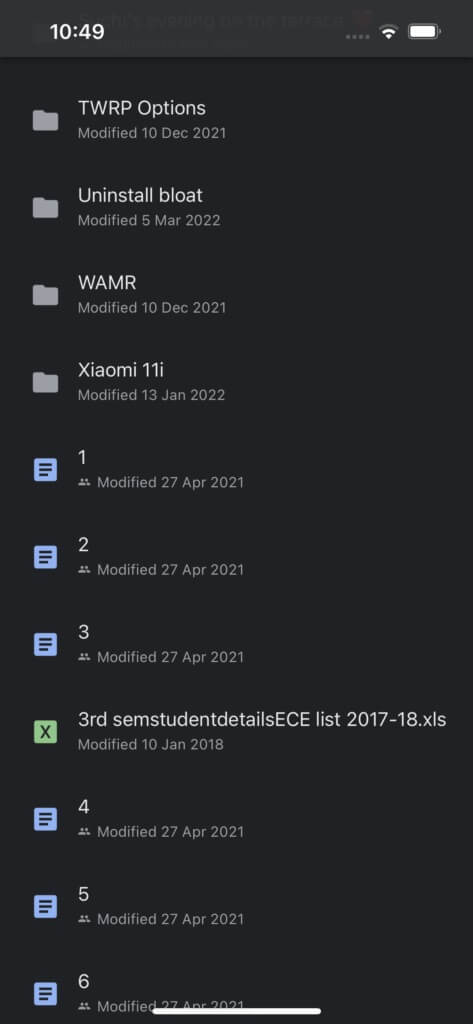
كرر العملية لإضافة ملفات متعددة من Google Drive إلى بريدك الإلكتروني.
إرفاق الملفات على IPHONE بسهولة
يمكنك الآن إرفاق الملفات على Gmail لأجهزة iPhone بغض النظر عن التنسيق الموجود به. ما عليك سوى حفظ أي ملف تريده من الإنترنت إلى تطبيق الملفات وإضافته كمرفق. سوف تكون على ما يرام!