Janna Theme License is not validated, go to the theme options page to validate the license, you need a single license for each domain name.
Top 8 Ways to Fix Safari Not Playing Videos on iPhone
has always been safari A reliable mobile browser for iPhone. Features like tab groups, intelligent tracking prevention, and extension support have prevented users from switching to Other browser alternativesHowever, your browsing experience can be seriously hampered when videos won't play in Safari on your iPhone. There may be various factors behind the Safari video not playing issue. Therefore, troubleshooting tips will vary from user to user. In any case, the solutions below should help you fix the video not playing issue. safari For videos on iPhone forever. So, let's check it out.
The first thing you should do when you encounter problems with a website is to open it in a private window. This will check for any conflicting browser extensions that are preventing the video from playing smoothly.
To open a private window in Safari, press and hold Tabs icon In the lower right corner and select New private tab from the list.
Try uploading the video here to see if it works well.
With iOS 15, Apple introduced Additional third-party support on Safari for iPhoneIf you're using any of these extensions to enhance your browsing experience, one of them may be interfering with video playback on Safari. Try temporarily disabling all extensions to see if that works.
Step 1: turn on Settings app , and scroll down to safari And open it.
Step 2: Go to Additions Turn off all your add-ons from here.
Beside Additions If you install Adblocker app On your iPhone, consider removing it as well.
3. Disable experimental features
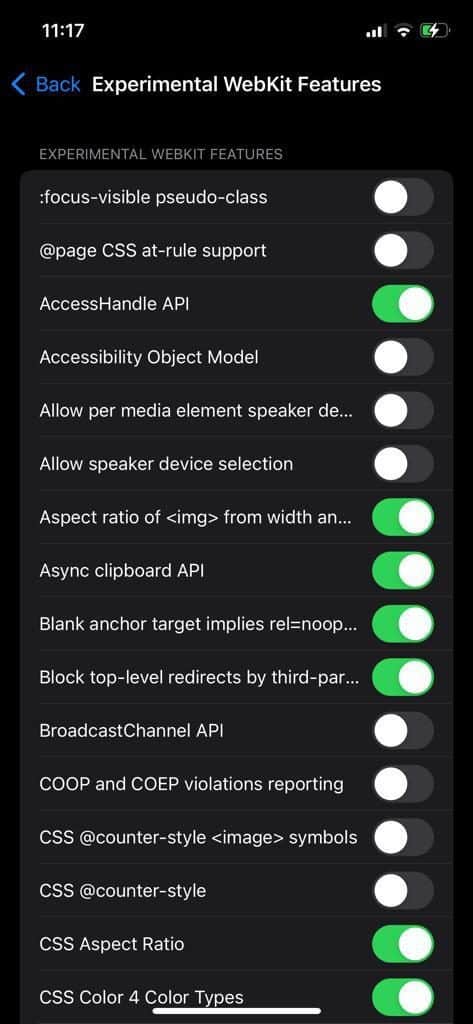
If you're playing around with any of Safari's experimental features or design, you're likely to encounter this issue. To avoid this, try disabling all experimental features and playing the video again.
Step 1: Open Settings on iPhone and go to Safari.
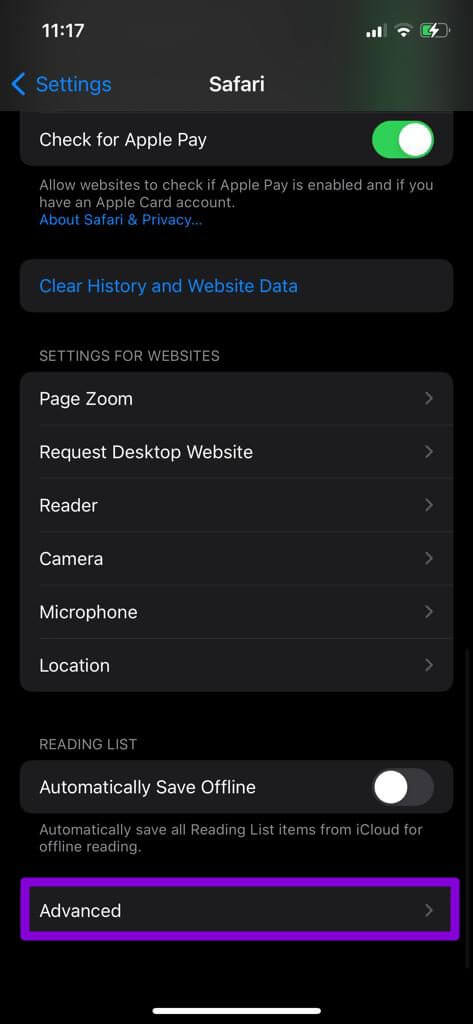
Step 2: Click on Advanced and open Experimental features.
Step 3: Turn off all experimental features from here.
4. Check content restrictions.
Content restrictions on your iPhone can also block certain apps, types of content, websites, etc. So, if you're using Screen Time feature on iPhone If you have any restrictions on content or privacy, it's time to turn them off.
Step 2: Visit Content and privacy restrictions And turn it off.
Check to see if Safari can play videos now.
5. Make sure JAVASCRIPT is enabled.
JavaScript is a programming language used by software developers to integrate various features into their websites. However, if JavaScript is disabled on your iPhone, these features may not work and lead to issues such as videos not playing or Safari crashes.
Step 1: turn on Settings app On your iPhone, go to Safari.
Step 2: Scroll down to visit Advanced Settings Turn on the switch next to JavaScript.
6. Clear Safari history and cookies
If you've been using Safari for a while, the browser may have collected a fair amount of browsing data during your use. However, if this data becomes inaccessible for some reason, you may encounter similar problems while browsing. You can try clearing your current browsing data to see if it fixes the issue of videos not playing on your iPhone.
Step 1: Open Settings On your iPhone, go to Safari.
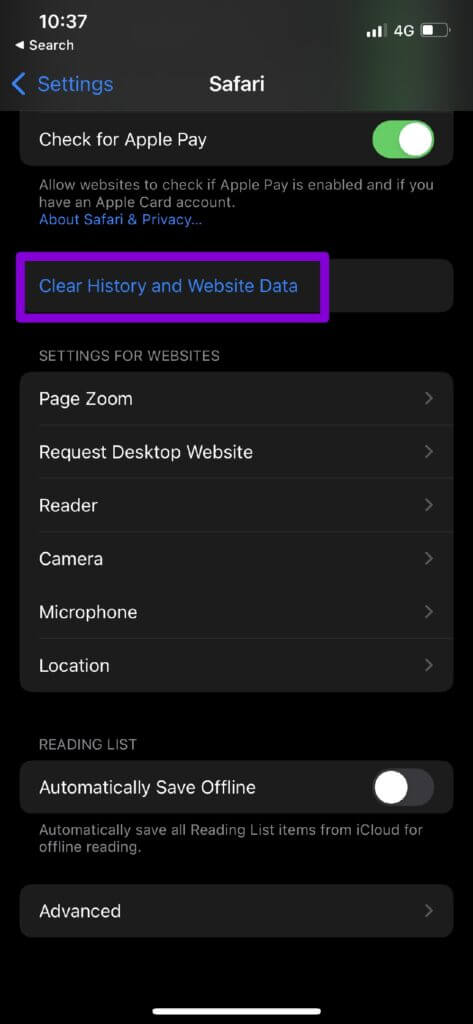
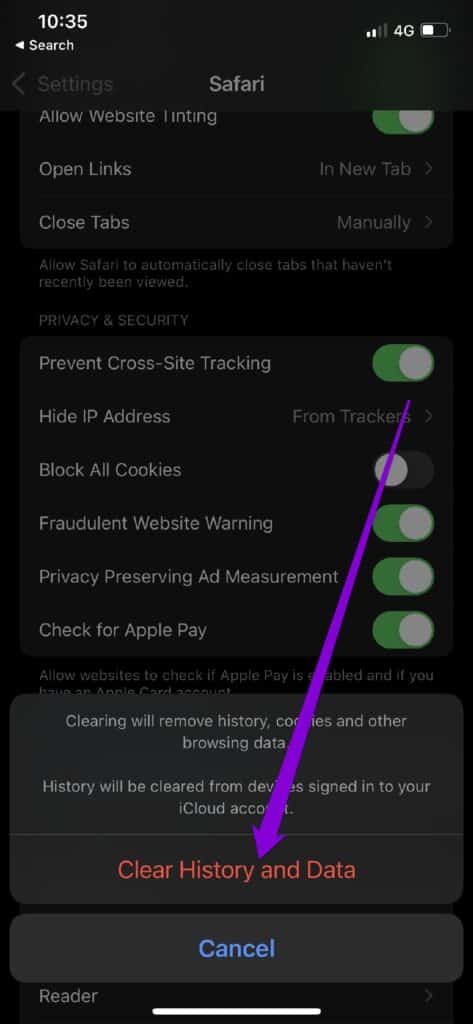
Step 2: Click on Clear history optionand site dataChoose. Clear history and data When asked to do so.
Keeping your iPhone up-to-date is a great way to avoid such errors. So, if you're still unable to play videos in Safari, it's time to check for any pending updates for your iPhone.
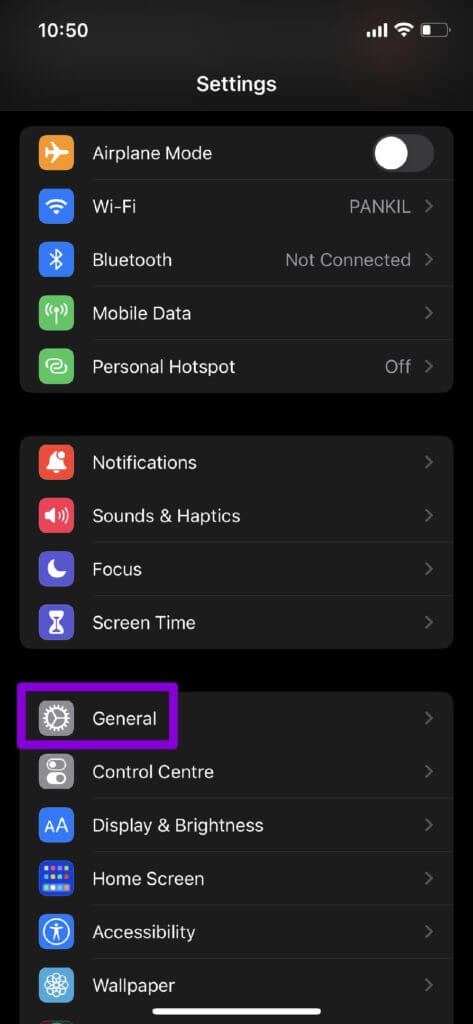
check about Software updates , Open Settings app and click general. Go to software Update To download and install any Pending updates.
8. Reset network settings
Incorrectly configured network settings on your iPhone may also be responsible for the issue of videos not playing on your iPhone. To fix this, you can try: Reset network settings on iPhone Your and start over to fix the issue of videos not playing on Safari.
Step 1: Open Settings On your iPhone, tap general. Click on Transfer option Or Reset At the bottom.
Step 2: Click on an option Reset Below and choose Reset network settings from the resulting list.
From there, follow the on-screen instructions to finish resetting your iPhone's network settings.
Play it smooth
While you can Change the default browser Many iPhone users stick with Safari as their primary browser. While such issues can often lead to a disappointing experience, fortunately, they're fairly easy to fix. So, which of the above solutions to fix Safari not playing videos on iPhone worked for you? Let us know in the comments below.