iMessage من Apple هي خدمة المراسلة الحصرية التي تفصل iOS عن Android. ومع ذلك ، Android و iOS يتوفر لديهم Telegramو WhatsApp و Signal للجميع. لا يزال مستخدمو الرسائل يستخدمونه لأنه متصل بمعرف Apple الخاص بهم ورقم هاتفهم. ومع ذلك ، قد تفشل iMessage في إرسال رسالة من جهاز iPhone الخاص بك. قد يكون ذلك محبطًا.

أيضًا ، لا يمكنك تحديد سبب محدد لحدوث هذا الخطأ. يمكن أن يكون هناك العديد من العوامل التي تؤثر على خطأ iMessage على iPhone. ومع ذلك ، هناك مجموعة من الطرق التي يمكنك استخدامها لإصلاح فشل iMessage في خطأ إرسال الرسالة.
1. تمكين / تعطيل وضع الطائرة
باستخدام هذه الطريقة ، يمكن بسهولة إصلاح المشكلات المزعجة المتعلقة بالشبكة على iPhone. إذا كانت لديك مشكلات في الشبكة على iPhone ، فستجد صعوبة في إرسال iMessage إلى الشخص الآخر.
تحتاج إلى تمكين ثم تعطيل وضع الطائرة على iPhone. إليك كيفية القيام بذلك.
الخطوة 1: افتح مركز التحكم على iPhone.
سيحتاج أولئك الذين لديهم iPhone X أو طرز أحدث إلى استخدام إيماءة التمرير لأسفل من الزاوية اليمنى العليا.
إذا كان لديك جهاز iPhone به زر الصفحة الرئيسية الفعلي ، فيمكنك استدعاء مركز التحكم من أسفل إيماءة التمرير لأعلى.
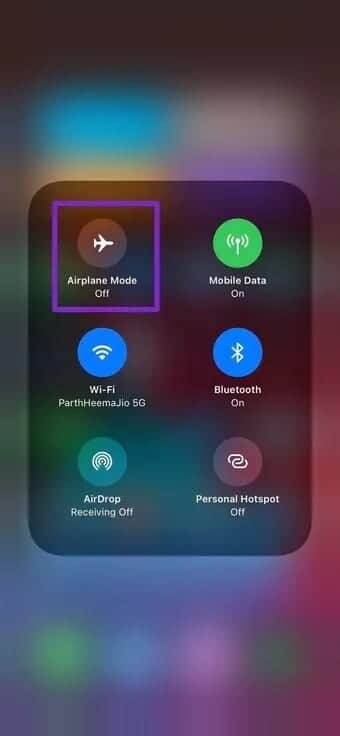
الخطوة 2: قم بتمكين وضع الطائرة ، اتركه لبضع ثوان ثم قم بتعطيله.
ثم افتح iMessage وحاول إرسال الرسالة مرة أخرى.


2. تأكد من تمكين الصورة
إذا كانت وظيفة iMessage لسبب ما على جهاز iPhone الخاص بك ، فقد حان الوقت لتمكينها. اتبع الخطوات التالية.
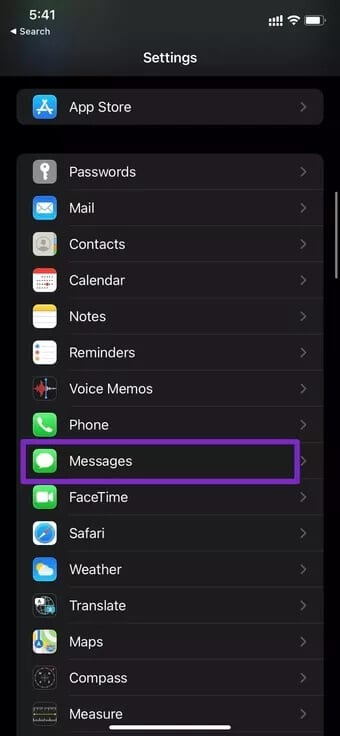
الخطوة 1: افتح تطبيق الإعدادات على iPhone.
الخطوة 2: انتقل إلى الرسائل.
الخطوة 3: تأكد من تمكين تبديل iMessage من القائمة التالية.
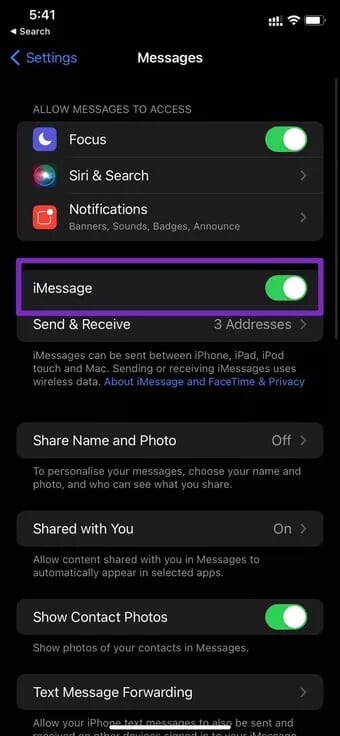
افتح تطبيق الرسائل وحاول إنشاء رسالة iMessage إلى صديقك.
3. حذف الرسائل العالقة
هذه طريقة أخرى قد تساعدك في إصلاح iMessage يحتاج إلى التمكين لإرسال رسالة الخطأ هذه على iPhone. في بعض الأحيان ، تتداخل الرسائل التي تم تعليقها سابقًا لفترة من الوقت مع الرسائل التي تليها.
تحتاج إلى إزالة تلك الرسائل المتوقفة ثم محاولة إرسال iMessage مرة أخرى. افتح تطبيق الرسائل ، وحدد المحاولات غير الناجحة لإرسال الرسائل و بإمكانك استخدام iMessage مرة أخرى.
4. قم بتسجيل الخروج وتسجيل الدخول باستخدام معرف APPLE الخاص بك
كما ذكرنا سابقًا ، فإن iMessage الخاص بك متصل بمعرف Apple على iPhone. يستمر تسجيل الخروج والعودة مرة أخرى في العمل مع العديد من المستخدمين.
انتقل من خلال الخطوات أدناه.
الخطوة 1: افتح تطبيق الإعدادات على iPhone.
الخطوة 2: اضغط على صورة ملفك الشخصي.
الخطوة 3: حدد تسجيل الخروج في الأسفل.
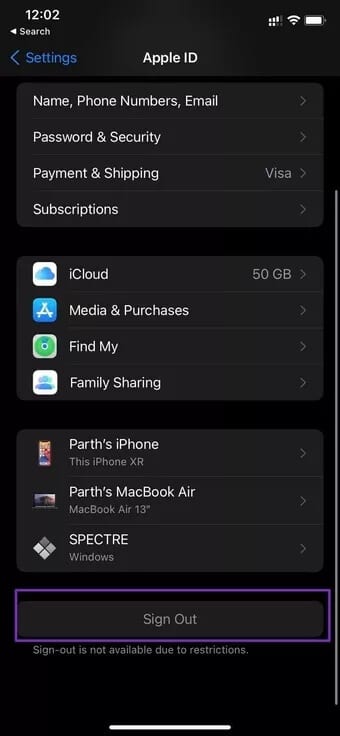
خطوة 4: قم بتسجيل الدخول باستخدام نفس تفاصيل حساب Apple ، والآن يجب أن يعمل iMessage من أجلك على النحو المنشود.
5. إعادة تشغيل IPHONE
إذا كنت قد جربت الطرق المذكورة أعلاه ، فأعد تشغيل جهاز iPhone الخاص بك. اضغط على زر الطاقة مع زر رفع / خفض الصوت في نفس الوقت وأعد تشغيل iPhone. حاول إرسال رسالة iMessage مرة أخرى. إذا كان لا يزال لا يعمل ، فانتقل إلى الحل التالي.
6. إعادة ضبط إعدادات الشبكة
إذا كان هناك بعض الخلل في إعدادات الشبكة الافتراضية على iPhone ، فقد حان الوقت لإعادة تعيينها. تقدم Apple خيارًا مفيدًا لإعادة تعيين إعدادات الشبكة في تطبيق الإعدادات.
يمكن للمستخدمين إعادة ضبط إعدادات الشبكة كما هي دون العبث بالقوائم والخيارات. هذا ما عليك القيام به.
الخطوة 1: افتح تطبيق الإعدادات على iPhone.
الخطوة 2: اذهب إلى عام> إعادة تعيين.
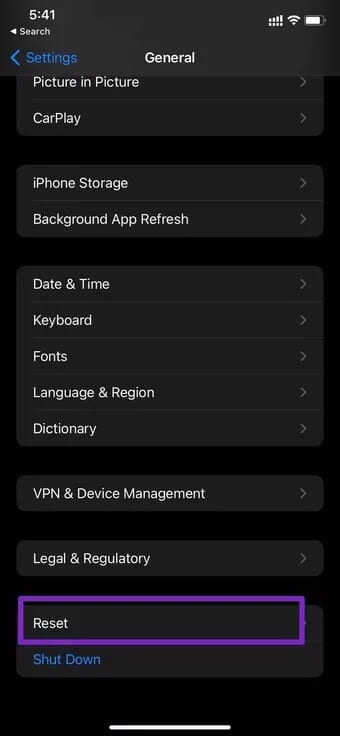
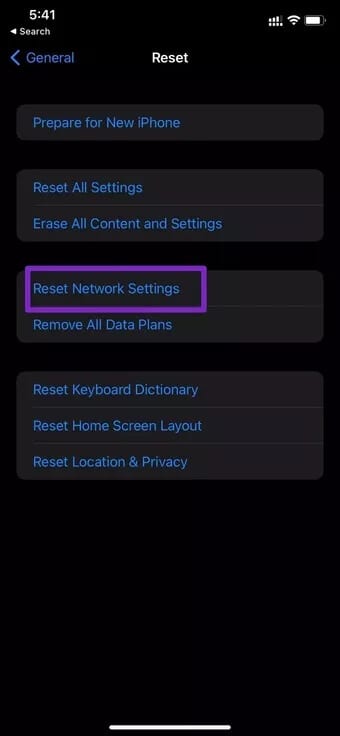
الخطوة 3: اضغط على إعادة تعيين إعدادات الشبكة ، وسيعود نظام iOS إلى إعدادات الشبكة الافتراضية على الجهاز.
حاول إرسال رسالة iMessage مرة أخرى ومعرفة ما إذا كانت المشكلة لا تزال قائمة.
7. تحقق من حالة خدمة ICLOUD
مثل العديد من الخدمات الأخرى عبر الإنترنت ، حتى تلك المقدمة من Apple تعاني من انقطاع الخدمة والمشكلات. لذلك من الجيد التحقق من حالة خدمة iCloud لمعرفة ما إذا كان هناك تعطل كبير.
إذا كان هناك بعض الخلل في خوادم iCloud ، فلا يمكنك إرسال أو استقبال iMessage على iPhone. كيف تتحقق من ذلك؟
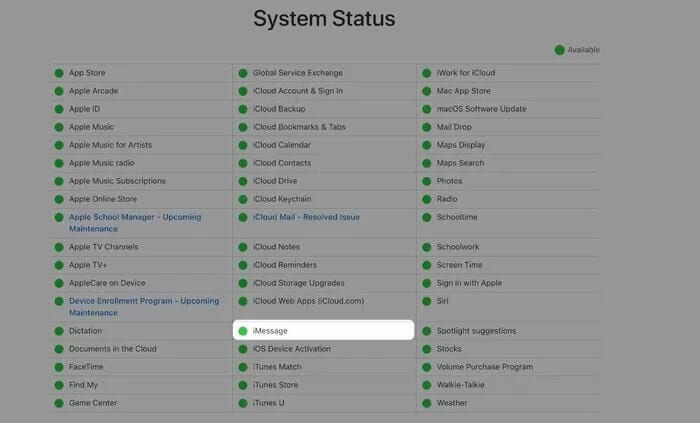
تقدم Apple صفحة ويب مفيدة لحالة النظام للتحقق من الحالة الحالية لجميع خدمات Apple. يمكنك زيارة الصفحة والتحقق مما إذا كانت iMessage بها مؤشر أخضر أم لا.
8. تحديث IOS
إذا كنت تحتفظ بتحديثات iOS لجهاز iPhone الخاص بك ، فمن الجيد تثبيت هذه التحديثات المعلقة. تميل التحديثات الأخيرة إلى جلب العديد من الإصلاحات والتحسينات تحت غطاء المحرك.
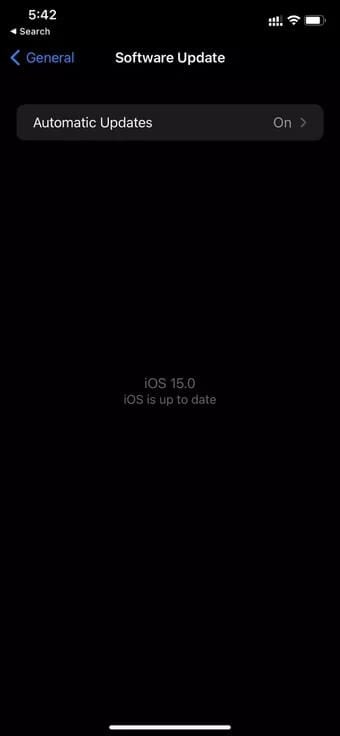
تحتاج إلى الانتقال إلى الإعدادات> عام> تحديث البرنامج وتحديث iPhone إلى أحدث إصدار iOS المتاح.
استخدم IMESSAGE على IPHONE
من خلال الملصقات و memojis والمتجر المخصص والإضافات الجديدة في تحديث iOS 15 ، تكتسب iMessage قوة جذب بين المستخدمين. يحتاج iMessage إلى التمكين لإرسال رسالة الخطأ هذه قد يفسد الحالة المزاجية لك.
انتقل من خلال خطوات استكشاف الأخطاء وإصلاحها أعلاه وإصلاح الخطأ دون التسرع إلى أقرب متجر Apple.