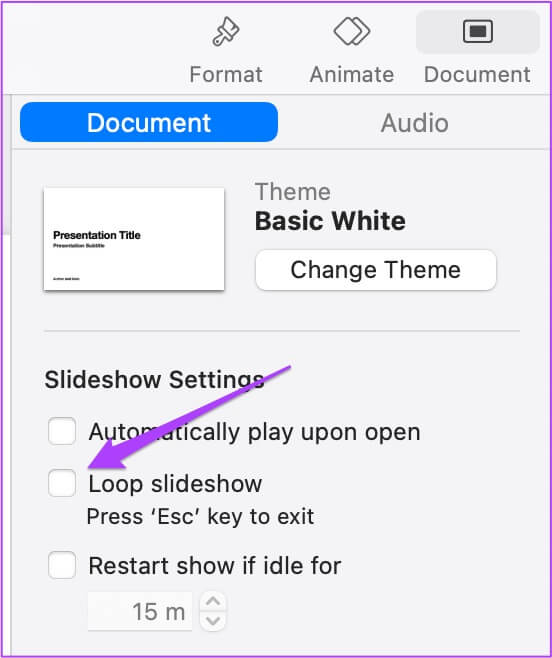
يعد Apple Keynote أحد التطبيقات المعروفة لإنشاء عروض تقديمية في كل مناسبة تقريبًا. يمكنك إنشاء عرض شرائح تفاعلي أو كتاب قصص باستخدام Keynote. يأتي التطبيق مثبتًا مسبقًا على iPhone و iPad حتى تتمكن من الوصول إلى العروض التقديمية وإدارتها أثناء التنقل. بالإضافة إلى إنشاء عرض شرائح ، إذا كنت تريد السماح بتشغيله تلقائيًا وباستمرار ، يتيح لك Keynote تشغيل العرض التقديمي في حلقة. سيوضح لك هذا المنشور كيفية تكرار عرض الشرائح في Keynote على iPhone و Mac.

قم بتشغيل عرض شرائح في KeyNOTE على IPHONE
أولاً ، دعنا نوضح لك كيفية تكرار عرض الشرائح باستخدام تطبيق Keynote على جهاز iPhone الخاص بك. هذه الميزة مفيدة للمناسبات التي تريد فيها تشغيل عرض شرائح بشكل مستمر في أحد الأحداث. قد يكون عرض منتج جديد أو إطلاق خط أزياء جديد. ستهتم ميزة التكرار بعروضك التقديمية المذهلة.
قبل أن نبدأ ، يرجى التأكد من تحديث تطبيق Keynote إلى أحدث إصدار.
اتبع هذه الخطوات التي تنطبق أيضًا على مستخدمي iPad.
الخطوة 1: افتح تطبيق Keynote.
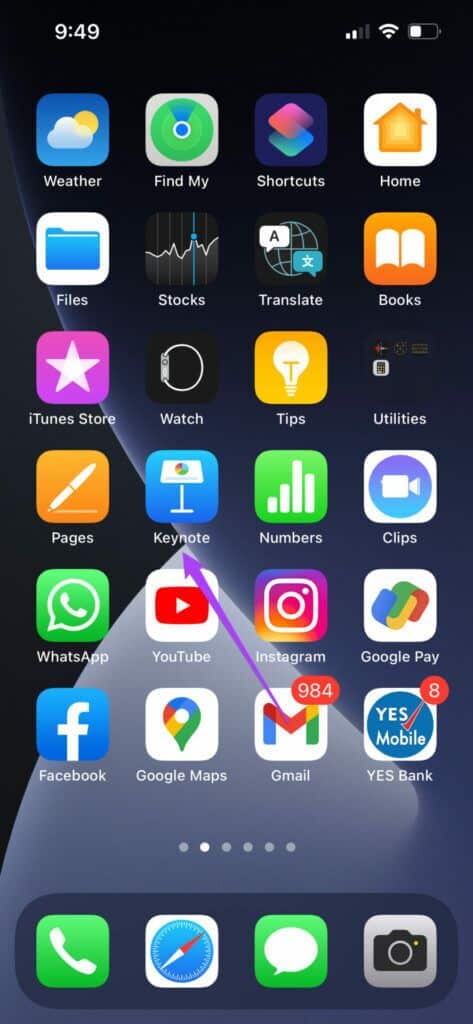
الخطوة 2: حدد العرض التقديمي الذي تريد تكراره.
خطوة 3: اضغط على النقاط الثلاث في شريط القائمة العلوي.
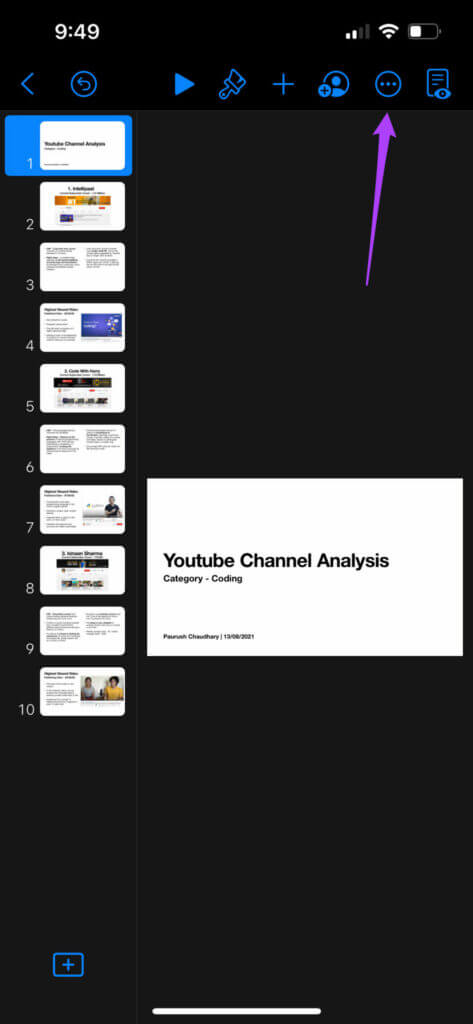


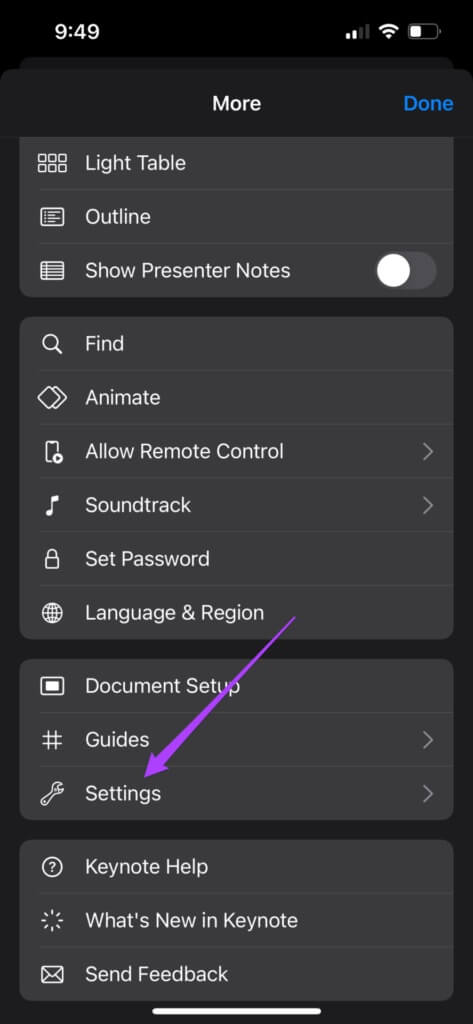
الخطوة 4: قم بالتمرير لأسفل قليلاً وحدد الإعدادات.
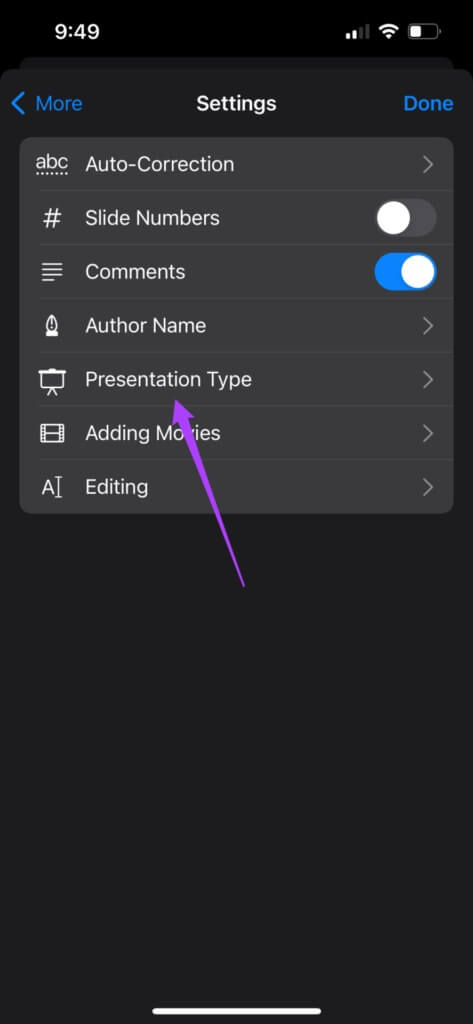
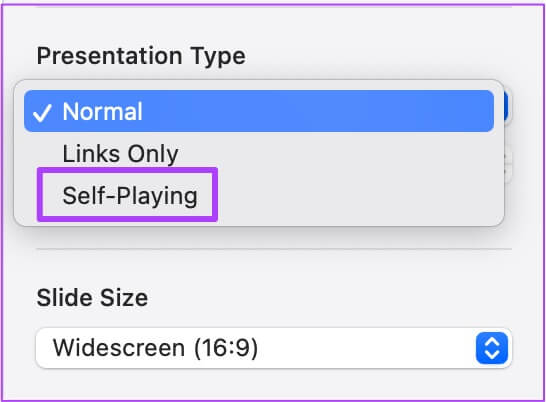
الخطوة 5: اضغط على نوع العرض من قائمة الإعدادات.
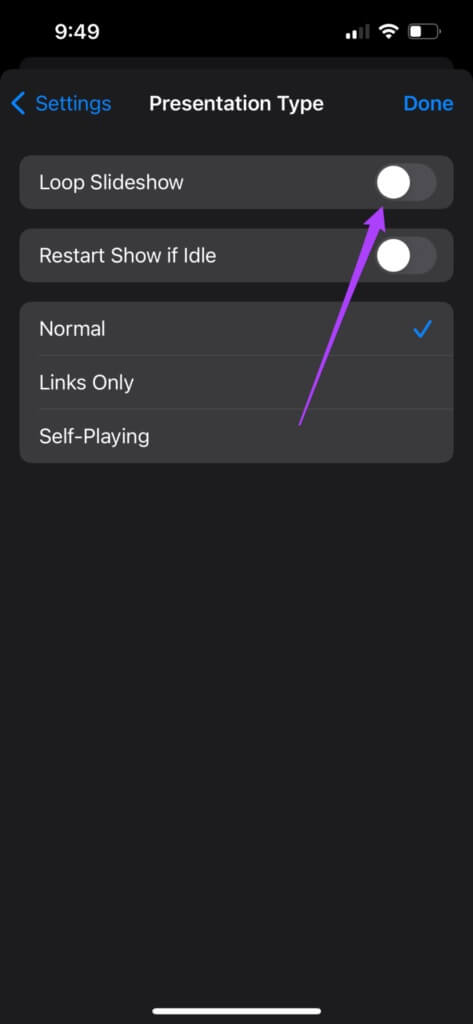
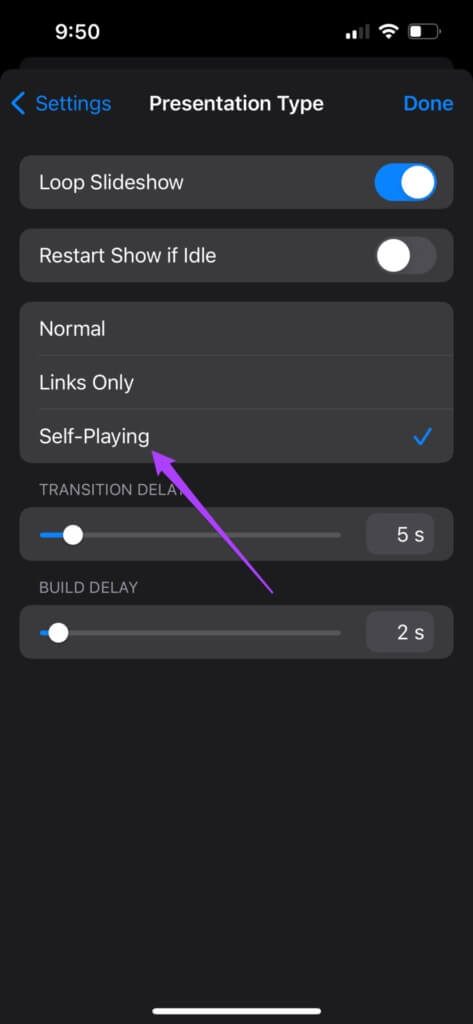
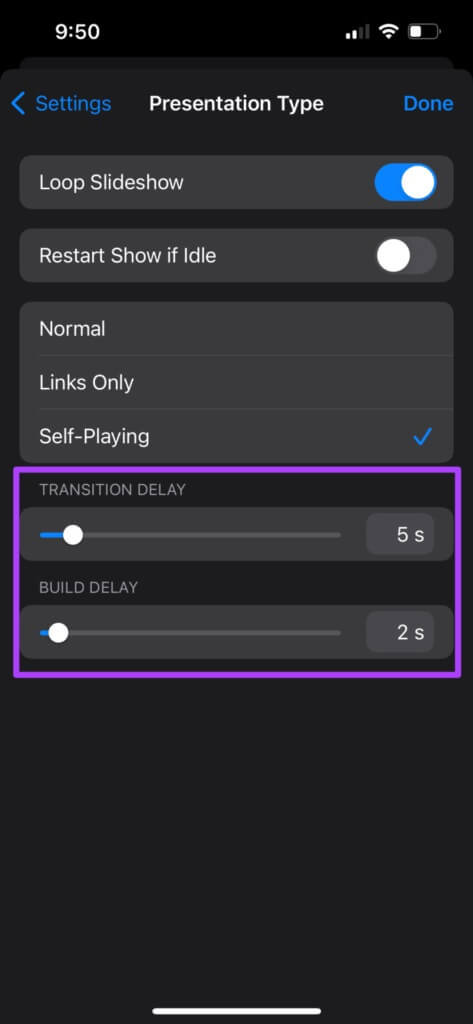
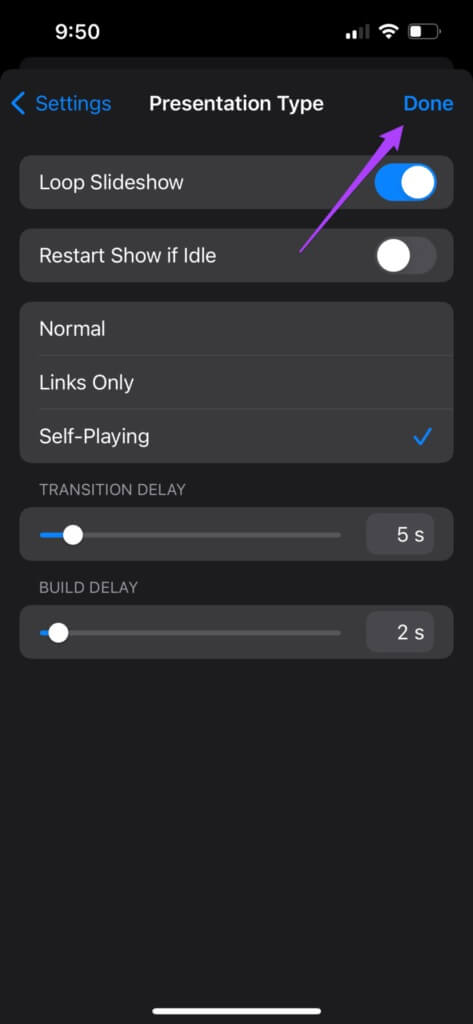
الخطوة 8: اضغط على تم لحفظ التغييرات.
افتح عرض شرائح في KEYNOTE على MAC
دعنا ننتقل إلى Mac ونوضح لك كيفية تكرار عرض الشرائح في Keynote. يمكن للمدرسين استخدام هذه الميزة باستخدام عرض تقديمي رئيسي لتعليم طلابهم. يمكنهم بسهولة تكرار ما قاموا بتدريسه للفصل باستخدام ميزة الحلقة لمراجعة المفاهيم. إذا كنت تجري محاضرة عبر الإنترنت ، فهذه الميزة مفيدة لهذا السيناريو.
اتبع هذه الخطوات.
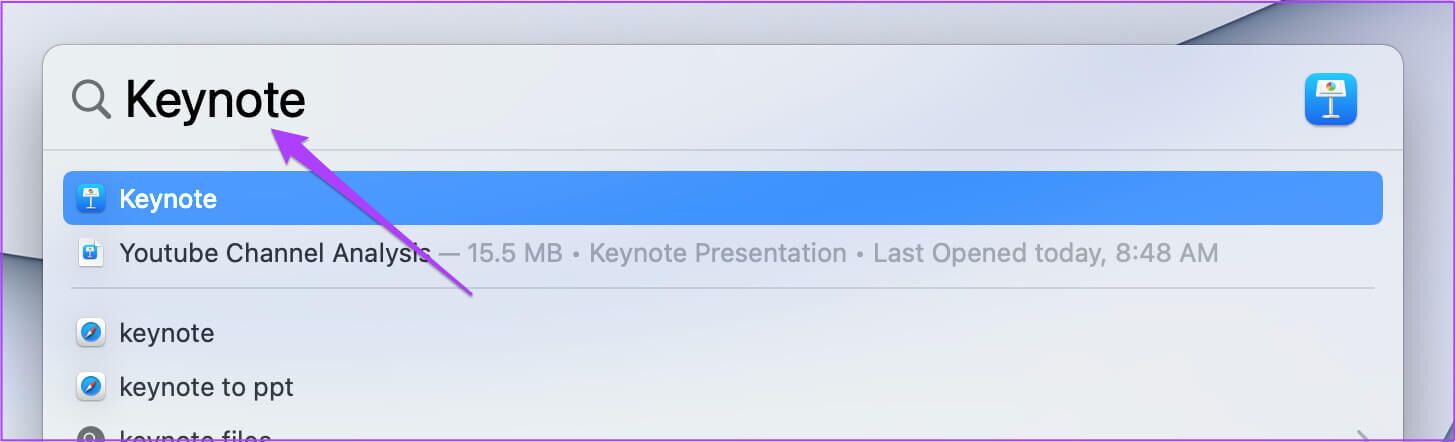
الخطوة 1: اضغط على Command + Spacebar لفتح Spotlight Search ، واكتب Keynote ، واضغط على Return.
الخطوة 2: افتح العرض التقديمي الخاص بك.
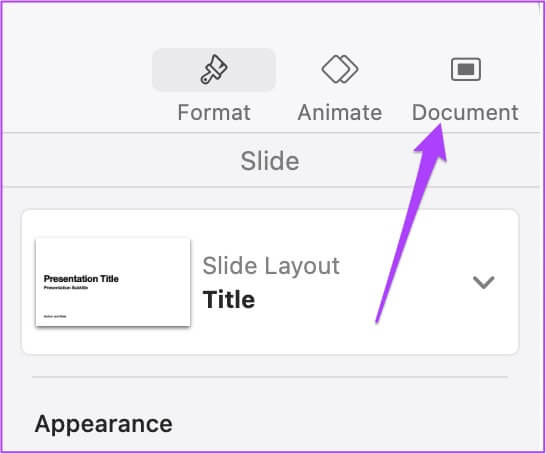
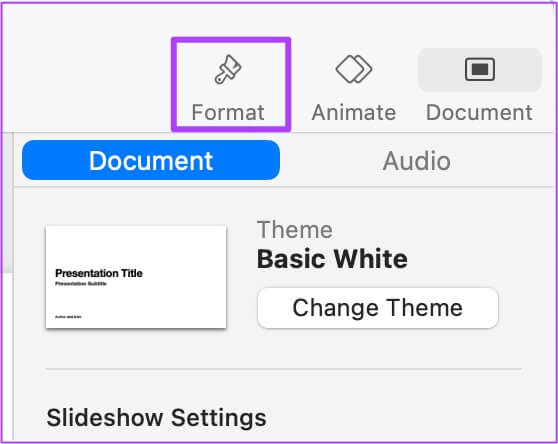
خطوة 3: انقر فوق علامة التبويب المستند في الزاوية العلوية اليمنى.
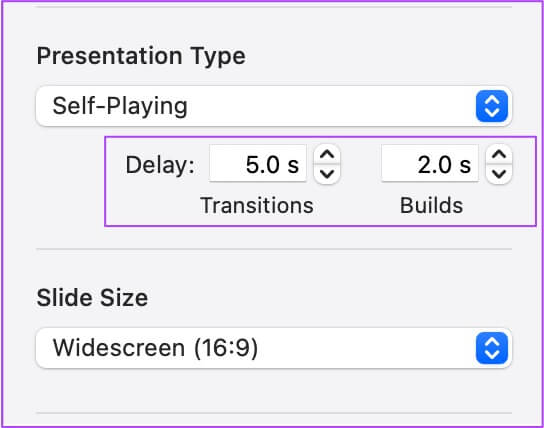
نصيحة إضافية: كيفية تكرار جزء معين من عرض الشرائح في Keynote
عندما تريد التأكيد على شرائح محددة أو تريد تكرار المعلومات عندما ينضم الحاضرون الجدد إلى الاجتماع ، يمكنك تكرار تحديد الشرائح. في غضون ذلك ، يمكنك الاستمرار في التقديم ويمكن للحاضرين الجدد اللحاق بعرض الشرائح. اتبع هذه الخطوات.
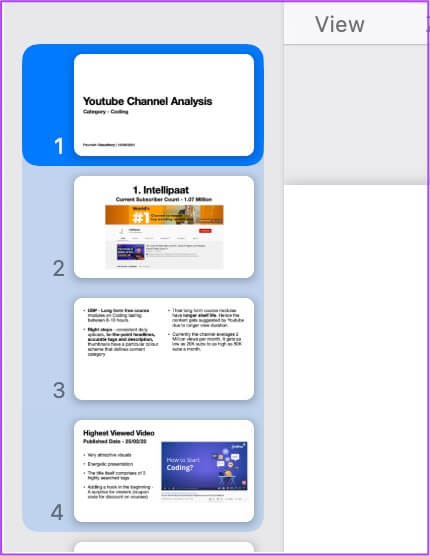
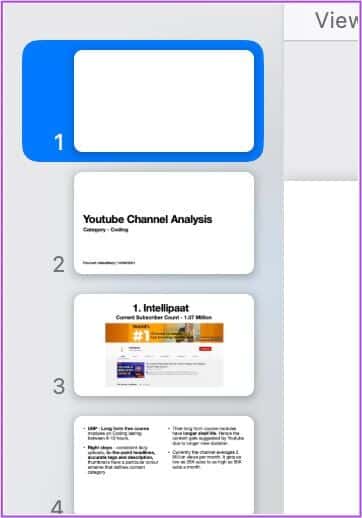
الخطوة 1: افتح العرض التقديمي في تطبيق Keynote وحدد الشريحة الأولى من العرض التقديمي على Mac.
الخطوة 2: اضغط مع الاستمرار على Shift + مفتاح السهم لأسفل لتحديد شريحتين أوليتين لا تكشفان نقاط البيانات الرئيسية في العرض التقديمي.
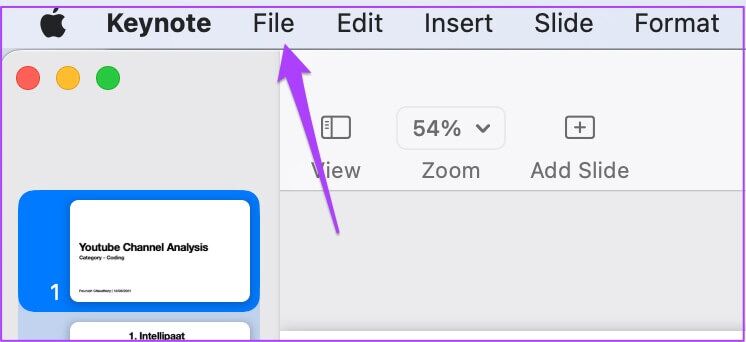
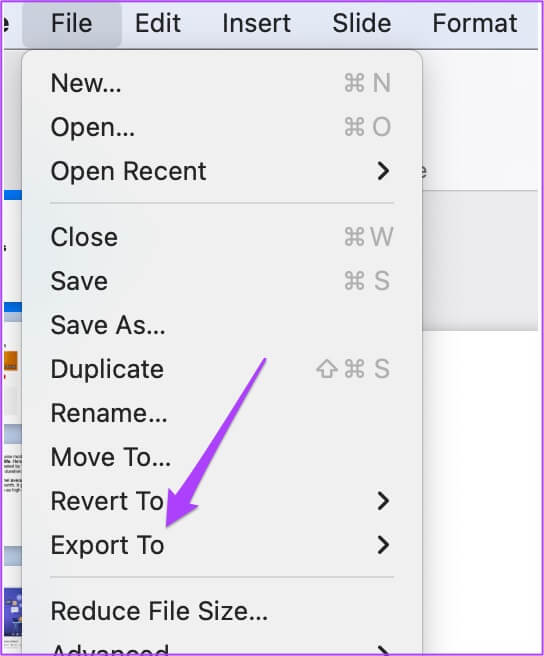
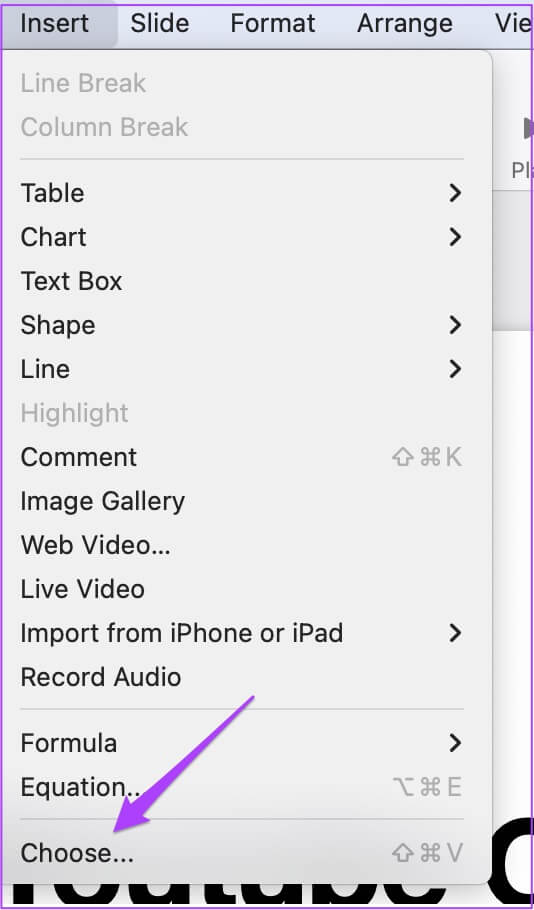
الخطوة 5: اضغط على Movie.
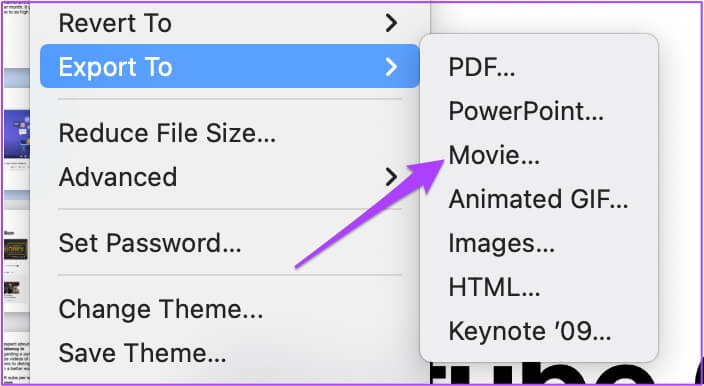
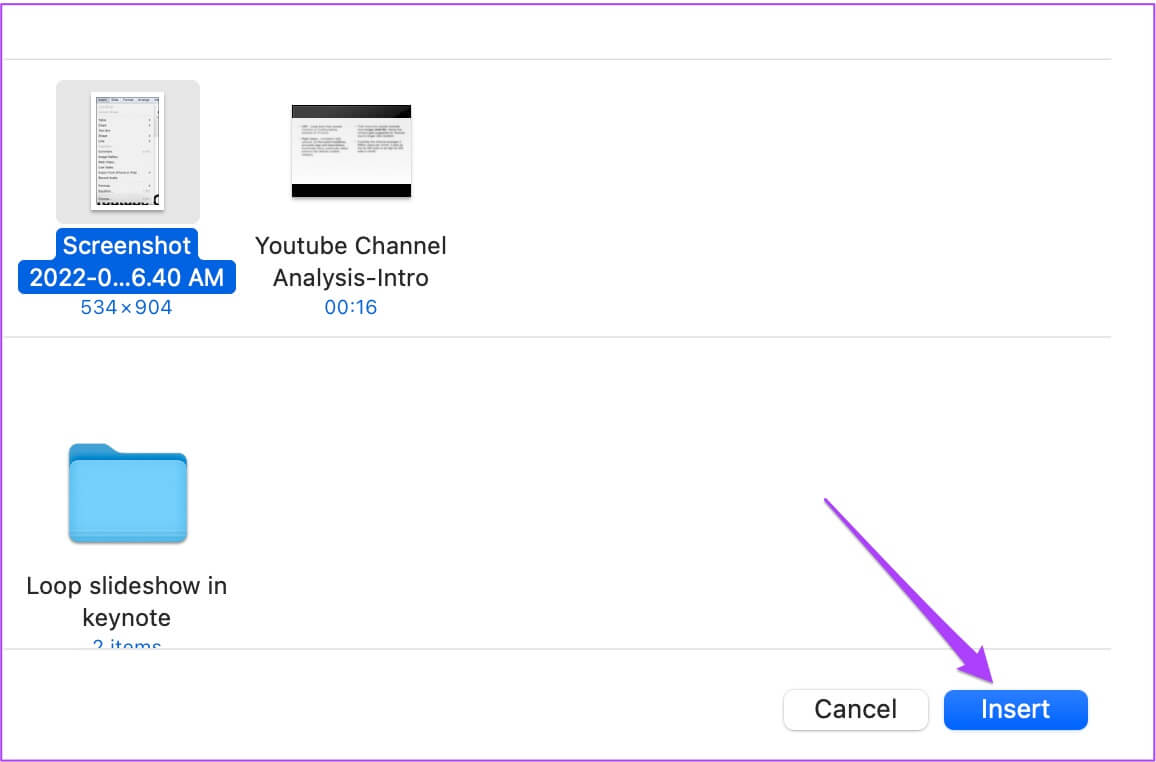
خطوة 6: حدد دقة ملف الفيديو وانقر فوق التالي.
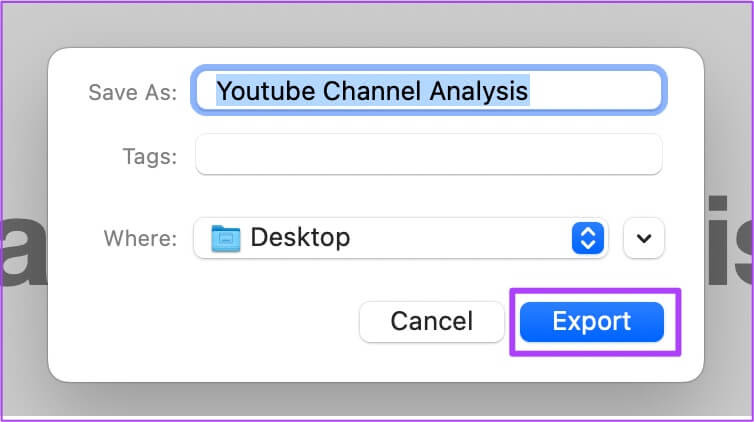
الخطوة 7: أعد تسمية الملف ، واختر موقع الملف وانقر على تصدير.
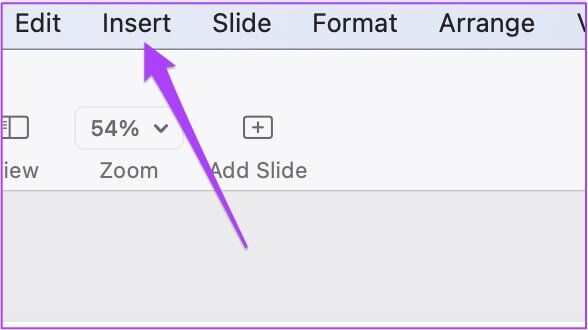
الخطوة 8: انقر بزر الماوس الأيمن فوق الشريحة الأولى وحدد شريحة جديدة.
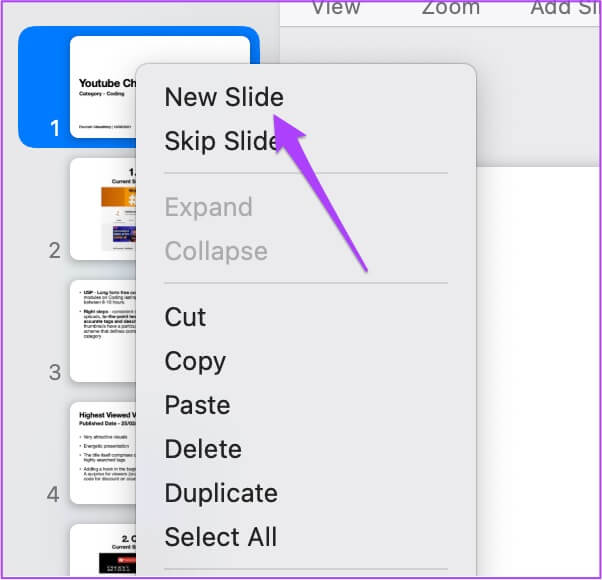
خطوة 9: انقر فوق الشريحة الجديدة لتحديدها واسحبه إلى الأعلى.

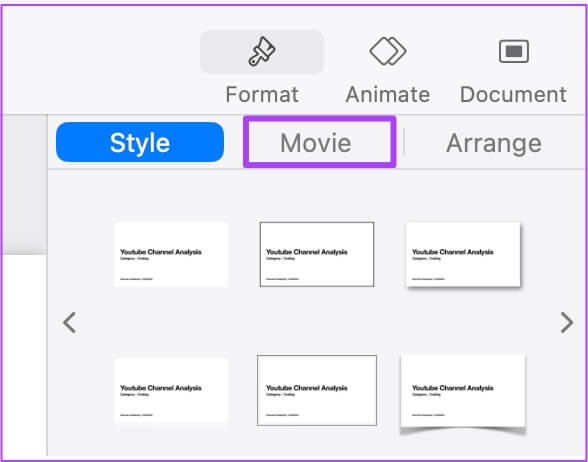
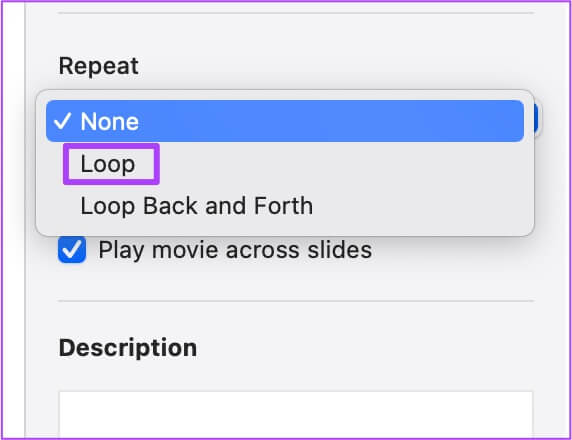
سيتم تشغيل الفيديو في حلقة متتالية حتى تضغط عليه لإيقاف التشغيل وبدء العرض التقديمي.
عرض شرائح حلقي في KeyNote
باستخدام هذه الخطوات ، يمكنك تشغيل عرض Keynote التقديمي بأكمله في حلقة أو شريحتين. بهذه الطريقة ، يمكنك أن تأسر الجمهور حتى لا يشعر بالملل وتساعد أيضًا أثناء الرد على الأسئلة أثناء عرض الشرائح أو بعده.