الآن بعد أن أصبحت تطبيقات مثل Zoom و Canva و Firefox و WordPress وما إلى ذلك ، متاحة محليًا من متجر Microsoft ، سرعان ما أصبح الخيار الفعلي للمستهلكين لتنزيل التطبيقات والألعاب. بينما قامت Microsoft بعمل جدير بالثناء مع إعادة تصميم المتجر ، إلا أنها لا تزال تحمل مشكلات مثل التطبيقات العالقة عند تثبيت حلقة ، وعدم فتح المتجر ، ربما تحاول تنزيل هذا التطبيق الجديد في متجر Microsoft ، فقط لمعرفة التطبيق عالق عند التثبيت ، تاركًا كل الإثارة دون جدوى. قبل المضي قدمًا ومحاولة تنزيل نفس التطبيق أو اللعبة من الويب ، اتبع الحيل أدناه لإصلاح توقف متجر Microsoft عند التثبيت على Windows 11.
1. إعادة محاولة التثبيت لإصلاح توقف متجر Microsoft عند التثبيت على Windows 11
قد تكون هناك بعض المشكلات من جانب خادم متجر Microsoft ، وستواجه خطأ التثبيت في اللحظة الأخيرة.
يمكنك إلغاء العملية والمحاولة مرة أخرى.
2. تحقق من التخزين لإصلاح توقف متجر Microsoft عند التثبيت على Windows 11
هل تعمل مع مساحة تخزين غير كافية على Windows؟ قد تواجه أخطاء التثبيت مع التطبيقات والألعاب الكبيرة.
دعنا نتحقق من مساحة التخزين المتبقية على جهاز الكمبيوتر الشخصي الذي يعمل بنظام Windows ونصائح لتحرير مساحة عليه.
الخطوة 1: افتح تطبيق الإعدادات على نظام التشغيل Windows (استخدم مفاتيح Windows + I).
الخطوة 2: اذهب إلى قائمة النظام.
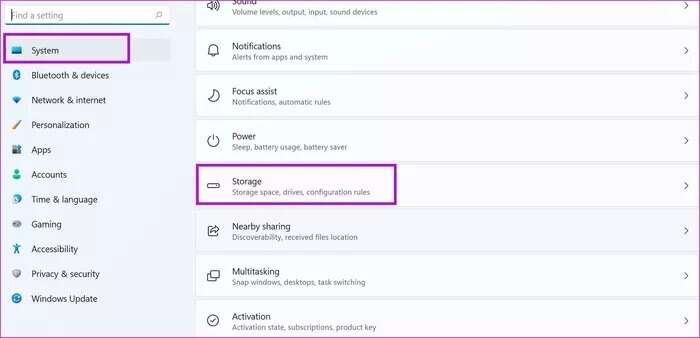
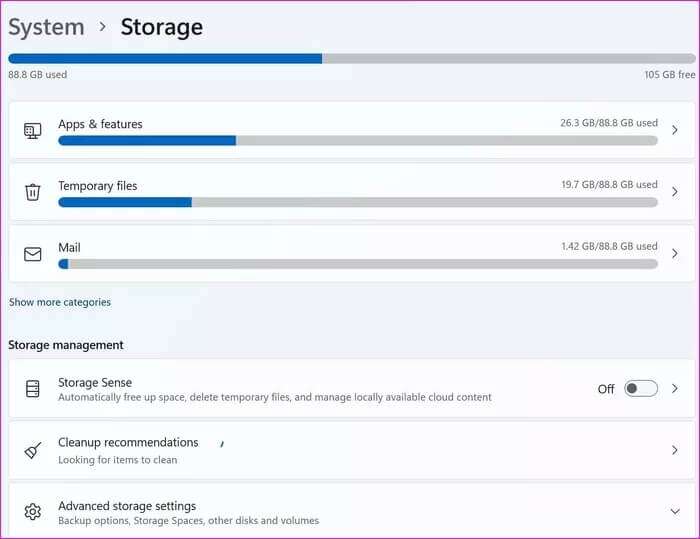
خطوة 3: حدد التخزين.
الخطوة 4: تحقق من مساحة التخزين المتبقية من القائمة التالية.

إذا كانت مساحة التخزين لديك منخفضة ، فيمكنك حذف الملفات المؤقتة من نفس القائمة.
تحقق من توصيات التنظيف ضمن قائمة إدارة التخزين واستعد مساحة ثمينة.
بدلاً من ذلك ، يمكنك نسخ ملفات الوسائط المخزنة احتياطيًا إلى OneDrive أو Google Drive وحذفها من جهاز الكمبيوتر الخاص بك. تابع عملية تنزيل التطبيق مرة أخرى ، ويجب أن تكمل عملية التثبيت بنجاح.
3. تشغيل تطبيقات متجر WINDOWS لتحري الخلل وإصلاحه
تتعامل Microsoft مع متجر Microsoft كتطبيق منفصل على Windows. إذا كان المتجر يتعامل مع عملية التثبيت ، فيمكنك تشغيل مستكشف أخطاء تطبيقات متجر Windows وإصلاح المشكلة. اتبع الخطوات التالية.
الخطوة 1: افتح تطبيق إعدادات Windows.
الخطوة 2: انتقل إلى النظام وحدد قائمة استكشاف الأخطاء وإصلاحها.
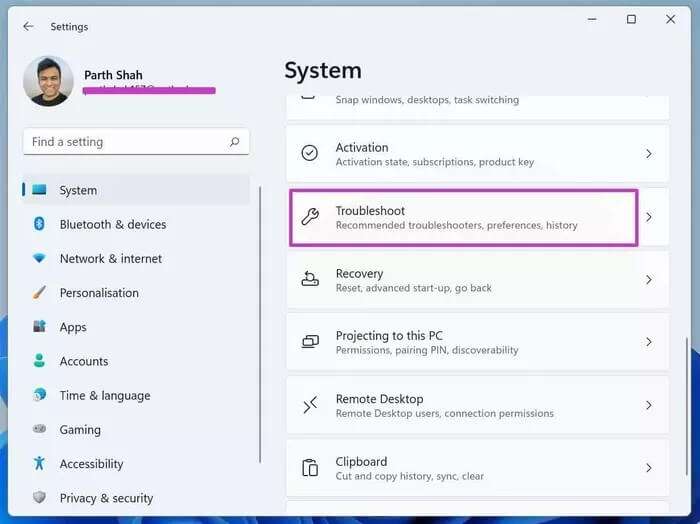
خطوة 3: افتح مستكشفات الأخطاء ومصلحاتها الأخرى.
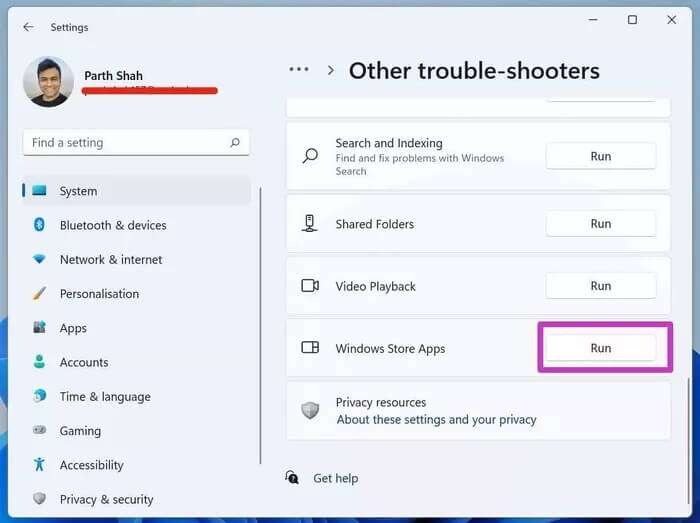
الخطوة 4: قم بالتمرير لأسفل وتشغيل مستكشف أخطاء تطبيقات متجر Windows ومصلحها.
4. مسح ذاكرة التخزين المؤقت في MICROSOFT لإصلاح توقف متجر Microsoft عند التثبيت على Windows 11
مثل أي تطبيق Windows آخر ، يقوم متجر Microsoft أيضًا بجمع بيانات ذاكرة التخزين المؤقت في الخلفية لتسريع مهام معينة. قد يؤدي مقدار غير معقول من بيانات ذاكرة التخزين المؤقت إلى حدوث أخطاء في تثبيت التطبيق في متجر Microsoft.
حان الوقت لمسح ذاكرة التخزين المؤقت لـمتجر Microsoft . إليك الطريقة.
الخطوة 1: اضغط على مفتاح Windows + R وافتح قائمة التشغيل.
الخطوة 2: اكتب wsreset.exe واضغط على زر موافق.
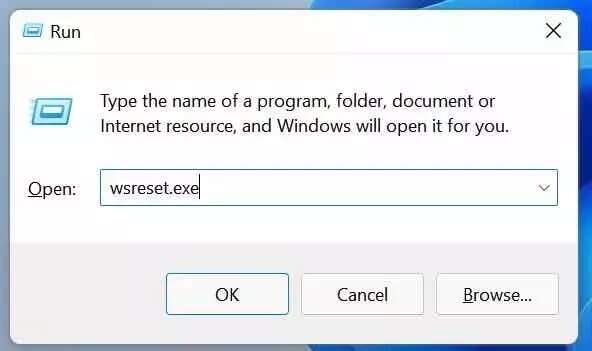
سيقوم النظام بإغلاق متجر Microsoft والإبلاغ عنه بعد بضع ثوانٍ.
5. إصلاح متجر MICROSOFT
يجب أن يساعدك إصلاح متجر Microsoft في حل أخطاء تثبيت التطبيق على Windows. إليك ما يجب عليك فعله.
الخطوة 1: افتح تطبيق إعدادات Windows 11 (استخدم مفاتيح Windows + I).
الخطوة 2: انتقل إلى التطبيقات وحدد التطبيقات والميزات.
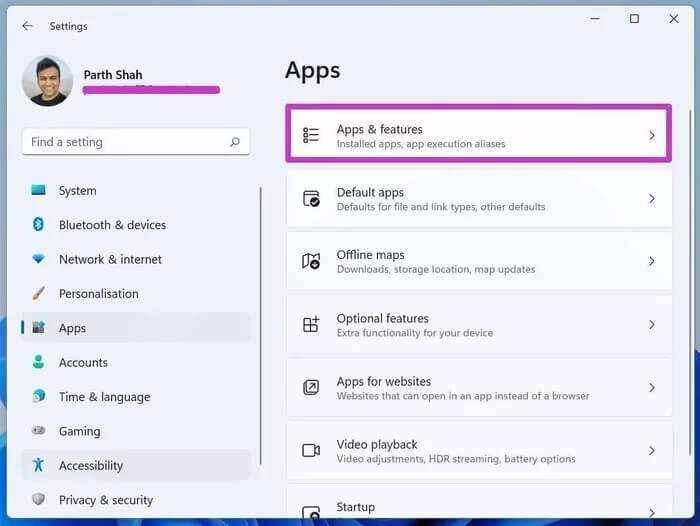
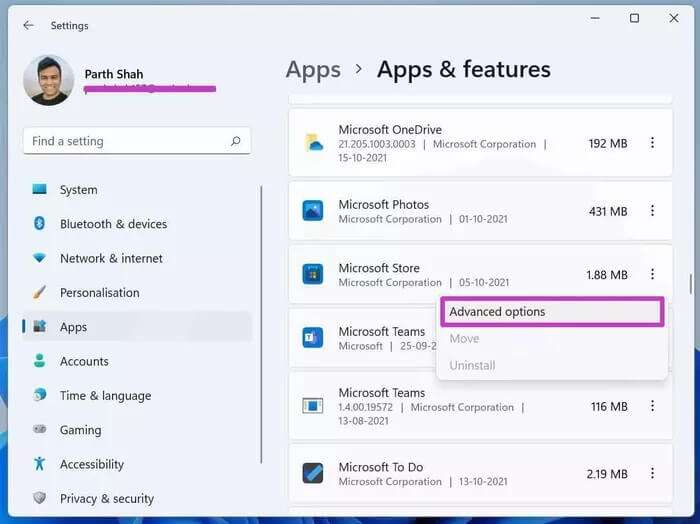
خطوة 3: قم بالتمرير لأسفل إلى متجر Microsoft وحدد المزيد من القوائم.
الخطوة 4: حدد خيارات متقدمة.
الخطوة 5: استخدم زر الإصلاح من القائمة التالية.
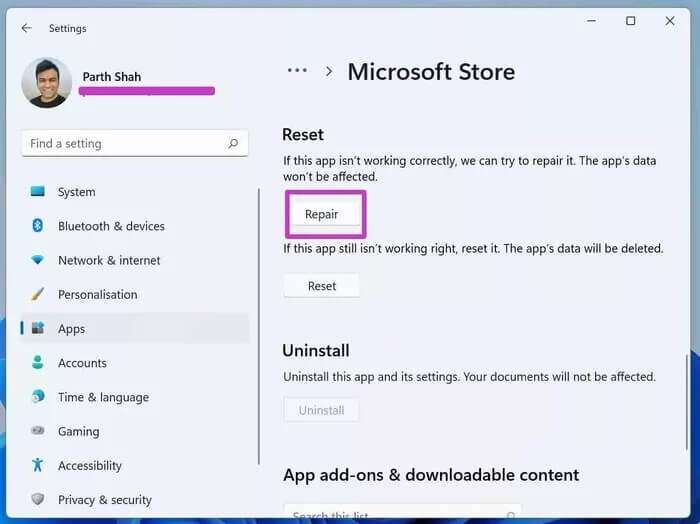
6. إعادة تعيين متجر MICROSOFT لإصلاح توقف متجر Microsoft عند التثبيت على Windows 11
يجب أن تكون حذرا أثناء استخدام هذا الخيار. سيحذف بيانات التطبيق ، وستحتاج إلى تسجيل الدخول مرة أخرى.
الخطوة 1: افتح تطبيق الإعدادات وانتقل إلى قائمة التطبيقات.
الخطوة 2: انقر فوق التطبيقات والميزات.
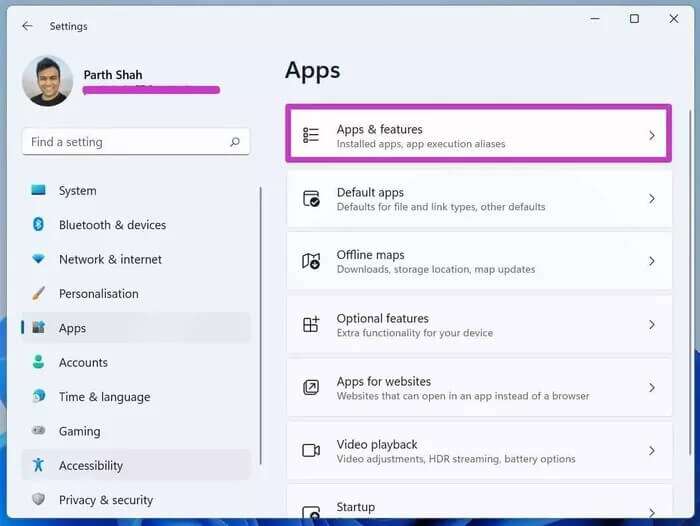
خطوة 3: افتح القائمة المتقدمة لمتجر Microsoft.
الخطوة 4: استخدم زر إعادة الضبط.
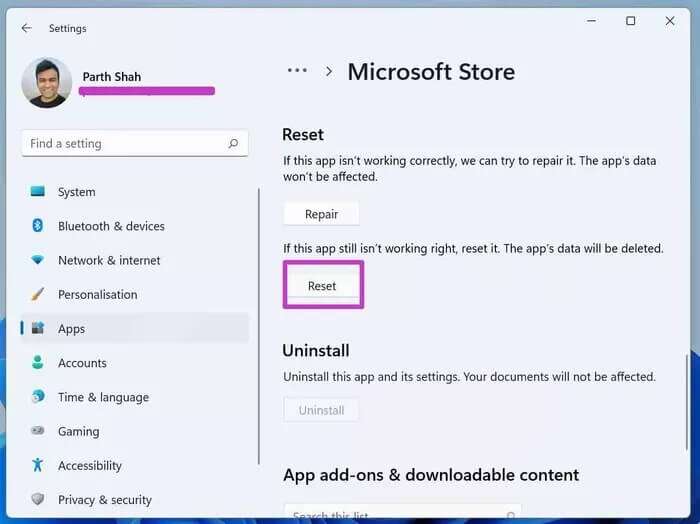
افتح متجر Microsoft ، وقم بتسجيل الدخول باستخدام تفاصيل الحساب ، وحاول تثبيت التطبيقات والألعاب.
7. تسجيل الخروج / تسجيل الدخول باستخدام حساب MICROSOFT
ربما توجد بعض المشكلات في الحصول على ترخيص تطبيق لحساب Microsoft الخاص بك. يمكنك دائمًا تسجيل الخروج من حساب Microsoft الخاص بك وتسجيل الدخول مرة أخرى لإصلاح توقف متجر Microsoft عند التثبيت على Windows 11.
الخطوة 1: افتح متجر Microsoft على نظام التشغيل Windows 11.
الخطوة 2: انقر فوق قائمة الملف الشخصي في الأعلى.
خطوة 3: حدد تسجيل الخروج.
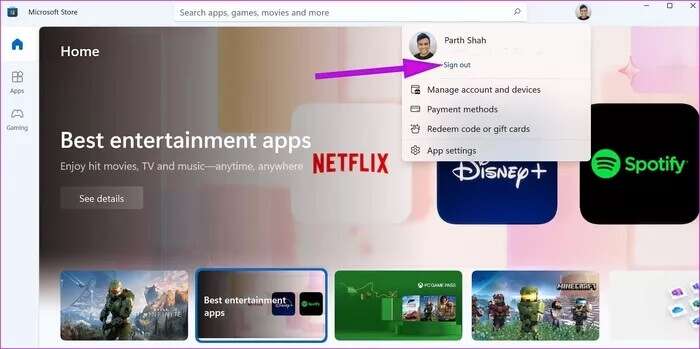
الخطوة 4: قم بتسجيل الدخول مرة أخرى ، وكل شيء على ما يرام مع تثبيت التطبيق على جهاز الكمبيوتر الخاص بك.
8. تحديث نظام التشغيل WINDOWS 11
ربما يكون أحدث إصدار من Windows 11 قد أفسد عملية تثبيت التطبيق في الخلفية. إنها مشكلة حرجة ، Microsoft تسرع في حل مثل هذه الأخطاء.
افتح تطبيق الإعدادات وانتقل إلى قائمة Windows Update. قم بتثبيت أحدث تصحيح لنظام التشغيل Windows 11.
قم بتنزيل التطبيقات من متجر MICROSOFT
يوفر متجر Microsoft بيئة آمنة وعملية تحديث سلسة للتطبيقات المثبتة على جهاز الكمبيوتر الخاص بك. من المنطقي استخدام متجر Microsoft عبر موقع ويب سطحي لتنزيل التطبيقات. قد يؤدي توقف المتجر عن تثبيت التطبيقات إلى تدمير التجربة بالنسبة لك. انتقل من خلال الخطوات المذكورة أعلاه وقم بإصلاح توقف متجر Microsoft عند التثبيت على Windows 11 في بضع دقائق.